
As mobile connectivity continues to evolve, eSIM is becoming a more flexible and efficient way to stay connected. Instead of dealing with a physical card, everything can be set up directly on your device with just a few taps.
For iPhone 13 users, the eSIM setup process is already well-optimized and easy to follow. As long as you have the required activation details ready, you can complete the installation in just a few minutes.
In this guide, we’ll walk you through how to install and activate your iRoamly eSIM step by step.

Travel with Mobile Data from iRoamly on iPhone 13
iRoamly is a travel eSIM service that provides mobile-data plans for trips abroad. Travelers can choose from destination-specific, local, regional, and global options, with data allowances, validity periods, plan types, and features varying by plan.
Once installed, travel data can support maps, messaging, translations, ride-hailing, bookings, and travel updates.
On an iPhone 13, an iRoamly plan can be added through the QR-code or manual-entry methods covered in this guide. Continue with the preparation and installation sections below, then select the new line for mobile data when you are ready to use it.
Preparations Before Setting Up iRoamly eSIM
Taking this iPhone 13 to Japan or France? Installing the destination eSIM before departure can leave less to set up after arrival. When you are ready to use mobile data abroad, select the new line in Cellular settings.
Before starting, ensure you have the following:
A stable internet connection (Wi-Fi or cellular)
A valid eSIM QR code or manual activation details (SM-DP+ address and activation code) provided by your carrier
Your iPhone 13 powered on and unlocked
The device updated to the latest iOS version (recommended for compatibility)
Method 1: Install eSIM via QR Code
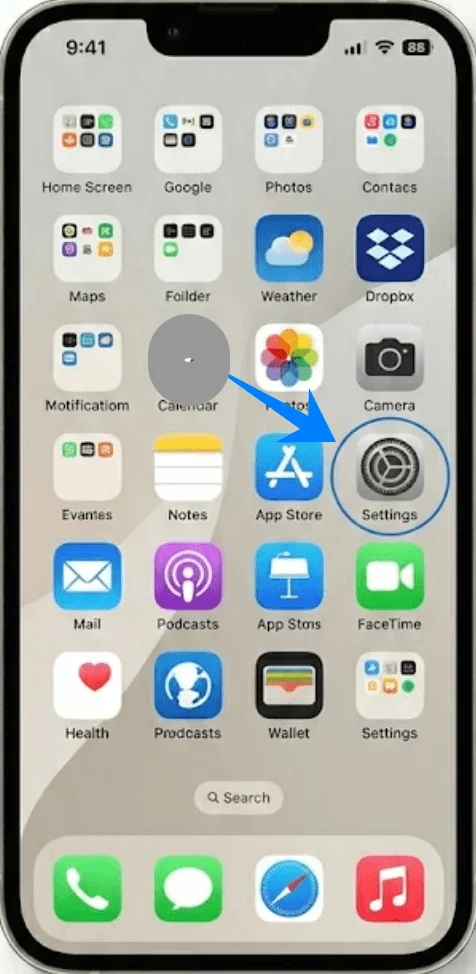
Step 1: Open Settings
Tap the “Settings”
Step 2: Navigate to Cellular Settings
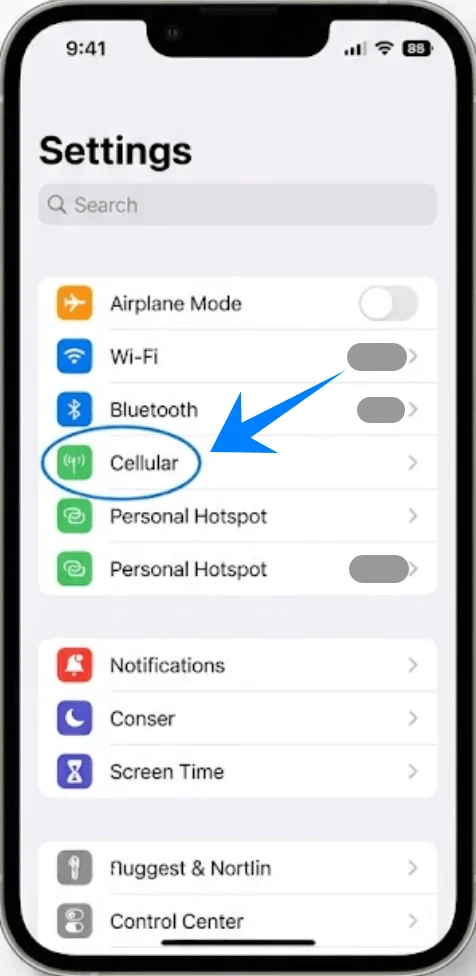
Scroll down and tap “Cellular” (On some devices, this may appear as “Mobile Service” or “Mobile Data”)
Step 3: Add a New Cellular Plan
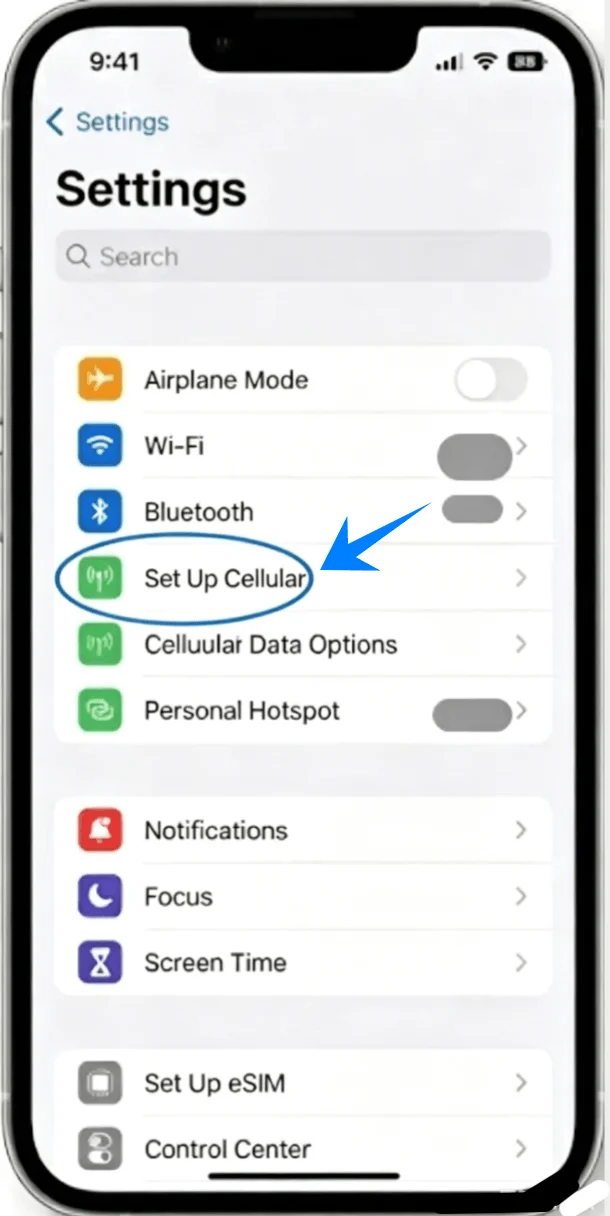
Tap “Set Up Cellular” if no cellular plan is installed, or tap “Add Cellular Plan” to add a new line
Step 4: Select QR Code Option
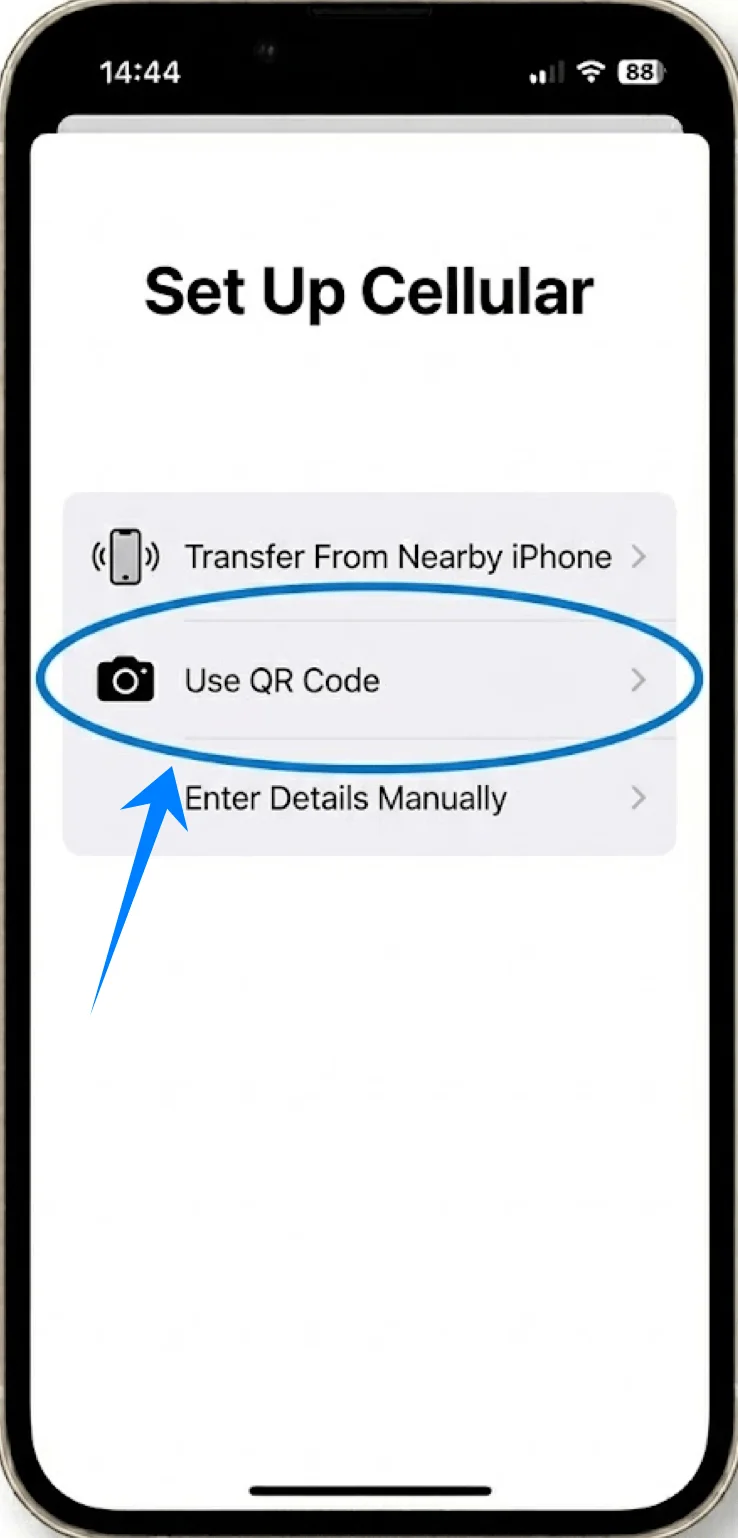
Tap “Use QR Code”
Step 5: Scan the QR Code
Position your iPhone so the QR code appears within the camera frame
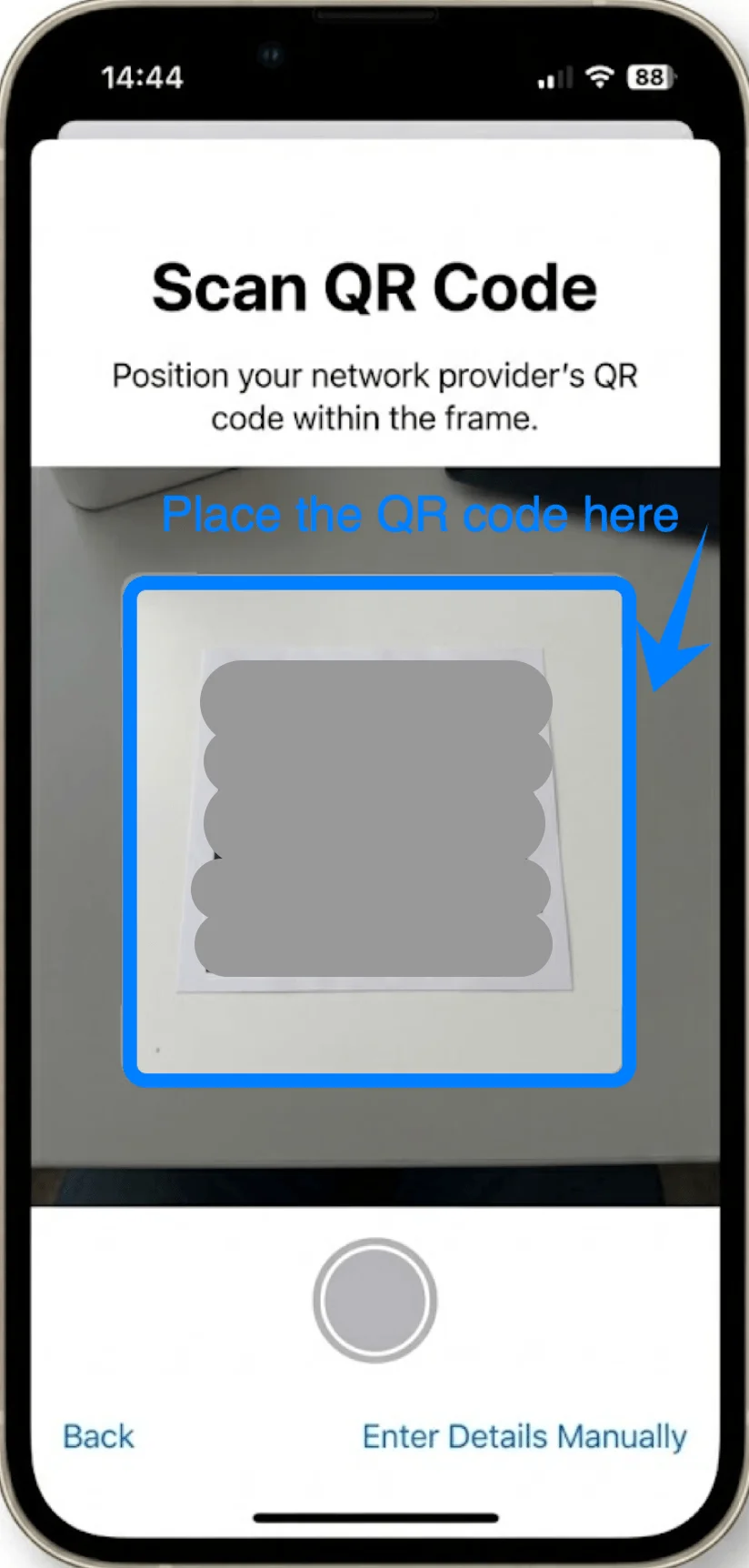
The device will automatically recognize the code
Step 6: Confirm eSIM Activation
When prompted, tap “Continue”
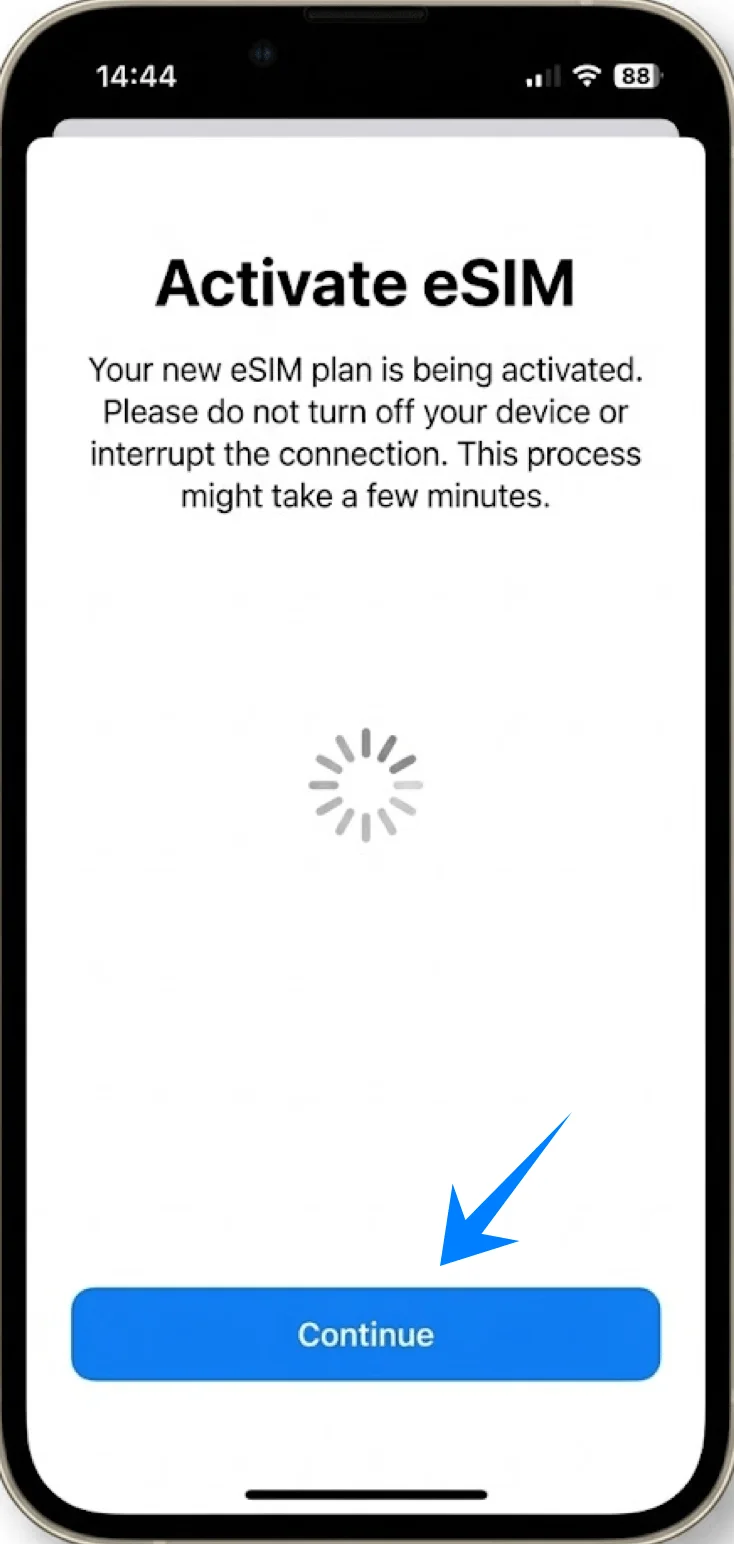
Step 7: Complete Carrier Activation
If a confirmation screen appears, tap “Add Cellular Plan”
Step 8: Assign a Label to the eSIM
Choose a label such as “Primary”, “Secondary”, or “Work”
Tap “Continue”
Step 9: Set Default Line Preferences
Select your preferred default line for:
Calls → tap desired line → tap “Continue”
Messages → tap desired line → tap “Continue”
Cellular Data → tap desired line → tap “Continue”
Method 2: Install eSIM via Manual Input
Step 1: Open Settings
Tap “Settings”
Step 2: Go to Cellular Settings
Scroll down and tap “Cellular” (On some devices, this may appear as “Mobile Service” or “Mobile Data”)
Step 3: Start eSIM Setup
Tap “Set Up Cellular” if no cellular plan is installed, or tap “Add Cellular Plan” to add a new line
Step 4: Choose Manual Entry
Tap “Enter Details Manually”

Step 5: Input Activation Information
In the “SM-DP+ Address” field, enter the address provided by your carrier
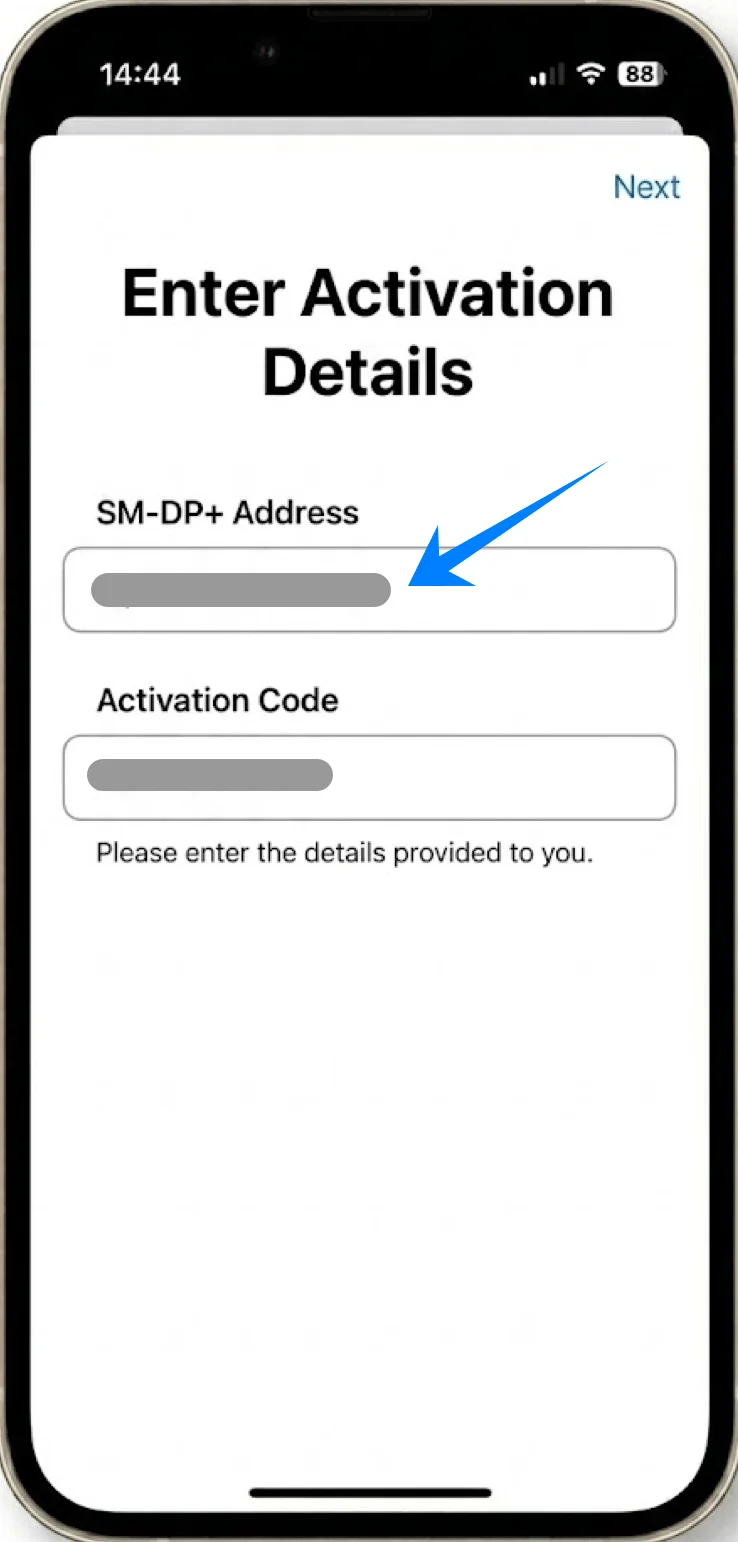
In the “Activation Code” field, enter the code provided
Tap “Next” (top-right corner)

Step 6: Wait for Activation
The iPhone will attempt to connect to the carrier and activate the eSIM
Step 7: Confirm Plan Addition
When prompted, tap “Add Cellular Plan”
Step 8: Label the eSIM
Select a label (e.g., “Business”, “Travel”)
Tap “Continue”
Step 9: Configure Default Line Settings
Choose default line for calls → tap selection → tap “Continue”
Choose default line for messages → tap selection → tap “Continue”
Choose default line for cellular data → tap selection → tap “Continue”
How to Confirm Successful eSIM Installation
Check Cellular Plans
Go to Settings → Cellular (On some devices, this may appear as “Mobile Service” or “Mobile Data”)
Confirm that the new eSIM plan appears under SIMs or Cellular Plans
Verify Network Connection
Look at the top-right corner of the screen
Confirm signal bars are visible for the new line
Test Connectivity
Make a phone call or send a text message
Note: Some eSIM plans may not include voice calling support, so this feature might not be available depending on your plan.
Open Safari and load a webpage using cellular data (disable Wi-Fi if necessary)
Check Line Status
In Settings → Cellular (On some devices, this may appear as “Mobile Service” or “Mobile Data”), tap the newly added plan
Ensure Turn On This Line is enabled (toggle should be green)
More iPhone eSIM Setup Guides
Using another iPhone model? These eSIM activation guides may help.
Conclusion
Once you’ve completed the steps above, your iRoamly eSIM should be up and running. Compared to traditional methods, eSIM offers a more streamlined setup experience with fewer physical steps involved.
You can easily manage your line, switch preferences, or check status anytime in your device settings. After confirming that your connection is active, you’re all set to start using your eSIM.