
If you’re new to eSIM, the setup process might seem unfamiliar at first—but in reality, it’s designed to be simple and user-friendly.
Unlike traditional SIM cards, there’s no need to insert or replace anything physically. Instead, you can complete everything through your phone’s settings by following a few guided steps.
On the iPhone 15 Pro, the interface is clear and intuitive, making it especially easy for first-time users.
This guide will walk you through how to install and activate your iRoamly eSIM step by step, so you can get started without confusion.
Meet iRoamly for Easier Travel Connectivity
iRoamly eSIM is a travel eSIM service offering mobile data for destinations around the world. Available choices can include destination-specific, local, regional, and global plans, while allowances, validity, and plan features depend on the destination.
After installation, the travel data line can help with navigation, messages, translations, bookings, and other everyday needs abroad.
For iPhone 15 Pro users, iRoamly works with the device’s built-in eSIM setup flow. Follow the existing instructions to add the profile by QR code or manual entry, configure the line, and confirm the installation.
Preparations Before Setting Up iRoamly eSIM
If Spain is your next destination, you can install the travel eSIM before leaving and select it for data when needed. The same iPhone setup steps also apply if you're preparing an eSIM for Japan.
Before starting, ensure you have the following:
A stable internet connection (Wi-Fi or cellular)
A valid eSIM QR code or manual activation details (SM-DP+ address and activation code) provided by your carrier
Your iPhone 15 Pro powered on and unlocked
The device updated to the latest iOS version (recommended for compatibility)
Method 1: Install eSIM via QR Code
Step 1: Open Cellular Settings
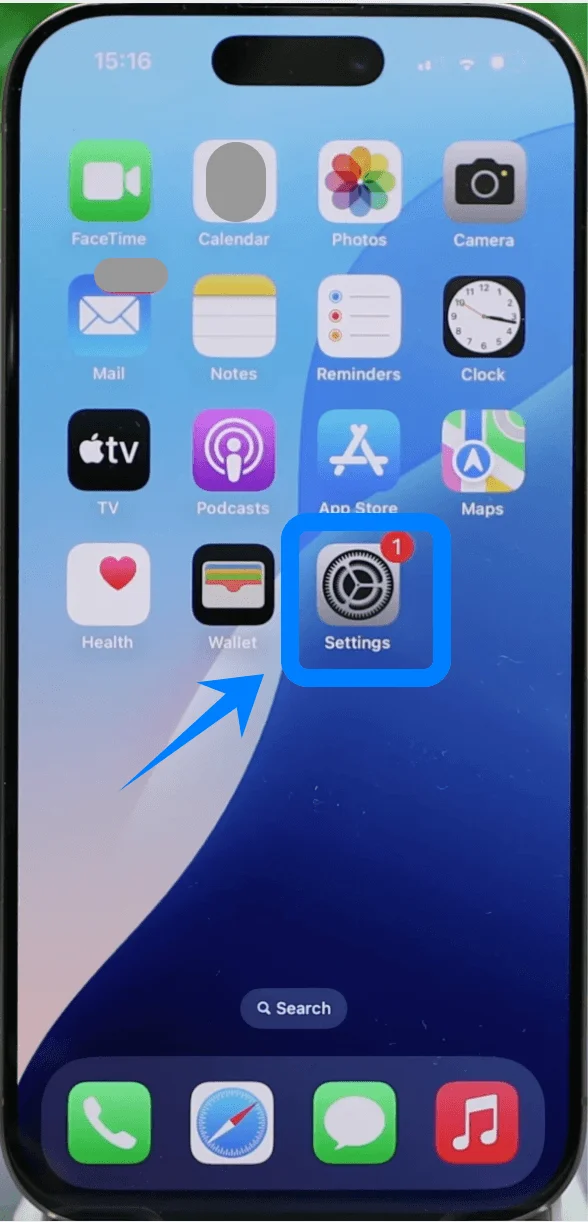
Tap Settings on the Home Screen
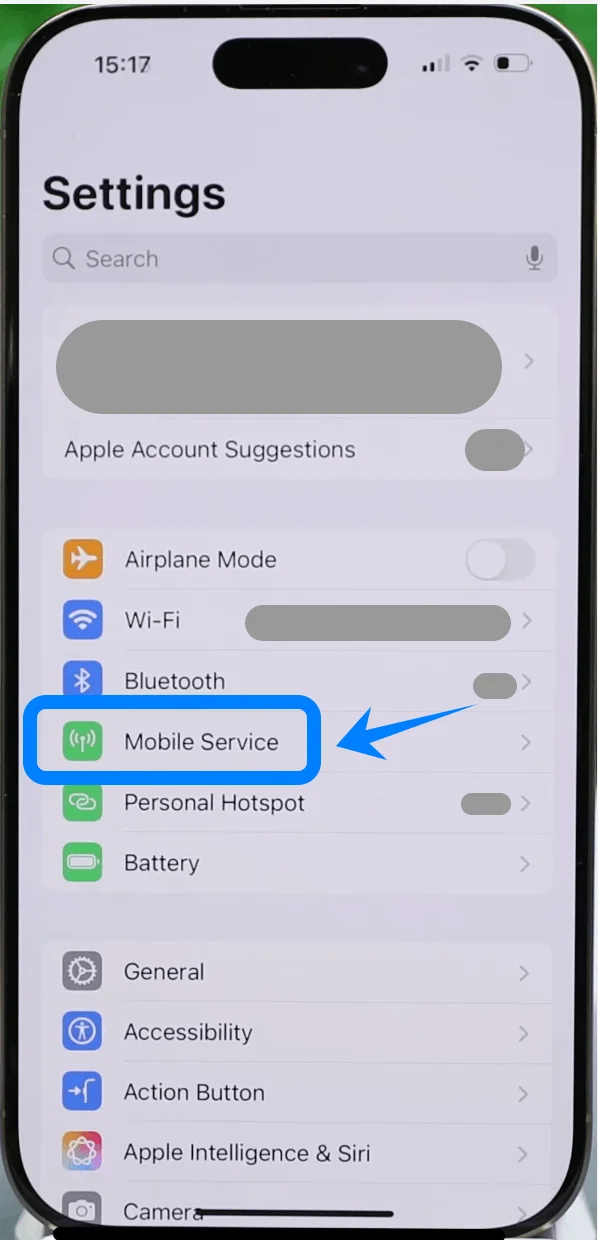
Scroll down and tap Mobile Service (On some devices, this may appear as “Cellular” or “Mobile Data”)
Step 2: Start eSIM Setup
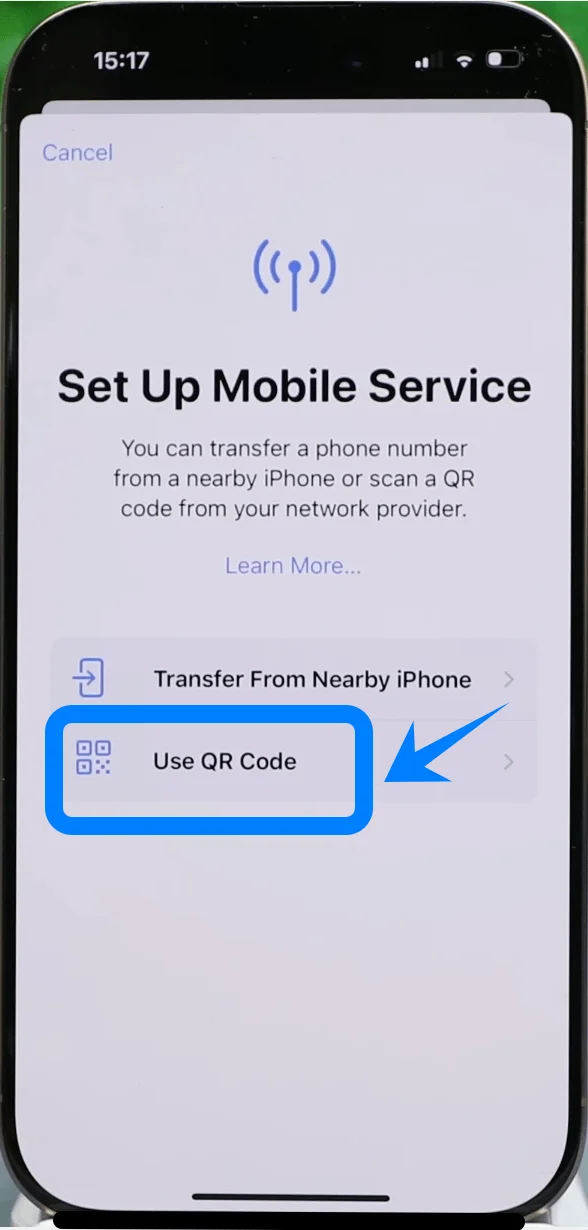
Tap Add eSIM if you already have an existing cellular plan, or tap Set Up Cellular if this is your first plan
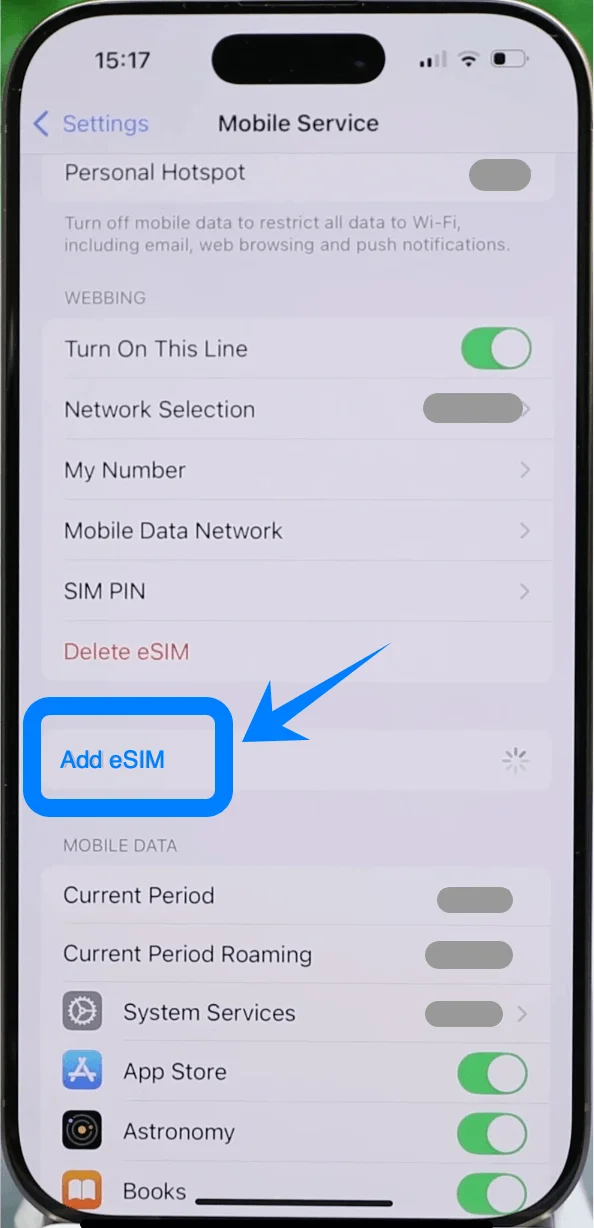
Tap Use QR Code
Step 3: Scan the QR Code
Position the iPhone camera over the QR code provided by your carrier
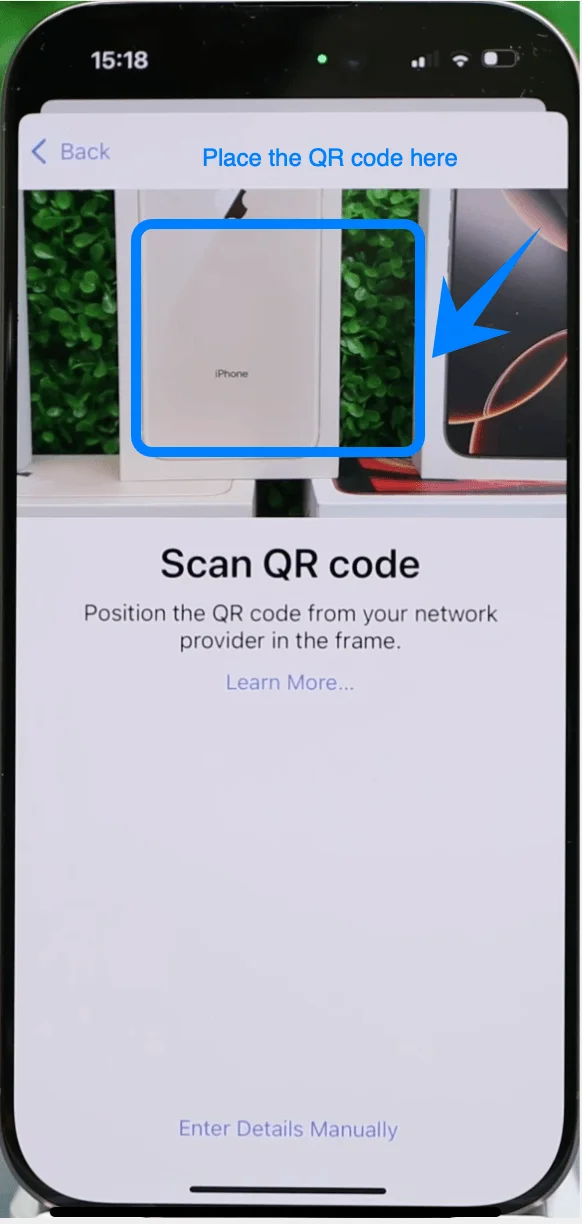
Wait for the device to recognize the code
Tap Continue when prompted
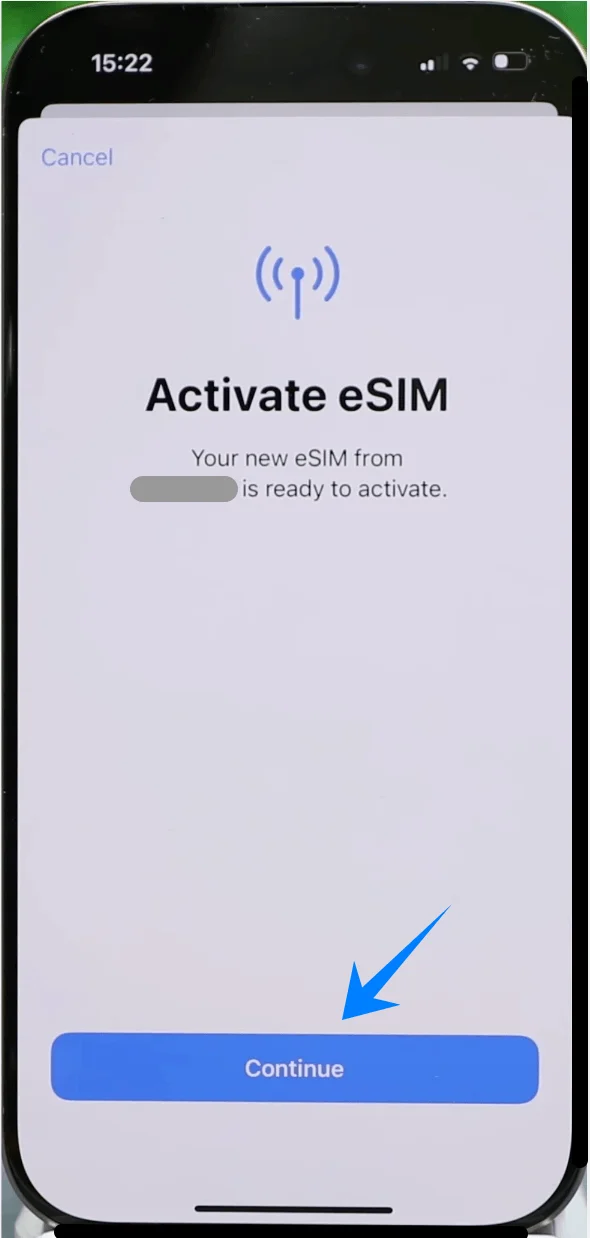
Step 4: Confirm Activation
Tap Add Cellular Plan when the plan details appear
Wait for the activation process to complete
Step 5: Configure Line Settings
When prompted, select a label for the line (e.g., Primary, Secondary, or custom)
Tap Continue
Choose how the line will be used:
Default line for calls
Default line for data
Tap Done
Method 2: Install eSIM via Manual Input
Step 1: Open Cellular Settings
Tap Settings
Scroll down and tap Mobile Service (On some devices, this may appear as “Cellular” or “Mobile Data”)
Step 2: Start Manual Entry
Tap Add eSIM if you already have an existing cellular plan, or tap Set Up Cellular if this is your first plan
Tap Use QR Code
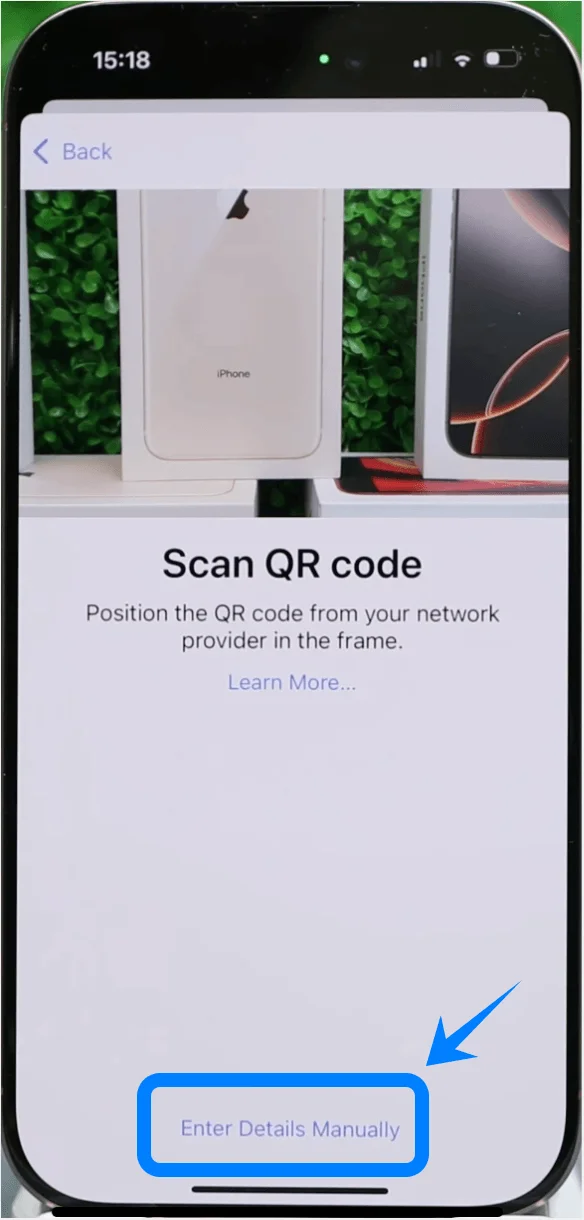
On the QR scanner screen, tap Enter Details Manually (located at the bottom)
Step 3: Enter Activation Information
Tap the field labeled SM-DP+ Address
Enter the address provided by your carrier
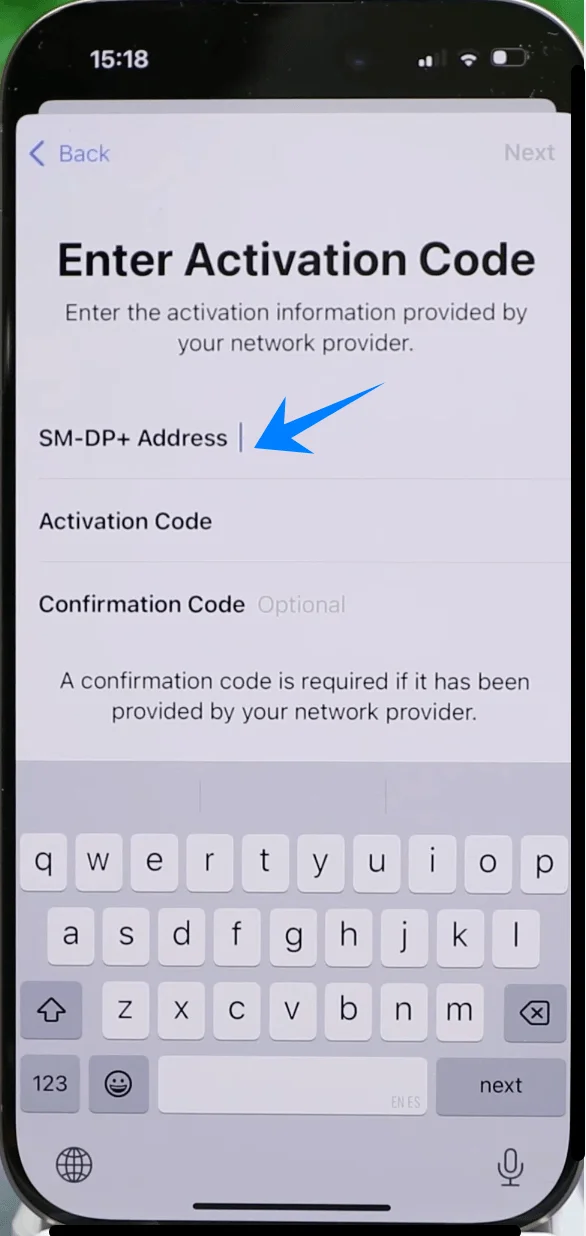
Tap the field labeled Activation Code
Enter the code exactly as given
(Optional) Tap Confirmation Code if provided and enter it
Step 4: Submit Activation
Tap Next (top-right corner)
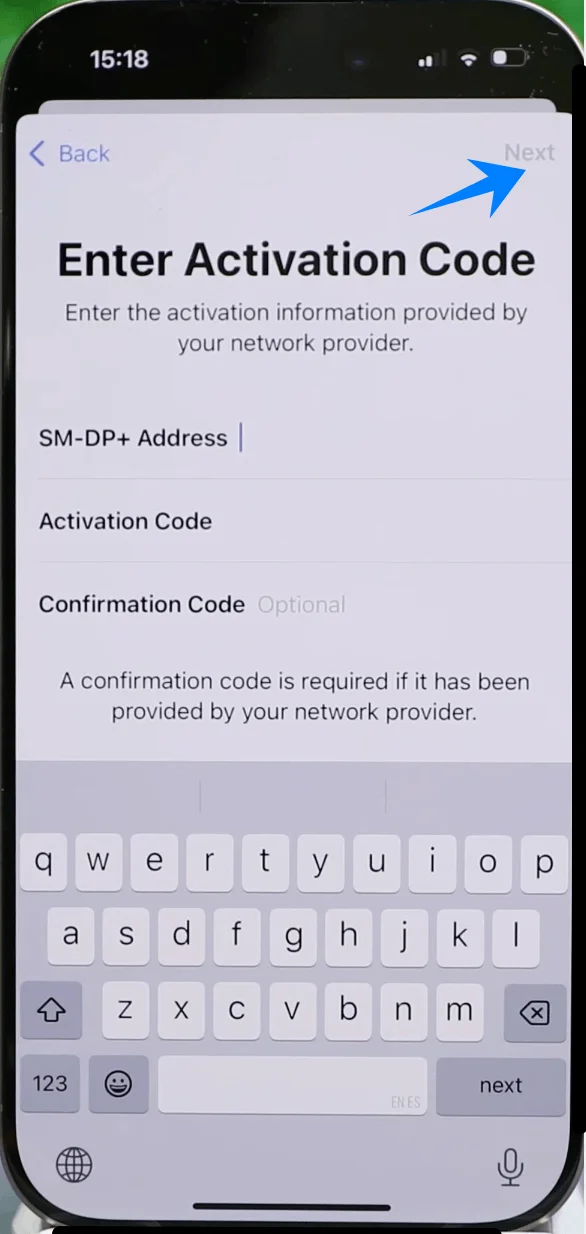
Wait for the iPhone to connect to the carrier and download the eSIM profile
Step 5: Configure Line Settings
Select a label (e.g., Primary, Secondary, Travel)
Tap Continue
Select default usage preferences (calls, messages, data)
Tap Done
How to Confirm Successful eSIM Installation
After completing either method, verify installation using the following steps:
Step 1: Check Cellular Plans
Open Settings
Tap Mobile Service (On some devices, this may appear as “Cellular” or “Mobile Data”)
Confirm that the new plan appears under SIMs or Cellular Plans
Step 2: Verify Signal
Look at the top-right corner of the screen
Confirm that signal bars are visible for the new line
Step 3: Test Connectivity
Open Phone app
Make a call using the new line
Open Safari and load a webpage using cellular data (turn off Wi-Fi if necessary)
Step 4: Confirm Line Status
Go to Settings → Mobile Service (On some devices, this may appear as “Cellular” or “Mobile Data”) → [Your eSIM Label]
Ensure Turn On This Line is enabled (toggle should be green)
More iPhone eSIM Setup Guides
Using another iPhone model? These eSIM activation guides may help.
Conclusion
You’ve now completed the setup process and should be able to use your eSIM for connectivity. Once you’ve gone through it once, you’ll find that the process is straightforward and easy to repeat in the future.
eSIM simplifies network setup and reduces the need for physical handling, making it a convenient option for everyday use. With the steps in this guide, you’ll be able to quickly set up your connection whenever needed.