
The Pixel 8a keeps eSIM setup in the standard Pixel network menu, so travel eSIM installation usually starts from Settings > Network & internet > SIMs. This guide assumes a Pixel 8a on a current Pixel Android build with gesture navigation, the centered front camera cutout, and the English labels used by Google's eSIM setup flow.
An iRoamly travel eSIM is useful when you want destination data without swapping a physical SIM.
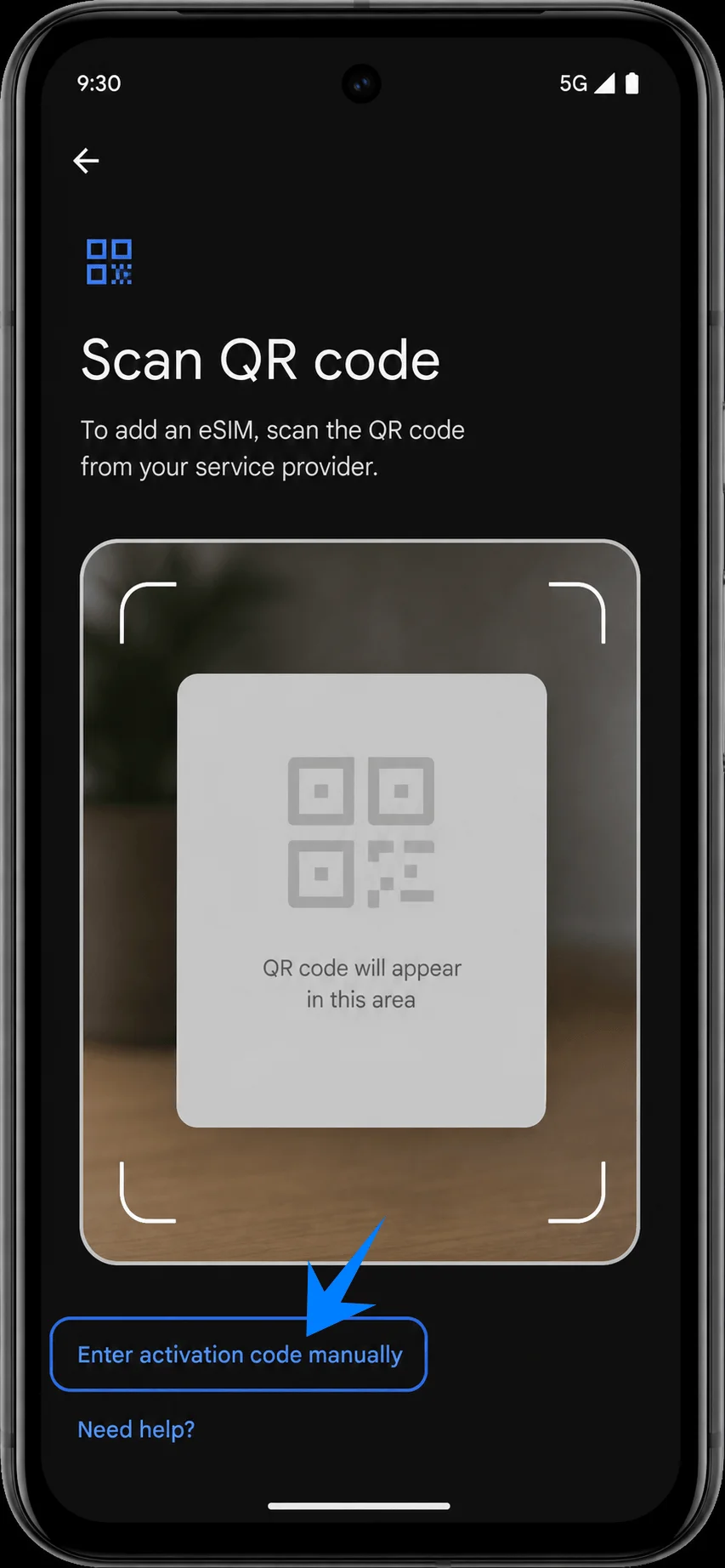
The QR code route is quickest if you can show the iRoamly QR code on another device or printed page. Manual entry is the backup path when the QR code will not scan, the camera is unavailable, or you are copying the activation details from your iRoamly order page or email.
Both methods below start from the same Pixel 8a setup path, then split into QR scanning or manual entry. After installation, the guide shows how to confirm the iRoamly eSIM appears under SIMs and how to prepare it for travel data.
Get Your Pixel Ready for Travel with iRoamly
iRoamly eSIM is a travel eSIM service that provides mobile data plans for destinations around the world. Travelers can choose from available destination, regional, and global options, with data amounts, validity periods, plan types, and features varying by location.
Once installed on a compatible phone, the travel data line can support everyday needs such as maps, messaging, translations, ride-hailing, bookings, and travel updates.
On a Pixel 8a that supports eSIM, iRoamly can be added as a separate travel data profile while your regular SIM remains available. The existing Pixel setup flow below shows how to install the iRoamly eSIM by QR code or manual entry, then select it for mobile data when you need travel connectivity.
Preparations Before Setting Up iRoamly eSIM
Connect the Pixel 8a to stable Wi-Fi before adding the iRoamly eSIM. Once you have chosen a destination eSIM, such as an eSIM for the United States or an eSIM for Spain, you can continue with the Pixel setup path and select the travel line when needed.
Confirm the phone is unlocked and eSIM-capable. Some region, carrier, or firmware variants can restrict eSIM setup even on an eSIM-capable Pixel model.
Keep either the iRoamly QR code or the manual activation details open and ready.
Install the eSIM 1 to 2 days before travel when your plan allows it, but check the plan's activation rule before turning the line on.
iRoamly eSIM validity starts from activation. For many iRoamly travel data plans, activation is tied to installation or first connection to a supported destination network, so check the current order or plan details for the exact trigger.
iRoamly eSIM plans may not include voice calls or SMS. Voice and SMS availability varies by plan, so check the specific plan details before relying on them.
Do not delete the iRoamly eSIM after installation unless iRoamly support instructs you to. Many eSIMs cannot simply be removed and installed again.
Shared Setup Steps
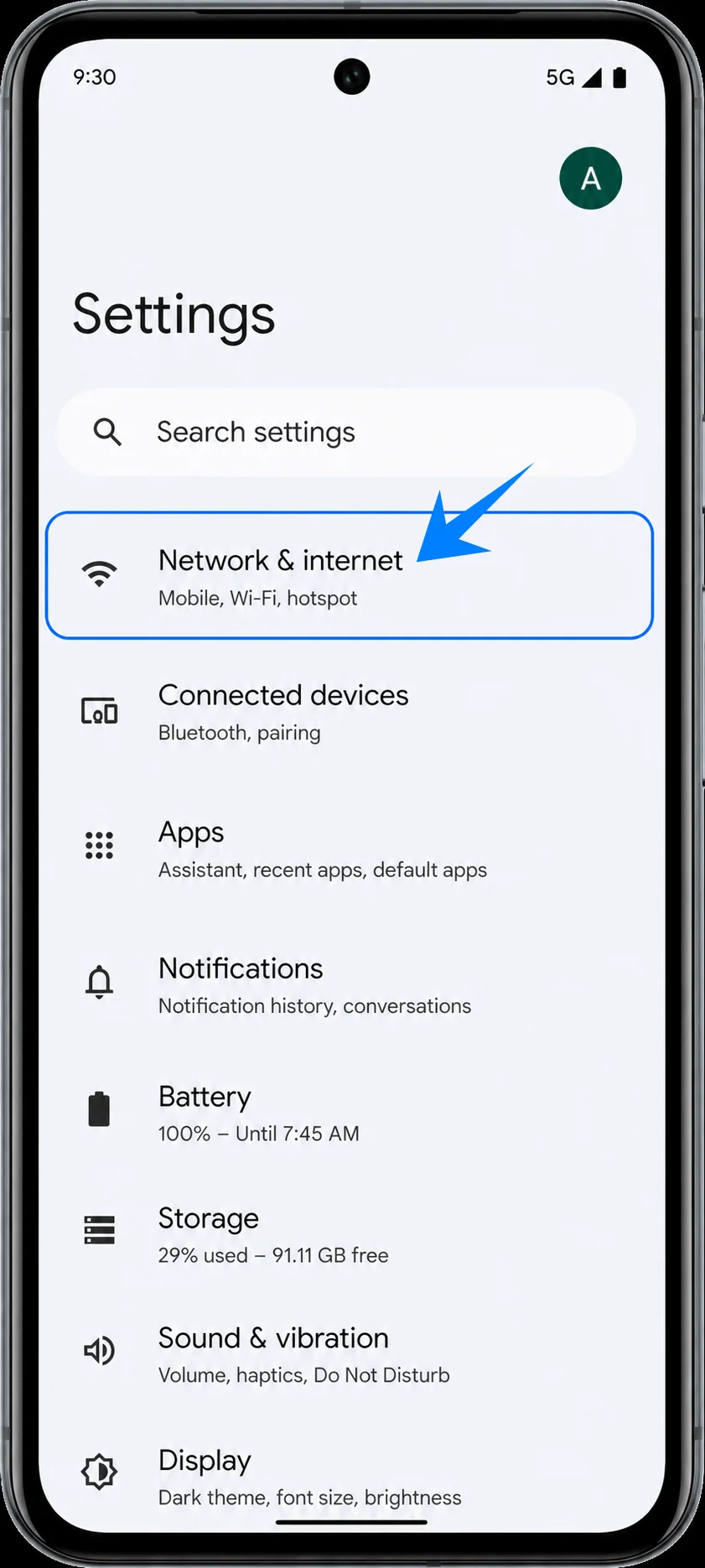
Open Settings, then tap Network & internet. You should see the Pixel network settings page with Internet, SIMs, and related connection options.
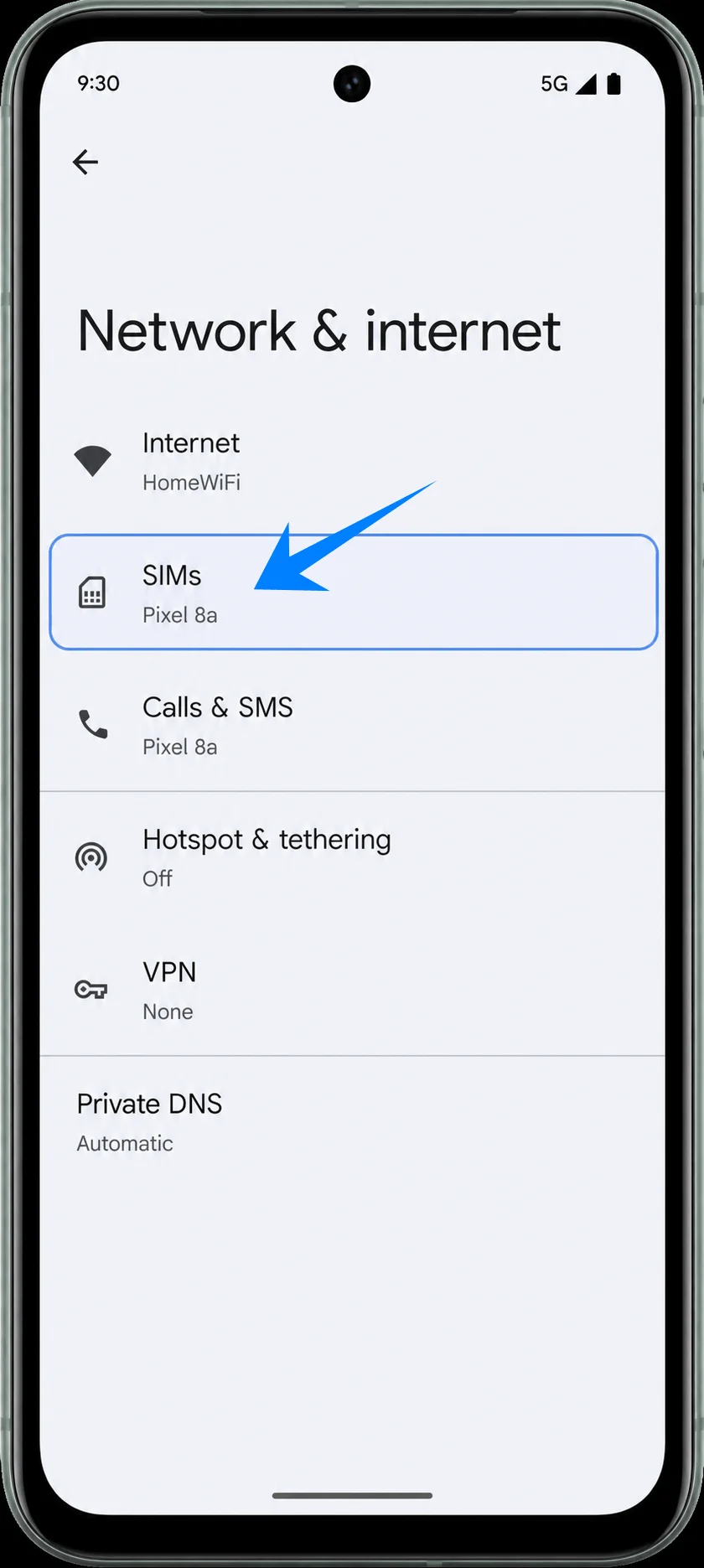
Tap SIMs. The Pixel should open the page where physical SIMs and downloaded eSIM profiles are managed.
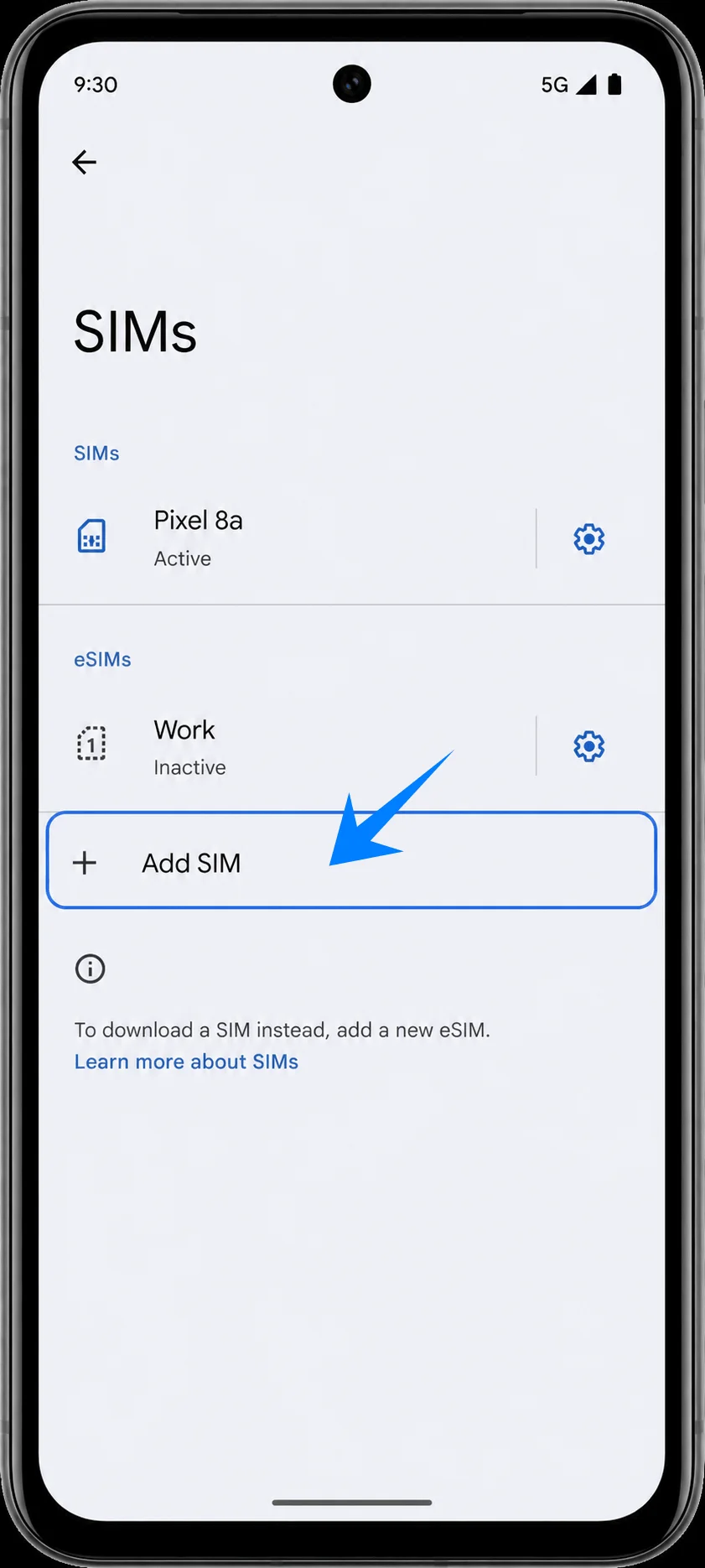
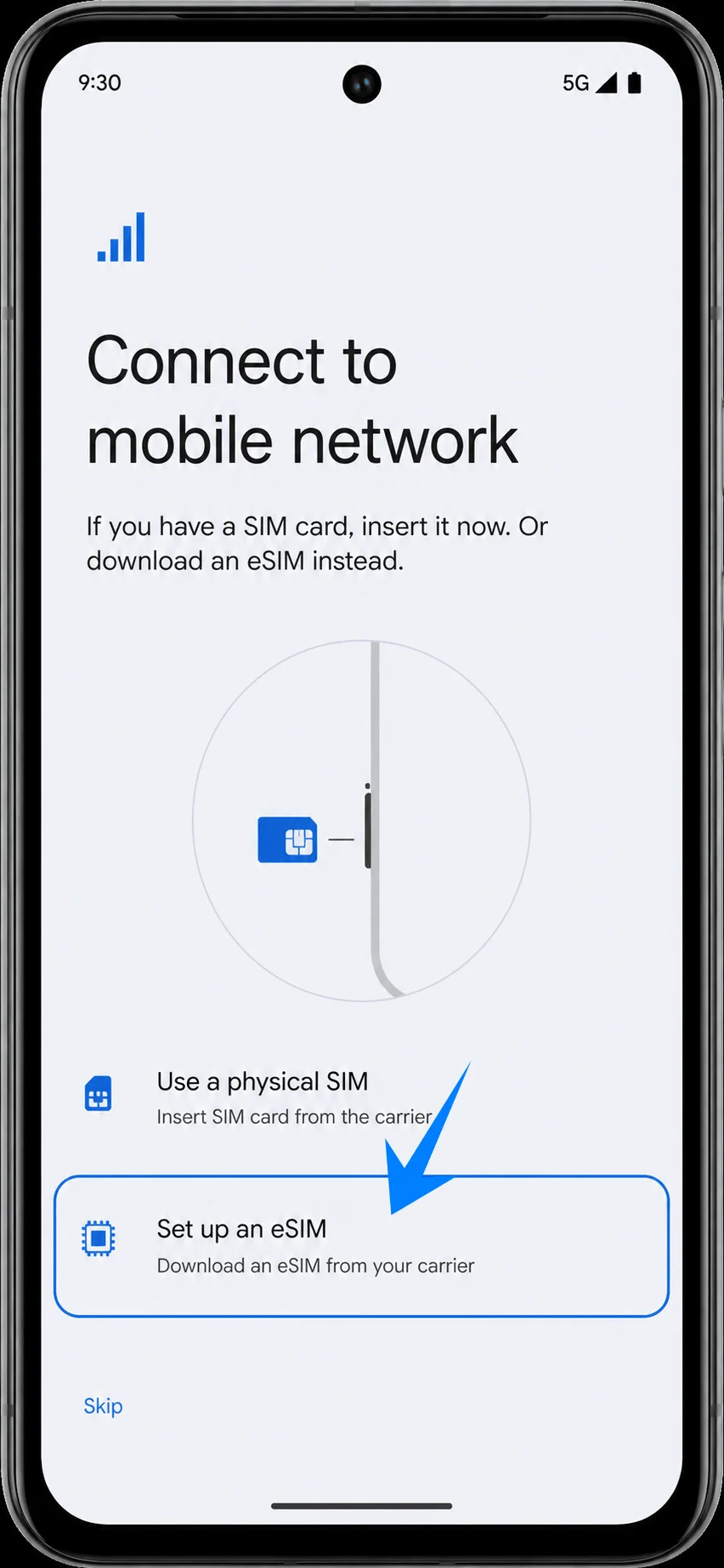
Tap Add SIM. Android should start the mobile network setup flow.
Tap Set up an eSIM. The Pixel should prepare the eSIM setup screen and move toward QR-code or activation-code setup.
Method 1: Install the iRoamly eSIM by Scanning a QR Code
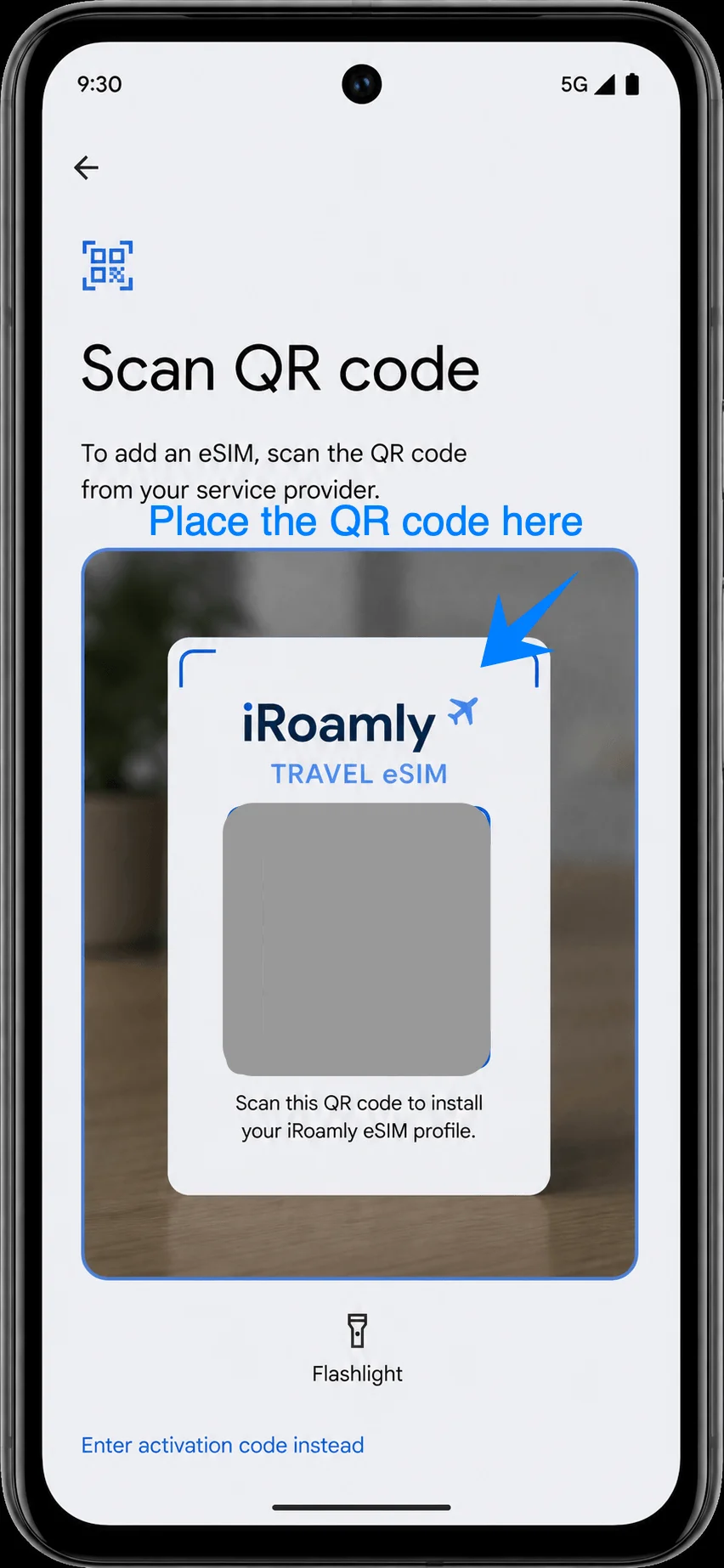
On the Scan QR code screen, point the Pixel 8a camera at the iRoamly travel eSIM QR code. Keep the full QR code inside the scanner until the phone detects it.
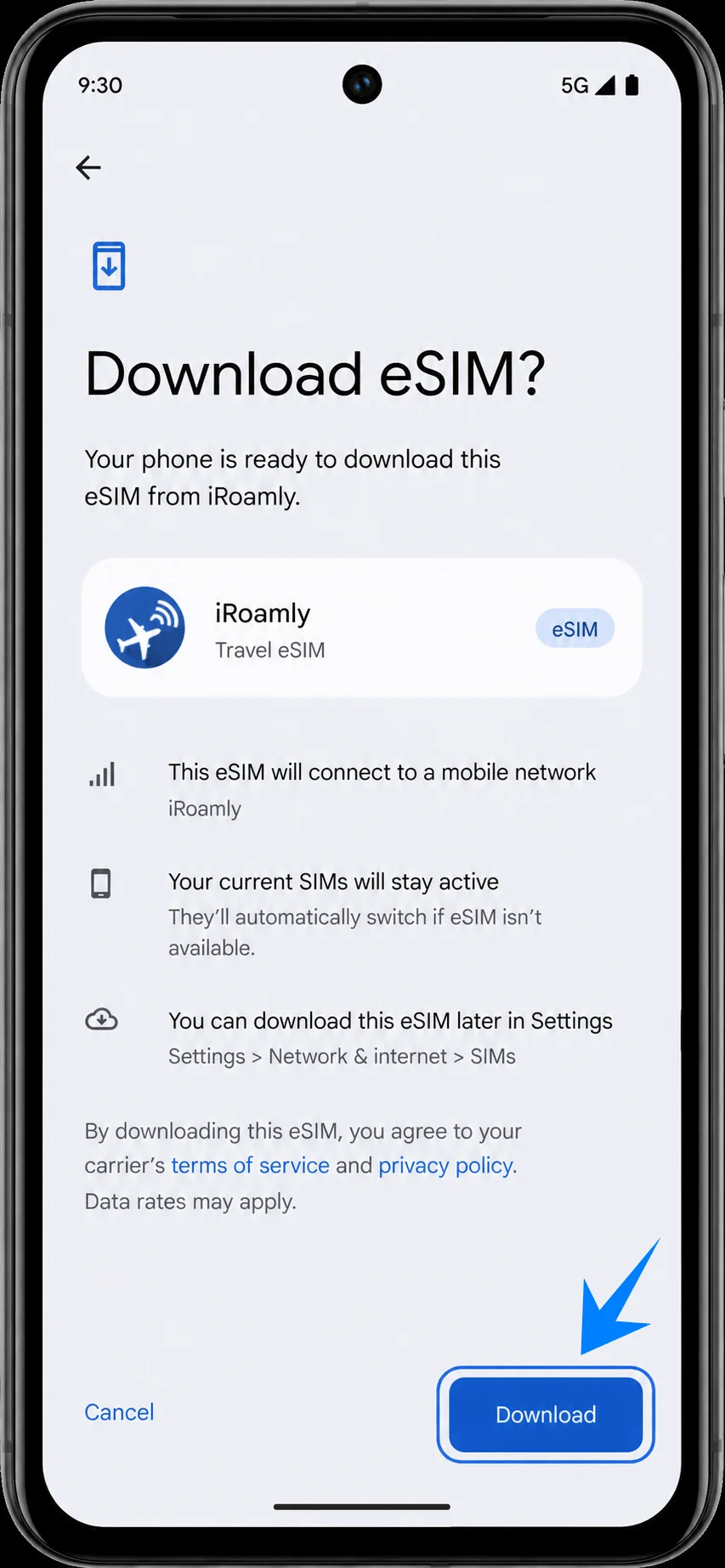
Tap Download when Android shows the detected iRoamly travel eSIM. Keep Wi-Fi connected while the Pixel downloads and adds the eSIM profile.
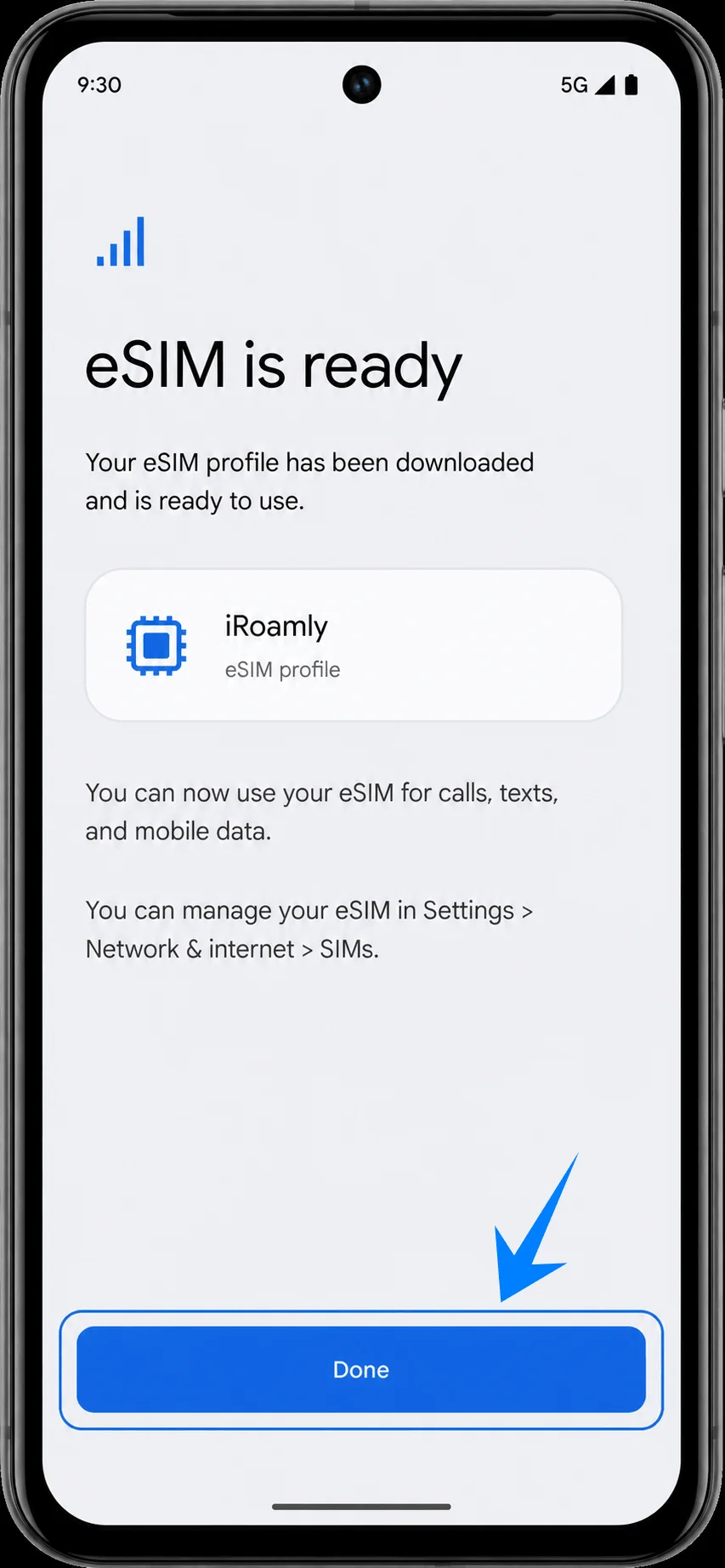
Tap Done when the Pixel shows that the eSIM is ready. You should return to the SIM settings area or see the newly added iRoamly profile.
Method 2: Install the iRoamly eSIM by Manual Entry
Open Settings, tap Network & internet, tap SIMs, tap Add SIM, then tap Set up an eSIM. On the QR scanner screen, tap Enter activation code manually or Need help? if the manual option is shown there.
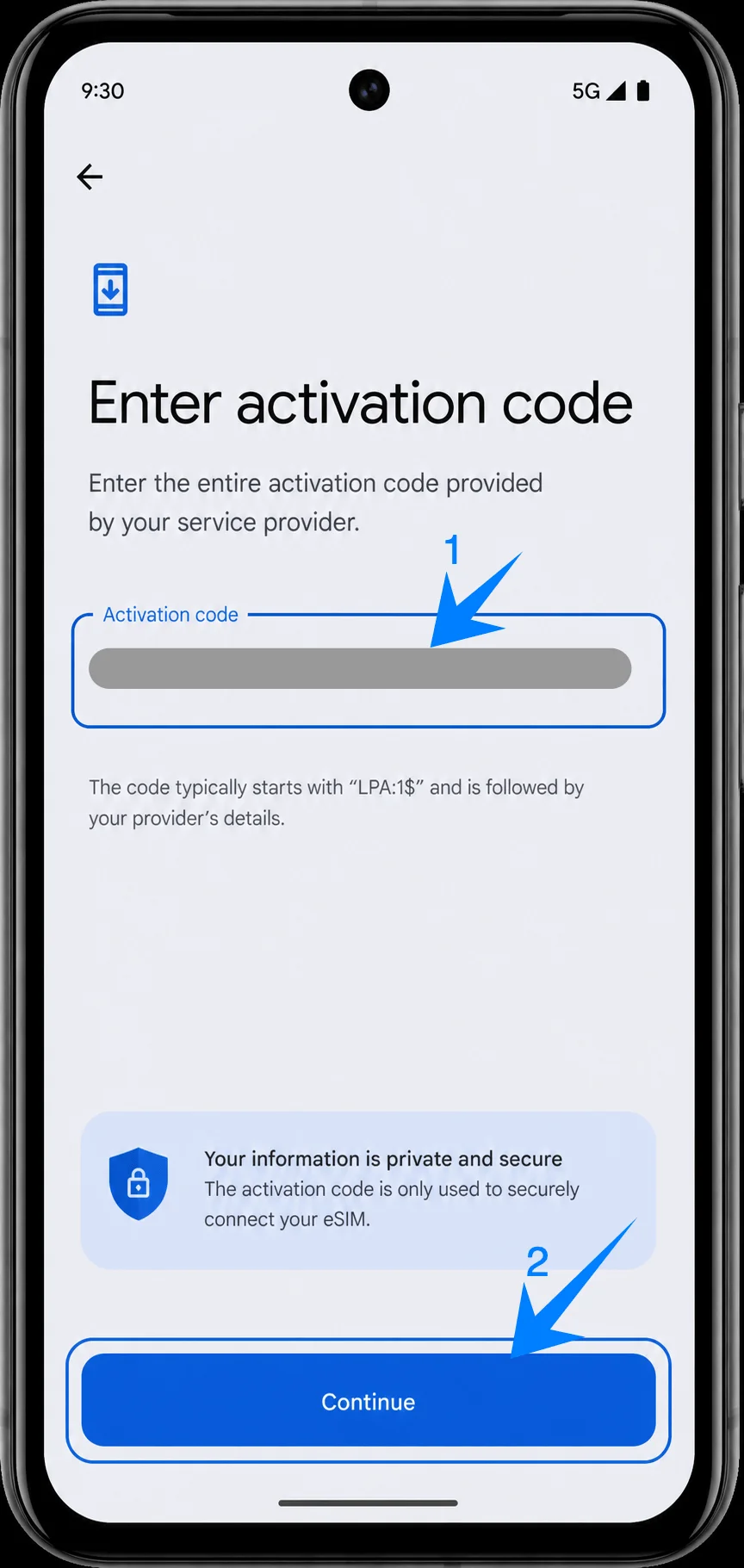
Tap the Activation code field, enter the complete iRoamly activation code string from your order details, then tap Continue. Pixel Android uses a complete activation code entry flow here; if iRoamly shows the SM-DP+ Address and Activation Code separately, combine or copy them exactly as iRoamly presents them for Android manual setup.
Tap Download when Android asks to confirm the iRoamly eSIM download. Keep the Pixel 8a on Wi-Fi until the profile finishes installing.
Tap Done when the Pixel shows that the eSIM is ready. The iRoamly eSIM should now be available in the phone's SIM settings.
How to Confirm the iRoamly eSIM Was Installed
Open Settings, tap Network & internet, then tap SIMs. Confirm that iRoamly appears as an eSIM or SIM profile in the list.
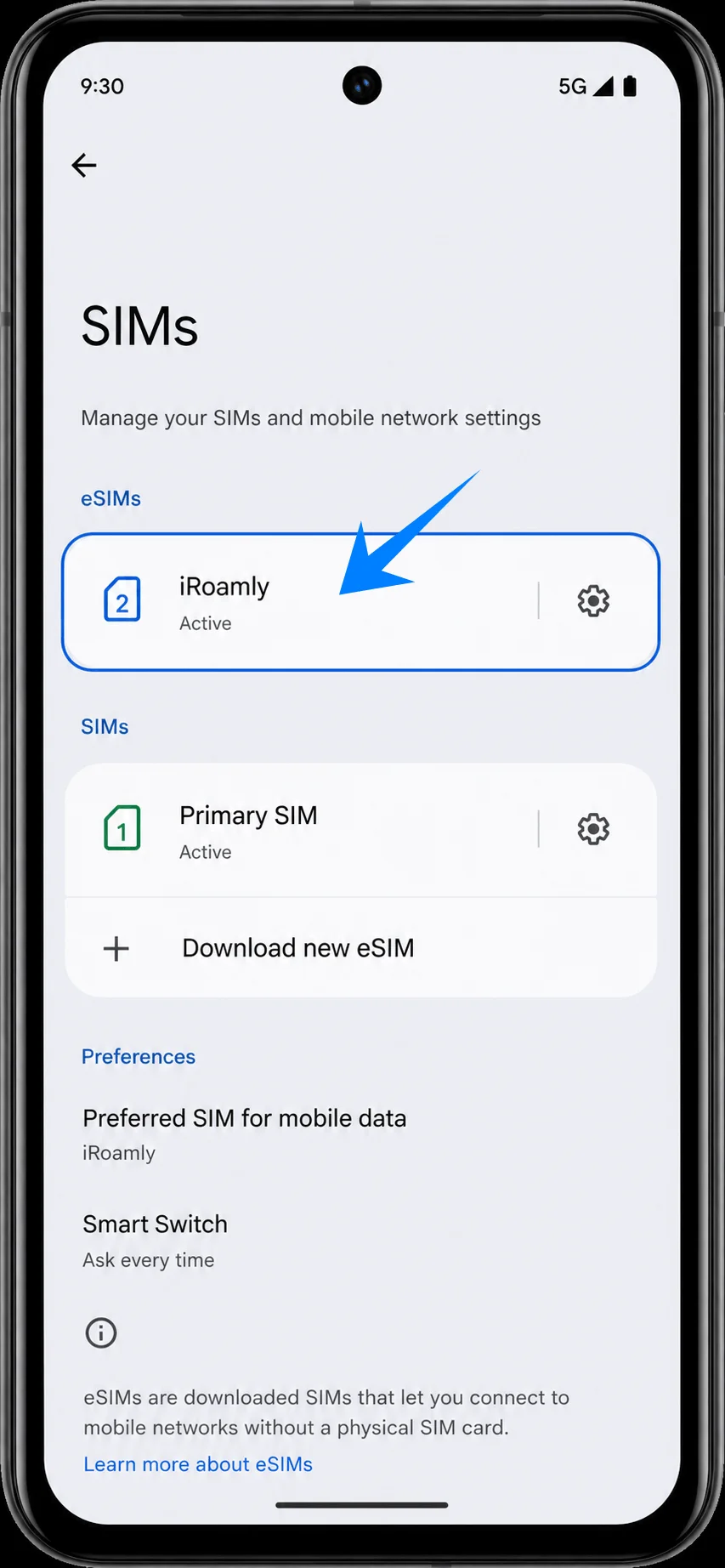
Tap iRoamly and check that the profile page opens. If the Pixel shows a Use SIM switch, leave it off until you are ready to use travel data unless your iRoamly plan instructions say activation requires turning it on.
Set Up the iRoamly eSIM for Travel Data
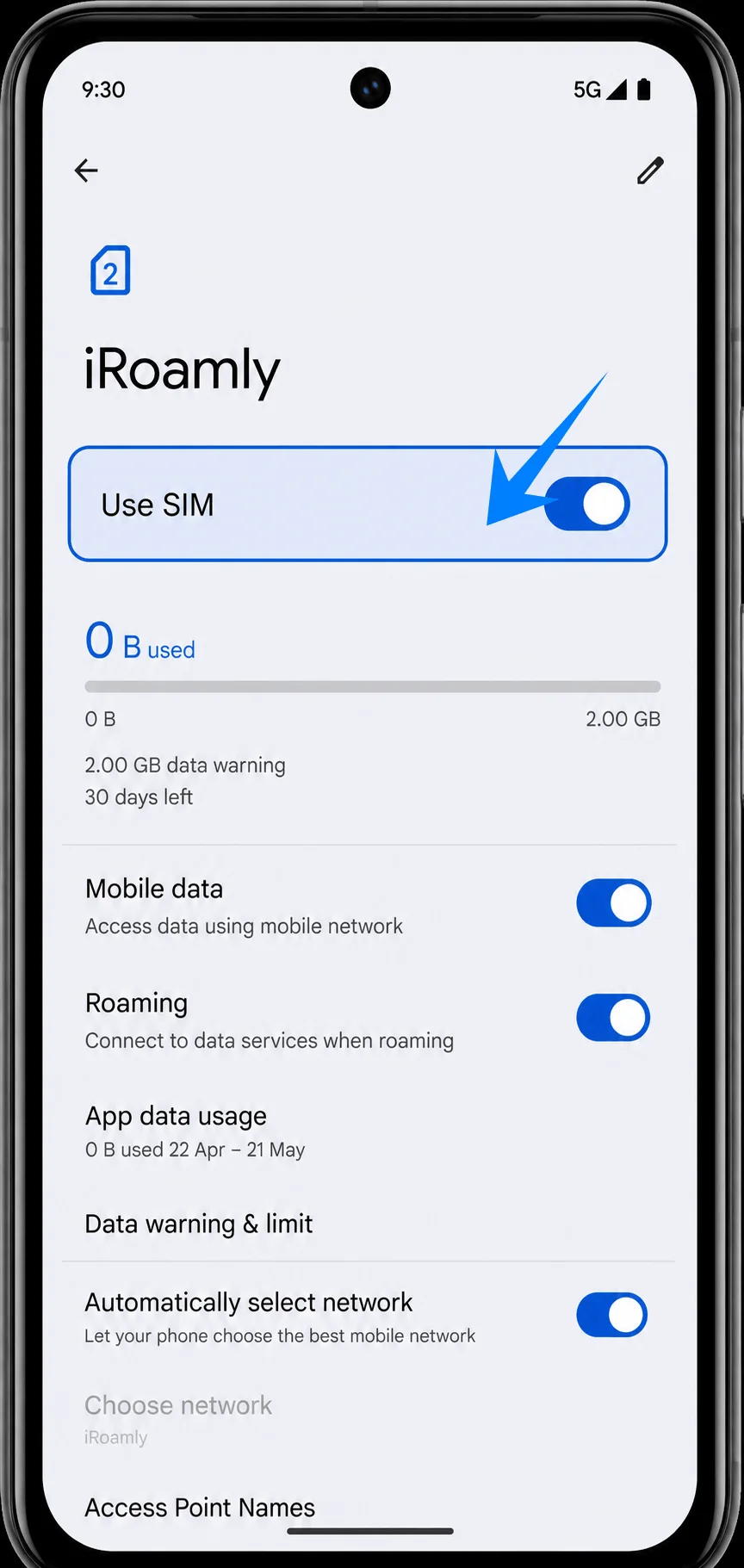
Open Settings, tap Network & internet, tap SIMs, then tap iRoamly. Turn on Use SIM when you are ready to use the travel eSIM.
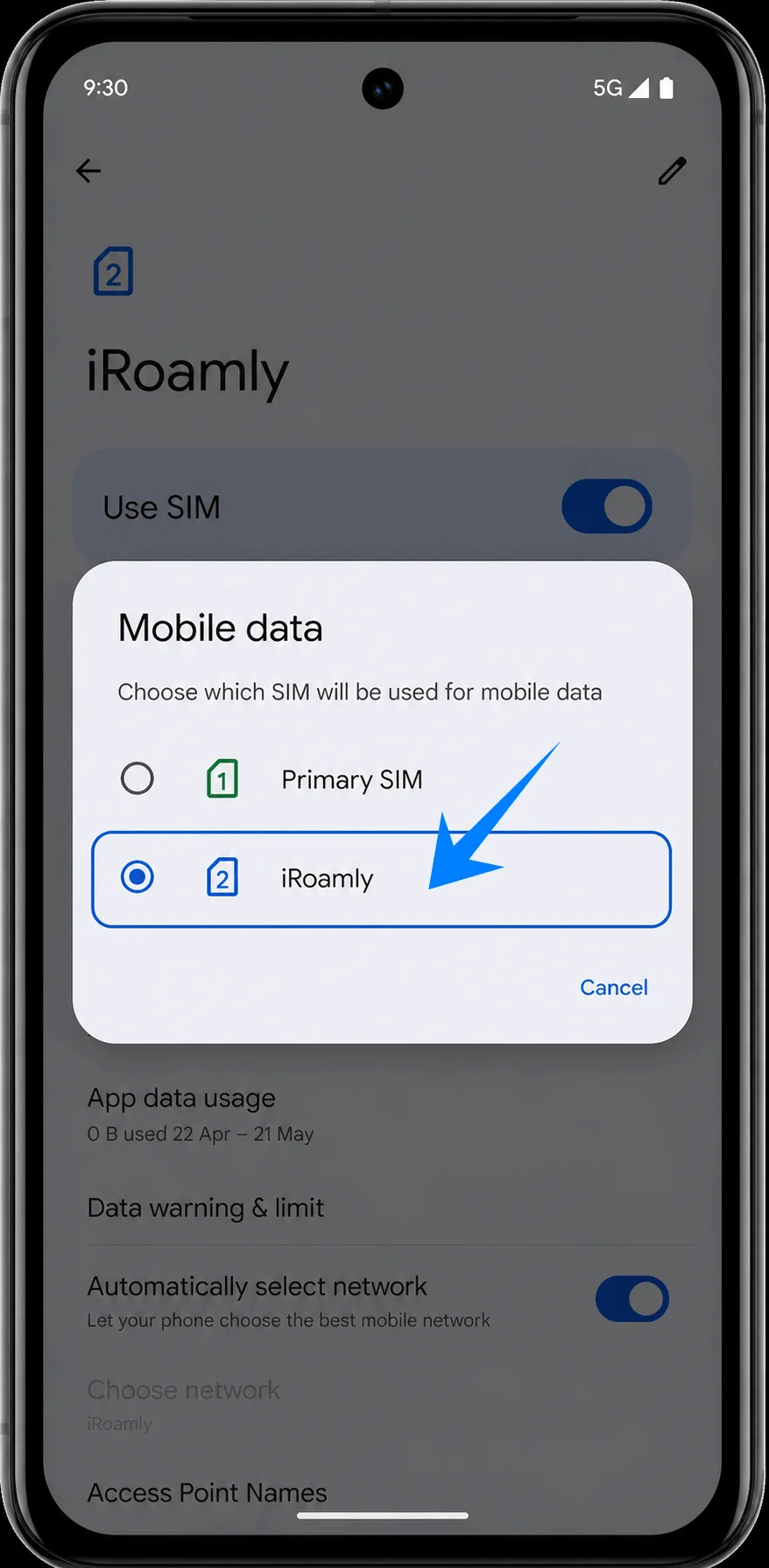
On the same iRoamly SIM settings page, tap Mobile data or the data preference shown by Pixel Android, then choose iRoamly for mobile data when you want travel data to use that plan.
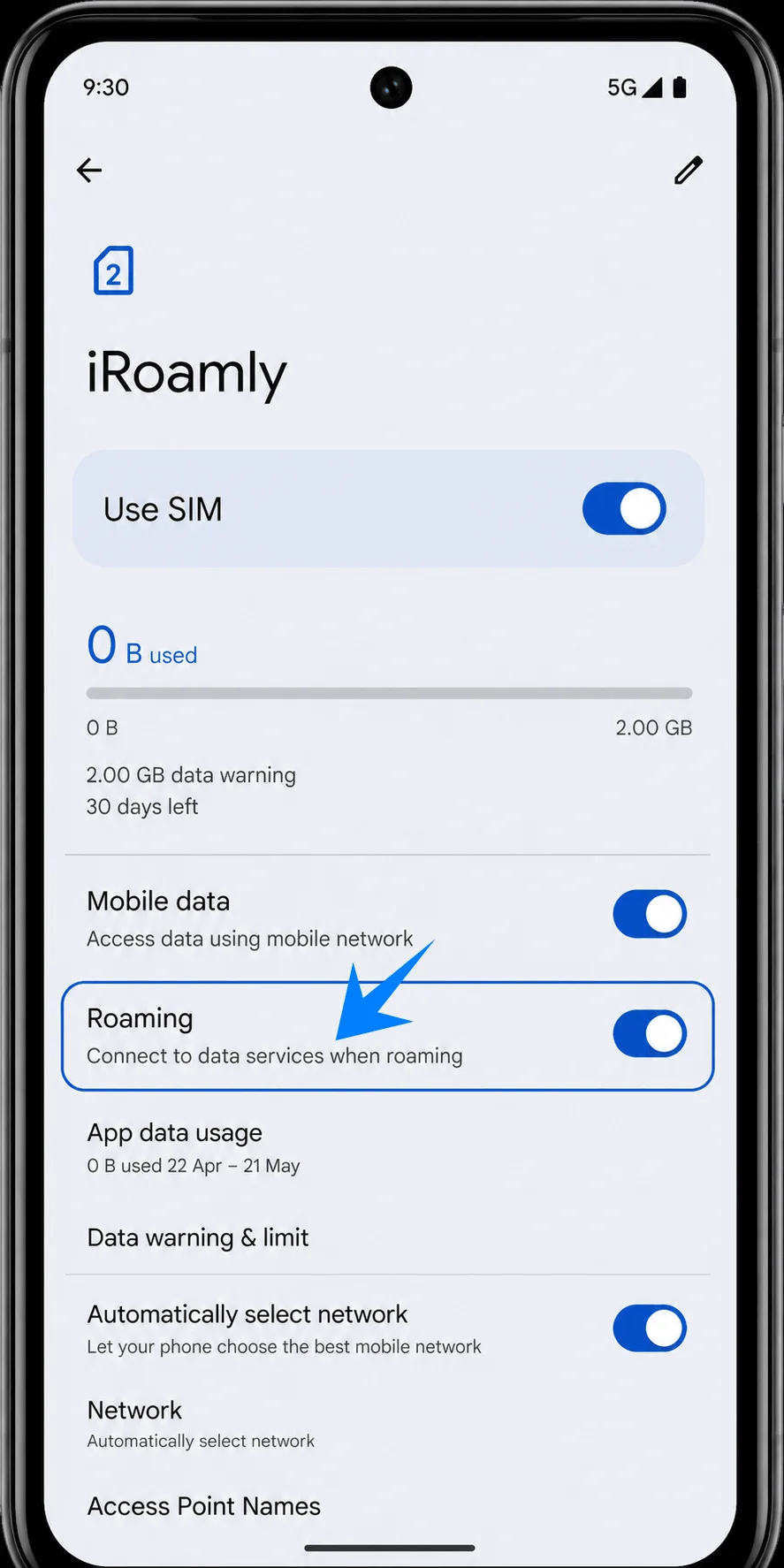
Return to the iRoamly SIM settings page and turn on Roaming if your iRoamly destination instructions require it. Travel eSIM data commonly needs roaming enabled because it connects through partner networks.
Troubleshooting
No Add SIM or Set up an eSIM: update Android, confirm the Pixel 8a variant supports eSIM, check that the phone is unlocked, and ask the carrier whether eSIM is restricted on that firmware or account.
QR scan fails: increase brightness on the device showing the QR code, keep the whole code inside the scanner, confirm Wi-Fi is working, or use the manual activation method.
QR code already used: do not delete a partially installed profile or keep retrying the same code. Contact iRoamly support if the code was consumed before the eSIM installed correctly.
Installed but no data: choose iRoamly for mobile data, turn on Roaming if required, restart the Pixel 8a, and confirm your destination is covered by the purchased plan.
Activation pending: stay on Wi-Fi during installation, then wait until the phone connects to a supported destination network if the plan activates on first network connection.
Reinstall risk: disable the iRoamly eSIM instead of deleting it during the trip. Remove it only when you no longer need the plan or iRoamly support tells you to remove it.
Voice or SMS unavailable: check the exact iRoamly plan details. Many travel eSIM plans are data-only, and voice or SMS is not guaranteed.
Validity period concern: iRoamly validity starts from activation. Confirm the current plan's activation trigger before installing early or turning on the travel line.
Region or carrier limitation: if the Pixel was bought through a carrier or in a region with eSIM restrictions, the menu may be hidden even though the Pixel 8a hardware supports eSIM.
More Google Pixel eSIM Setup Guides
Setting up another Pixel phone? These eSIM activation guides may help.
Conclusion
For a Pixel 8a on current Pixel Android, the reliable setup route is Settings > Network & internet > SIMs > Add SIM > Set up an eSIM. Use QR scanning when the iRoamly code is easy to display, and use manual entry when you need to type the complete activation code instead.
Once iRoamly appears under SIMs, keep the line disabled until you are ready if your activation rules allow it, then select it for mobile data and enable roaming when the destination plan requires it.