
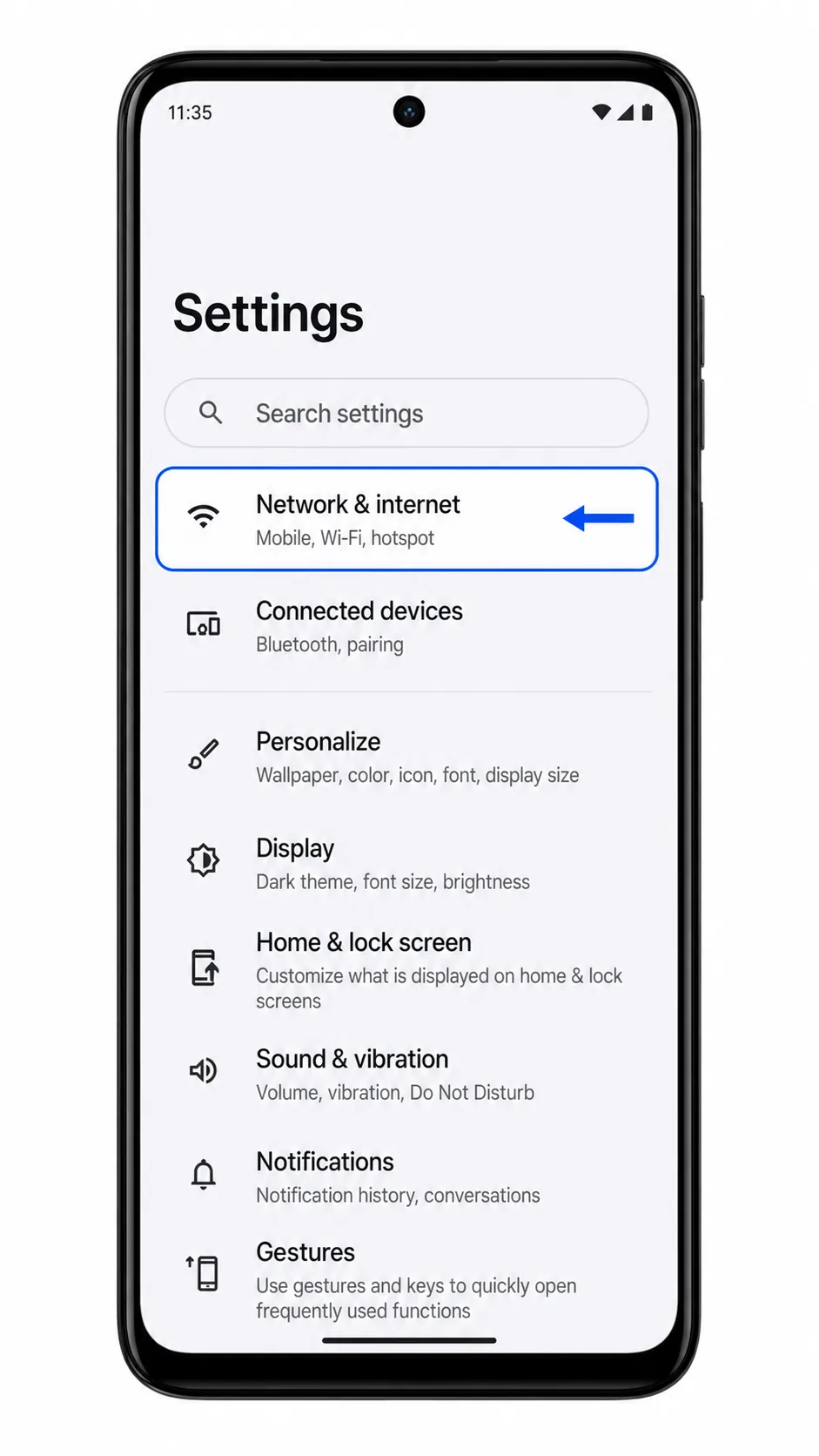
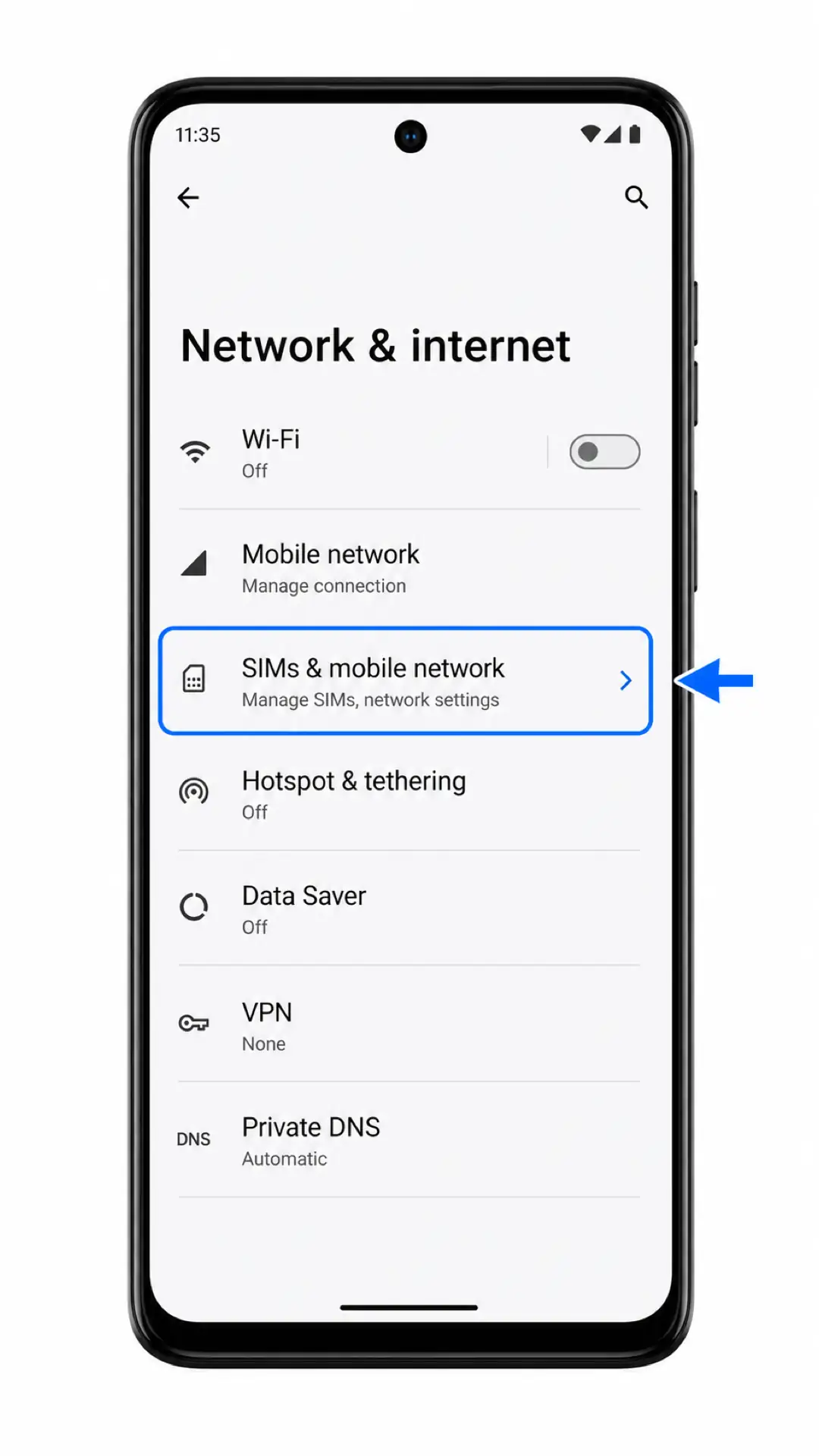
This guide is for eSIM-capable Moto G54 Power and Moto G54 5G variants running Motorola My UX on Android 15. The verified Motorola path is Settings > Network & internet > SIMs & mobile network > Download new SIM, though labels can vary slightly on Android 13 or Android 14.
Motorola sells regional Moto G54 variants with different SIM support, so check that your phone shows Download new SIM or an EID before relying on eSIM installation. If that option is missing, your region, carrier firmware, or device variant may not support eSIM.
The QR code method is usually the fastest way to install an iRoamly travel eSIM. Manual entry is useful when the QR code will not scan, when you are setting up from the same phone that displays the QR code, or when iRoamly provides separate SM-DP+ and activation details.

Meet iRoamly for Easier Travel Connectivity
iRoamly Travel eSIM is a travel eSIM service that provides mobile data plans for destinations around the world. Available options can include destination, local, regional, or global plans, with validity periods, data allowances, and other plan features varying by destination.
Once the eSIM is installed on a compatible phone, the data line can help you use maps, messages, translation tools, bookings, and travel updates abroad.
For eSIM-capable Moto G54 Power and Moto G54 5G variants, iRoamly can be added through Motorola’s SIM settings when the phone is unlocked and connected to Wi-Fi. The tutorial below keeps the setup practical by covering both QR code installation and manual entry for the same device family.
Before You Set Up Your iRoamly eSIM
Connect the Moto G54 Power to stable Wi-Fi before starting.
Confirm the phone is unlocked and eSIM-capable. Open Settings > About phone and check for an EID, or confirm that Download new SIM appears under SIMs & mobile network.
Keep your iRoamly QR code ready, or keep the manual SM-DP+ Address, Activation Code, and optional Confirmation Code open in your iRoamly account or purchase email.
Install the eSIM 1-2 days before travel when practical, but check your plan details first.
iRoamly plan validity starts from activation, and the exact activation trigger can depend on the plan you purchased.
Choose your travel plan before beginning the Moto G54 Power installation. An eSIM for Japan, an Italy travel eSIM, or a plan for another available destination can then be installed with the steps below.
iRoamly travel eSIM plans may not include voice calls or SMS. Check the specific plan page before relying on it for calls or messages.
Do not delete the iRoamly eSIM after installation unless iRoamly support tells you to. Many eSIM profiles cannot be installed again with the same QR code..
Method 1: Install eSIM by Scanning a QR Code
1. Open Settings, then tap Network & internet.
2. Tap SIMs & mobile network.
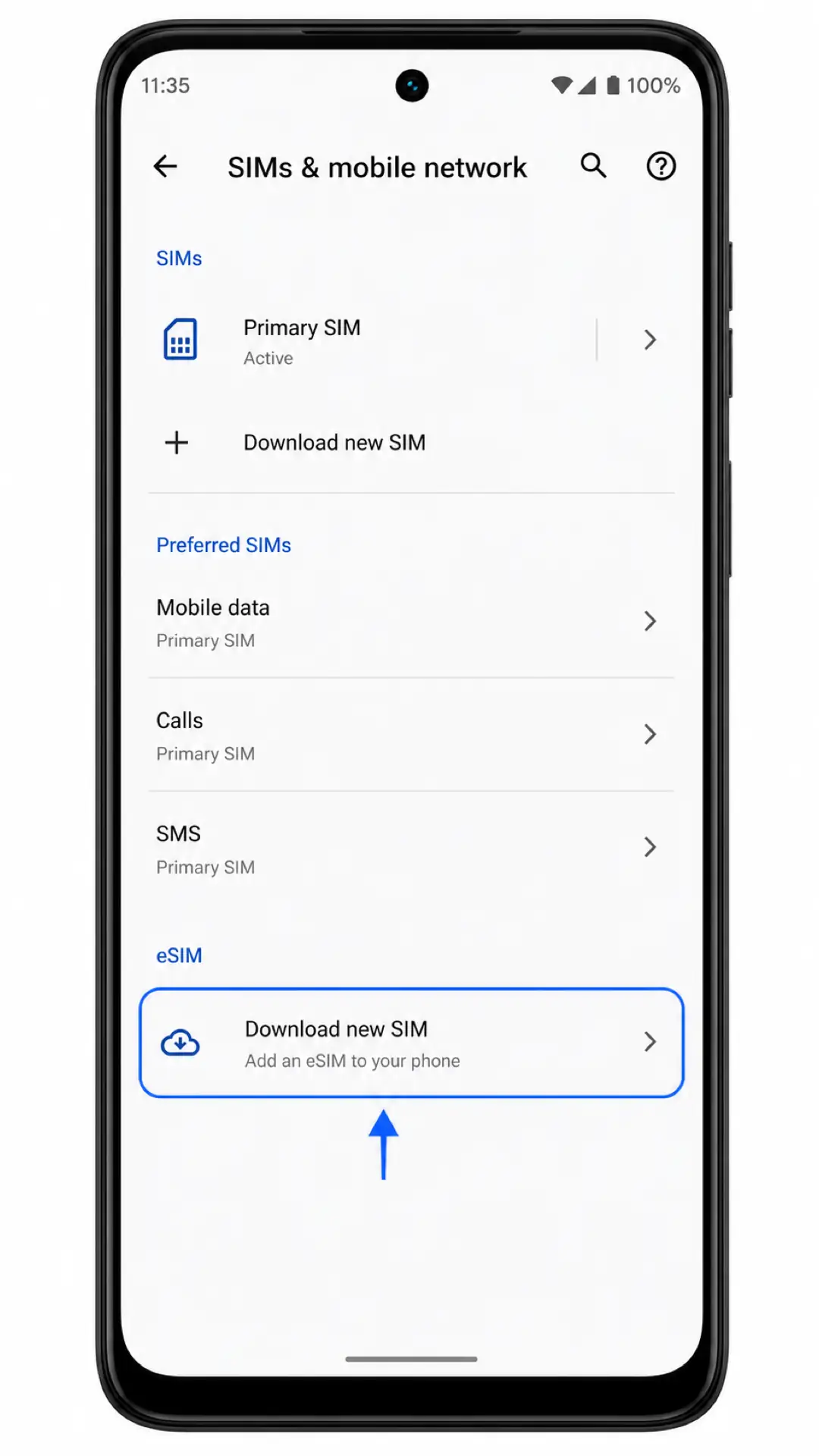
3. Tap Download new SIM. If you do not see this option, stop and check the compatibility notes in Troubleshooting.
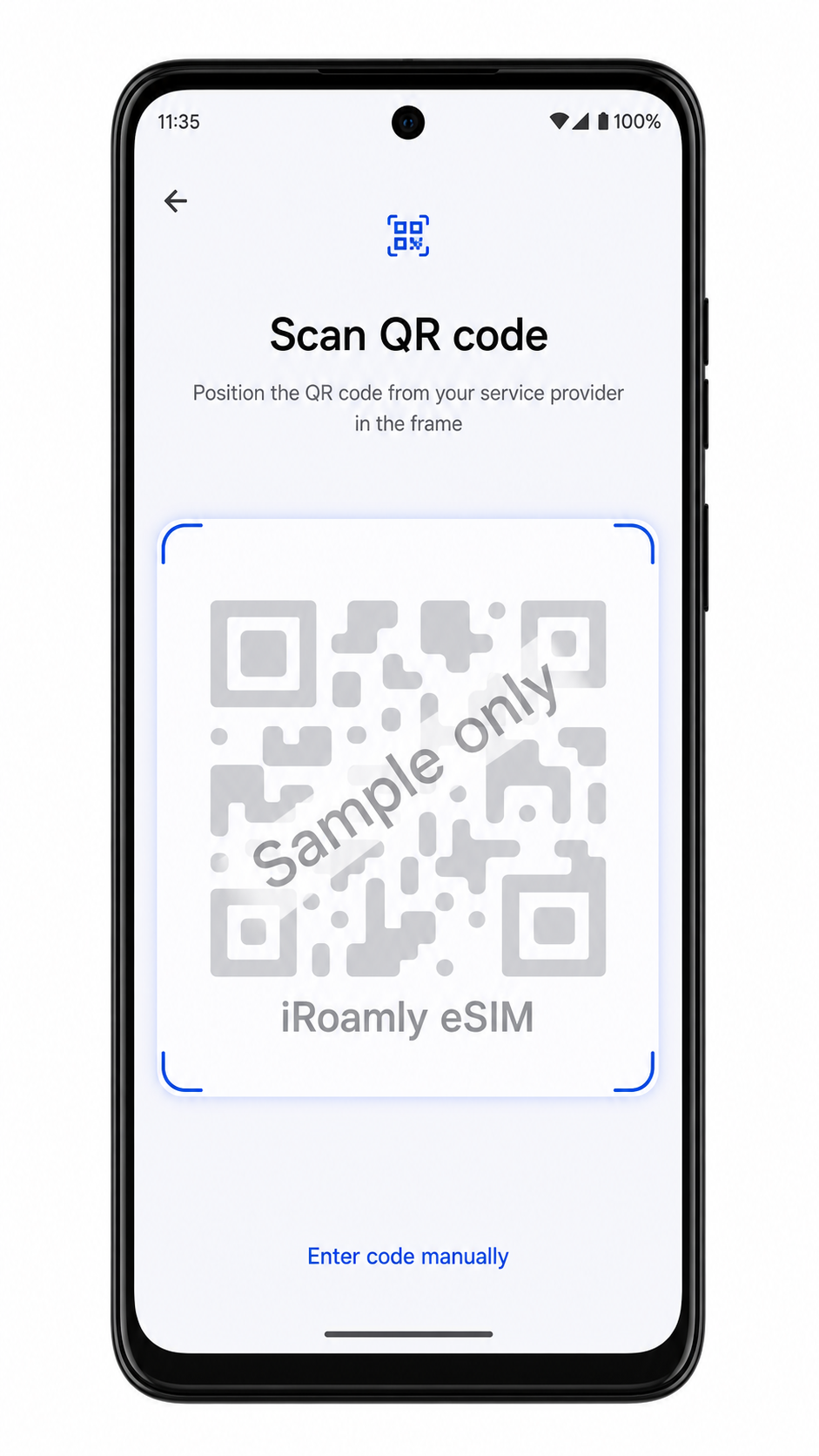
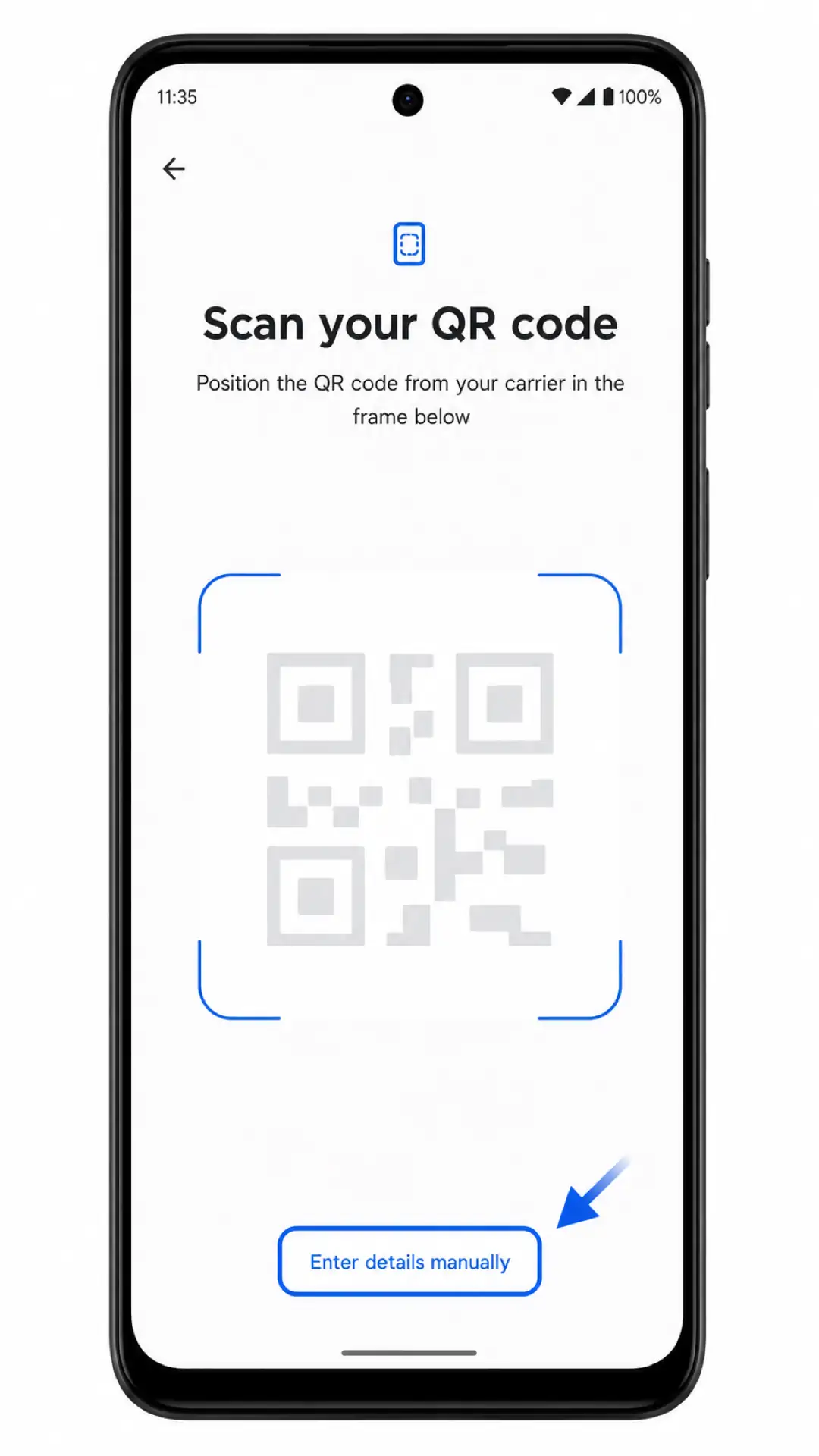
4. On the Scan your QR code screen, scan the iRoamly QR code from your purchase email or account page. Keep the code flat and visible until the phone recognizes it.
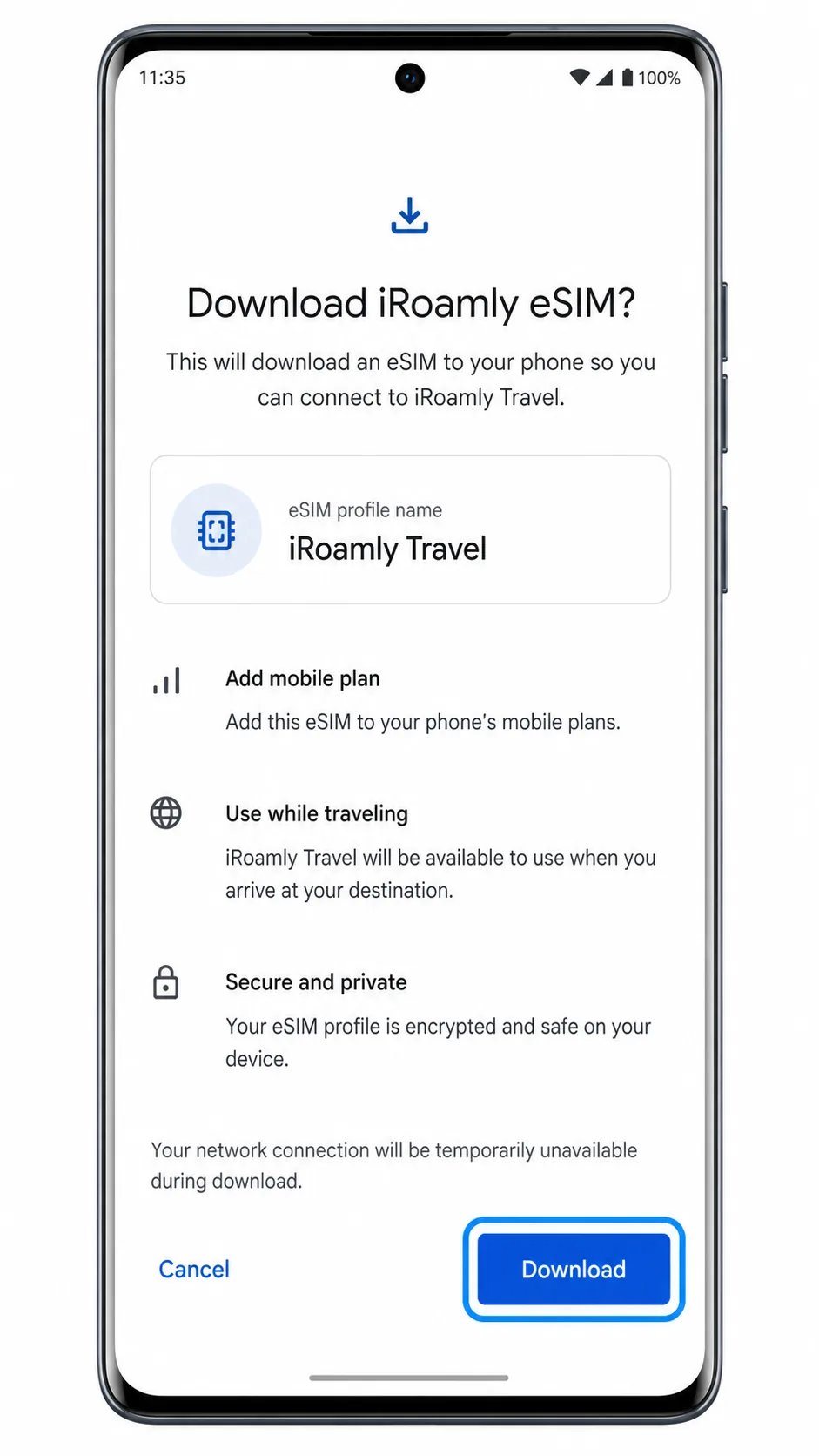
5. Review the Download iRoamly eSIM? screen, then tap Download. Keep Wi-Fi connected until the phone finishes adding the eSIM.
Method 2: Install eSIM Manually
1. Open Settings, then tap Network & internet.
2. Tap SIMs & mobile network.
3. Tap Download new SIM.
4. On the QR scanner screen, tap Enter details manually.
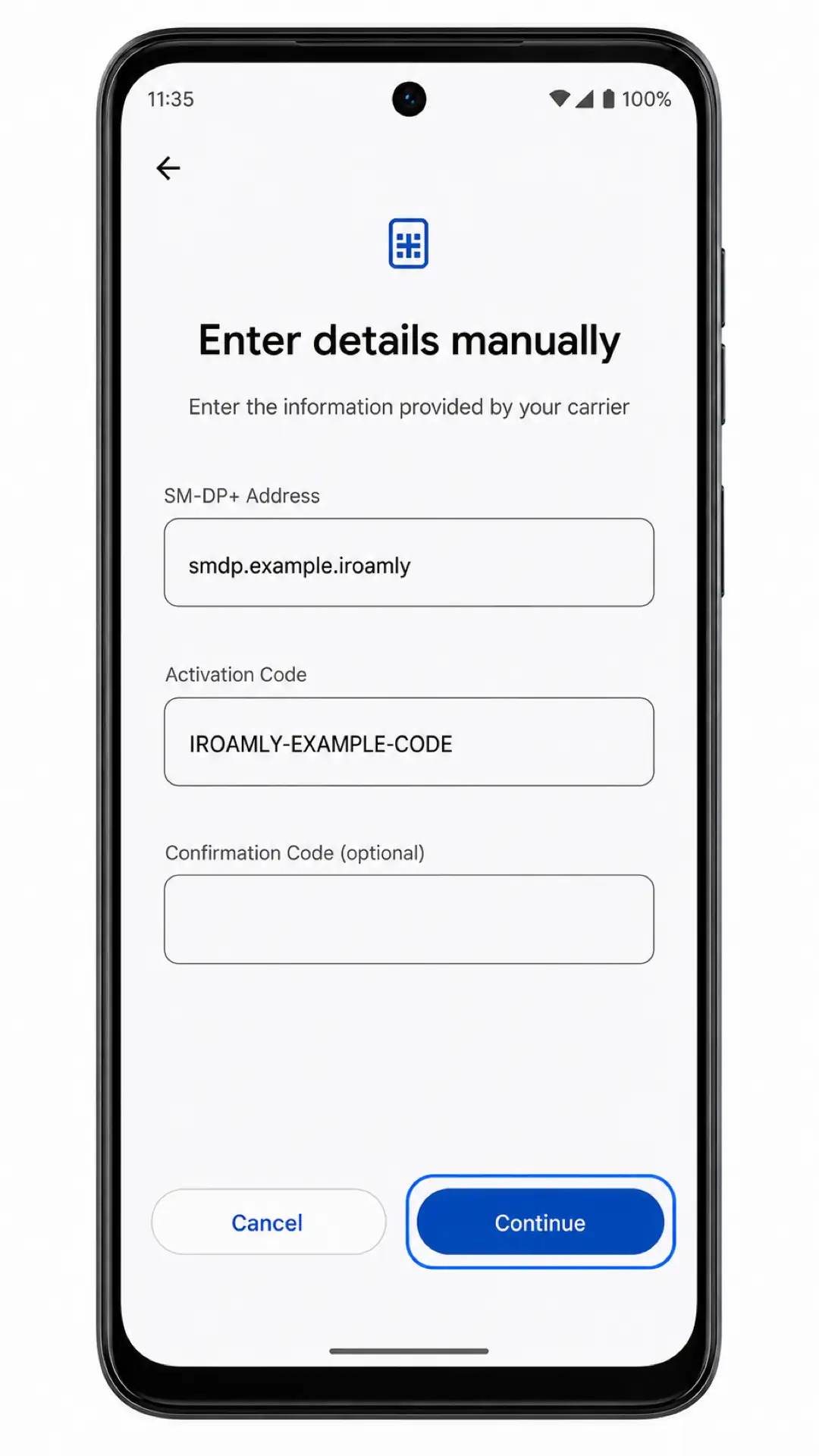
5. Enter the SM-DP+ Address and Activation Code exactly as iRoamly provides them. Use Confirmation Code only if iRoamly gives you one, then tap Continue.
6. Review the Download iRoamly eSIM? screen, then tap Download. Leave Wi-Fi on until setup finishes.
How to Confirm Your iRoamly eSIM Is Installed
1. Open Settings > Network & internet > SIMs & mobile network, then check that iRoamly Travel eSIM appears under the SIM list or eSIM section.
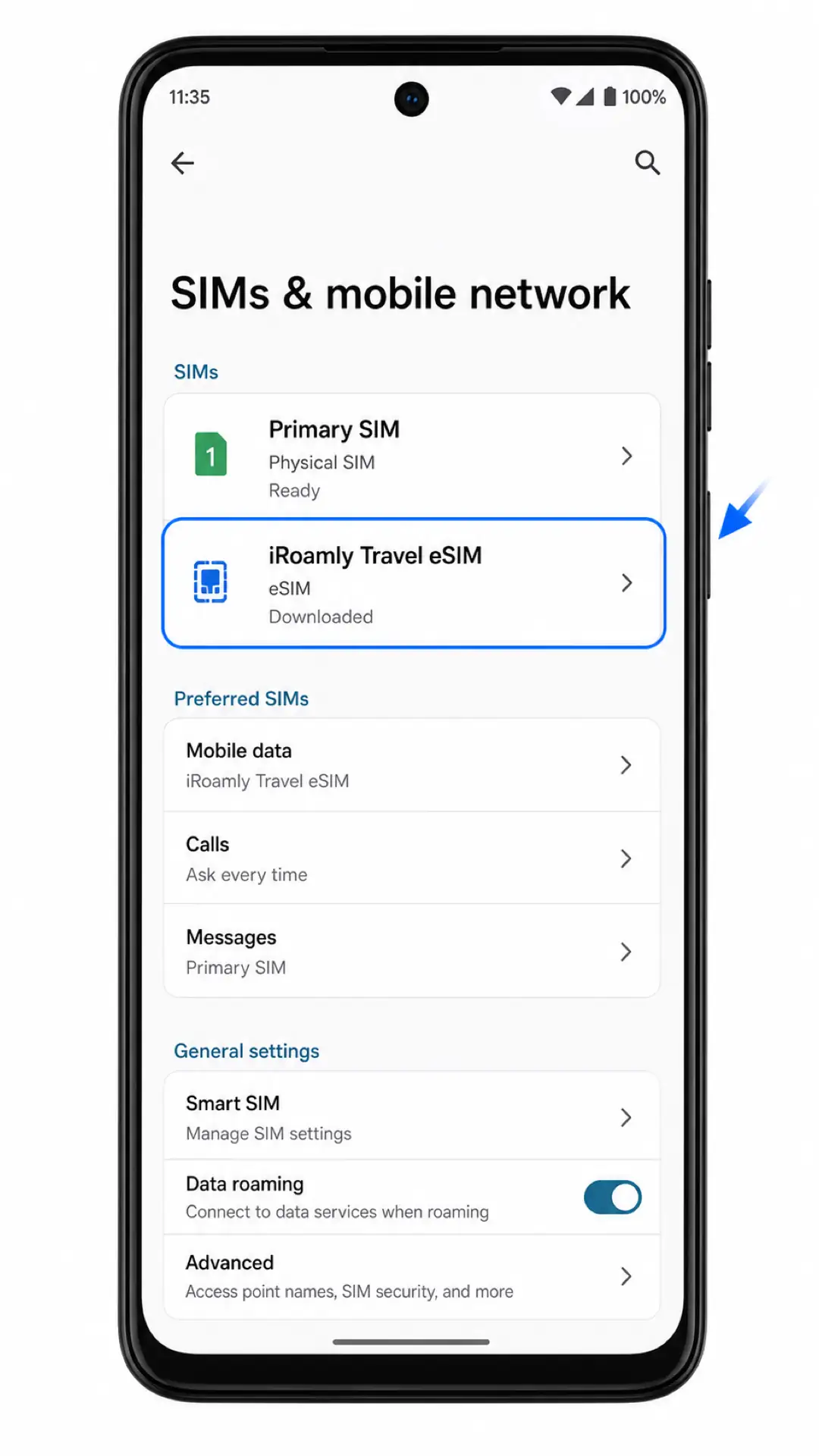
2. Tap iRoamly Travel eSIM, then confirm the Use SIM switch is on.
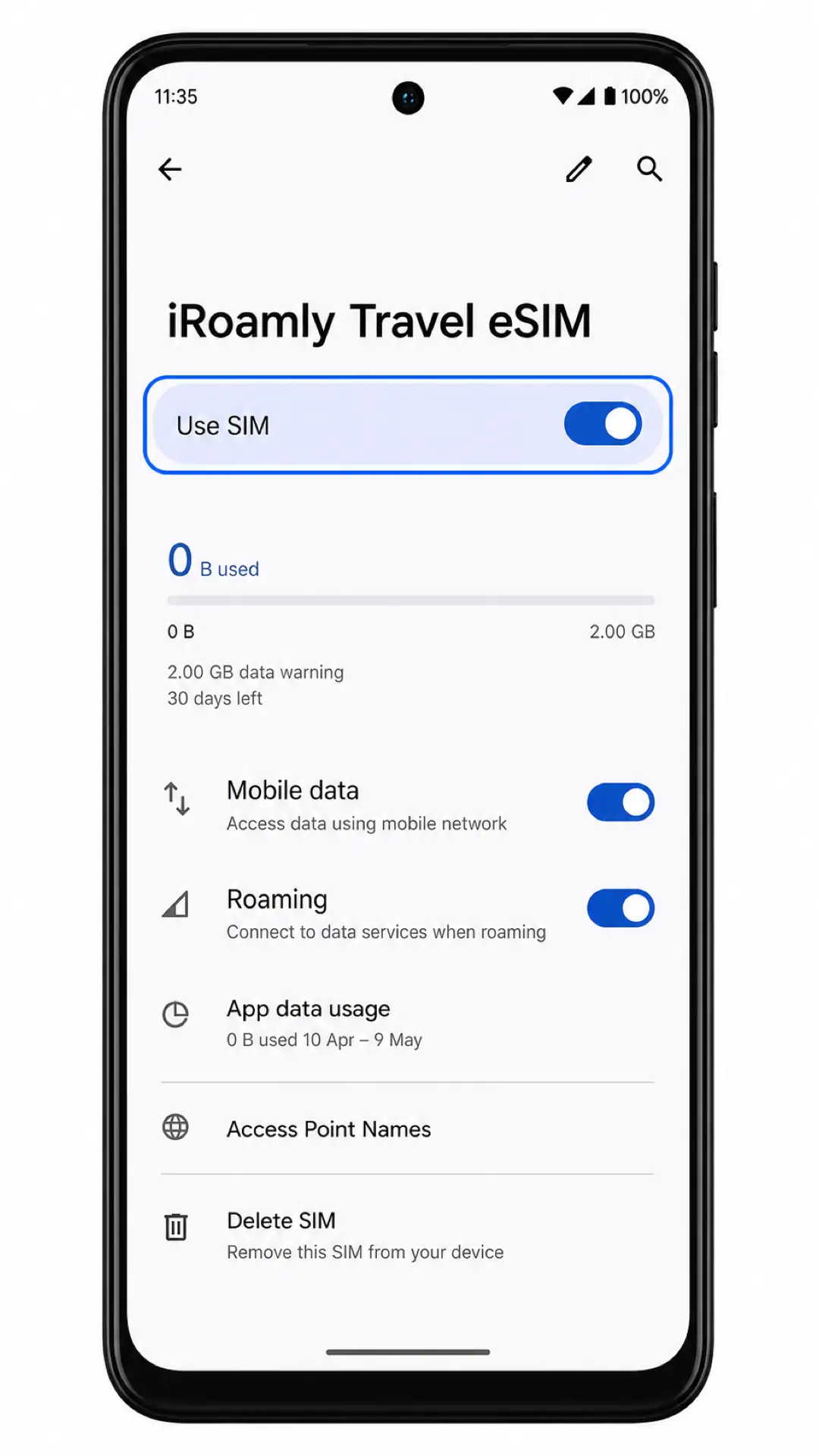
After installation, the eSIM should appear in SIMs & mobile network and be available as a mobile data choice. Test mobile data only after you are ready to activate or use the plan according to the iRoamly plan rules. Test SMS or calls only if your specific iRoamly plan includes those services.
Configure eSIM for Mobile Data
1. Open Settings > Network & internet > SIMs & mobile network, then tap Mobile data under Preferred SIMs.
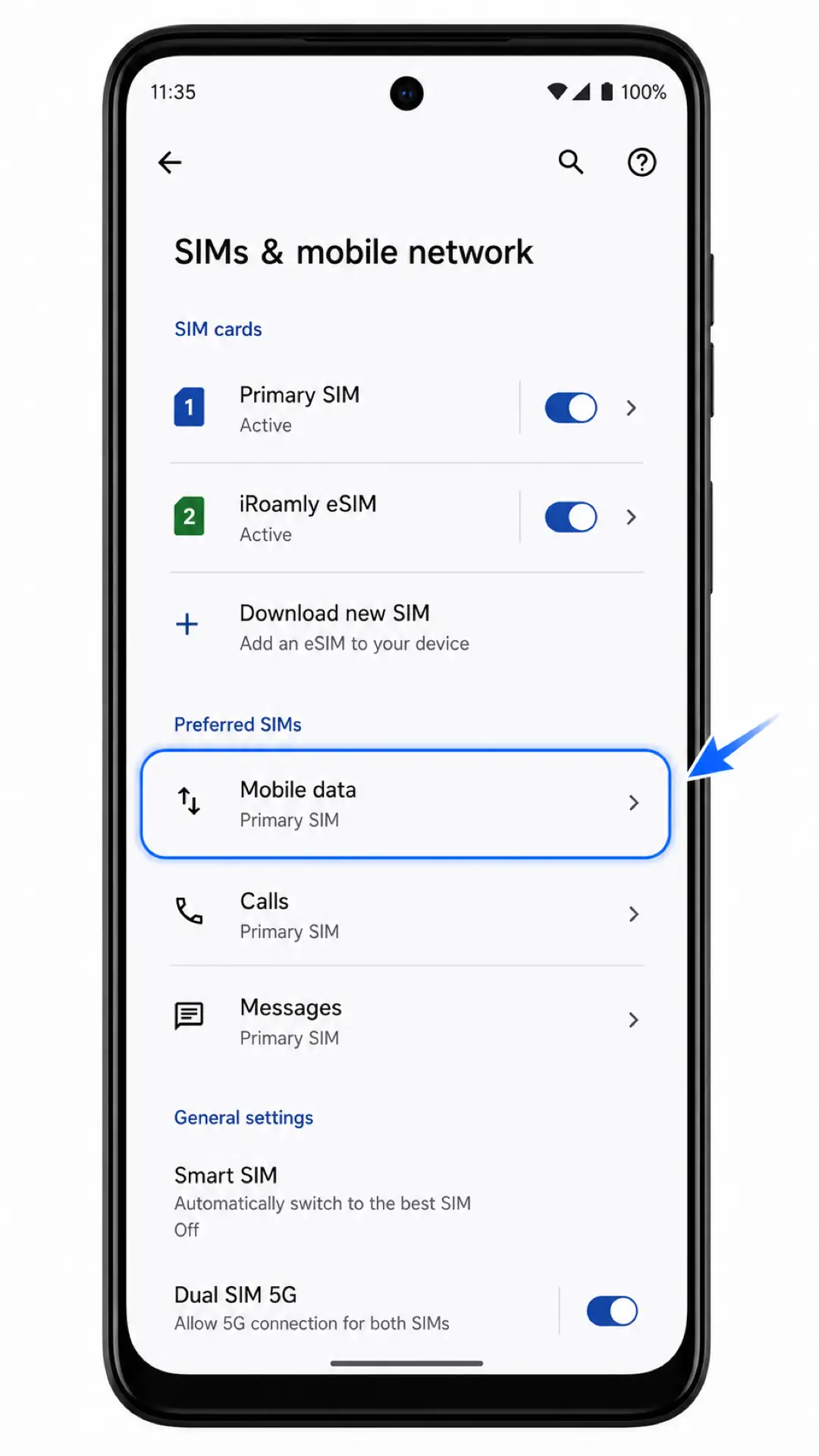
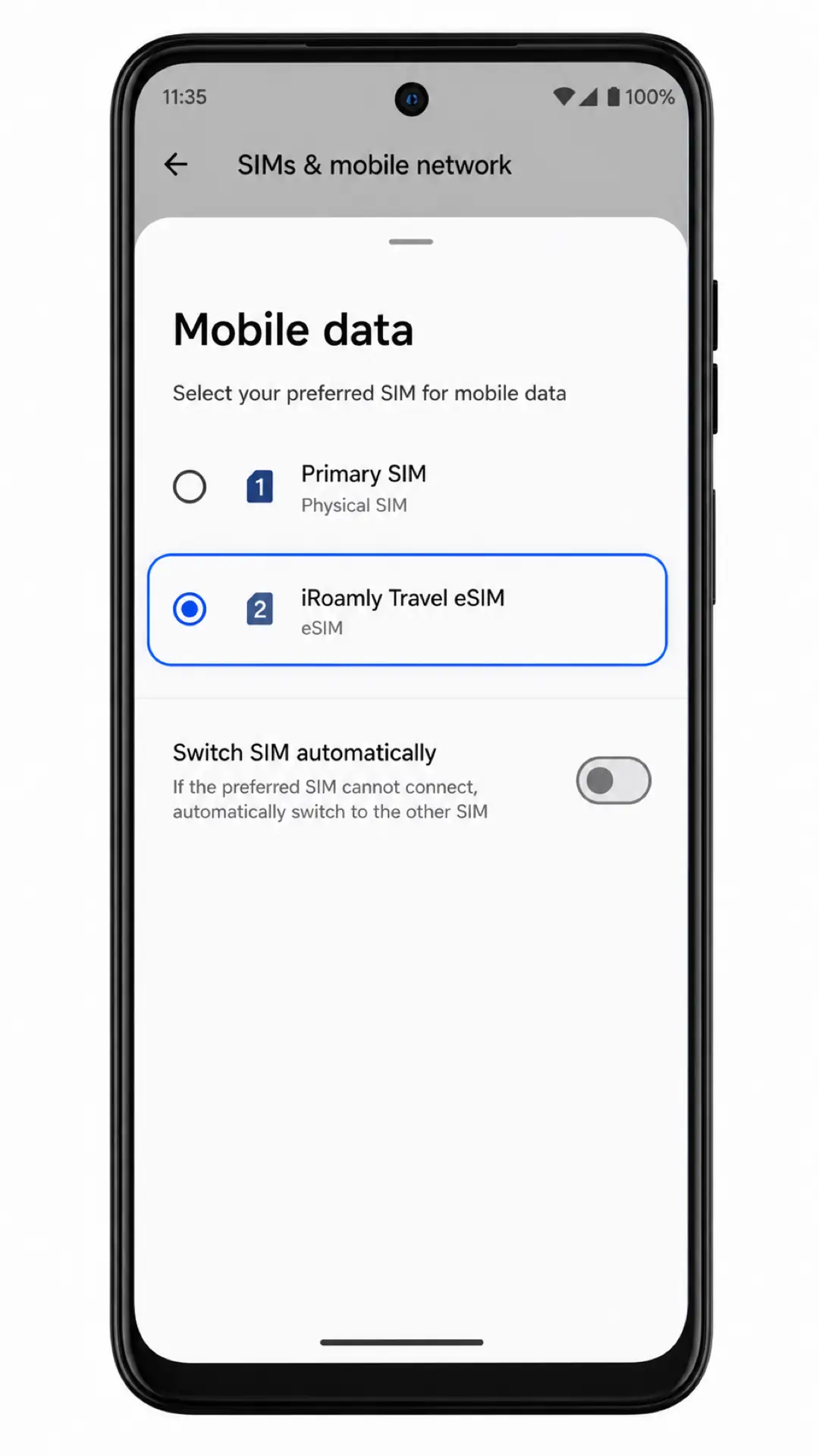
2. Select iRoamly Travel eSIM for mobile data. Leave Switch SIM automatically off if you do not want the phone to fall back to your primary SIM for data.
3. Open iRoamly Travel eSIM, make sure Mobile data is on, and turn on Roaming or Data roaming if your iRoamly plan or destination requires it.
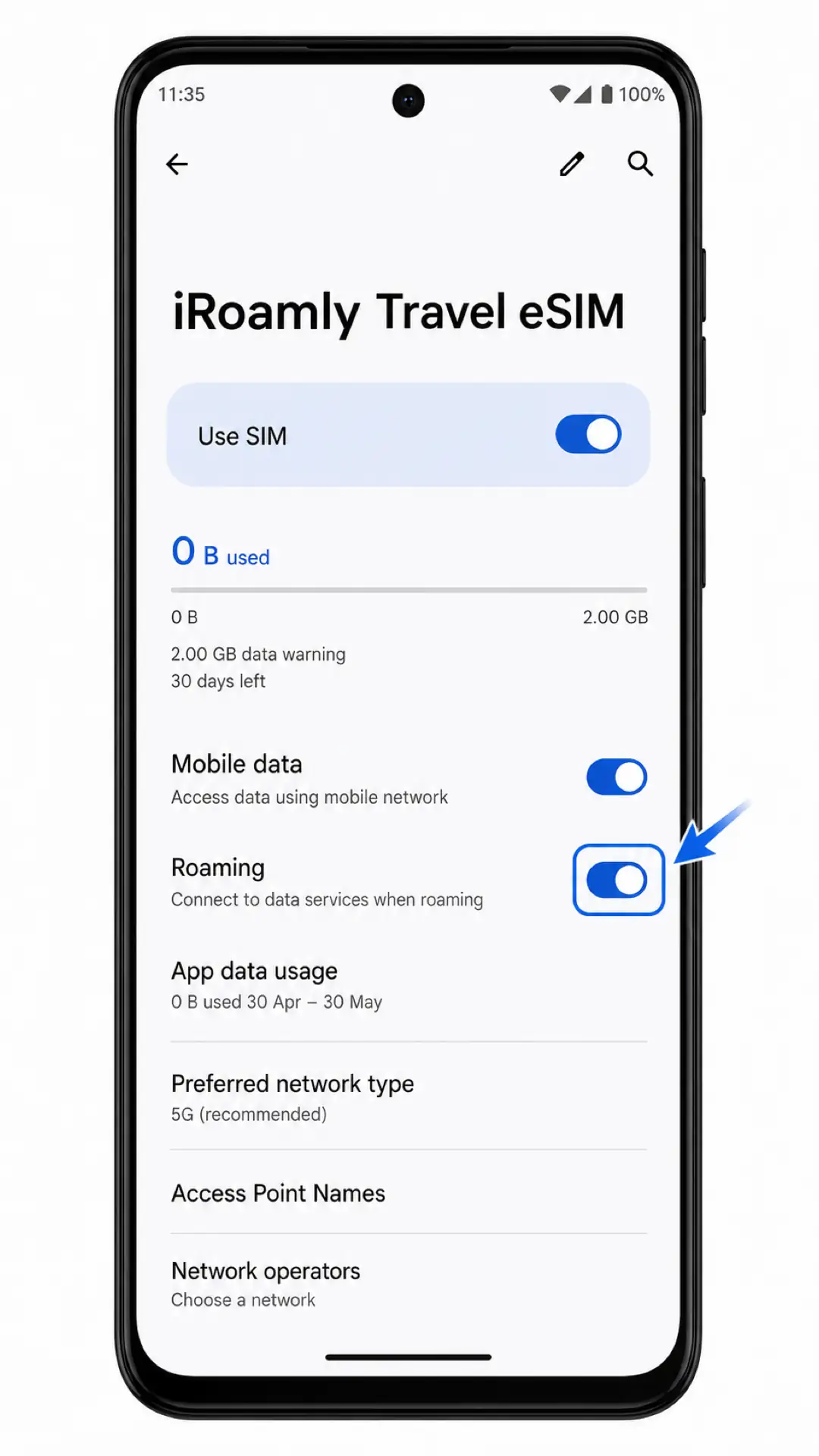
Keep calls and messages on your primary SIM unless the iRoamly plan specifically supports voice or SMS. If your plan is data-only, the iRoamly eSIM should be used for mobile data only.
Troubleshooting
No Download new SIM: Confirm that your Moto G54 Power variant supports eSIM, check for an EID, update Android, and make sure the phone is unlocked. Some regional Moto G54 variants may only support physical SIM cards.
QR code will not scan: Increase screen brightness, open the QR code on a larger display, clean the camera lens, and keep the code flat. If scanning still fails, use manual entry.
QR code already used: Do not keep retrying on multiple devices. Many eSIM QR codes are single-use, so contact iRoamly support.
Manual details are rejected: Copy the SM-DP+ Address and Activation Code exactly, avoid extra spaces, and enter a confirmation code only if iRoamly provides one.
eSIM download fails: Stay on Wi-Fi, restart the phone, check that Download new SIM is still available, and try again once. If it fails again, contact iRoamly before deleting anything.
eSIM is installed but mobile data does not work: Select iRoamly Travel eSIM under Mobile data, turn on Roaming if required, restart the phone, and confirm that your destination is covered by the plan.
eSIM stays activating: Keep Wi-Fi connected for several minutes, then restart the phone. If the status does not change, check your iRoamly plan status and contact support.
eSIM was deleted by mistake: Avoid repeated reinstall attempts. Contact iRoamly support because the original QR code or activation details may not be reusable.
Voice or SMS is unavailable: Check the plan details. Many travel eSIM plans are data-only, and calls or text messages are not guaranteed.
Validity looks shorter than expected: iRoamly validity starts from activation. Review your purchased plan details to confirm what action starts the validity period.
More Motorola eSIM Setup Guides
Setting up another Motorola phone? These eSIM activation guides may help.
Conclusion
For an eSIM-capable Moto G54 Power, scanning the iRoamly QR code is the simpler setup path because it starts from Download new SIM and goes straight to the Download iRoamly eSIM? confirmation. Manual entry is the backup path when you need to type the separate SM-DP+ Address and Activation Code.
Once the eSIM appears in SIMs & mobile network, turn on Use SIM, choose iRoamly Travel eSIM for mobile data, and enable Roaming only when your destination or plan requires it. That leaves the Moto G54 Power ready for travel data while your primary SIM can stay in charge of calls and messages unless your iRoamly plan says otherwise.