
The Moto G85 runs Motorola's near-stock Android software, so the eSIM setup path is usually found under Settings > Network & internet > SIMs. Because eSIM availability can vary by region, carrier firmware, and retail variant, first confirm that your Moto G85 shows Add SIM or an eSIM download option before relying on it for travel.
An iRoamly travel eSIM is useful when you want mobile data abroad without swapping your physical SIM. The QR code method is usually the quickest choice, while manual entry helps if the QR code is on the same phone, will not scan, or must be copied from your iRoamly account details.
This guide covers both setup methods on a Moto G85-style Android 14 interface, then shows how to confirm the iRoamly eSIM is installed and select it for mobile data. Menu names may vary slightly by software version, but the key labels to look for are Network & internet, SIMs, Add SIM, Scan QR code, and Enter activation code.

Meet iRoamly for Easier Travel Connectivity
iRoamly Travel eSIM is a travel eSIM service that provides mobile data options for destinations around the world. Available choices may include local destination plans, regional coverage, and global plans, with data amounts, validity periods, and supported features depending on the destination.
After installation on a compatible phone, travel data can support maps, messages, translations, ride-hailing, bookings, and trip updates.
For a compatible Moto G85, an iRoamly eSIM can be added as a separate data line and selected when the plan is ready to use abroad. Follow the existing setup flow below to install the eSIM by QR code or manual details and confirm the profile on the phone.
Before You Set Up Your iRoamly eSIM
Connect the Moto G85 to stable Wi-Fi before starting. The phone needs internet access to download the eSIM profile.
Confirm your Moto G85 variant supports eSIM. If Add SIM, Set up an eSIM, or Download a new eSIM does not appear, your region, carrier firmware, or model variant may not support eSIM.
Keep your iRoamly QR code open on another device or printed, or have your manual activation code ready.
Do not delete the iRoamly eSIM after installation unless iRoamly support tells you to. Many travel eSIM profiles cannot be reinstalled after removal.
Install the iRoamly eSIM 1-2 days before travel when possible, but check the plan details first. iRoamly plan validity starts from activation, and the exact activation trigger can vary by plan.
iRoamly travel eSIM plans may be data-only. Voice calls and SMS depend on the specific plan, so check the plan details before you travel.
Planning travel to Turkey? You can install the destination eSIM while you still have reliable Wi-Fi, then switch the Moto G85 to that data line when needed. The same pre-departure approach also works for an Italy eSIM when Italy is the destination.
Method 1: Install eSIM by Scanning a QR Code
Open Settings on your Moto G85, then tap Network & internet.
You should see the Android network settings area where SIM and mobile network options are managed.
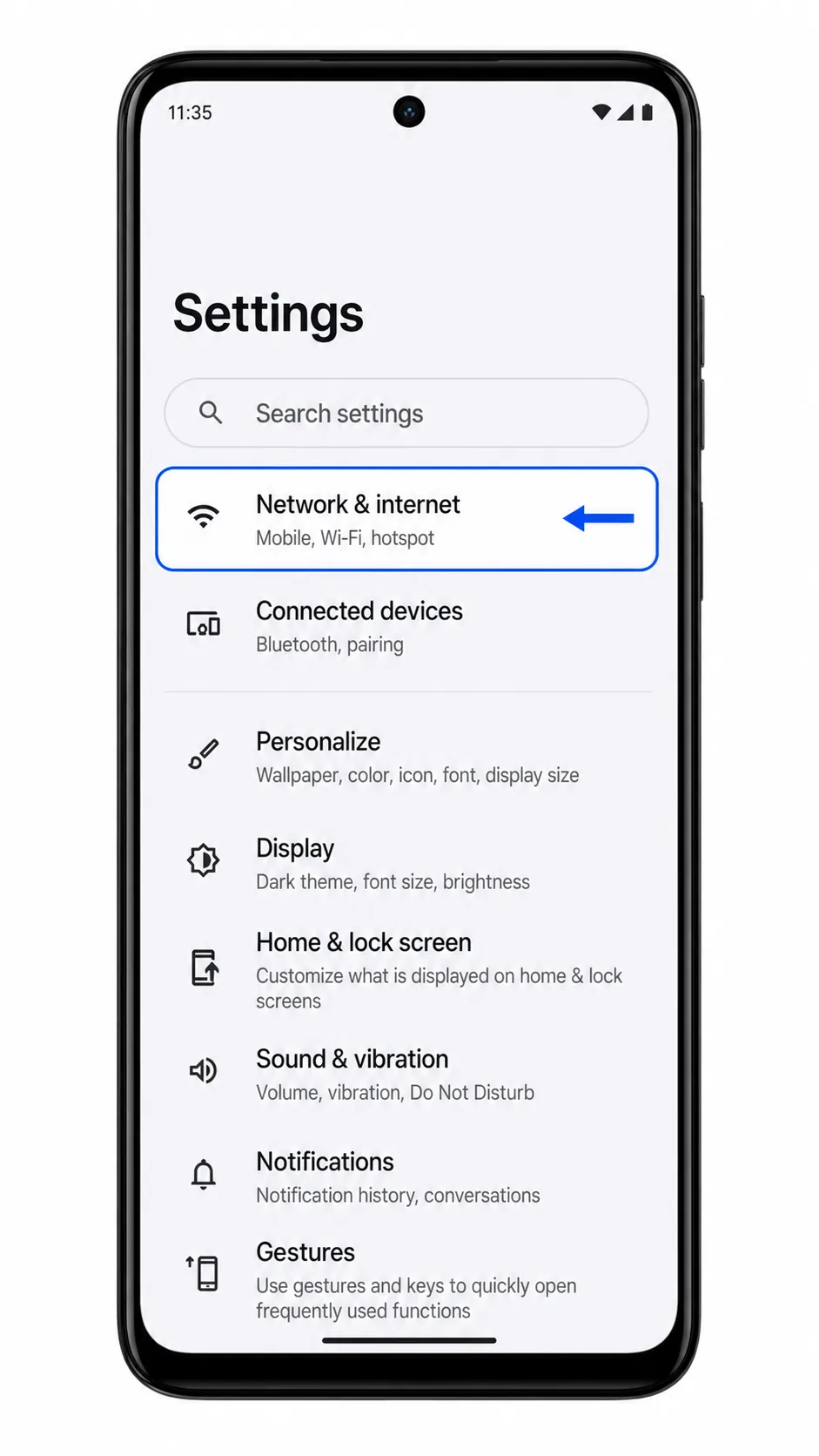
Tap SIMs.
The phone should open the SIM management page for your physical SIM and any saved eSIM profiles.
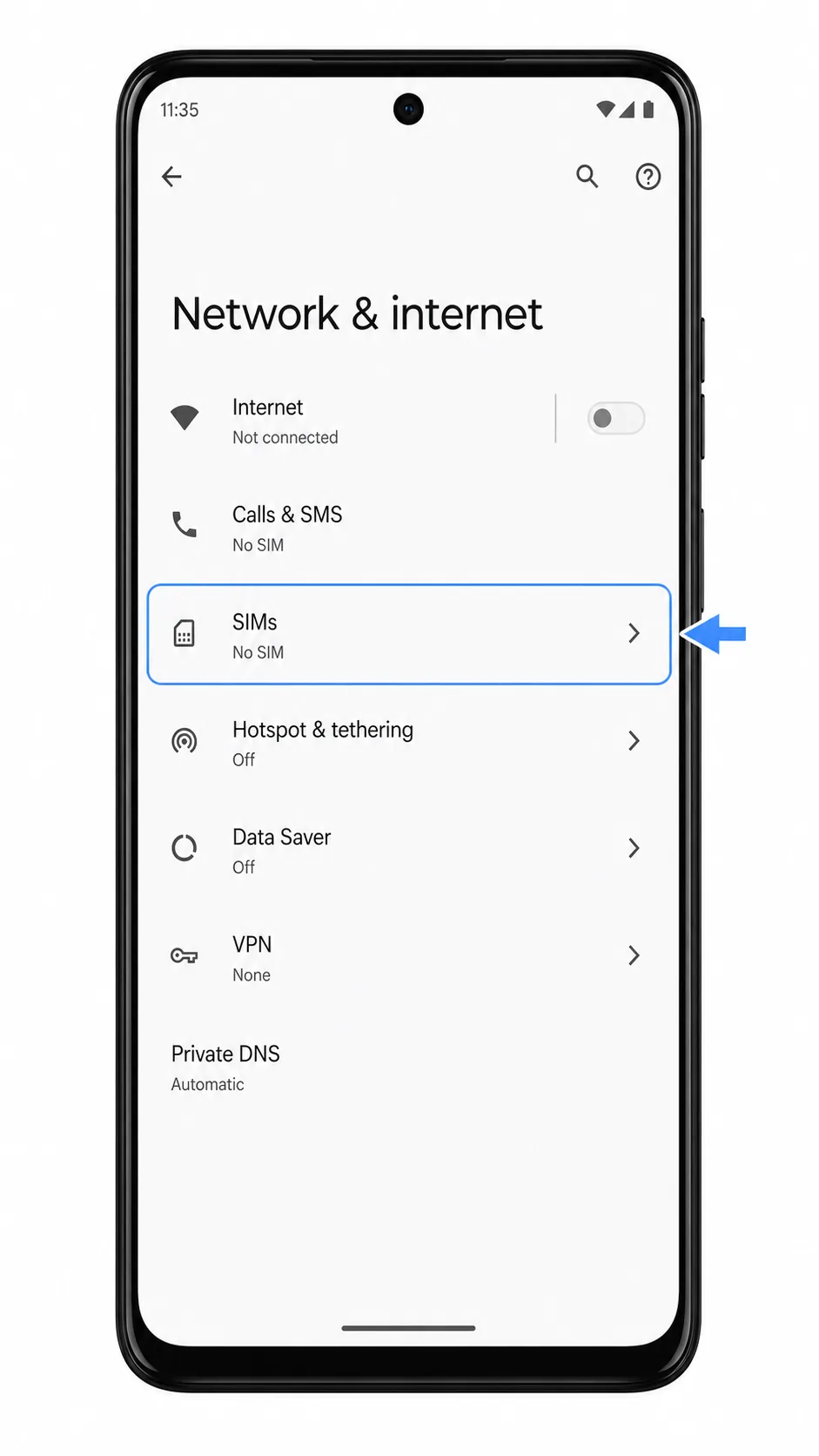
Tap Add SIM.
On supported Moto G85 variants, Android should start the flow for adding another SIM or downloading an eSIM.
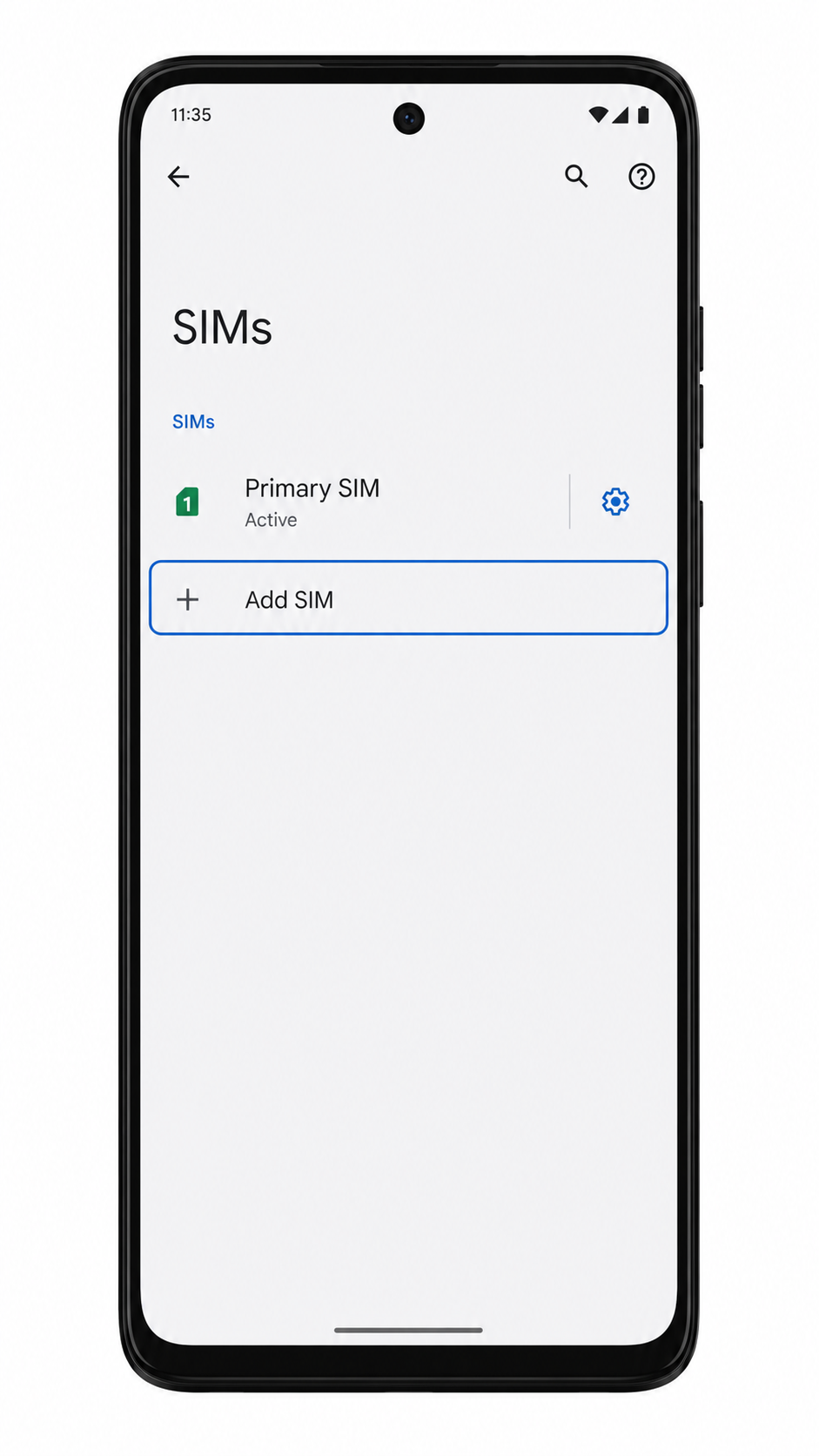
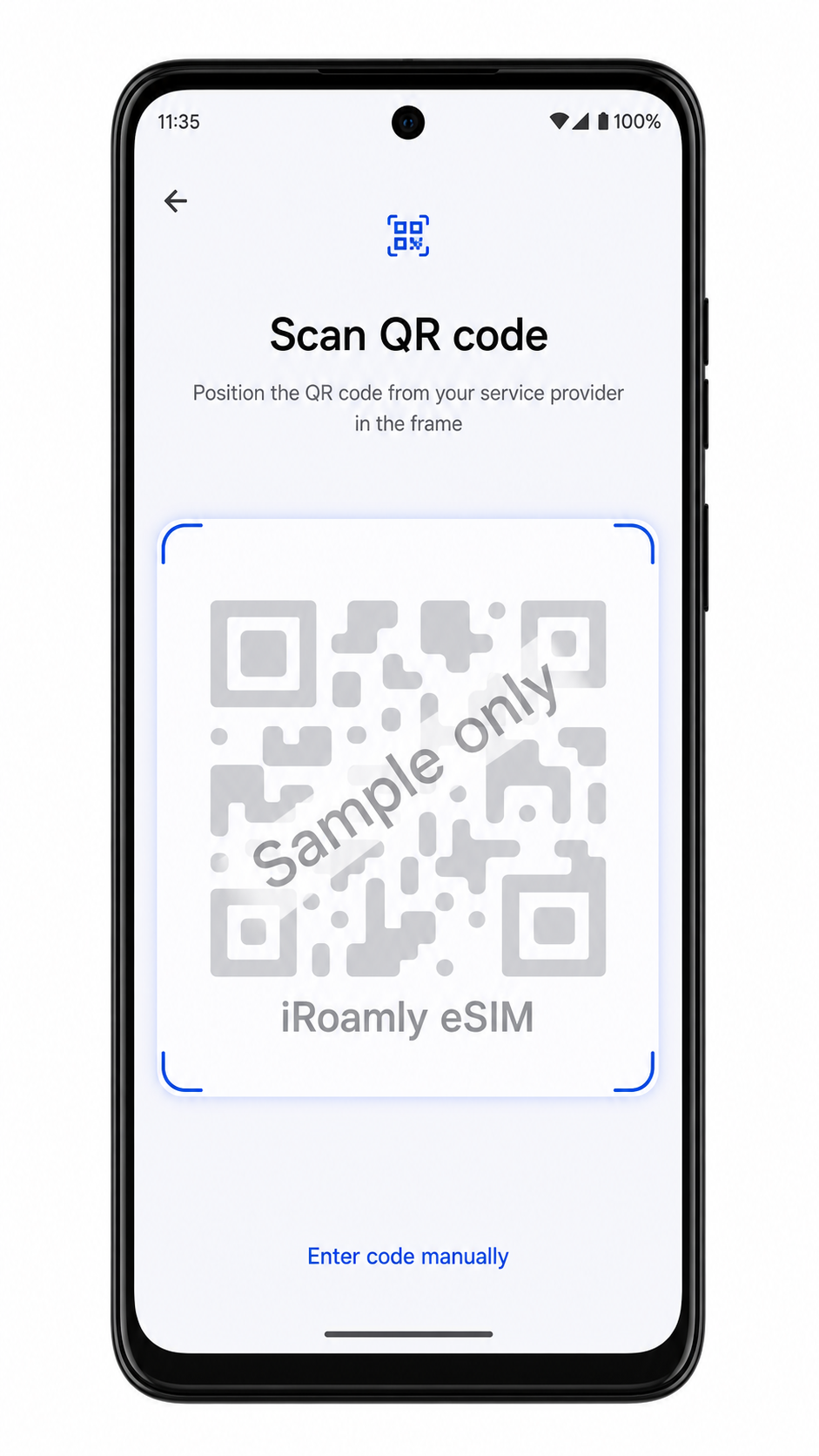
Tap Scan QR code.
The phone should open the eSIM QR scanner. If you see Set up an eSIM first, choose that option, then continue to the QR scanner.
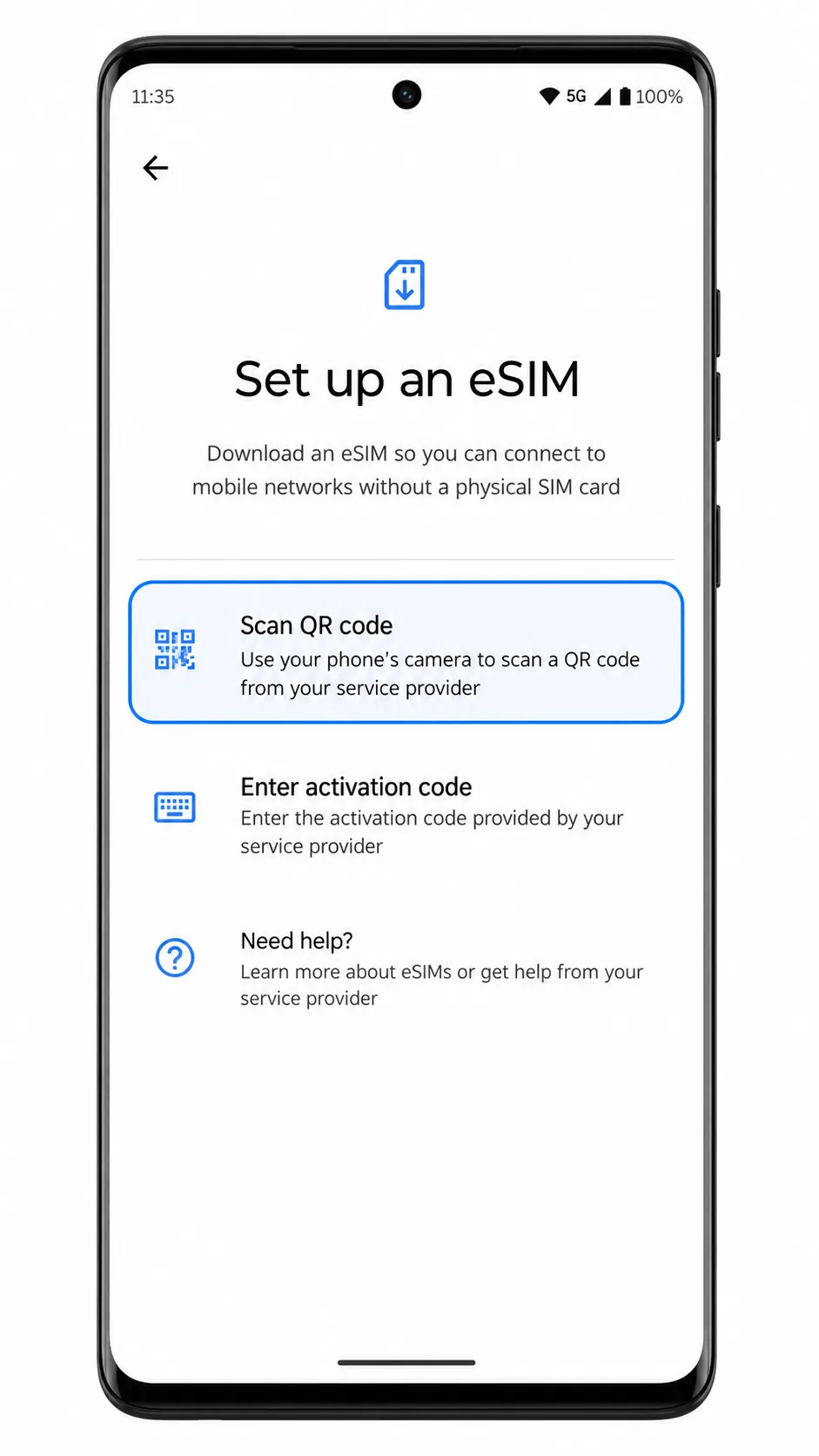
Point the Moto G85 camera at the iRoamly QR code.
Keep the whole QR code inside the scan frame and wait for Android to read it. Do not use a QR code that has already been installed on another phone.
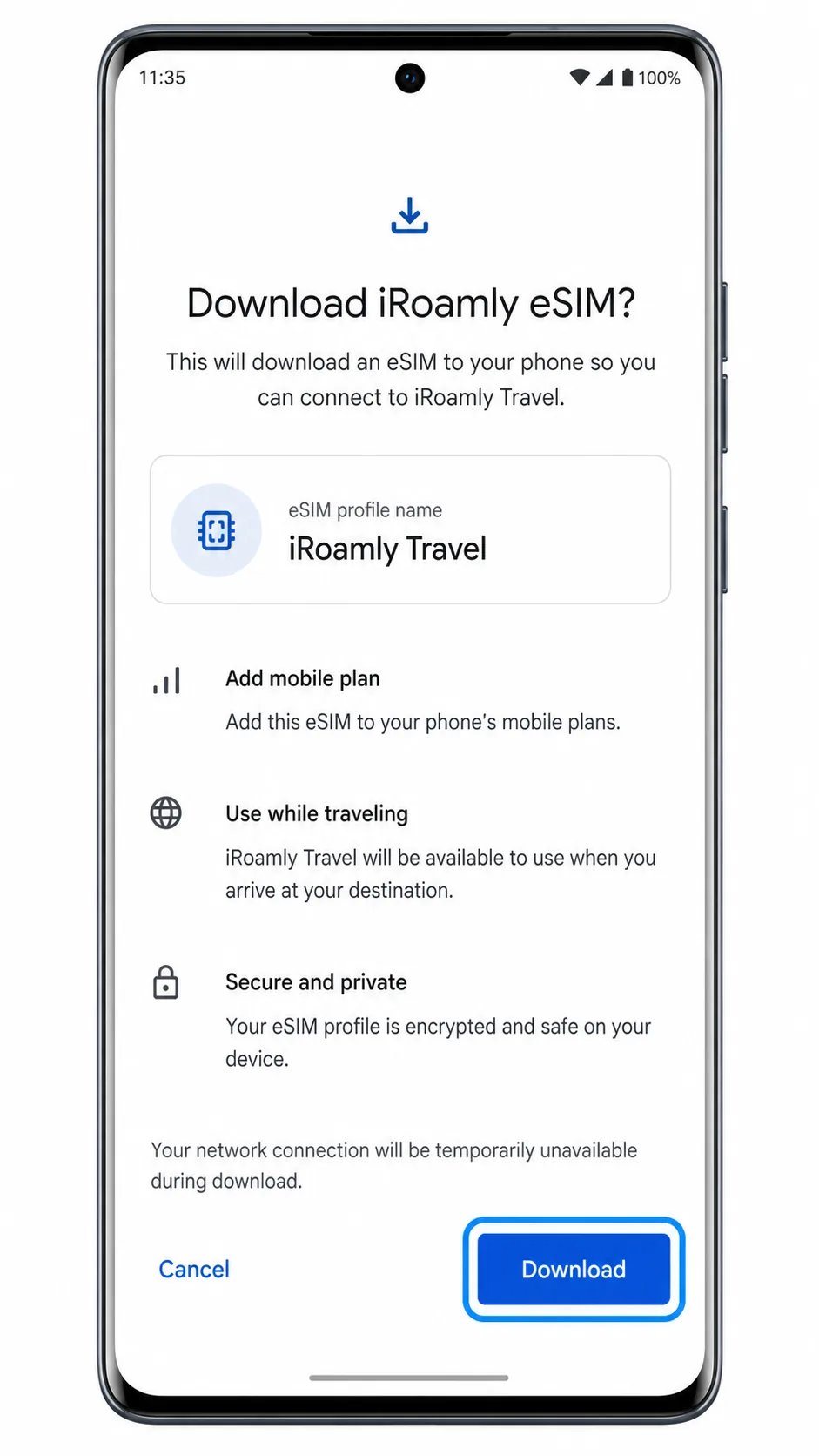
Tap Download or Continue when Android shows the iRoamly eSIM profile.
Leave the phone on Wi-Fi until the download finishes. If Android asks whether to use the new SIM now, you can enable it and finish the data settings later in this guide.
Method 2: Install eSIM Manually
Open Settings on your Moto G85, then tap Network & internet.
This is the same starting point used for the QR method, but the manual method will use the activation-code option instead of the camera scanner.
Tap SIMs.
The Moto G85 should show the SIM management page, including your physical SIM and any existing eSIM profiles.
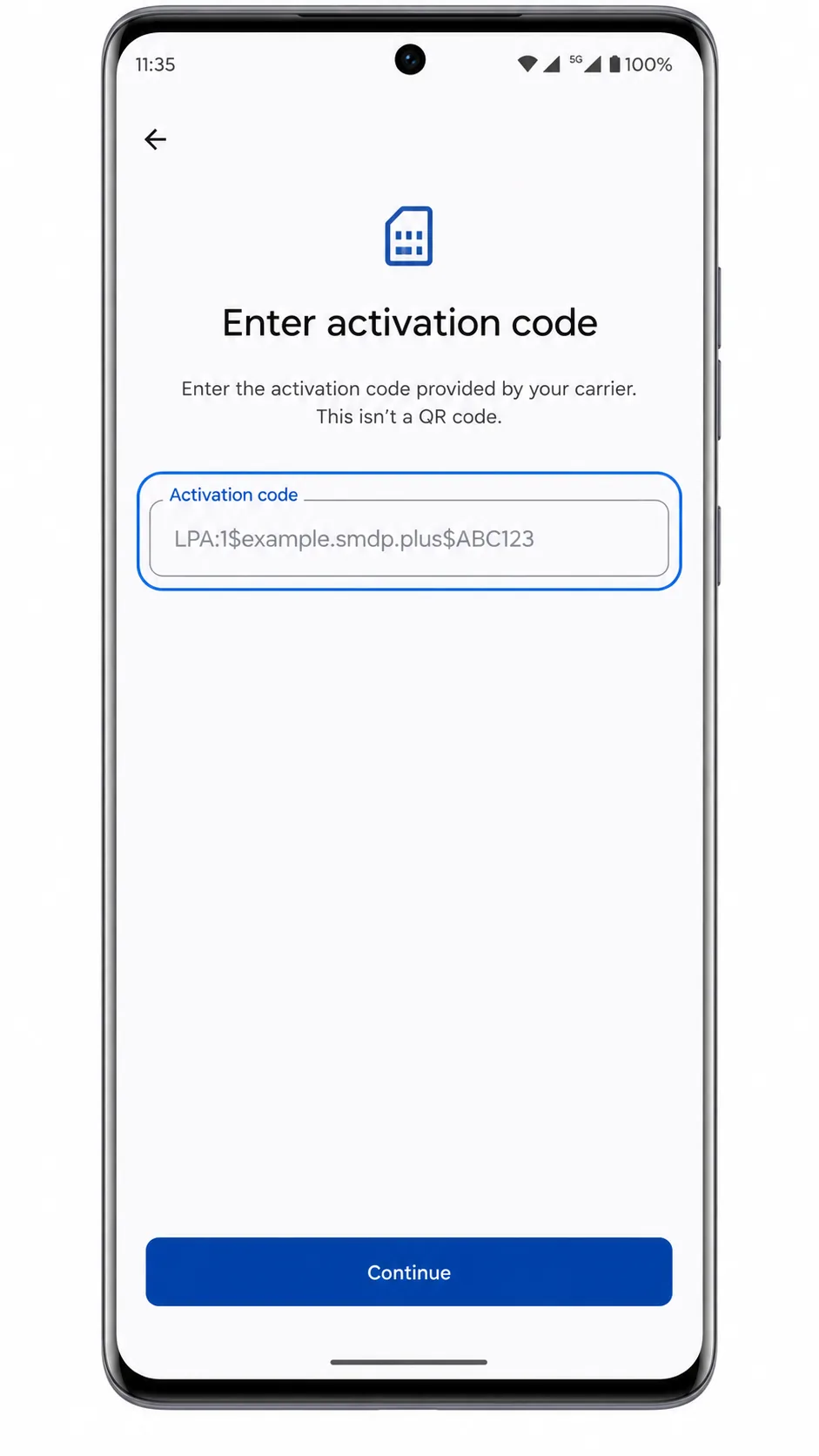
Tap Add SIM, then choose Enter activation code.
If Android first shows Set up an eSIM, tap it, then choose Enter activation code from the eSIM setup screen or the QR scanner screen.
Enter the full iRoamly activation code in the Activation code field, then tap Continue.
On this Moto G85-style Android flow, manual setup uses one full activation code string. If iRoamly gives you separate SM-DP+ Address and Activation Code details, follow the exact iRoamly manual format shown in your order or account page so Android receives the complete activation code.
Tap Download or Continue when Android finds the iRoamly profile.
Keep Wi-Fi connected until the profile finishes downloading and Android returns you to SIM settings.
How to Confirm Your iRoamly eSIM Is Installed
Go to Settings > Network & internet > SIMs.
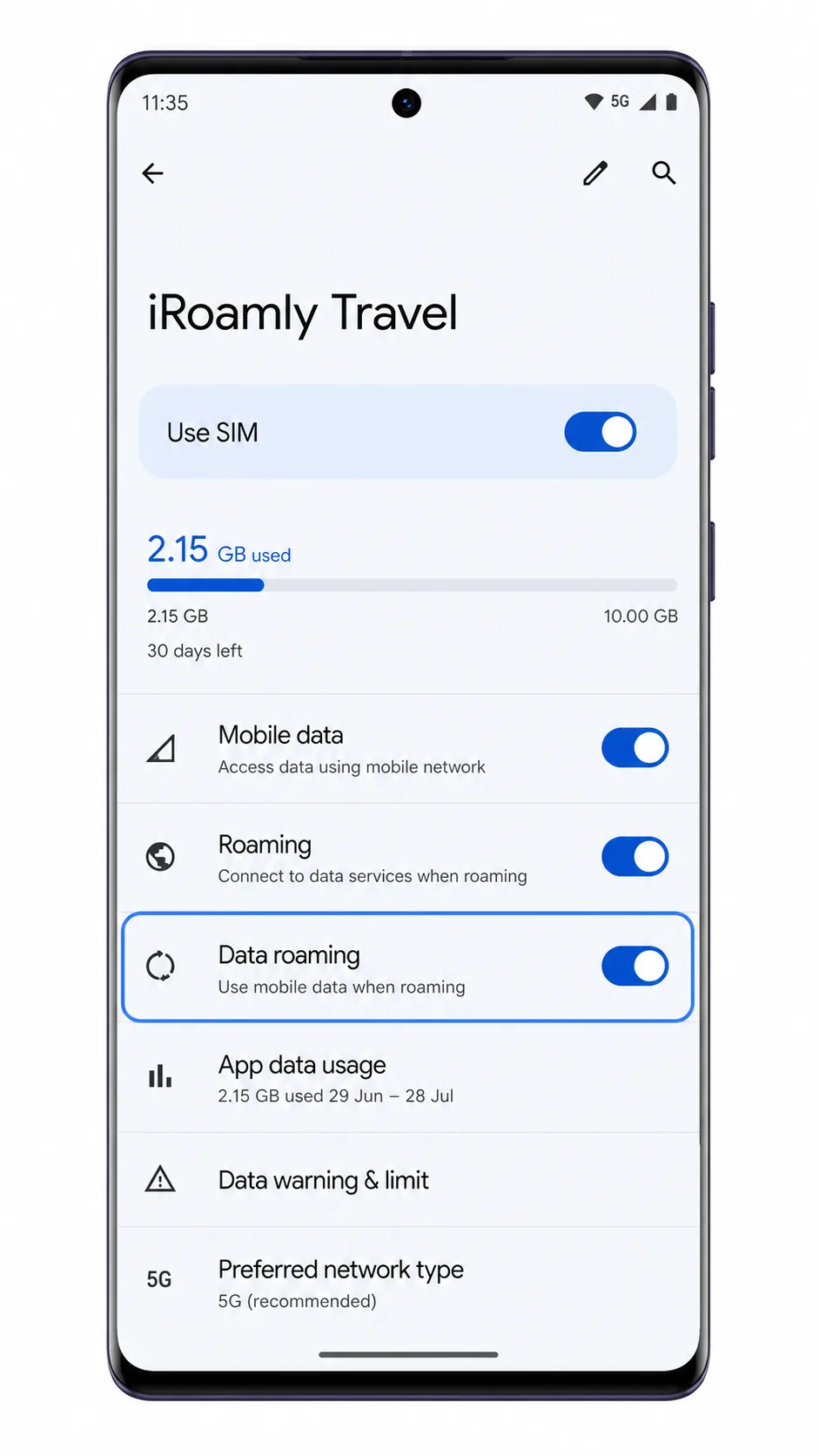
Look for a new eSIM row named iRoamly Travel, iRoamly eSIM, or a similar label. The profile should appear alongside your physical SIM.
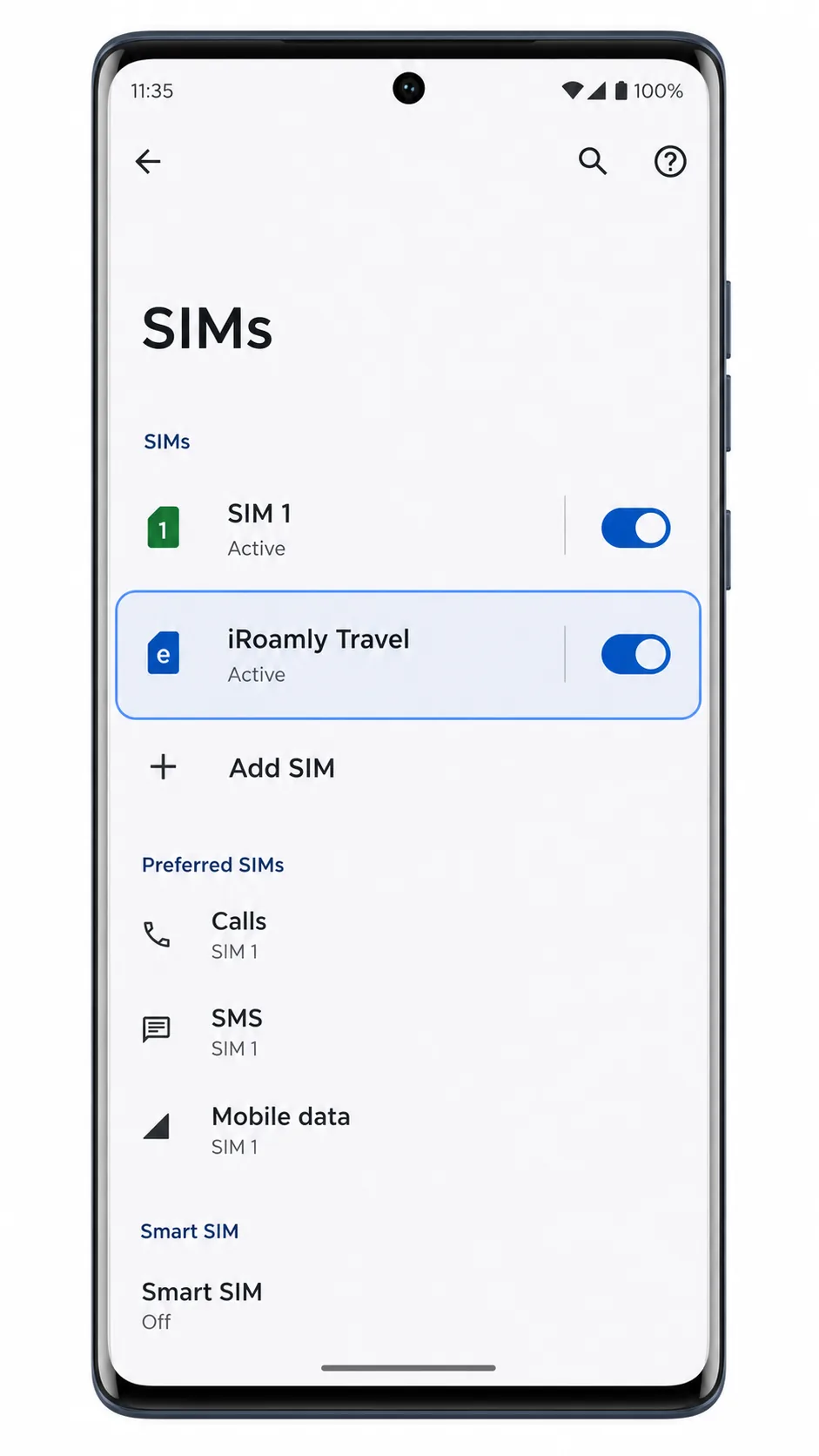
Tap the iRoamly eSIM row and make sure Use SIM is turned on.
If the line is off, turn it on before you try to use travel data. Signal may stay pending until you are in the destination country or connected to a supported network.
Check your iRoamly plan details before testing calls or SMS.
Most travel eSIM setup checks should focus on mobile data. Only test SMS or calling if your specific iRoamly plan says those services are included.
Configure eSIM for Mobile Data
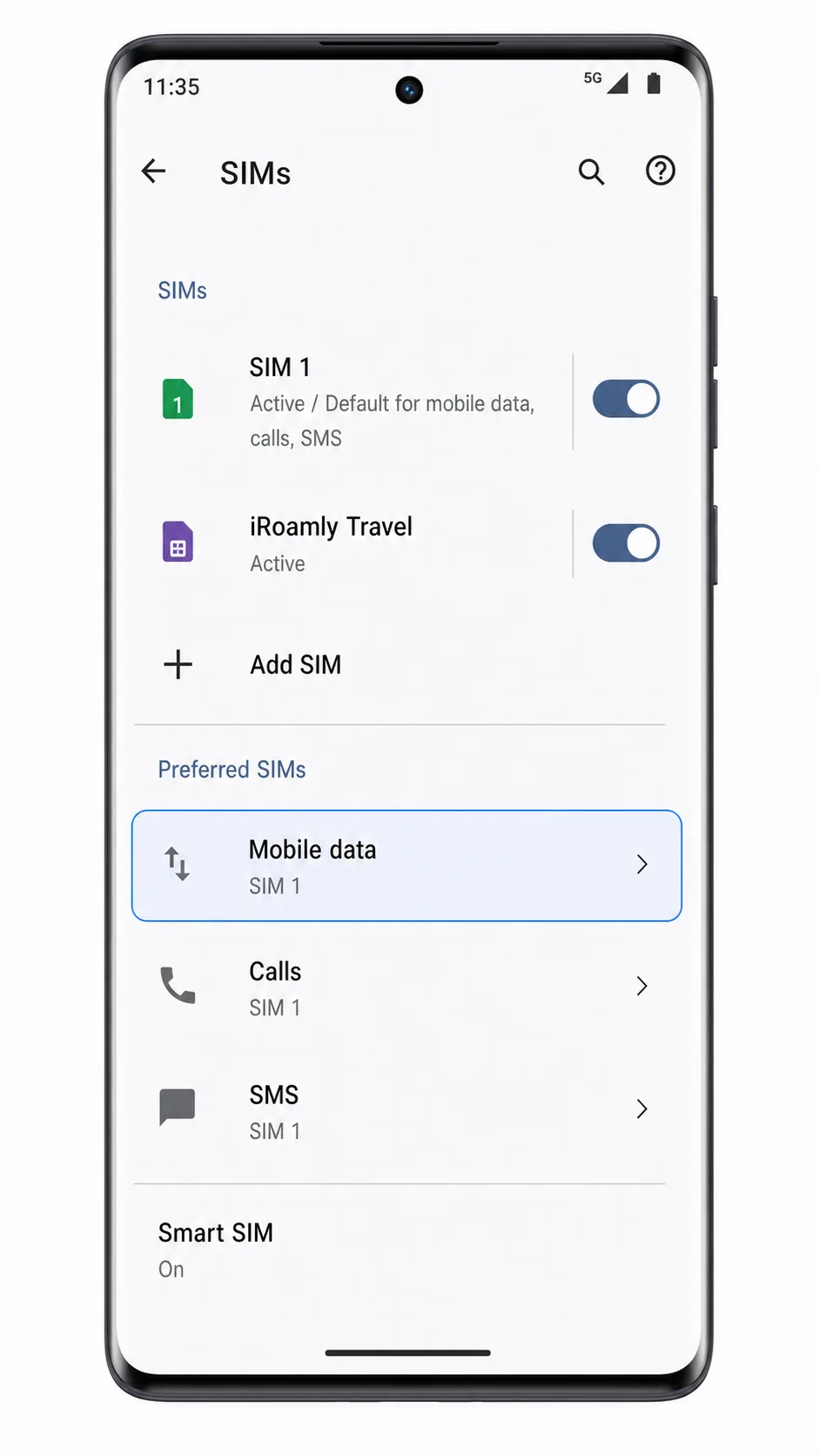
Open Settings > Network & internet > SIMs, then tap Mobile data under Preferred SIMs.
This tells Android which SIM should provide internet access when both the physical SIM and iRoamly eSIM are available.
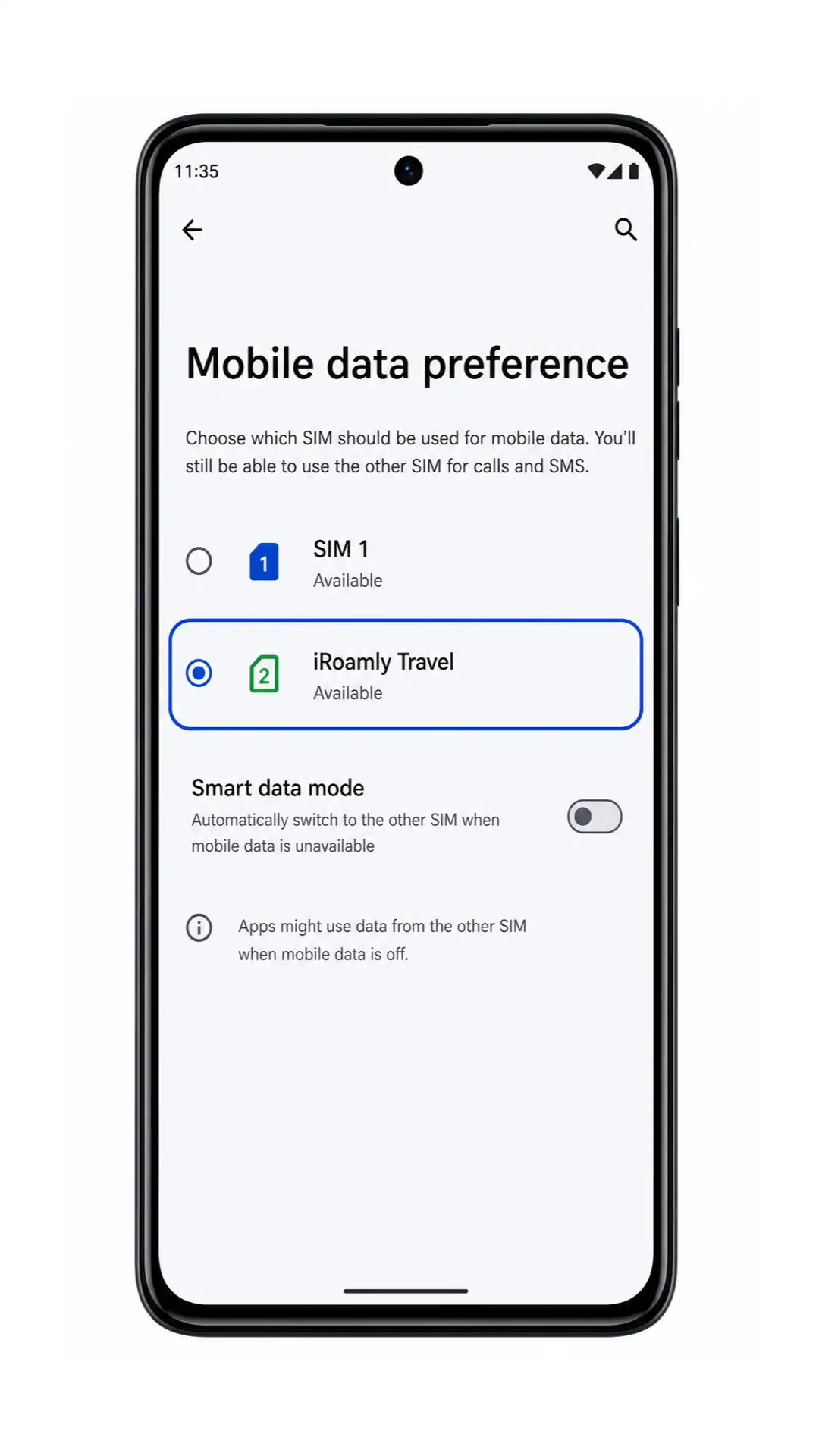
Select iRoamly Travel as the mobile data SIM.
After selecting it, Android should mark the iRoamly eSIM as the active data line.
Tap the iRoamly Travel eSIM, then turn on Data roaming if your destination plan requires roaming.
Many travel eSIMs need data roaming enabled to connect to partner networks. Keep your primary SIM from taking over mobile data if you want to avoid roaming charges on your regular plan.
Open a browser or map app and test mobile data after you arrive at your destination.
If the iRoamly eSIM is active and selected for mobile data, the app should load over the travel data connection once the phone joins a supported local network.
Troubleshooting
Add SIM or Set up an eSIM is missing: Update Android, restart the Moto G85, and check whether your specific region or carrier variant supports eSIM. Some Moto G85 variants may not expose eSIM setup.
QR code will not scan: Increase screen brightness on the device showing the QR code, clean the Moto G85 camera lens, and keep the full QR code inside the scan frame. If it was already used, request help from iRoamly support.
Manual activation fails: Recheck the full activation code exactly as provided by iRoamly. Do not add spaces, change punctuation, or split the code unless iRoamly's instructions tell you to.
eSIM is installed but no data works: Select iRoamly Travel for Mobile data, enable Data roaming if required, turn airplane mode on and off, and confirm you are in a covered destination.
Activation stays pending: Stay connected to Wi-Fi and wait a few minutes. Some plans finish activation only when the phone reaches a supported destination network.
The iRoamly eSIM disappeared after deletion: Do not try to reinstall repeatedly. Contact iRoamly support because many eSIM QR codes or activation codes can be used only once.
Calls or SMS do not work: Check the iRoamly plan details. If the plan is data-only, use internet-based calling or messaging apps instead.
More Motorola eSIM Setup Guides
Setting up another Motorola phone? These eSIM activation guides may help.
Conclusion
For the Moto G85, the QR method is the easiest route when you can display the iRoamly QR code on another screen: Settings > Network & internet > SIMs > Add SIM gets you to Scan QR code quickly.
Manual setup is still a solid backup because Motorola's near-stock Android flow can accept a full activation code through Enter activation code when scanning is not practical.
After installation, the important checks happen back in SIMs: confirm that iRoamly Travel appears, keep Use SIM enabled, select it under Mobile data, and turn on Data roaming when your plan or destination requires it. Once those settings are in place, your Moto G85 is ready to use the iRoamly travel eSIM for mobile data abroad.