
The Moto G84 supports eSIM on compatible regional variants, which makes it a practical phone for travelers who want mobile data without changing a physical SIM card. This guide assumes a Moto G84 running Motorola's near-stock Android 14 interface, where the eSIM path appears under Settings > Network & internet > SIMs > Add eSIM.
An iRoamly travel eSIM can be installed before a trip so the profile is ready when you arrive. Menu names can vary slightly by software version, region, or carrier firmware, and some Moto G84 variants may hide eSIM options if the model or carrier configuration does not support eSIM.
This guide covers two complete setup methods: scanning the iRoamly QR code and entering the eSIM details manually. The QR code method is usually faster, while manual entry is useful if the QR code cannot be scanned or you are setting up from the same screen that displays the QR code.

Stay Connected Abroad with iRoamly
iRoamly eSIM is a travel eSIM service for mobile data in many destinations worldwide. Depending on where you are going, available options may include destination-specific plans, regional plans, and global coverage, with allowances and validity periods varying by plan.
Once installed, the travel data line can help with navigation, messaging, bookings, ride-hailing, translations, and other practical needs abroad.
The Moto G84 supports this digital setup on compatible models, so an iRoamly plan can sit beside the regular SIM and be chosen when mobile data abroad is needed. The guide below keeps the phone-screen steps in order for QR-code installation, manual entry, and post-installation checks.
Before You Set Up Your iRoamly eSIM
Connect the Moto G84 to stable Wi-Fi before starting.
Confirm that your Moto G84 variant is unlocked and eSIM-capable. If Add eSIM is missing, check the device region, carrier firmware, and software version.
Keep your iRoamly QR code, SM-DP+ Address, and Activation Code ready from your iRoamly order email or account page.
Install the eSIM 1-2 days before travel when possible, but check the plan details first. iRoamly eSIM validity starts from activation, and the activation trigger can vary by plan.
Do not delete the eSIM profile casually after installation. A used eSIM QR code may not be reusable.
Check your iRoamly plan details for service type. Many travel eSIM plans are data-focused, and voice calls or SMS may not be included unless the specific plan says they are.
For a single-country trip, a destination plan such as an eSIM for France or an eSIM for Spain can be prepared before you move into the Moto G84 installation steps.
Method 1: Install eSIM by Scanning a QR Code
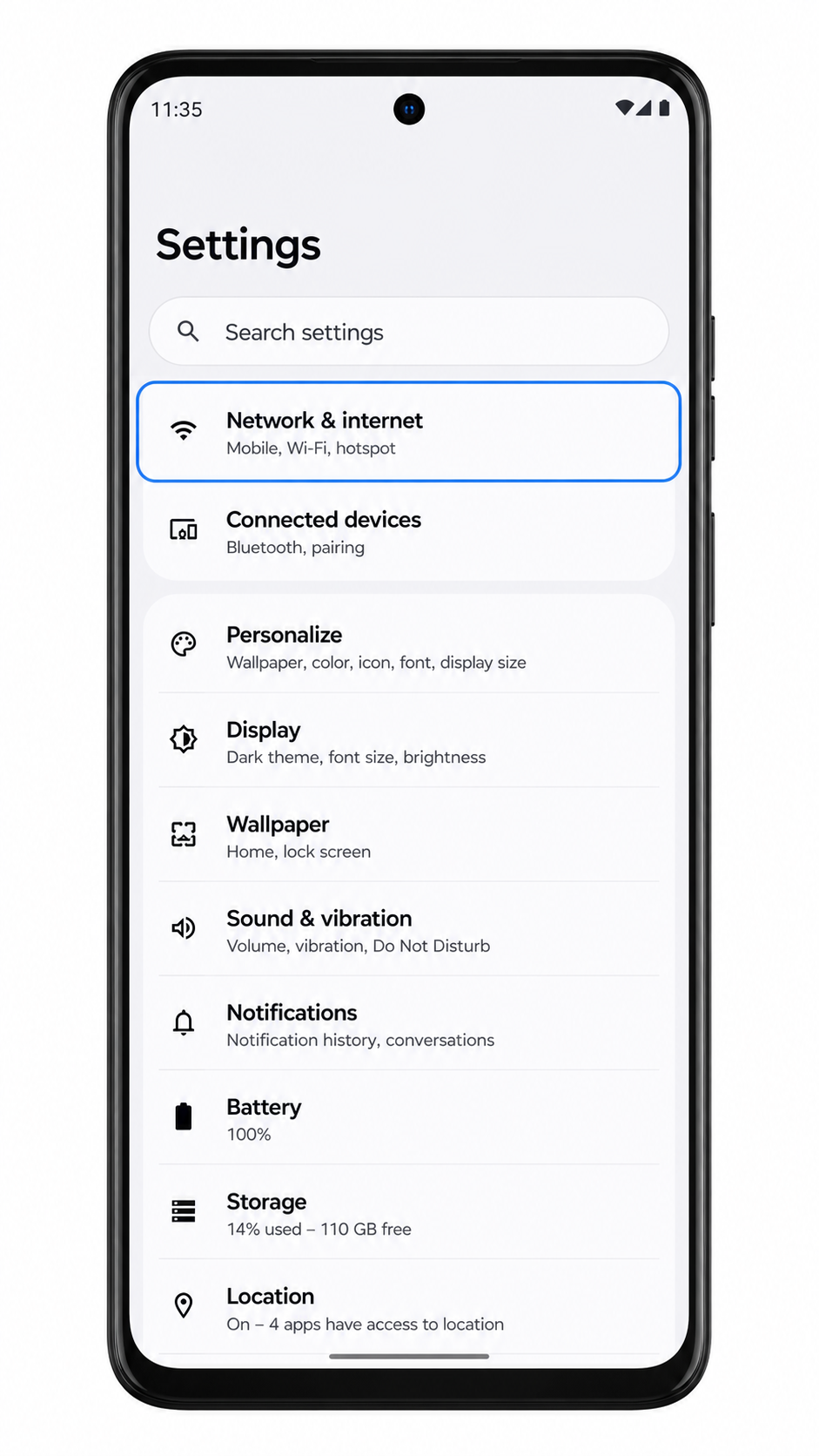
1. Open Settings on your Moto G84, then tap Network & internet.
You should see the Android network settings page, where SIM and mobile network options are managed.
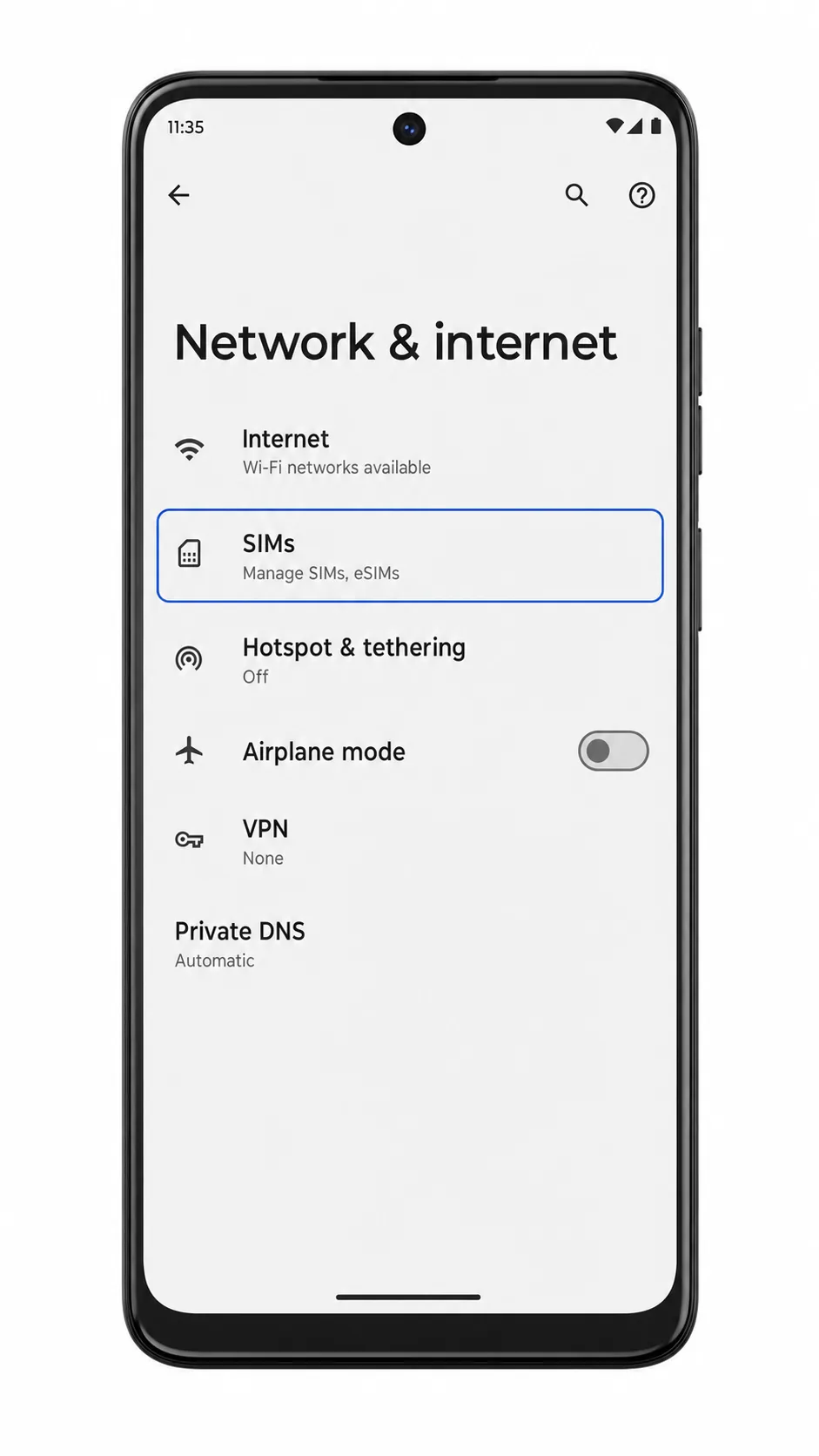
2. Tap SIMs.
The Moto G84 should open the SIM settings page for physical SIM and eSIM profiles.
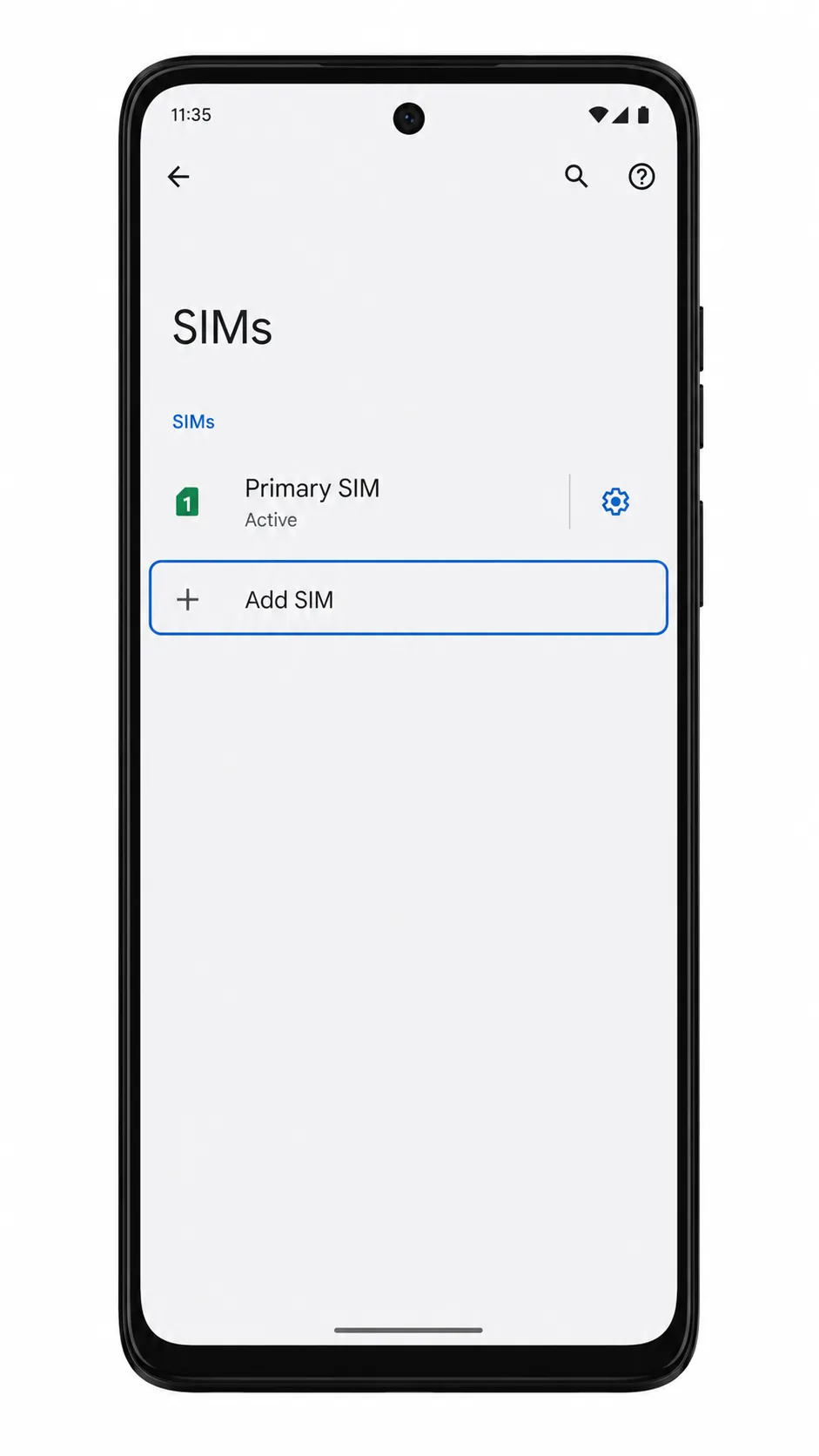
3. Tap Add eSIM.
The phone should start the eSIM setup flow and prepare to connect to a mobile network profile.
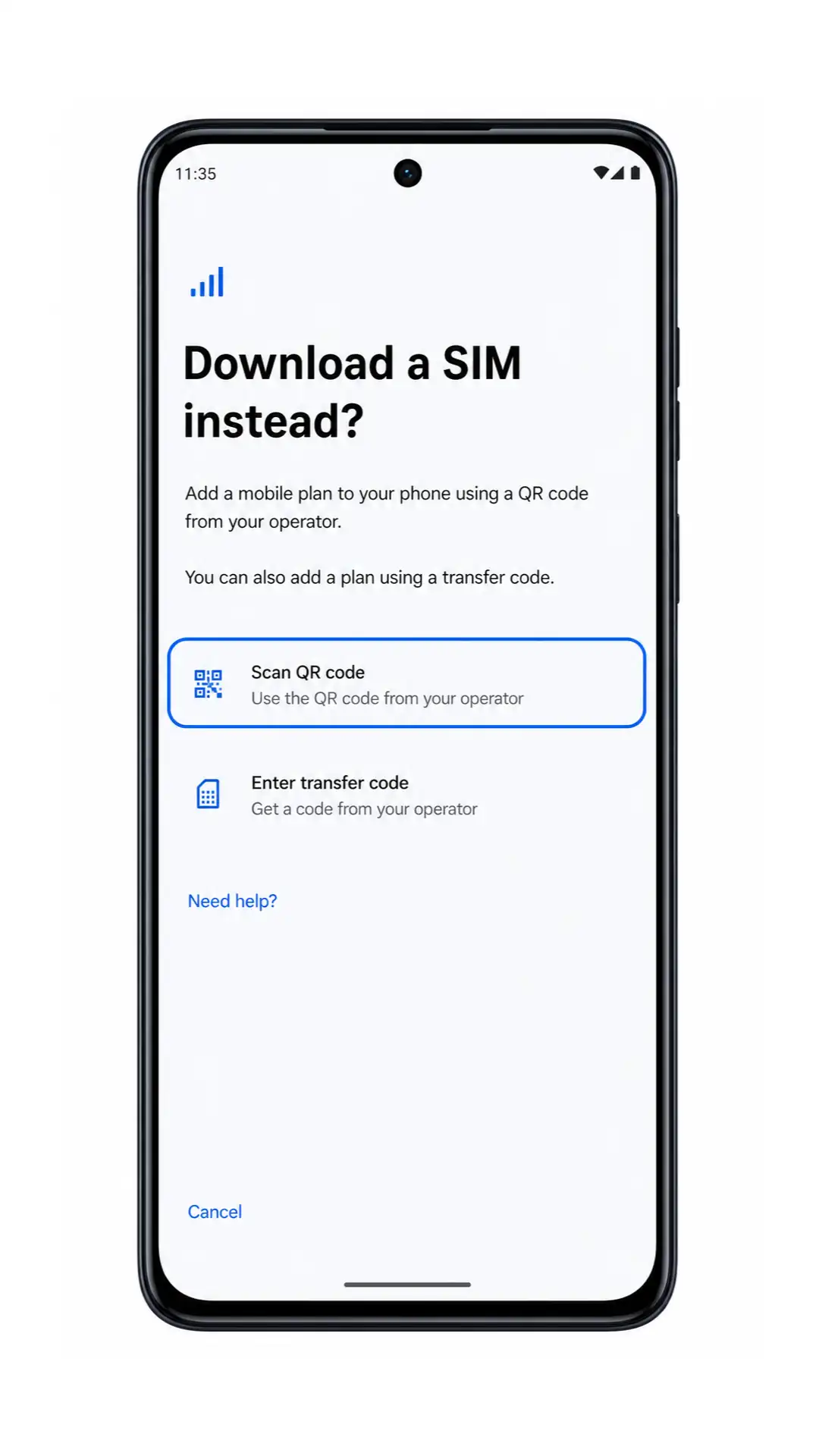
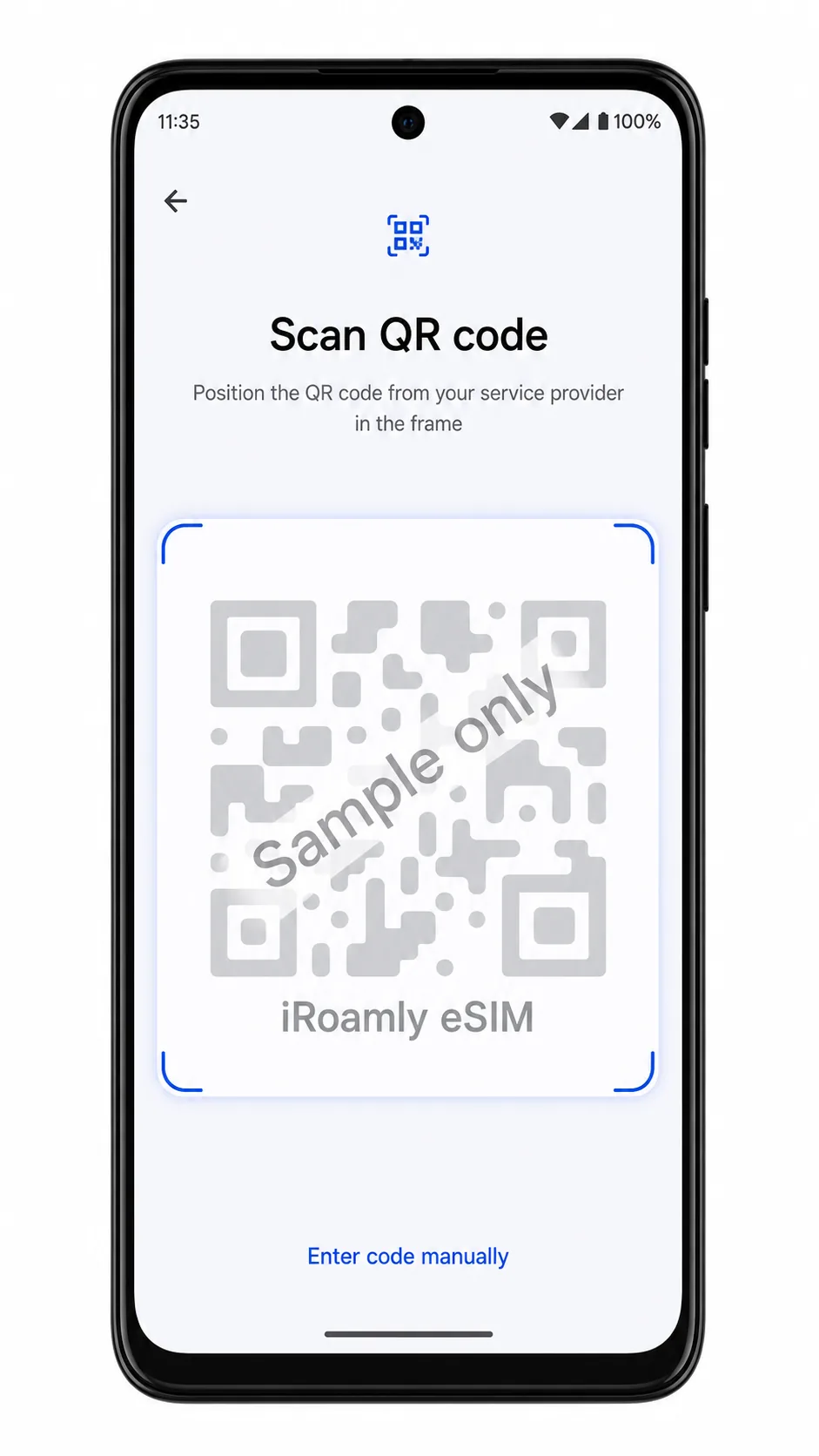
4. Tap Scan QR code.
The Moto G84 should open the QR code scanner for adding an eSIM profile.
5. Point the scanner at the iRoamly QR code from your order email or iRoamly account.
Keep the QR code flat and bright on another screen or printed page. After the phone reads it, you should see a profile download or confirmation screen.
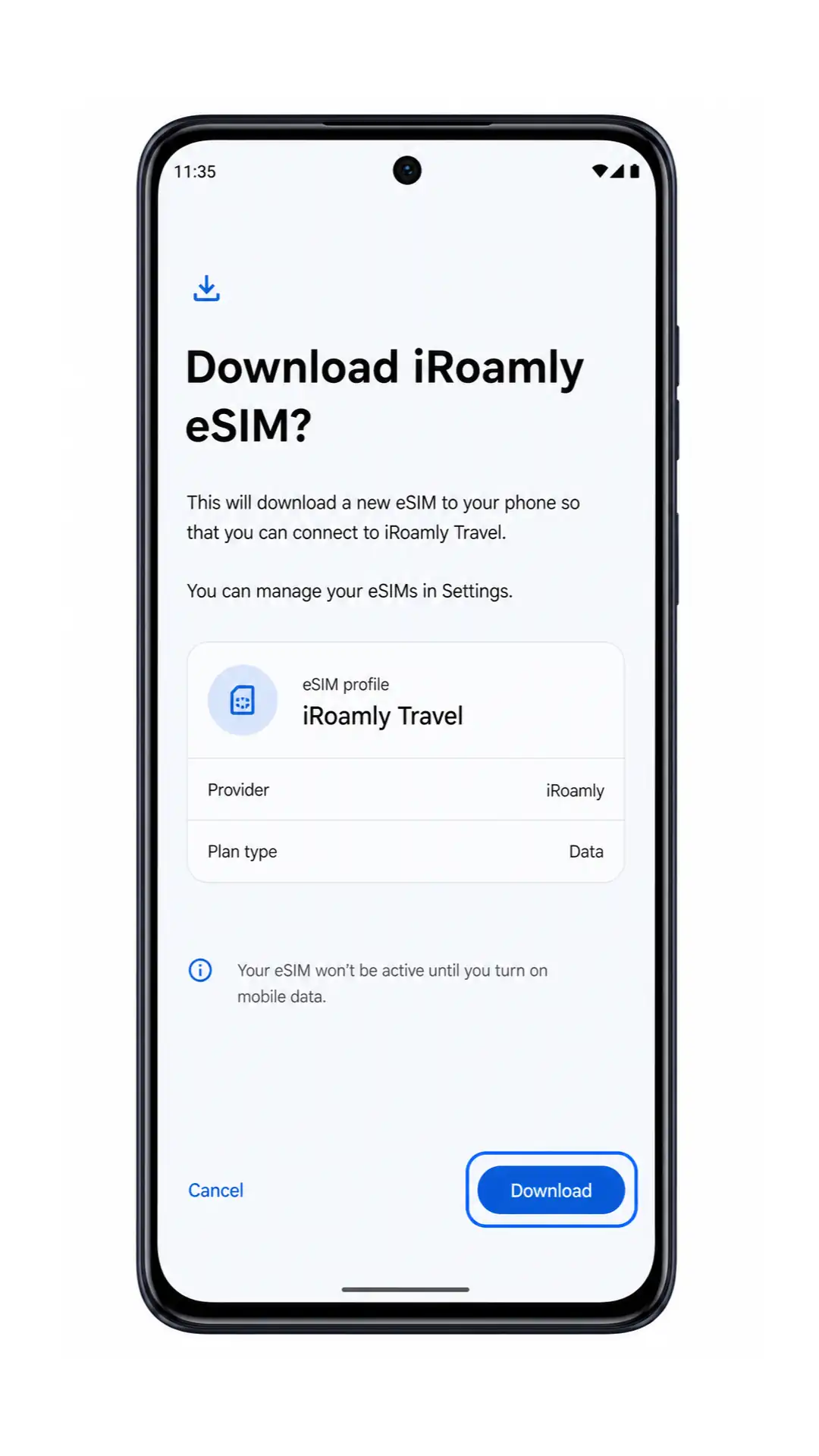
6. Review the eSIM profile name, then tap Download.
Wait until the download finishes. Keep Wi-Fi connected and do not close Settings while the Moto G84 is adding the iRoamly eSIM.
Method 2: Install eSIM Manually
1. Open Settings on your Moto G84, then tap Network & internet.
This is the same starting point used for QR installation, but the manual method will use the activation details instead of scanning the code.
2. Tap SIMs.
The SIM settings page should open, showing the available SIM profile controls.
3. Tap Add eSIM.
The Moto G84 should open the same eSIM setup flow used for the QR code method.
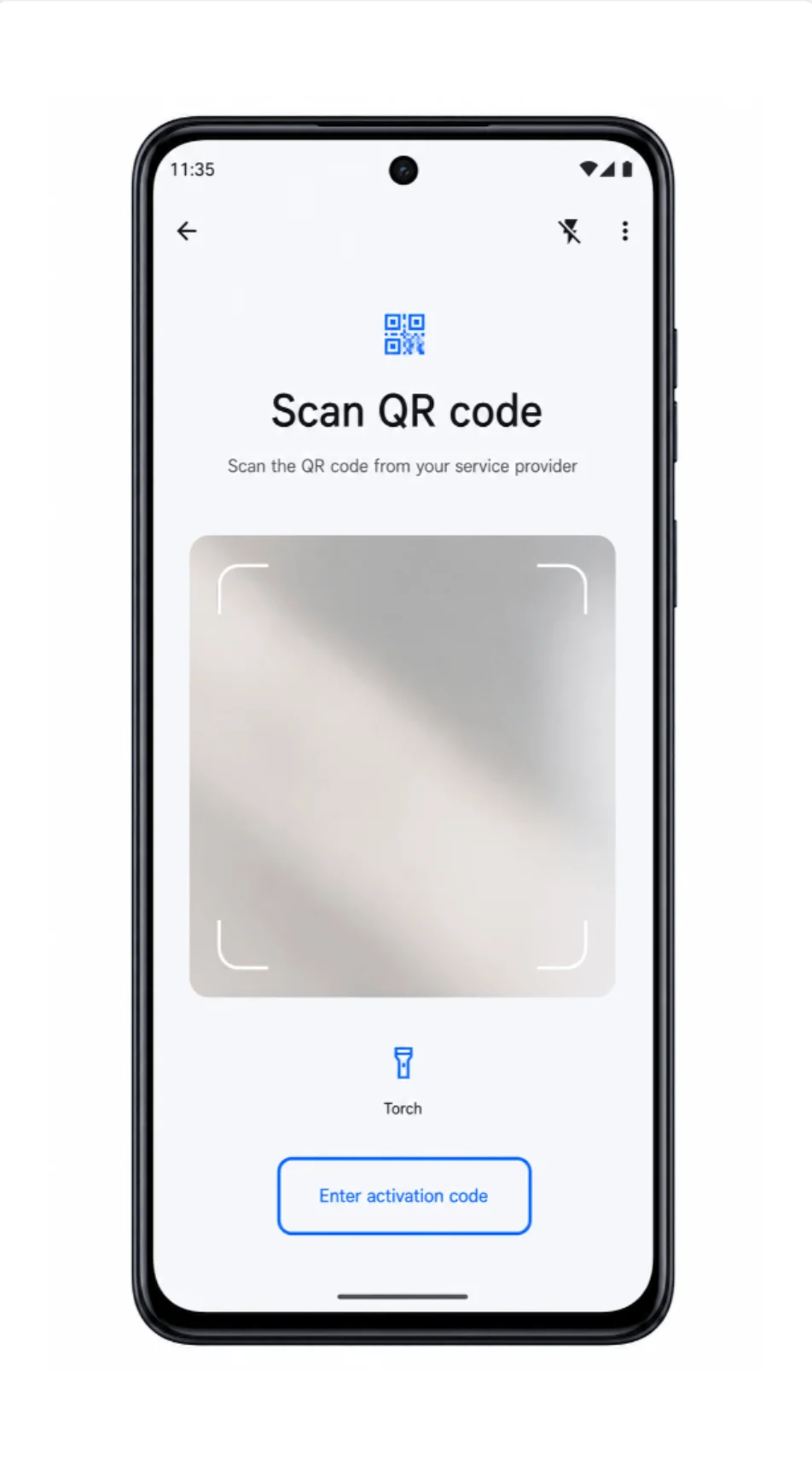
4. On the QR scanner screen, tap Enter activation code or Enter details manually.
The label may vary slightly by Android version, but it is normally shown on or below the QR scanning screen.
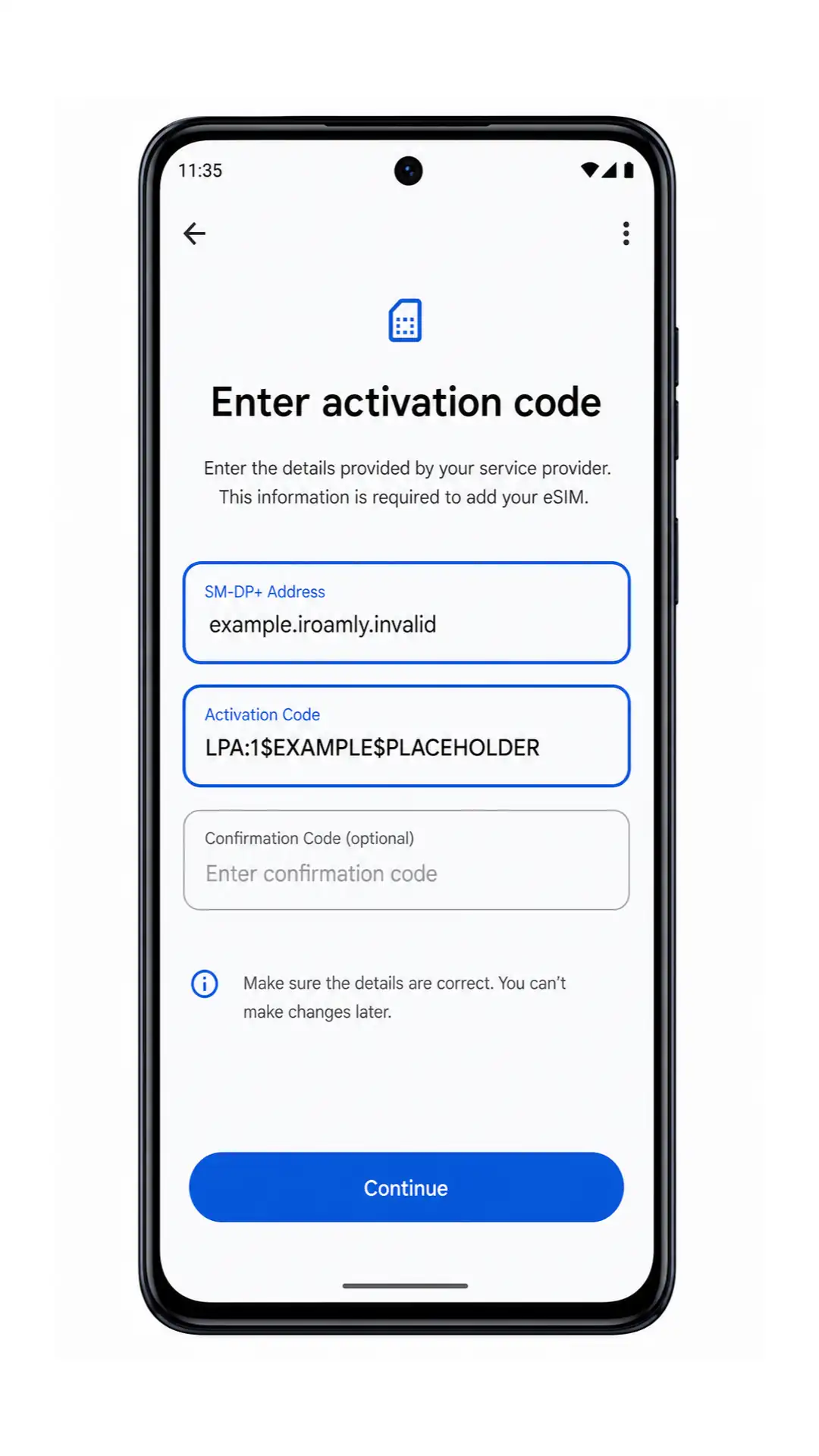
5. Enter the iRoamly SM-DP+ Address and Activation Code, then tap Continue.
Use the exact values from your iRoamly order. If a Confirmation Code field appears, fill it only if iRoamly provided one; otherwise leave it blank.
6. Review the detected iRoamly profile, then tap Download.
Keep the Moto G84 connected to Wi-Fi until the eSIM profile finishes downloading and the phone returns to the SIM settings area.
How to Confirm Your iRoamly eSIM Is Installed
1. Go to Settings > Network & internet > SIMs and look for an eSIM profile such as iRoamly Travel.
The installed iRoamly eSIM should appear beside your physical SIM or other SIM profiles. Make sure its switch is on if you want it ready for travel data.
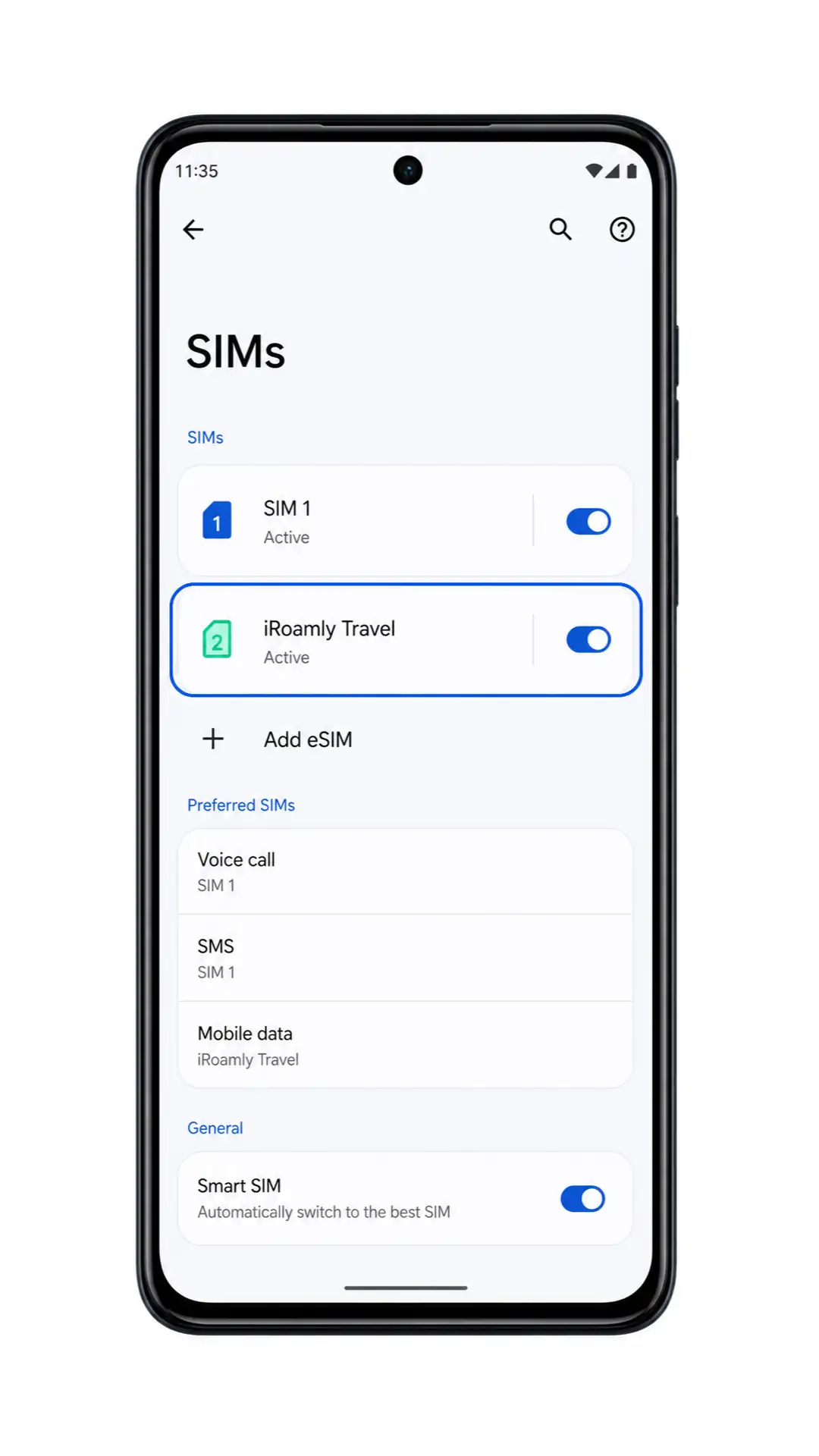
2. Tap the iRoamly Travel eSIM profile and check that Use SIM is on.
If the phone shows activation still pending, keep Wi-Fi connected and wait a few minutes. Some travel eSIM plans complete activation only when the phone reaches a supported destination network.
Configure eSIM for Mobile Data
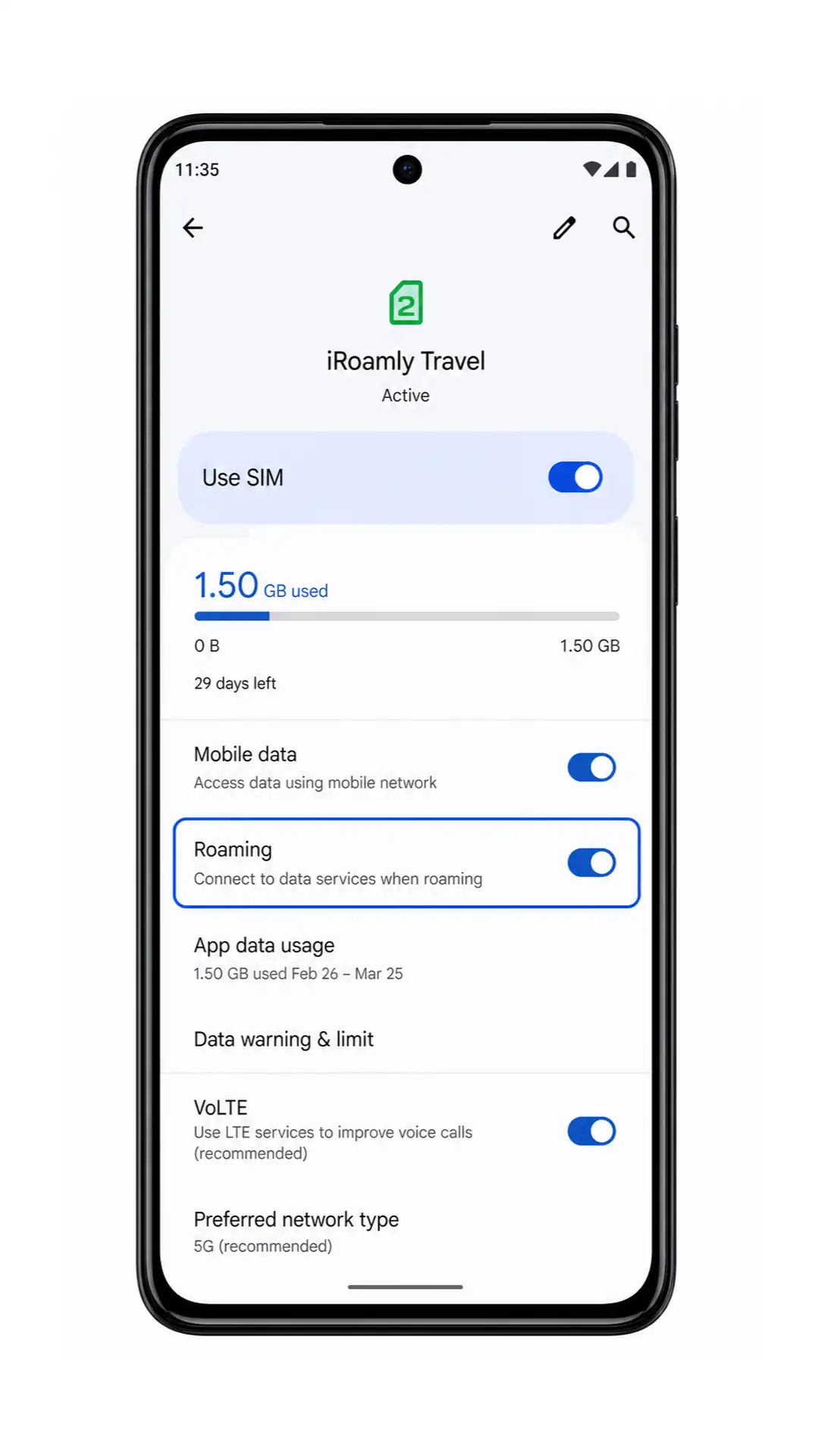
1. Open Settings > Network & internet > SIMs, tap the mobile data or SIM preference option, and choose iRoamly Travel for Mobile data.
This tells the Moto G84 to use the iRoamly eSIM for data instead of your primary SIM while traveling.
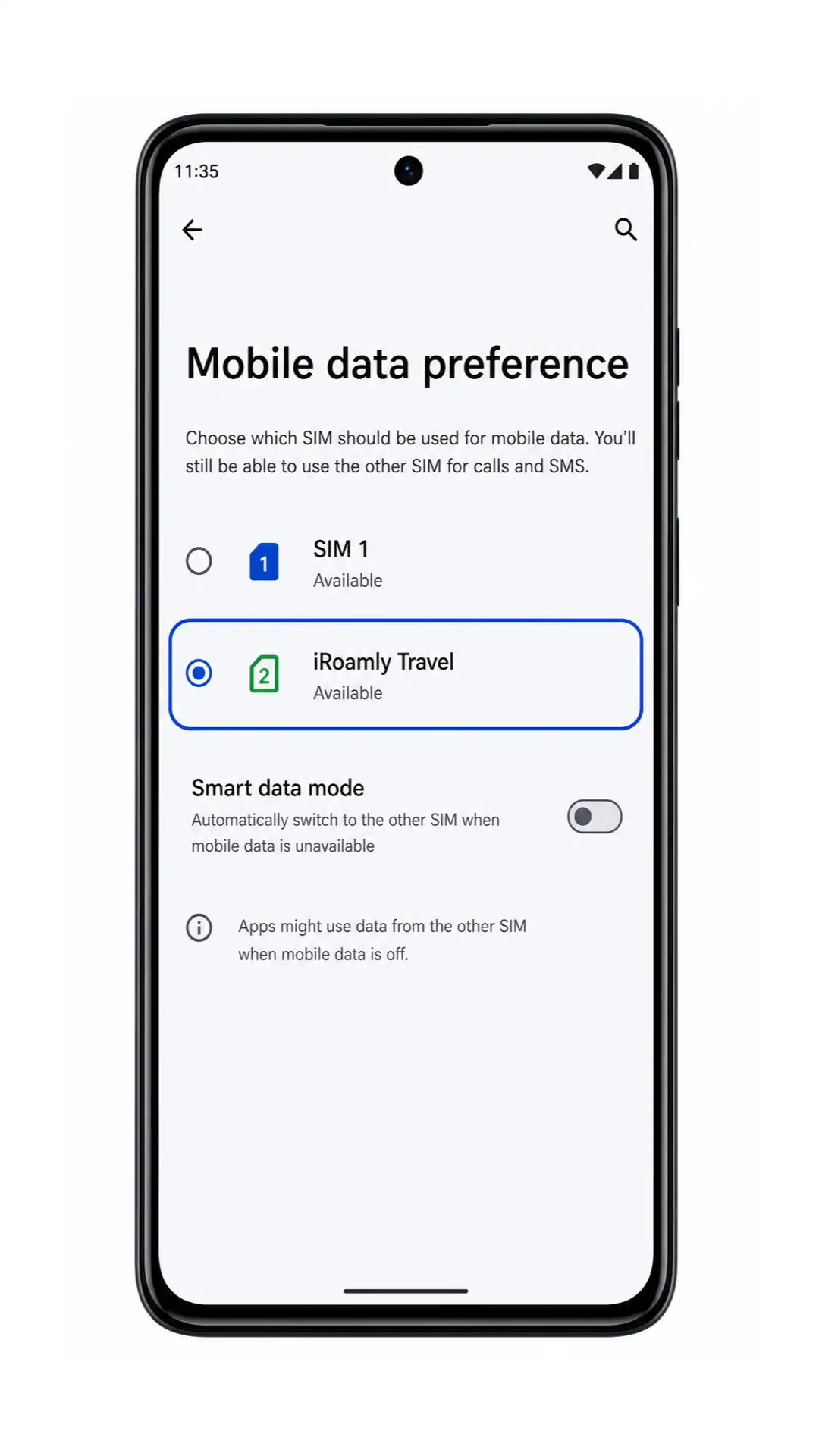
2. Open the iRoamly Travel SIM details page and turn on Roaming if your destination plan requires it.
Travel eSIM data often needs roaming enabled to connect to partner networks abroad. Leave your primary SIM data off or unselected if you want to avoid unexpected home-carrier roaming charges.
3. After arrival, turn off Wi-Fi briefly and test a webpage or map app using mobile data.
If data works, your Moto G84 is using the iRoamly travel eSIM correctly. If it does not work, return to the iRoamly SIM details page and confirm that the eSIM is on, selected for mobile data, and allowed to roam.
Troubleshooting
Add eSIM is missing: update the Moto G84 software, restart the phone, and check whether your regional model and carrier firmware support eSIM. Some variants may support only physical SIM.
The QR code will not scan: increase screen brightness, clean the camera lens, enlarge the QR code on another device, or use the manual method with the SM-DP+ Address and Activation Code.
The QR code says it was already used: do not delete the eSIM and try to reinstall it repeatedly. Contact iRoamly support because many eSIM QR codes can be installed only once.
The eSIM is stuck on activating: keep Wi-Fi connected, restart the Moto G84, and check whether the plan activates only after connecting to a supported destination network.
Mobile data does not work after arrival: select iRoamly Travel for Mobile data, turn on Roaming for the iRoamly eSIM, disable Wi-Fi for testing, and check the APN instructions in your iRoamly plan if provided.
Calls or SMS do not work: check the plan details. Do not assume voice or SMS is included unless the specific iRoamly plan lists those services.
The manual details fail: re-enter the SM-DP+ Address and Activation Code exactly as shown by iRoamly. Avoid extra spaces, line breaks, or characters from copying and pasting.
More Motorola eSIM Setup Guides
Setting up another Motorola phone? These eSIM activation guides may help.
Conclusion
By following the steps in this guide, you can install and configure your iRoamly eSIM on a compatible Moto G84 quickly and with minimal hassle. Whether you choose the QR code method or manual setup, preparing the eSIM before your trip helps ensure you're ready to connect as soon as you arrive.
Before traveling, double-check that the eSIM is installed correctly, selected for mobile data, and configured according to your plan requirements. If you encounter any issues, the troubleshooting tips above can help you get connected and make the most of your iRoamly travel eSIM abroad.