
Staying connected while traveling or working remotely has become much easier with eSIM technology.
Instead of handling physical SIM cards or visiting a local store, you can activate mobile service digitally in just a few minutes directly from your Galaxy S22 5G.
With an iRoamly eSIM, the setup process is simple and can be completed entirely through your phone settings.
Whether this is your first time using an eSIM or you simply need help with activation, this guide will walk you through each step clearly and efficiently.
Stay Connected Abroad with iRoamly
iRoamly is a travel eSIM service that provides mobile data plans for destinations around the world. Travelers can choose destination, regional, or global options, with data allowances, validity periods, and plan types varying by location.
Once installed, travel data can support everyday needs such as maps, messaging, translations, ride-hailing, bookings, and travel updates.
On a compatible Samsung Galaxy S22 5G, an iRoamly eSIM can be installed digitally and managed from the phone's SIM manager. The guide below keeps the original QR-code and manual activation steps in order so you can add the travel line and configure mobile data when needed.
Preparations Before Setting Up iRoamly eSIM
Before starting the installation process, make sure you have the following ready. If you are preparing for a trip to Japan or the United States, installing the travel eSIM before departure can leave less to set up after arrival.
A stable internet connection (Wi-Fi is recommended)
A valid eSIM QR code or activation code provided by your carrier
Your Galaxy S22 5G powered on and unlocked
The device updated to the latest available One UI version for better eSIM compatibility
The carrier account activated and eligible for eSIM service
Method 1: Install eSIM Using a QR Code
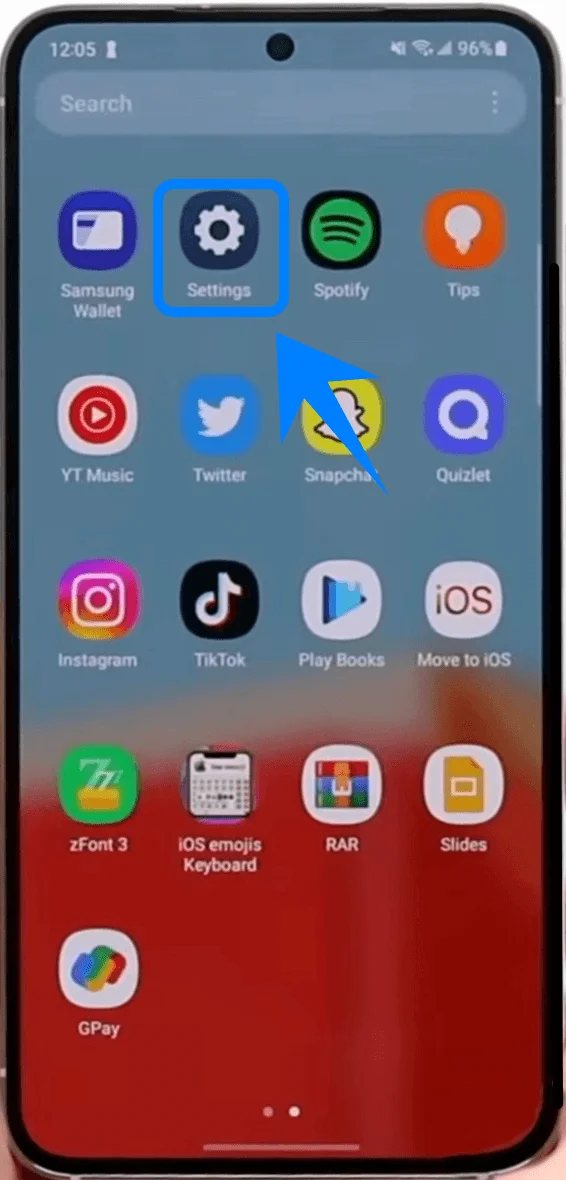
Step 1: Open Settings
Tap Settings.
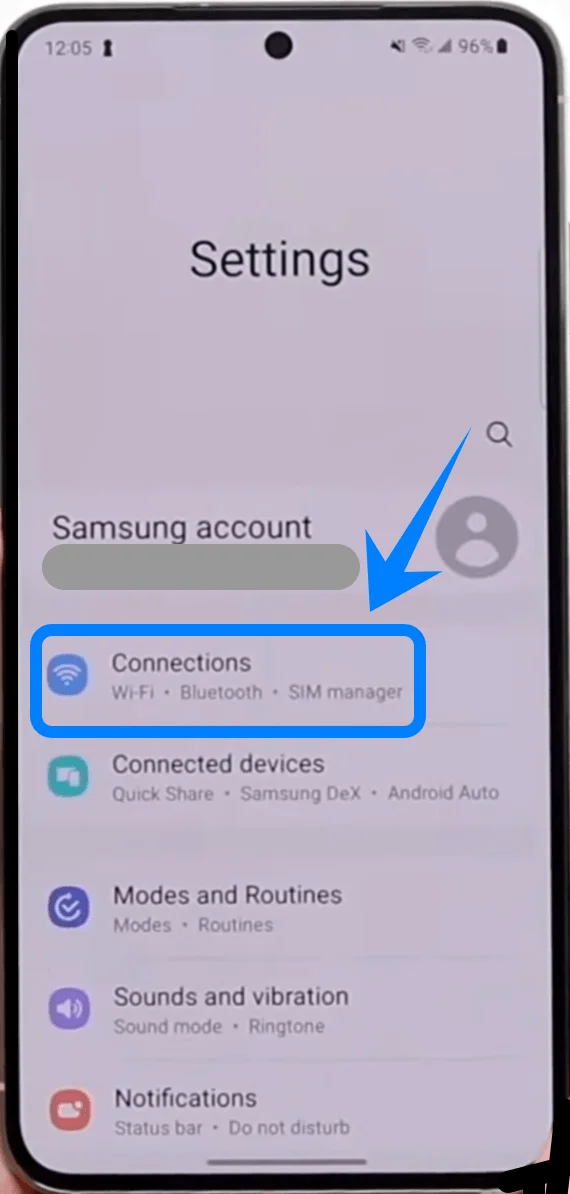
Step 2: Open SIM Manager
Tap Connections.
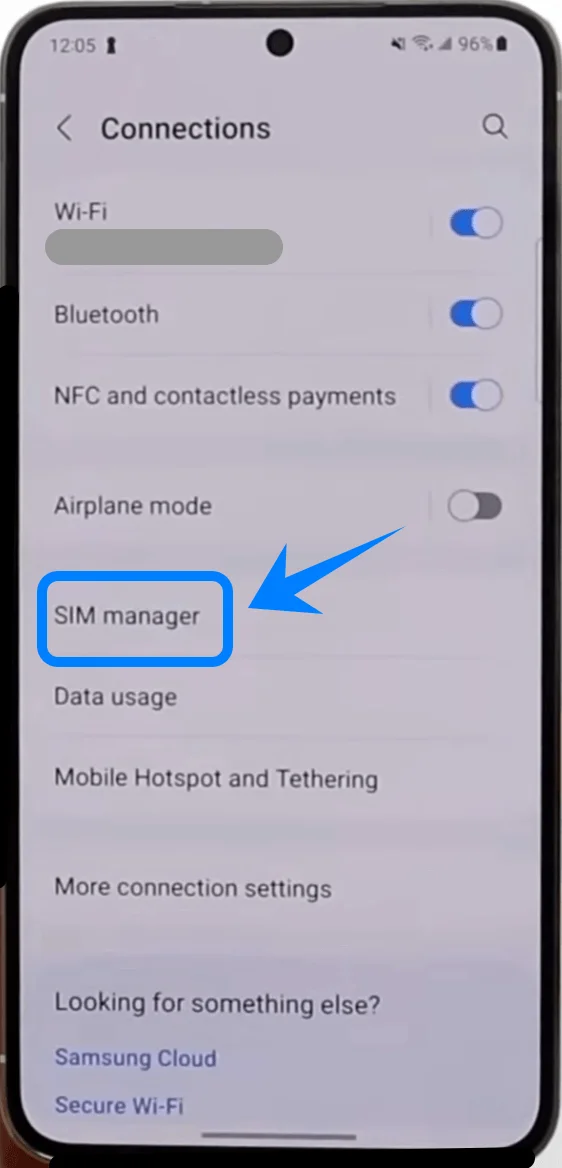
Tap SIM manager.
Step 3: Add an eSIM
Tap Add eSIM.
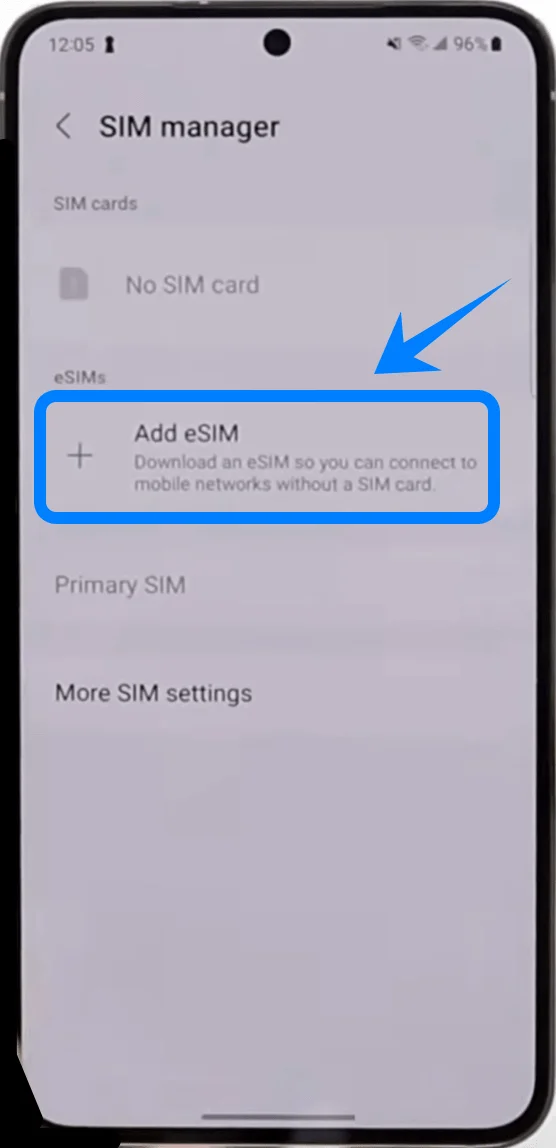
The phone will open the eSIM setup screen.
Step 4: Select QR Code Setup
Tap Scan QR code from service provider.
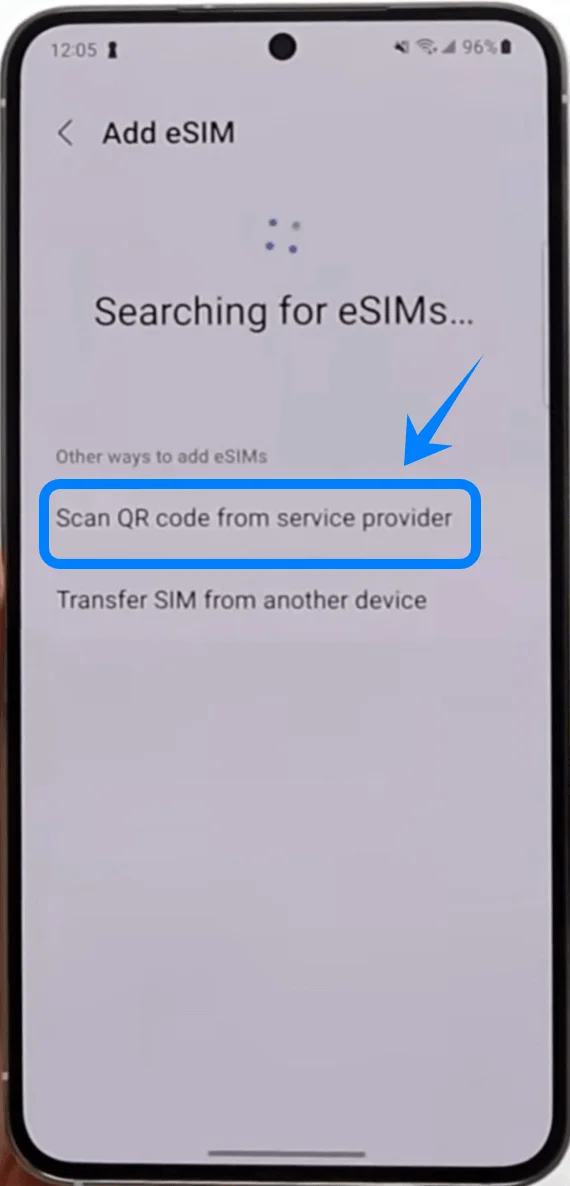
The camera scanner will open automatically.
Step 5: Scan the QR Code
Hold the phone over the QR code provided by your carrier.
Position the QR code inside the camera frame.
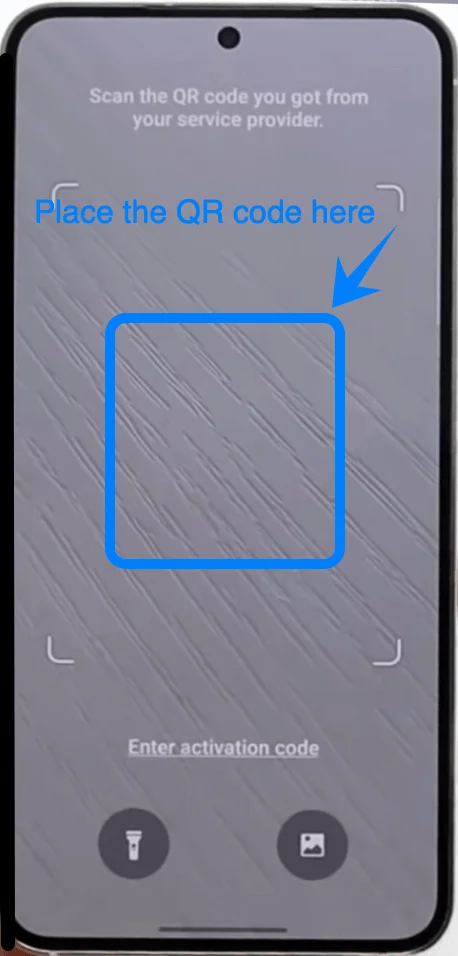
Wait for the Galaxy S22 5G to recognize the code.
Do not move the phone until scanning finishes.
Step 6: Download the eSIM Profile
After the QR code is detected:
Review the carrier information displayed on the screen.
Tap Add.
The device will begin downloading the eSIM profile.
Wait for the installation process to complete.
Step 7: Enable the eSIM
After installation finishes:
Return to SIM manager.
Locate the newly installed eSIM.
Tap the switch next to the eSIM to enable it.
Step 8: Configure Default SIM Settings
Inside SIM manager:
Tap Primary SIM if available.
Select the eSIM for:
Mobile data
Calls
Messages
Method 2: Install eSIM Using Manual Activation
Step 1: Open Settings
Tap Settings.
Step 2: Open SIM Manager
Tap Connections.
Tap SIM manager.
Step 3: Add an eSIM
Tap Add eSIM.
Step 4: Select QR Code Setup
Tap Scan QR code from service provider.
The camera scanner will open automatically.
Step 4: Open Manual Activation
Tap Enter activation code.
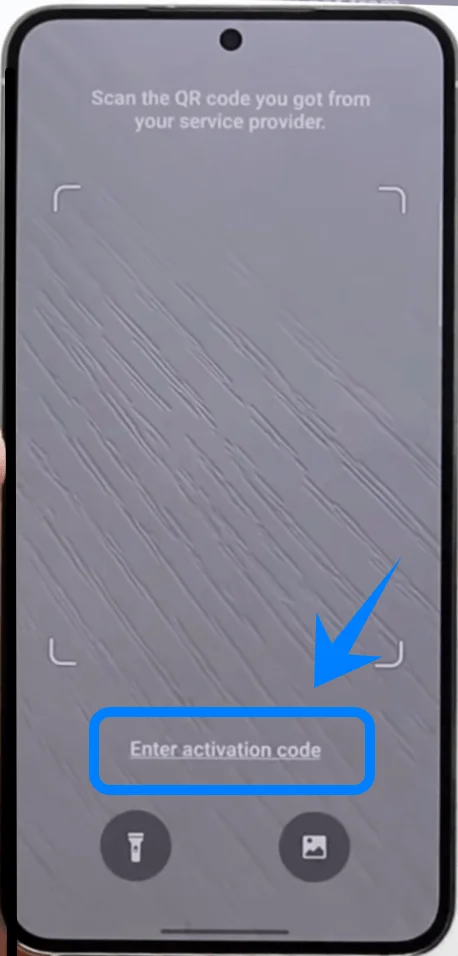
The phone will open the Add using activation code screen.
Step 5: Enter the Activation Code
Tap the Activation code field.
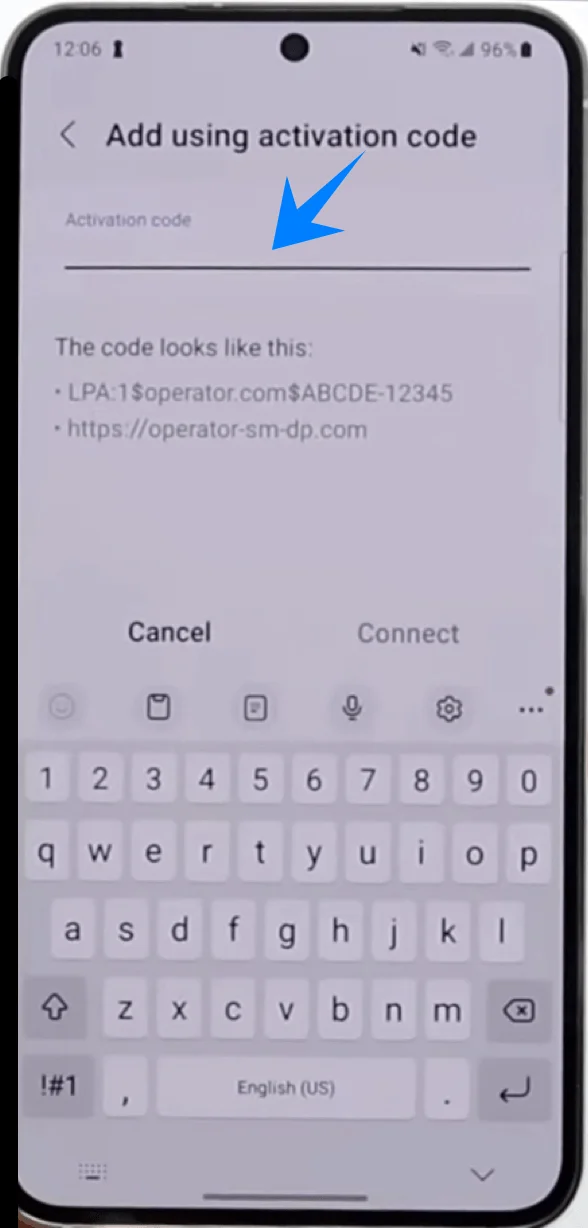
Enter the activation code provided by your carrier.
Step 7: Start Installation
Tap Connect.
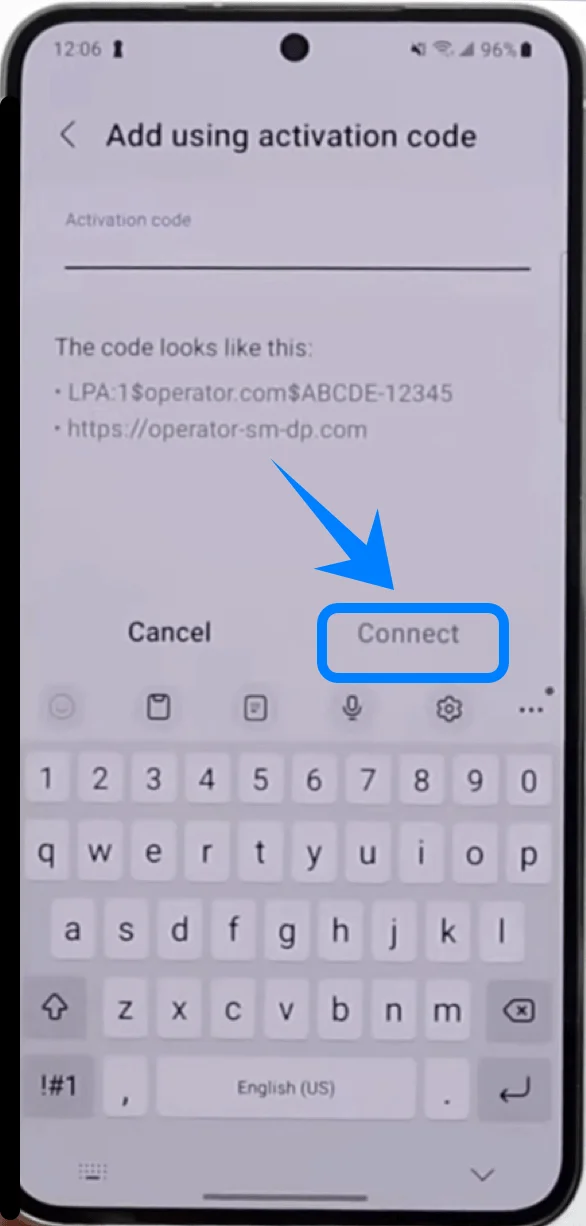
Wait while the Galaxy S22 5G downloads the eSIM profile.
The installation process may take several minutes.
Step 8: Enable the eSIM
After installation completes:
Open SIM manager.
Locate the new eSIM.
Tap the toggle switch beside the eSIM to turn it on.
Step 9: Configure SIM Preferences
Inside SIM manager:
Select the eSIM for:
Mobile data
Calls
SMS
How to Confirm the eSIM Was Installed Successfully
Check 1: Verify the eSIM in SIM Manager
Open:
Settings → Connections → SIM manager
You should see:
Your carrier name
Signal bars
An enabled toggle beside the eSIM
Check 2: Test Mobile Data
Turn off Wi-Fi.
Open a web browser.
Visit a website.
If the page loads, the eSIM connection is working.
Check 3: Make a Test Call
Open the Phone app.
Call a number.
Note: Some eSIM plans may not include voice calling support, so this feature might not be available depending on your plan.
If the call connects successfully, the eSIM is active.
More Samsung Galaxy eSIM Setup Guides
Setting up another Samsung phone? These eSIM activation guides may help.
Conclusion
After successfully installing your iRoamly eSIM, your Galaxy S22 5G can connect through a fully digital mobile setup that is simple to manage directly from the phone.
Once the eSIM appears in SIM Manager and mobile data functions normally, your setup is complete.
With eSIM technology, managing connectivity becomes more flexible and convenient, making it easier to stay connected wherever you go.