
The Galaxy S22+ 5G makes it simple to enjoy the convenience and flexibility of eSIM technology for a smoother mobile experience.
Instead of inserting or replacing a physical SIM card, you can quickly download and activate your mobile plan directly from your device in just a few steps.
This digital setup method not only speeds up activation, but also makes it easier to switch between carriers or manage multiple mobile plans whenever needed.
If you’re ready to install your iRoamly eSIM, this guide will walk you through the complete setup process step by step, including both QR code activation and manual activation code installation methods.
Preparations Before Setting Up iRomly eSIM
Before starting the installation process, make sure you have the following ready:
A stable internet connection (Wi-Fi is recommended)
A valid eSIM QR code or activation code provided by your carrier
Your Galaxy S22+ 5G powered on and unlocked
The device updated to the latest available One UI version for better eSIM compatibility
The carrier account activated and eligible for eSIM service
Method 1: Install eSIM Using a QR Code
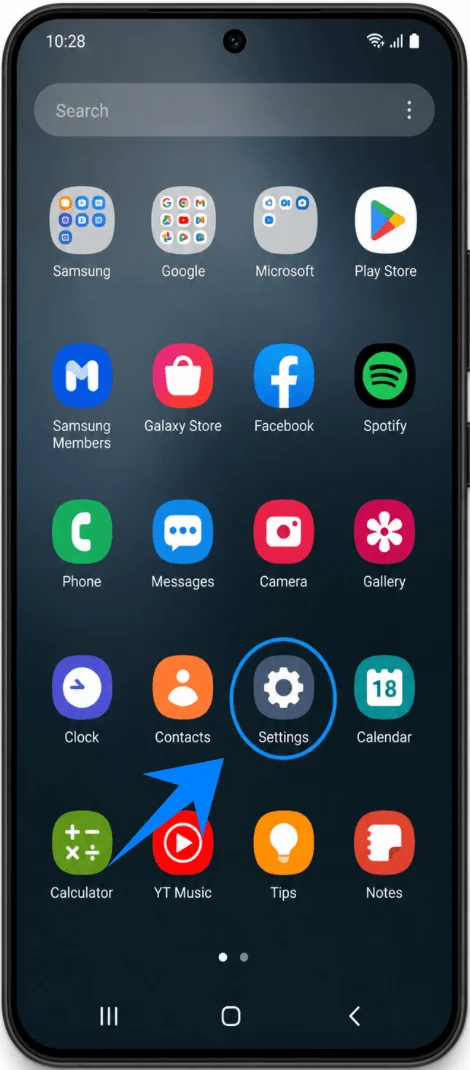
Step 1: Open Settings
Tap Settings.
Step 2: Open SIM Manager
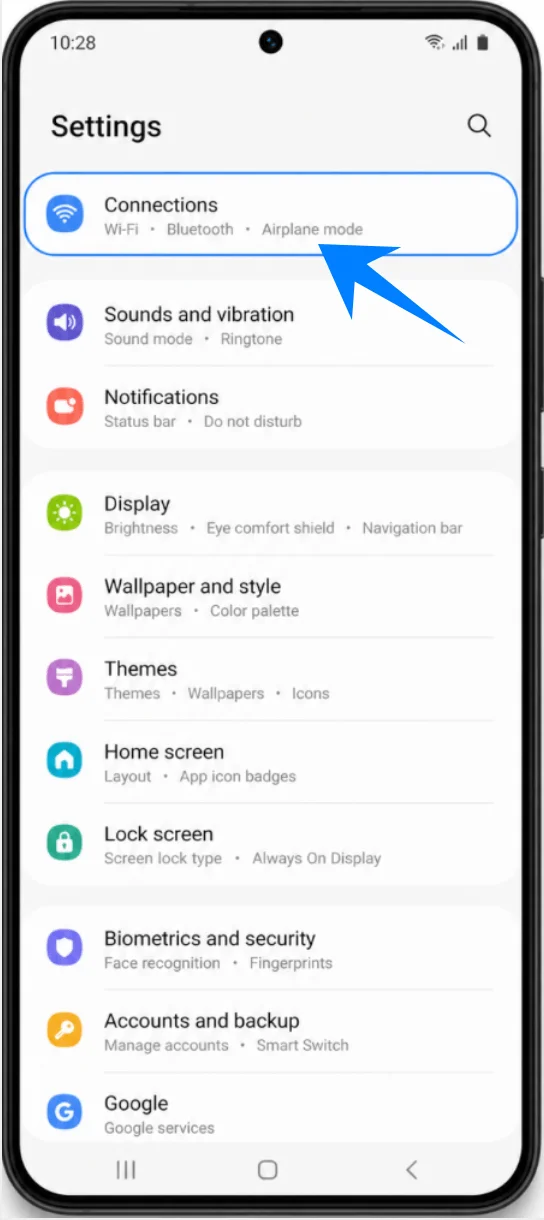
Tap Connections.
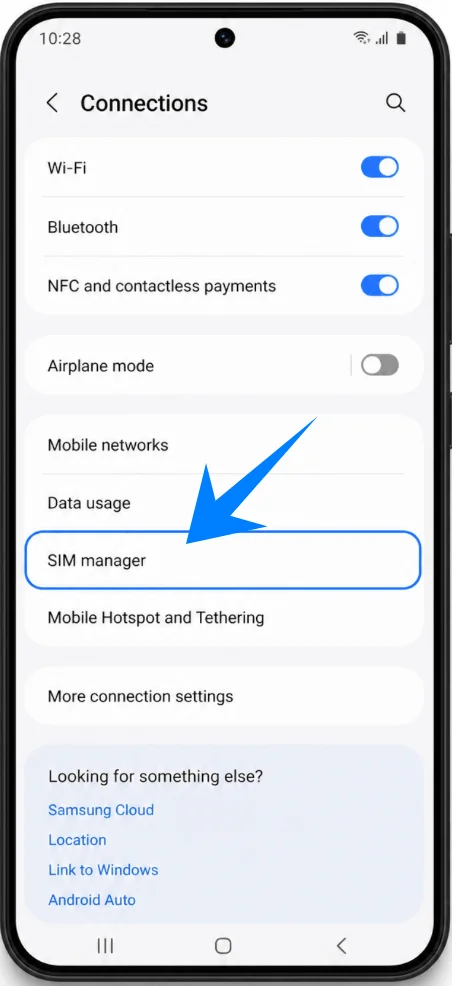
Tap SIM manager.
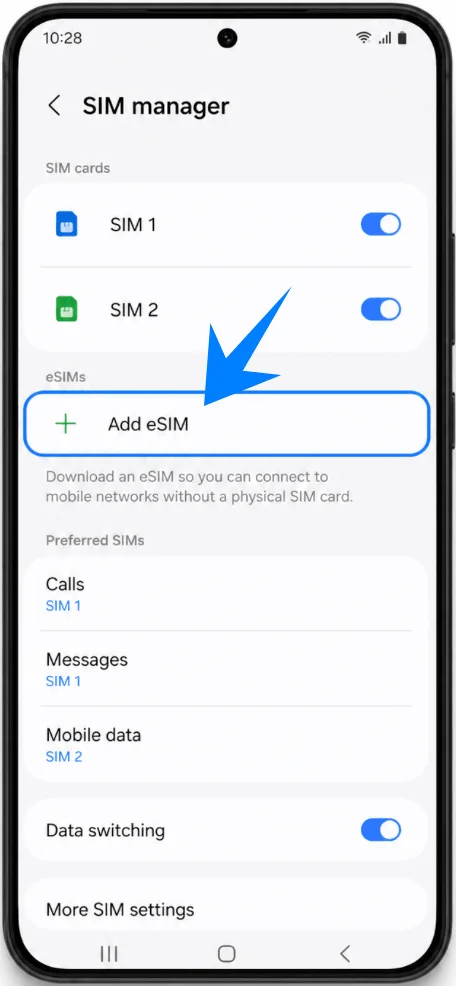
Step 3: Start eSIM Setup
Tap Add eSIM.
Step 4: Open the QR Scanner
Tap Scan QR code from service provider.
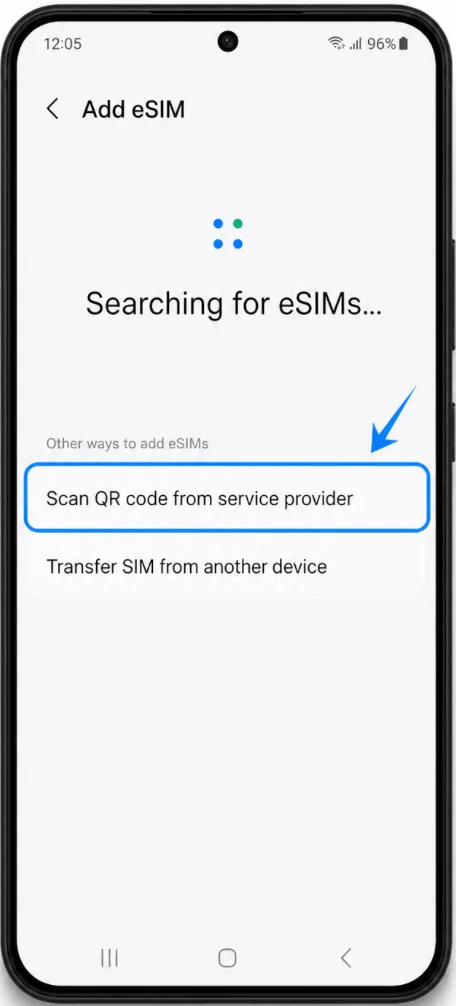
The camera scanner will open automatically.
Step 5: Scan the Carrier QR Code
Position the QR code inside the camera frame.
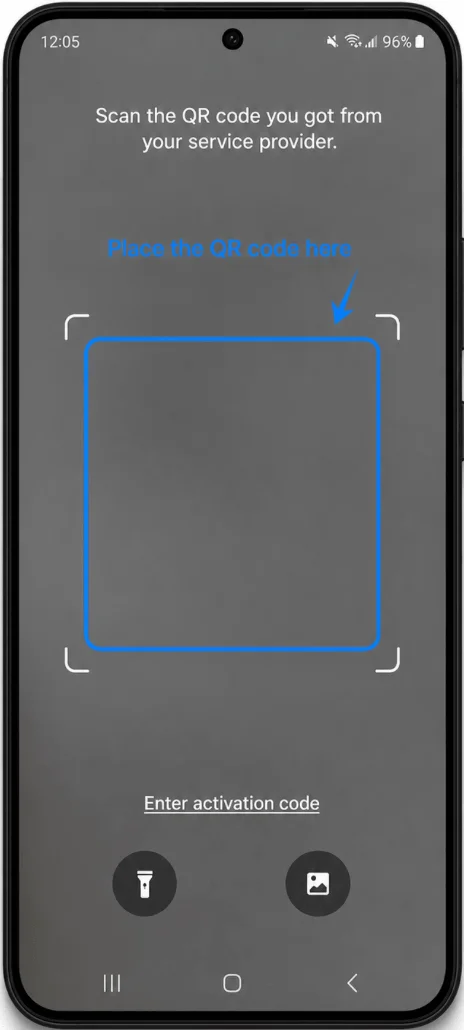
Wait for the phone to recognize the QR code.
When the eSIM profile appears, tap Download.
Step 6: Install the eSIM
Wait while the Galaxy S22 downloads and installs the eSIM profile.
Keep the device connected to Wi-Fi or mobile data during the installation process.
Do not close the setup screen.
Step 7: Complete Installation
After installation finishes, tap Done.
The eSIM is now installed on the Galaxy S22+ 5G.
Method 2: Install eSIM Using an Activation Code
Step 1: Open Settings
Tap Settings.
Step 2: Open SIM Manager
Tap Connections.
Tap SIM manager.
Step 3: Start eSIM Installation
Tap Add eSIM.
Step 4: Open the QR Scanner
Tap Scan QR code from service provider.
The camera scanner will open automatically.
Step 5: Open the Activation Code Page
On the QR scanner screen, tap Enter activation code.
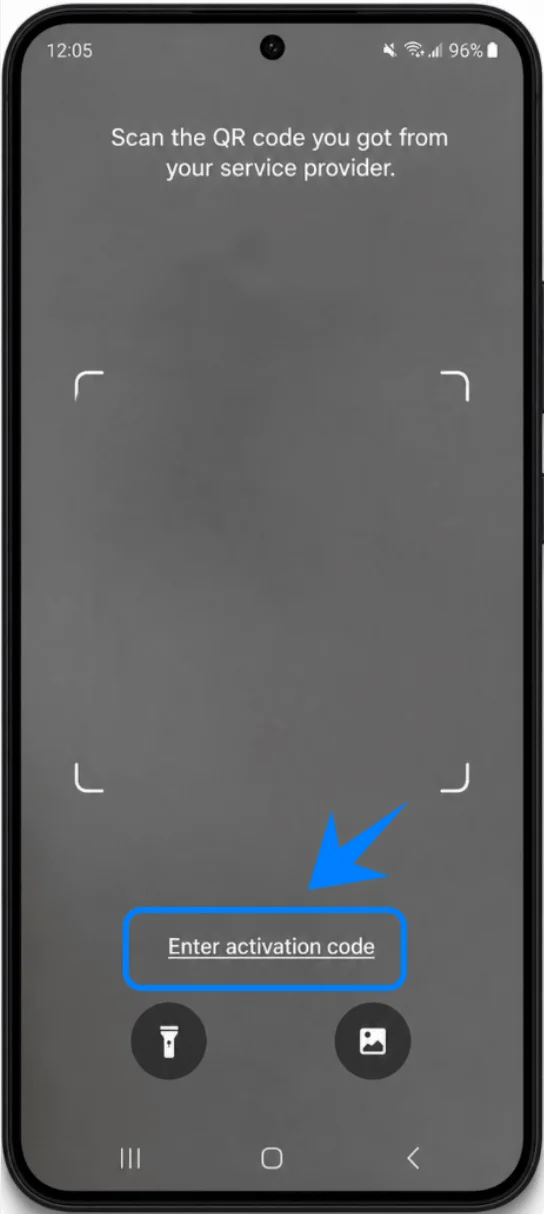
The phone will open the Add using activation code page.
Step 6: Enter the Activation Code
Tap the Activation code field.
Enter the activation code provided by your carrier exactly as received.
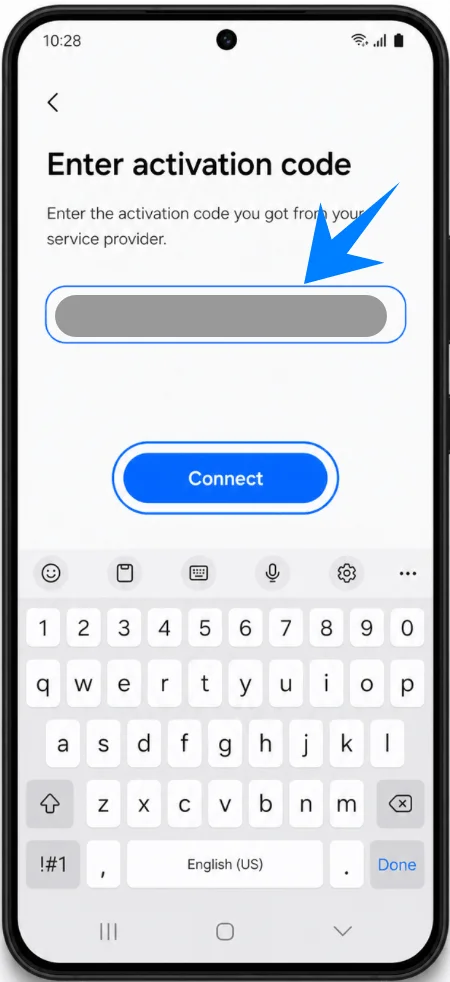
Do not add extra spaces or modify the code format.
Step 7: Connect to the Carrier Server
After entering the code, tap Connect.
The Galaxy S22 will connect to the carrier server and begin downloading the eSIM profile.
Step 8: Wait for the Installation to Finish
Keep the device connected to the internet.
Wait while the eSIM profile downloads and installs.
This process may take several minutes.
Step 9: Finish Setup
After installation completes, tap Done.
The eSIM is now active on the Galaxy S22+ 5G.
How to Confirm the eSIM Was Successfully Installed
Check SIM Manager
Open Settings.
Tap Connections.
Tap SIM manager.
The newly installed eSIM should appear in the SIM list.
Verify Network Signal
Check the top-right corner of the screen for:
Carrier name
Signal bars
4G / LTE / 5G indicator
Test Mobile Data
Turn off Wi-Fi.
Open a website or app using mobile data.
If the internet connection works normally, the eSIM installation was successful.
Conclusion
Your iRoamly eSIM should now be successfully installed on the Galaxy S22+ 5G. Thanks to the phone’s built-in eSIM support, activating a mobile plan is much more convenient than using a traditional SIM card.
Instead of swapping physical cards, everything can be managed directly from the device settings, making switching plans or managing multiple connections much easier and more flexible.