
eSIM technology makes staying connected much easier by allowing users to activate a mobile plan digitally without handling a physical SIM card.
Instead of swapping SIM trays or visiting a carrier store, an eSIM can be installed directly on your phone in just a few steps.
This provides a faster setup experience and makes managing multiple mobile plans more convenient, especially for travel or temporary data usage.
If you recently purchased an iRoamly eSIM, this guide will show you how to install and activate it on Galaxy S23+ step by step. Whether you’re using a QR code or a manual activation code, the setup process is simple once everything is prepared correctly.
Preparations Before Setting Up iRomly eSIM
Before starting the installation process, make sure you have the following ready:
A stable internet connection (Wi-Fi is recommended)
A valid eSIM QR code or activation code provided by your carrier
Your Galaxy S23+ powered on and unlocked
The device updated to the latest available One UI version for better eSIM compatibility
The carrier account activated and eligible for eSIM service
Method 1: Install eSIM Using a QR Code
Step 1: Open the Settings App
Open the Settings app from the home screen or app drawer
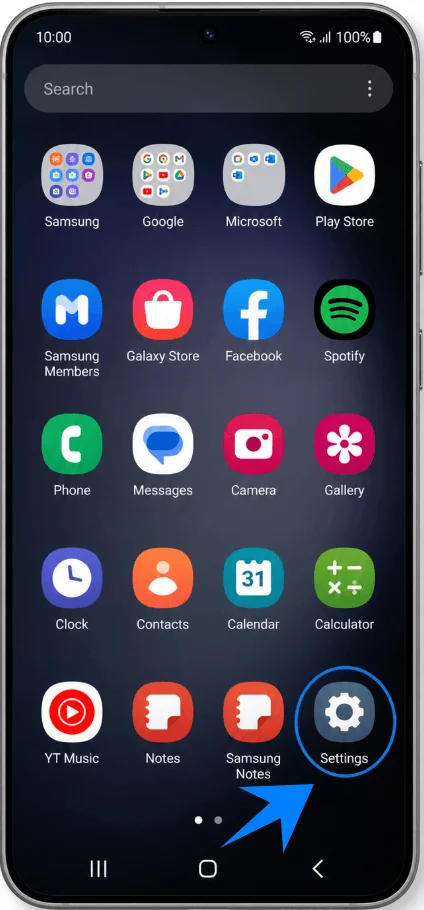
Step 2: Navigate to SIM Manager
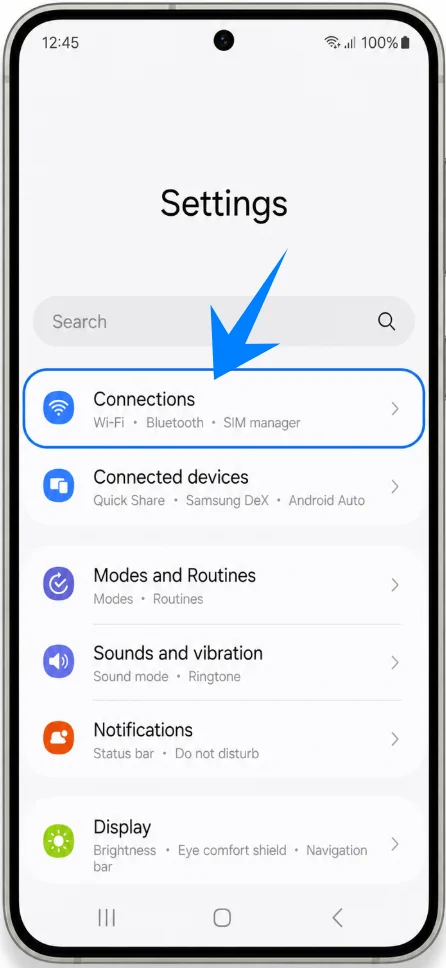
In Settings, tap Connections
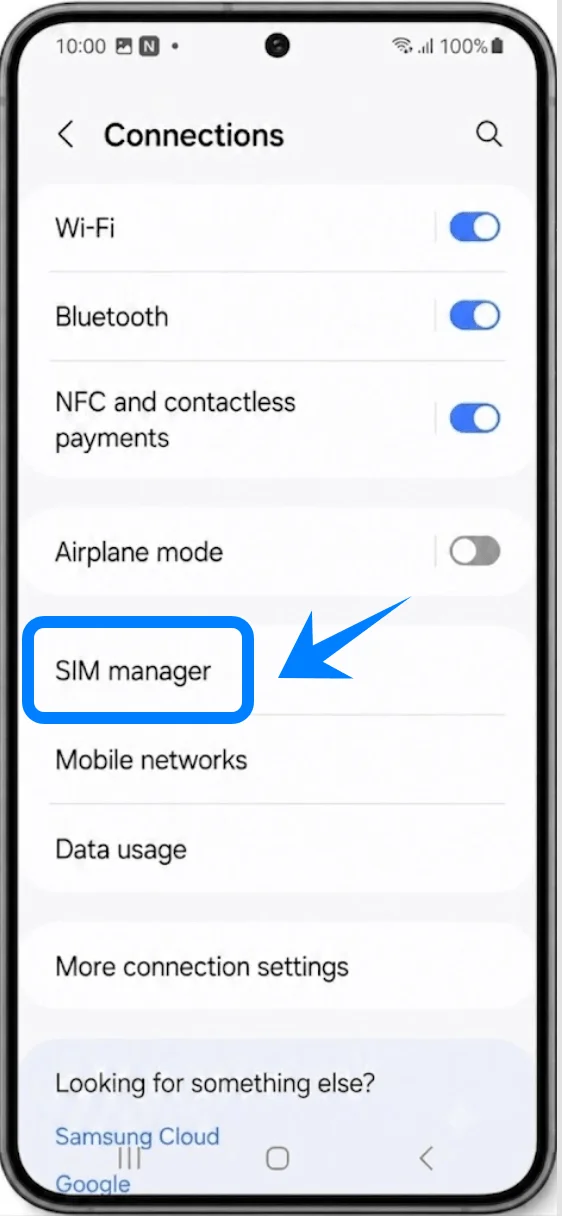
Tap SIM manager
Step 3: Add an eSIM
Inside SIM manager, tap Add eSIM
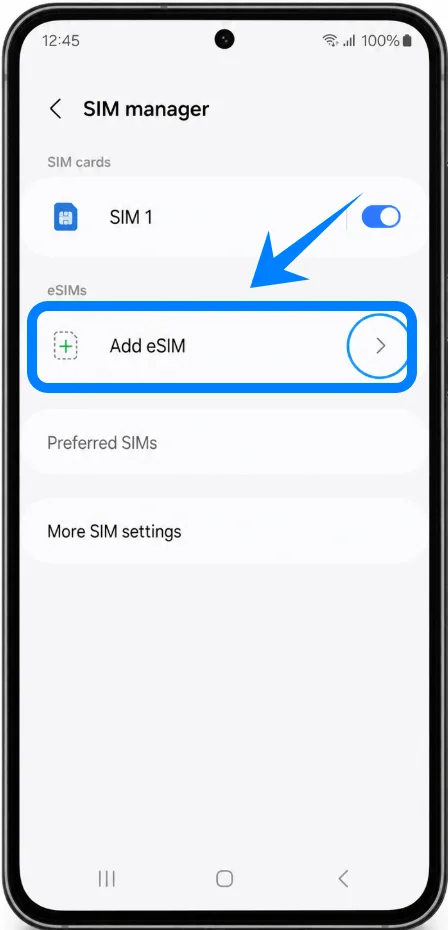
The phone will begin searching for available eSIM activation methods.
Step 4: Select QR Code Activation
Tap Scan QR code from service provider
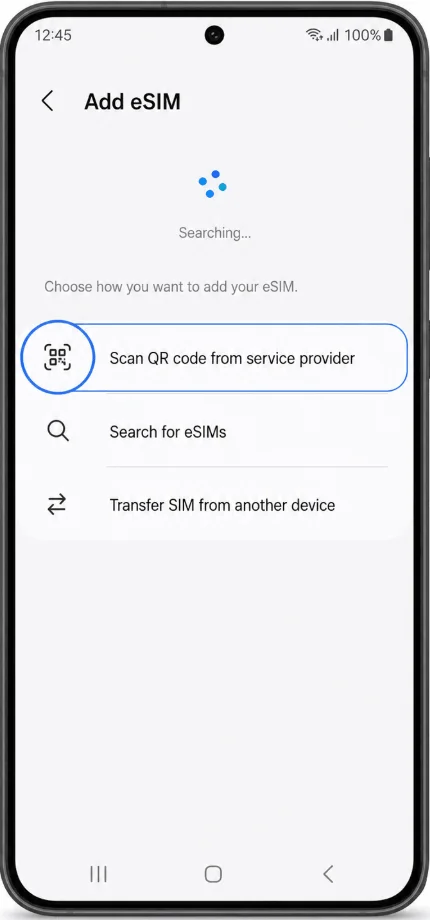
The camera scanner will open automatically.
Step 5: Scan the QR Code
Position the QR code inside the camera frame
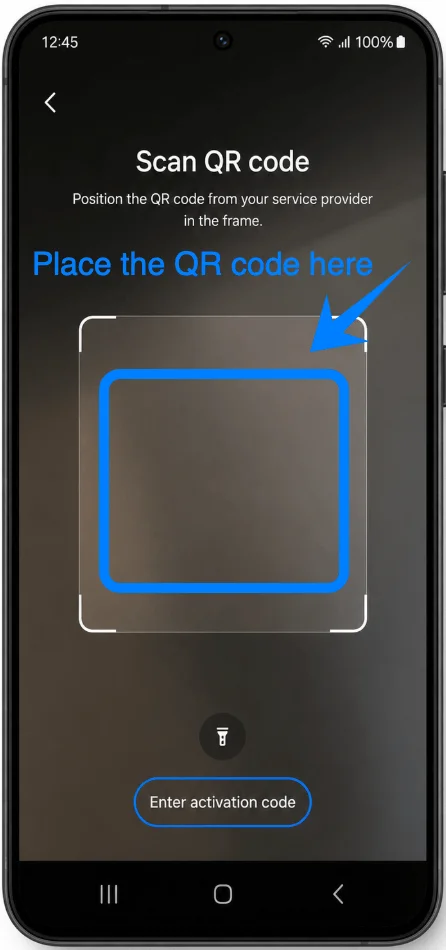
Wait for the phone to recognize the activation information
After recognition:
Tap Add
Tap Confirm if prompted
The Galaxy S23+ will now download the eSIM profile from the carrier.
This process may take several minutes.
Step 6: Complete Activation
After the download finishes:
Tap Settings if prompted
Configure:
preferred SIM for calls
preferred SIM for mobile data
preferred SIM for messages
If only the eSIM will be used:
Disable the physical SIM if necessary
Step 7: Restart the Device
Although not always required, restarting is recommended.
Press and hold the Side button and Volume Down button
Tap Restart
Wait for the phone to reconnect to the mobile network.
Method 2: Install eSIM Using Manual Activation Code
Step 1: Open Settings
Open the Settings app
Step 2: Open SIM Manager
Tap Connections
Tap SIM manager
Step 3: Start eSIM Setup
Tap Add eSIM
The device will open the eSIM activation screen.
Step 4: Open the Activation Code Screen
Tap Scan QR code from service provider
On the QR code page, tap Enter activation code
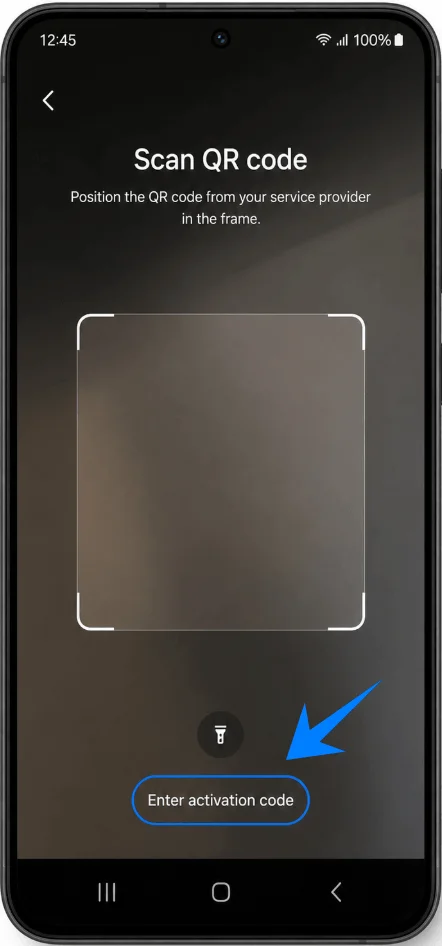
This opens the manual activation page.
Step 5: Enter the Activation Code
Tap the input field
Enter the activation code exactly as provided by your carrier or eSIM provider
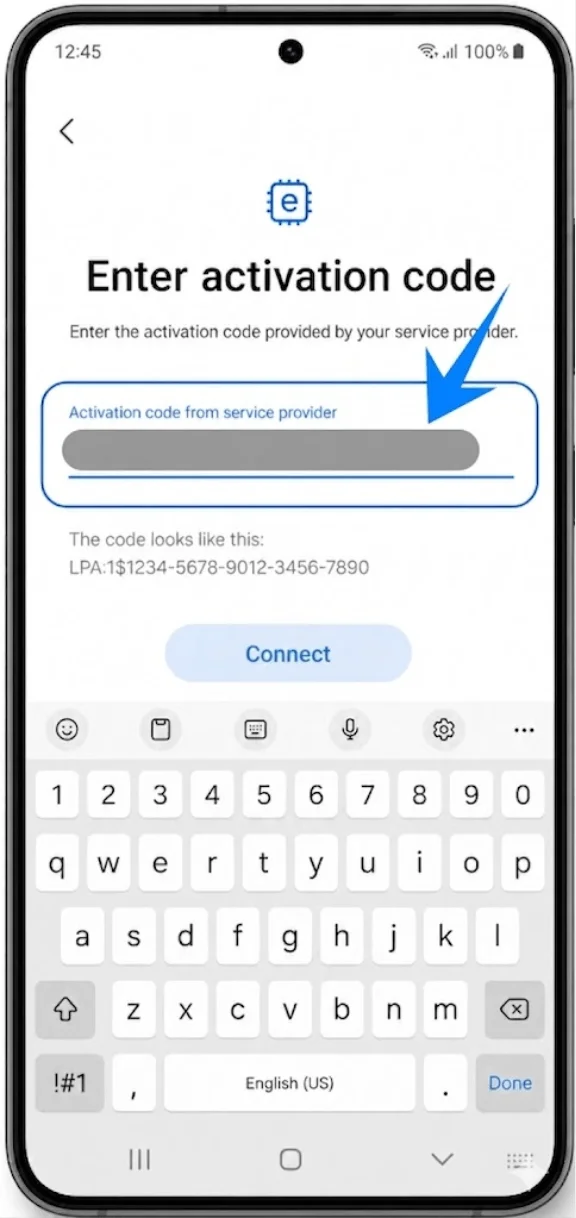
Make sure:
all letters and numbers are entered correctly,
there are no extra spaces,
uppercase and lowercase characters match if required.
Step 6: Download the eSIM Profile
After entering the code:
Tap Connect
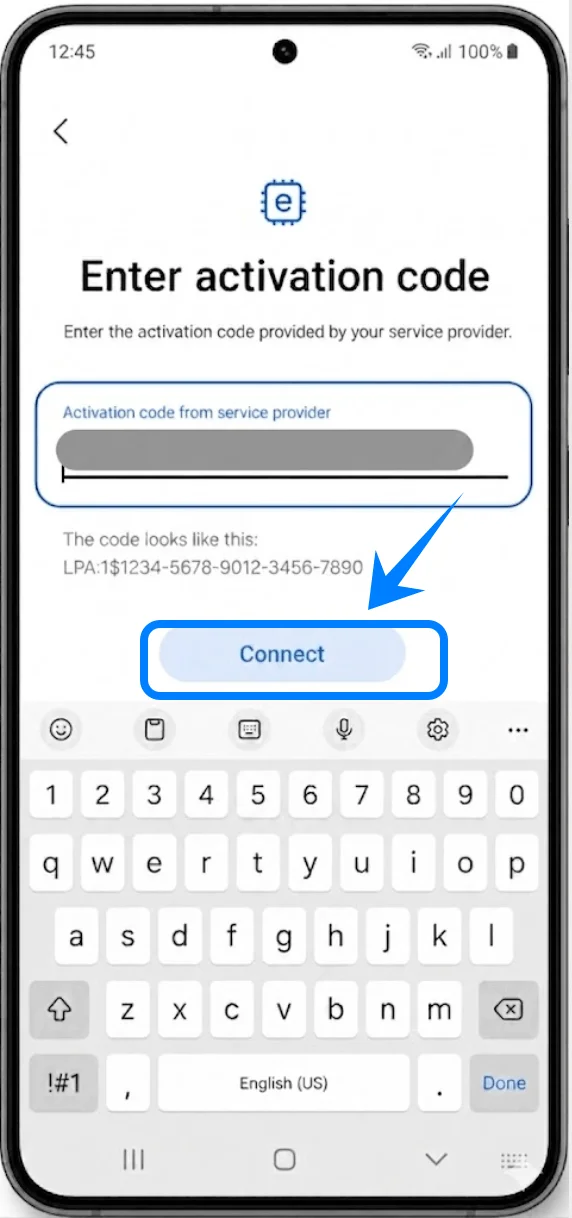
Wait while the Galaxy S23+ downloads the eSIM profile
Do not:
close the Settings app,
turn off the phone,
disconnect Wi-Fi or mobile internet during installation.
The download process may take several minutes.
Step 7: Configure SIM Preferences
After installation is complete:
Tap OK
Select your preferred SIM for:
Mobile data
Calls
Messages
If necessary:
Return to SIM manager
Disable the physical SIM card
Step 8: Restart the Galaxy S23+
Press and hold the Side button and Volume Down button
Tap Restart
After rebooting, the device should connect to the carrier network automatically.
How to Confirm the eSIM Was Successfully Installed
Check SIM Manager
Open Settings
Tap Connections
Tap SIM manager
The newly installed eSIM should appear in the SIM list with:
carrier name
active status
Check Signal Status
Look at the status bar at the top of the screen.
A successful installation should display:
mobile signal bars
LTE/4G/5G indicator
If there is no signal:
wait several minutes,
restart the device again, or
contact the carrier for provisioning support
Test Mobile Connectivity
Disable Wi-Fi temporarily:
Swipe down from the top of the screen
Tap the Wi-Fi icon to turn it off
Then:
Open a web browser
Visit a website
If the page loads using mobile data, the eSIM is functioning properly.
Conclusion
Your iRoamly eSIM is now successfully installed and activated on your device. With the setup complete, you can enjoy mobile connectivity without needing a physical SIM card, making network access more flexible and convenient for daily use or travel.
Thanks to the simplicity of eSIM technology, managing mobile plans and switching between networks becomes much easier directly from your device settings. Once activated, your iRoamly eSIM is ready to use whenever you need mobile data connectivity.