
Digital eSIM technology offers a faster and more flexible alternative to traditional SIM card installation.
Rather than inserting a physical SIM card into the phone, users can activate a mobile plan digitally through the device settings using a QR code or activation details.
This helps simplify the setup process while also making it easier to manage multiple mobile plans on a single device.
Whether you’re activating an eSIM before traveling or setting it up for daily use, this guide explains how to install and activate your iRoamly eSIM on the Samsung Galaxy S23 Ultra step by step.
Prepare Travel Data with iRoamly
iRoamly Travel eSIM is a travel eSIM service for mobile data in destinations worldwide. Available options can include local, regional, and global plans, while allowances, validity periods, and supported features vary by destination.
With a travel data line installed, your phone can support trip essentials such as maps, messaging, translations, ride-hailing, bookings, and travel updates.
For the Galaxy S23 Ultra, iRoamly installation uses the Samsung eSIM setup options already covered in this guide. The instructions below show how to add the profile with a QR code or activation code, then enable the plan and confirm that the eSIM is working.
Preparations Before Setting Up iRoamly eSIM
Before starting the installation process, make sure you have the following ready:
A stable internet connection (Wi-Fi is recommended)
A valid eSIM QR code or activation code provided by your carrier
Your Galaxy S23 Ultra powered on and unlocked
The device updated to the latest available One UI version for better eSIM compatibility
The carrier account activated and eligible for eSIM service
If you're planning to travel to China, you can choose a China eSIM and add it to your Galaxy S23 Ultra before departure. For travel to Indonesia, an Indonesia eSIM is another option you can set up in advance and select for mobile data when needed.
Method 1: Install eSIM Using a QR Code
Step 1: Open SIM Manager
Open Settings
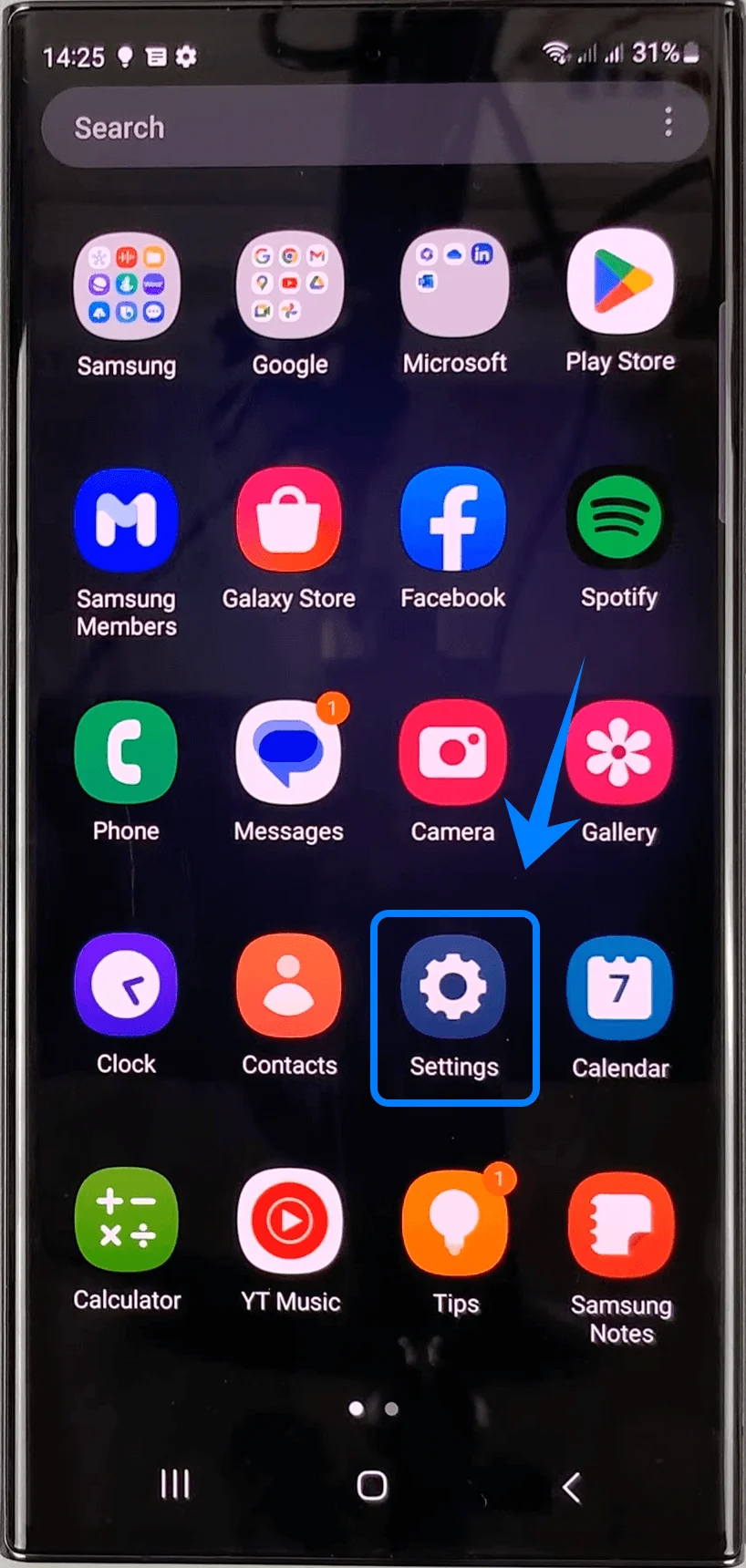
Tap Connections
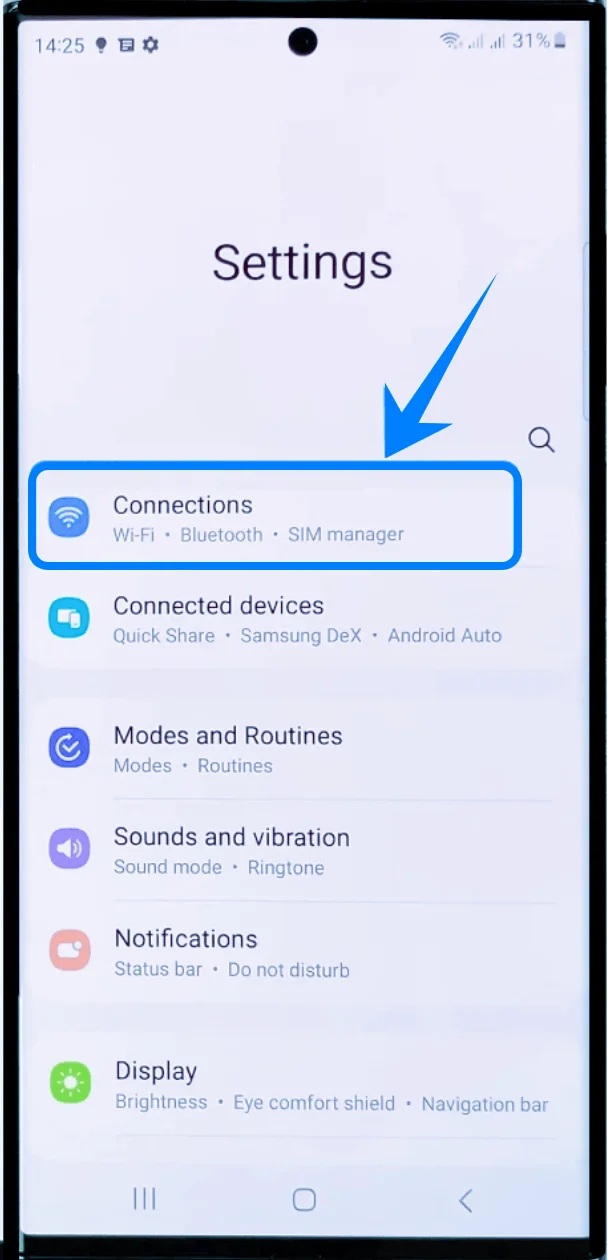
Tap SIM manager
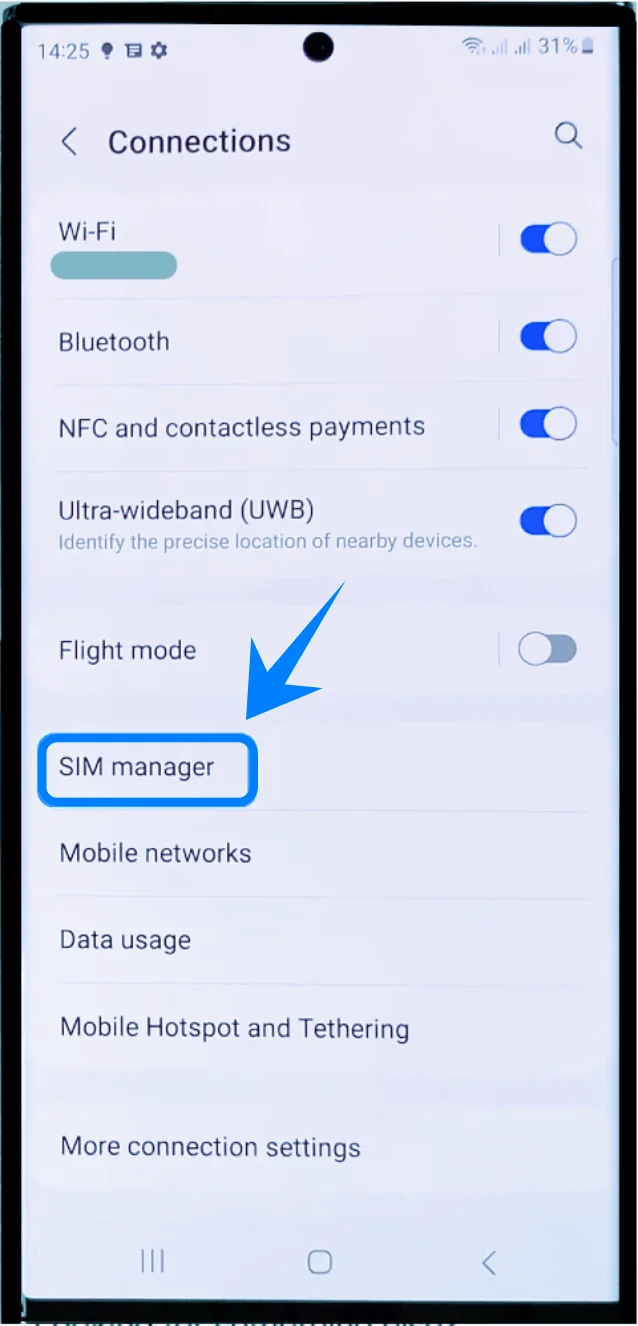
Step 2: Add an eSIM
Tap Add eSIM
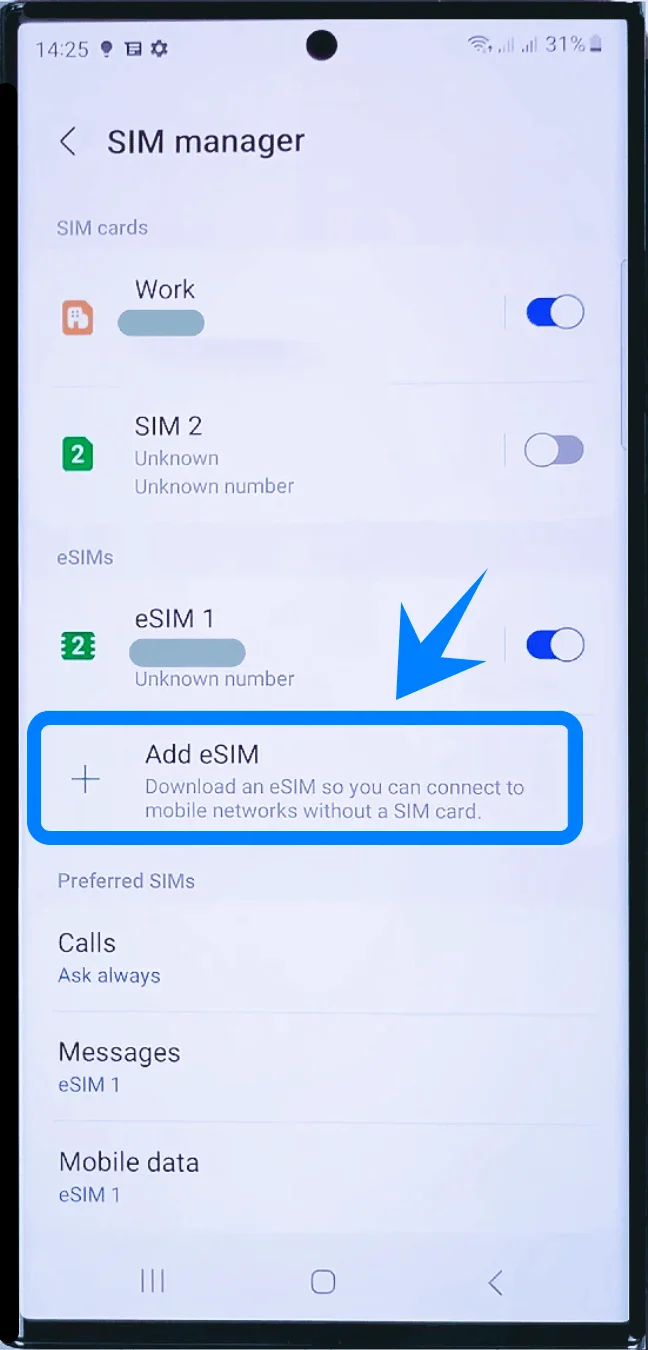
Tap Scan QR code from service provider
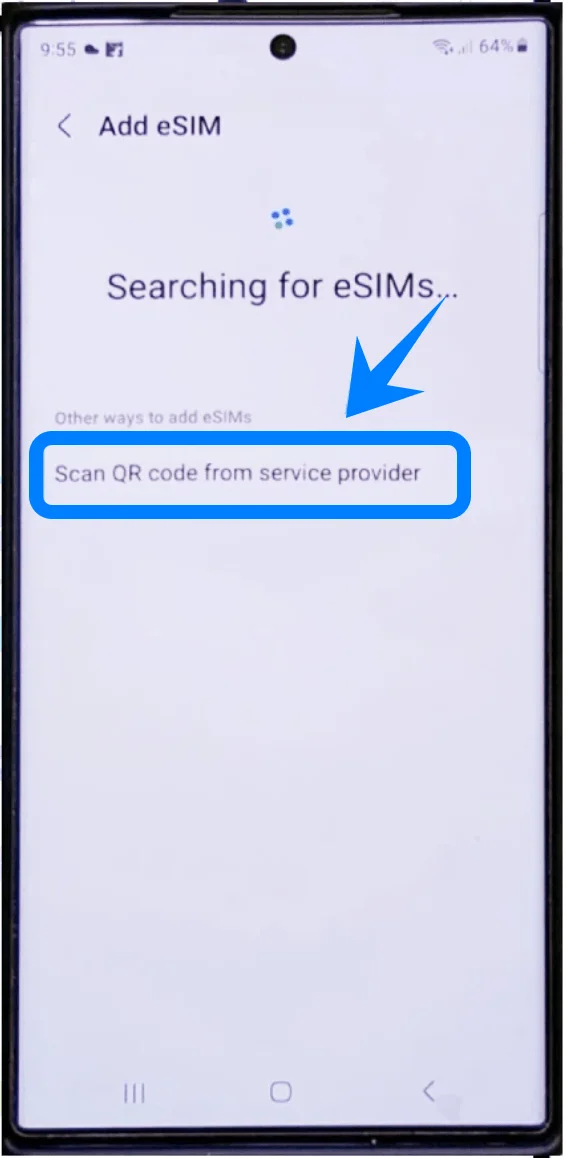
The QR scanner screen will open automatically.
Step 3: Scan the QR Code
Place the carrier QR code inside the scanning frame

Wait for the phone to recognize the code
The Galaxy S23 Ultra will automatically retrieve the eSIM profile.
Step 4: Confirm Installation
Tap Add when prompted
Tap Confirm or Continue if additional confirmation screens appear
The phone will now download and install the eSIM profile.
Step 5: Complete Setup
Wait for activation to finish
Tap Done
The eSIM should now appear in SIM manager.
Method 2: Install eSIM Using an Activation Code
Step 1: Open SIM Manager
Open Settings
Tap Connections
Tap SIM manager
Step 2: Start eSIM Setup
Tap Add eSIM
Tap Scan QR code from service provider
Step 3: Open Manual Activation
On the QR scanner screen:
Tap Enter activation code
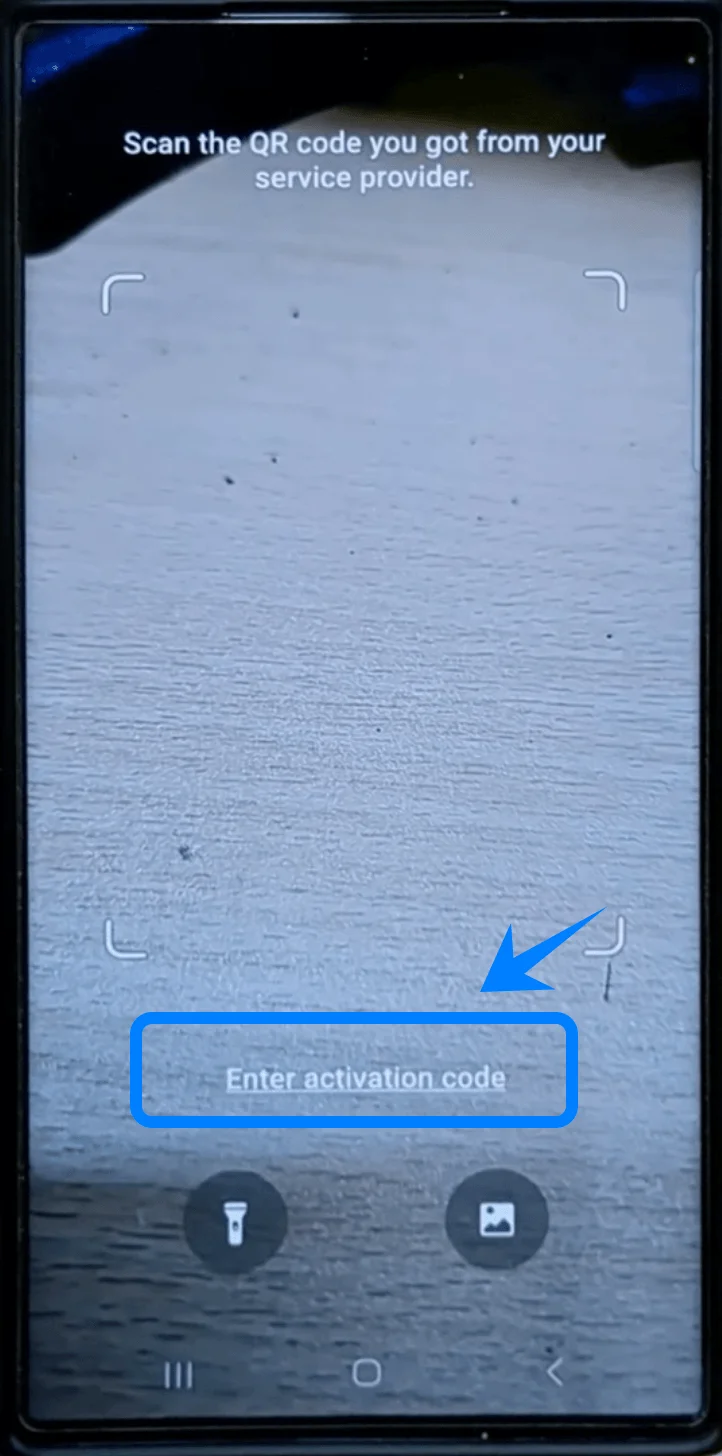
The phone will open the manual setup page.
Step 4: Enter the Activation Code
Tap the Activation code field
Enter the activation code provided by your carrier
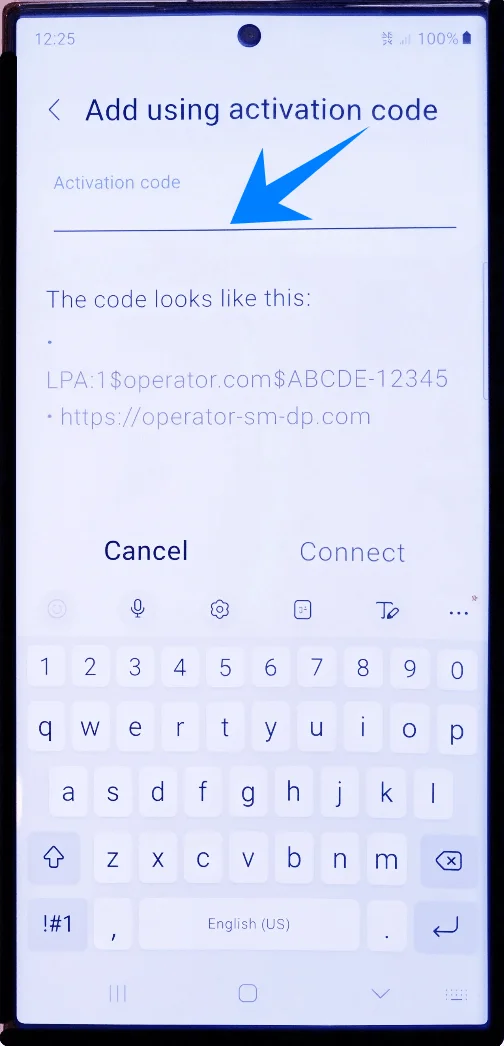
Make sure the code is entered exactly as provided.
Step 5: Connect and Install
Tap Connect
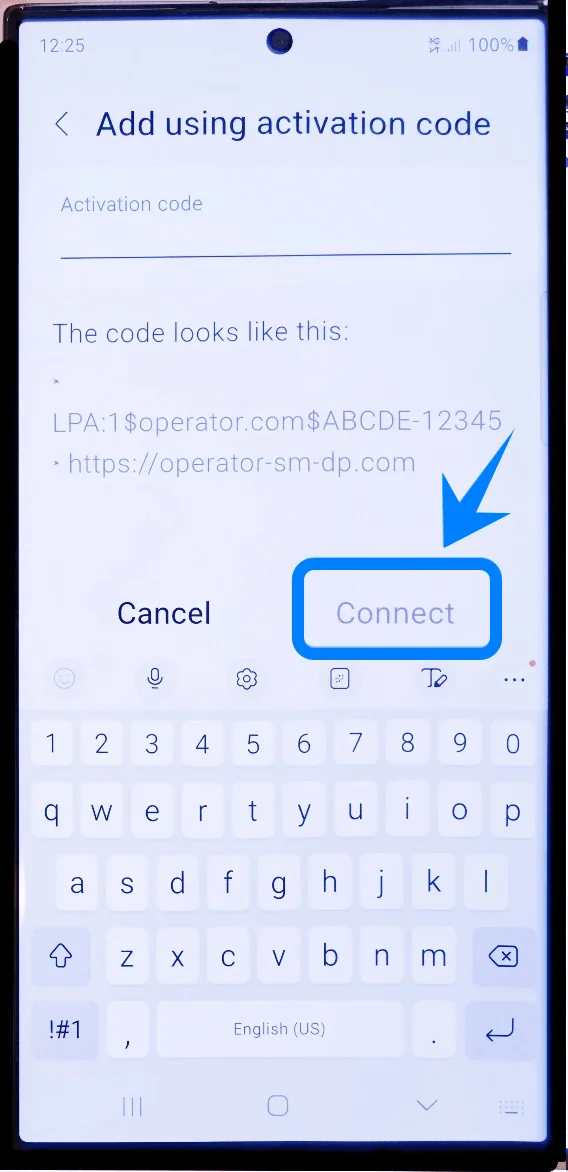
Wait while the Galaxy S23 Ultra downloads and installs the eSIM profile
Do not close the Settings app during installation.
Step 6: Finish Activation
Tap Done after installation completes
Return to SIM manager
The eSIM should now appear in the active SIM list.
How to Confirm the eSIM Was Installed Successfully
To verify activation:
Open Settings → Connections → SIM manager
Confirm the new eSIM appears in the SIM list
Check that the phone shows cellular signal bars
Test mobile data, calls, and text messages
Note: Some eSIM plans may not include voice calling support, so this feature might not be available depending on your plan.
If all services work normally, the eSIM has been installed successfully.
More Samsung eSIM Setup Guides
Setting up another Samsung phone? These eSIM activation guides may help.
Conclusion
After activation is complete, your iRoamly eSIM will be ready to provide seamless mobile connectivity on your device. You can enjoy fast access to mobile data, reliable network coverage, and the convenience of using your phone without handling physical SIM cards.
With everything stored digitally, managing your mobile plans becomes simpler and more efficient. Once the eSIM is active, your Galaxy S23 Ultra is fully prepared for travel, navigation, communication, streaming, and staying connected wherever you go.