
With eSIM technology, activating mobile connectivity has become far more convenient than traditional SIM card installation.
Instead of inserting or replacing a physical SIM card, users can simply download a digital SIM profile directly onto their device. This enables faster activation, smoother network switching, and more flexible management of multiple mobile plans—all without handling a physical card.
If you're ready to set up your iRoamly eSIM, this guide will walk you through the step-by-step process of activating the eSIM on your Galaxy S23 and Galaxy S23 5G device, either by scanning a QR code or by entering a manual activation code.

Meet iRoamly for Easier Travel Connectivity
iRoamly is a travel eSIM service that offers mobile data options for destinations worldwide. Depending on where you are going, available choices may include destination, local, regional, or global plans with different data amounts, validity periods, and plan features.
After installation on a compatible device, that travel data can help with navigation, messages, bookings, transport apps, and travel updates abroad.
On Samsung Galaxy S23 and Galaxy S23 5G devices, iRoamly can be added through the Samsung SIM manager when eSIM is supported and the phone has an internet connection. The steps below show how to install the eSIM by QR code or manual activation code, then confirm the line is working.
Preparations Before Setting Up iRoamly eSIM
For a single-country trip, a destination plan such as an eSIM for Spain or an eSIM for Italy can be prepared before you move into the Galaxy S23 installation steps.
Before starting the installation process, make sure you have the following ready:
A stable internet connection (Wi-Fi is recommended)
A valid eSIM QR code or activation code provided by your carrier
Your Galaxy S23 and Galaxy S23 5G powered on and unlocked
The device updated to the latest available One UI version for better eSIM compatibility
The carrier account activated and eligible for eSIM service
Method 1: Install eSIM Using a QR Code
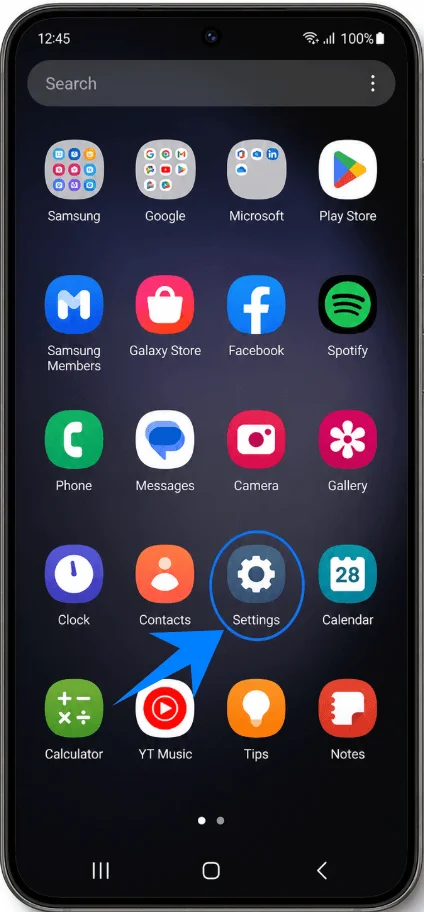
Step 1: Open Settings
Tap Settings.
Step 2: Open SIM Manager
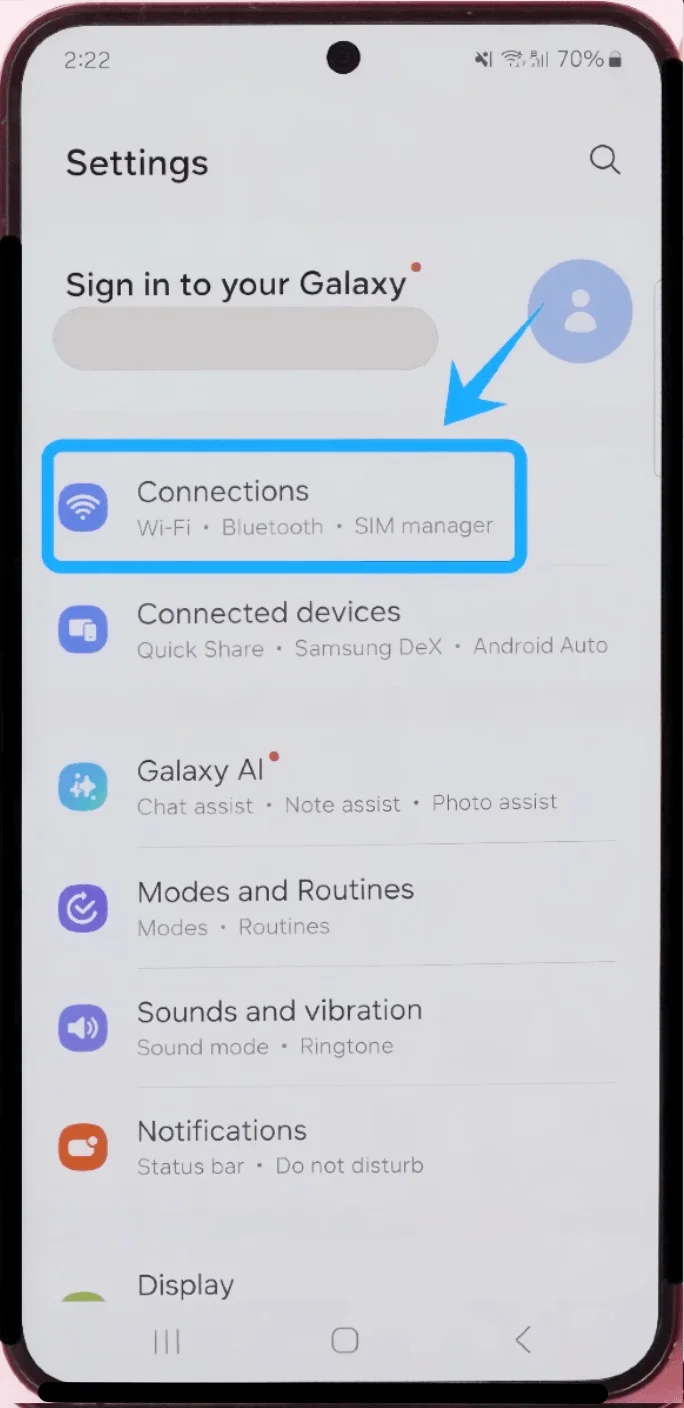
In Settings, tap Connections.
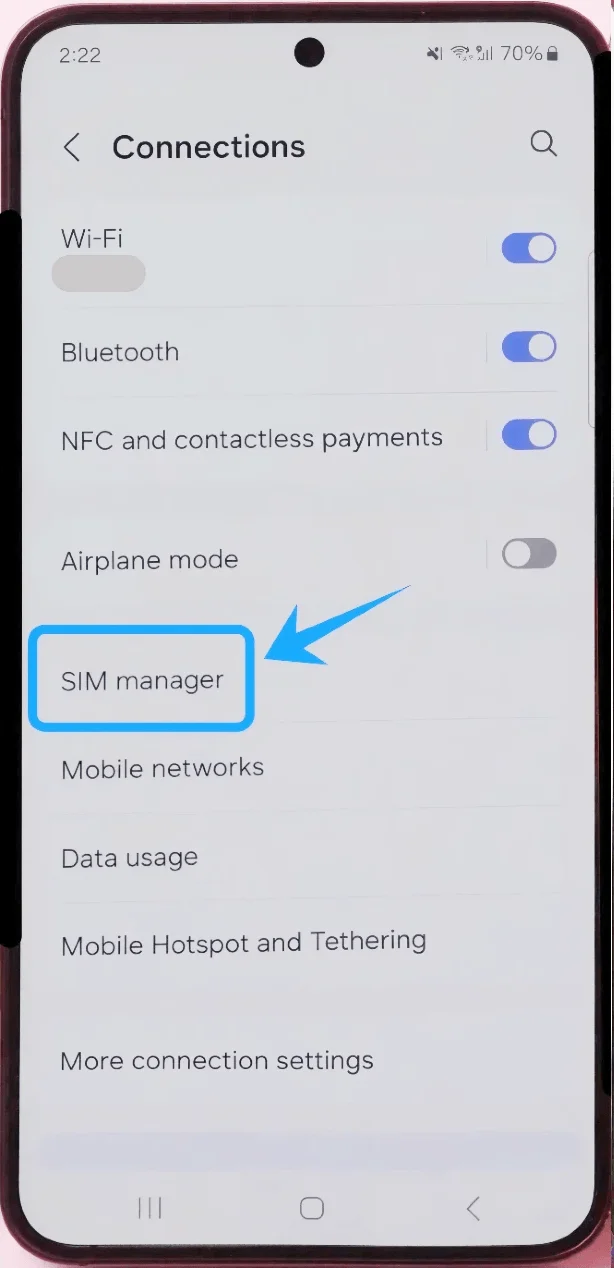
Tap SIM manager.
Step 3: Start the eSIM Installation Process
Inside SIM manager, tap Add eSIM.
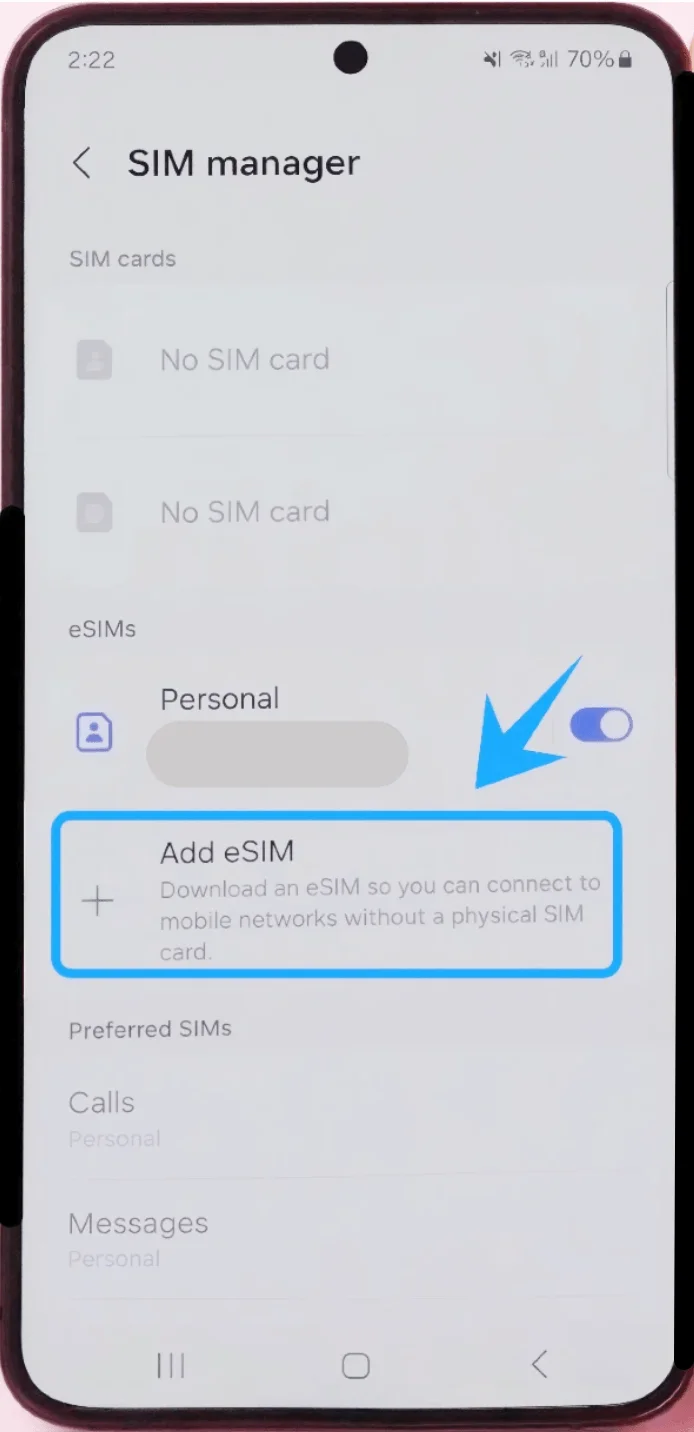
The phone will open the eSIM setup page.
Step 4: Select QR Code Installation
On the “Choose how to add your eSIM” screen:
Tap Scan QR code.
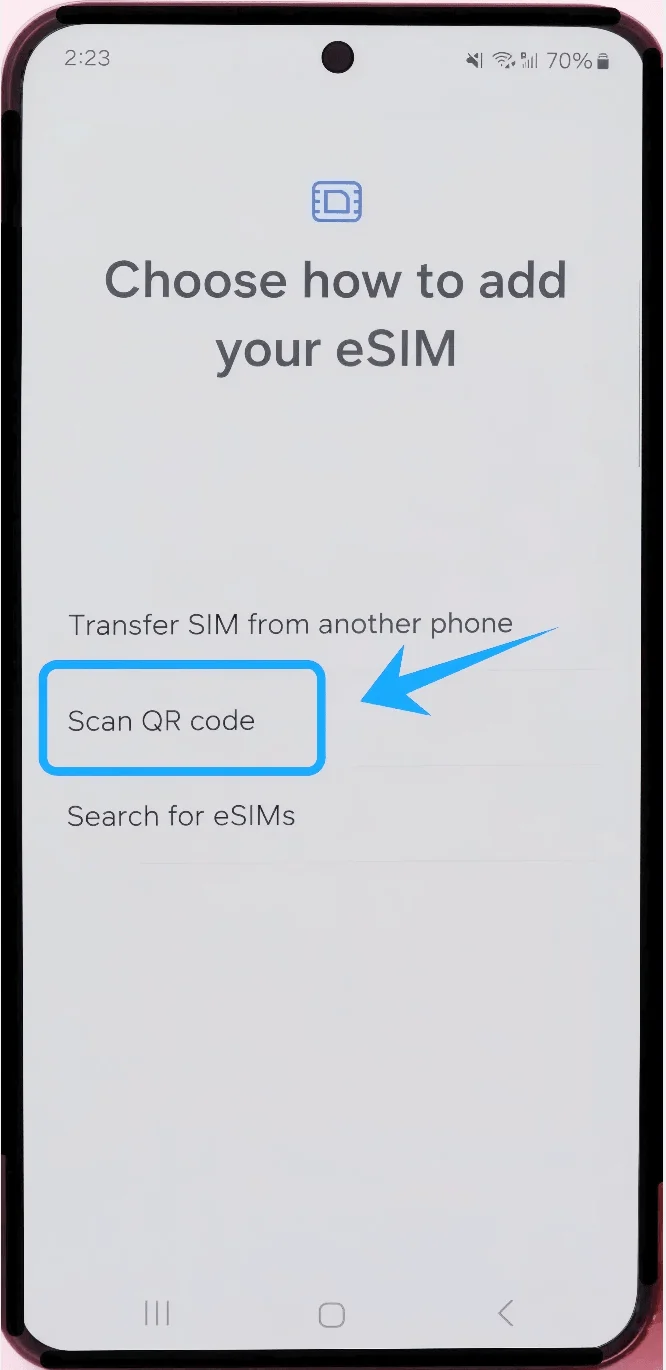
The camera scanner will open automatically.
Step 5: Scan the Carrier QR Code
Hold the Galaxy S23 over the QR code provided by your carrier.
Keep the QR code centered inside the scanning frame.
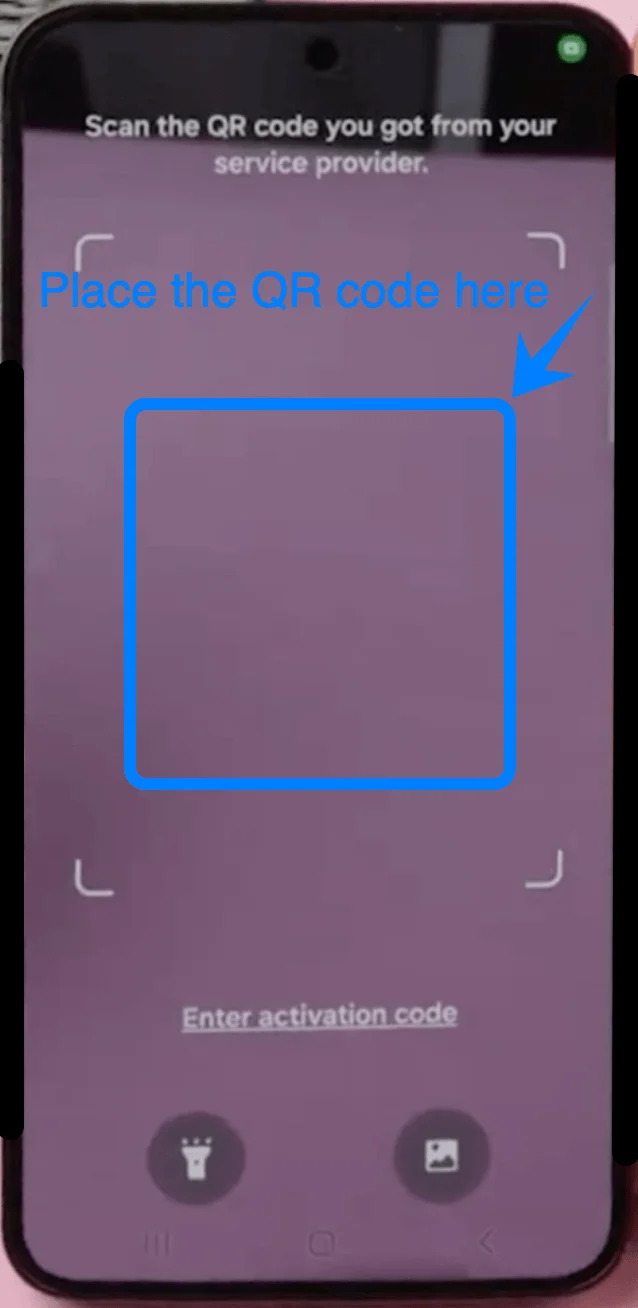
Wait for the device to recognize the eSIM profile.
The phone will automatically retrieve the carrier configuration.
Step 6: Download the eSIM Profile
After the QR code is recognized:
Tap Add when the carrier profile appears.
Wait while the Galaxy S23 downloads the eSIM information.
Do not close the Settings app or disconnect from the internet during this process.
Step 7: Activate the eSIM
Once the download finishes:
Tap OK or Done if prompted.
Return to SIM manager.
Locate the newly added eSIM profile.
Turn on the switch next to the eSIM if it is disabled.
Step 8: Configure Preferred SIM Settings
If you use both a physical SIM card and an eSIM:
In SIM manager, select:
Calls
Messages
Mobile data
Choose which SIM you want to use for each function.
Method 2: Install eSIM Using Manual Input
Step 1: Open Settings
Tap Settings.
Step 2: Open SIM Manager
Tap Connections.
Tap SIM manager.
Step 3: Begin eSIM Setup
Tap Add eSIM.
The “Choose how to add your eSIM” page will appear.
Step 4: Open the QR Code Page
Tap Scan QR code.
Samsung devices usually place the manual activation option inside the QR scanning screen.
Step 5: Open Manual Activation
On the QR code scanner screen:
Tap Enter activation code.
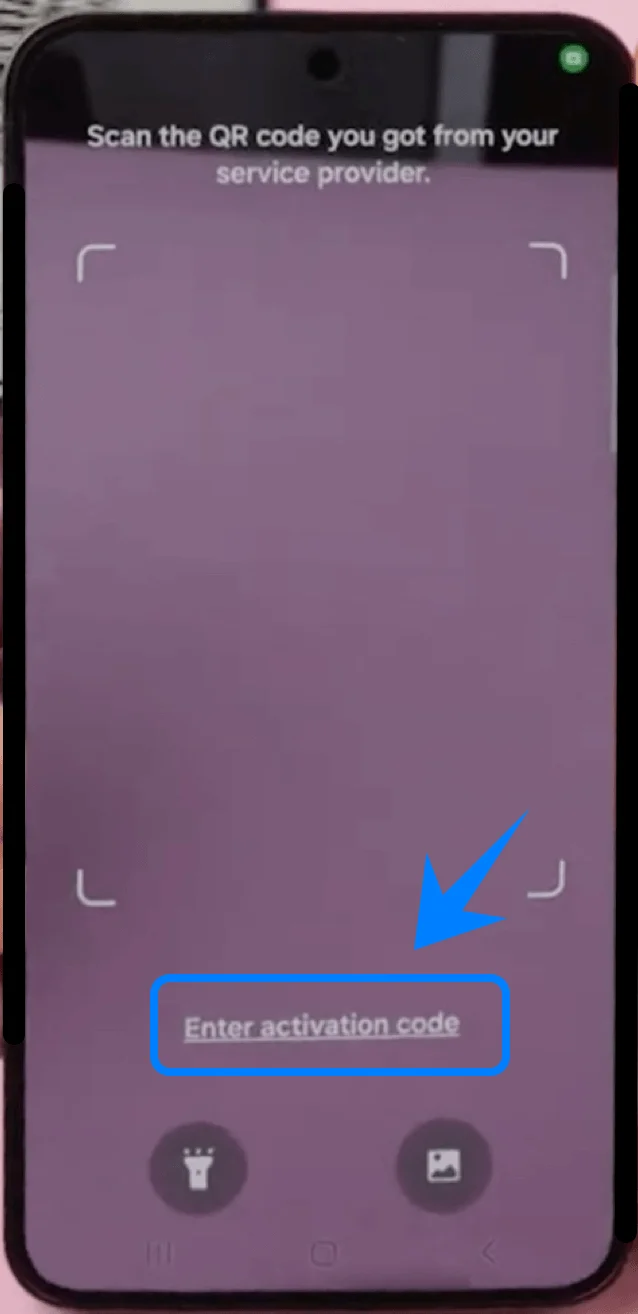
Depending on the One UI version, this option may appear at the bottom of the screen.
Step 6: Enter the Activation Code
Tap the Activation code field.
Type the activation information exactly as provided by your carrier.
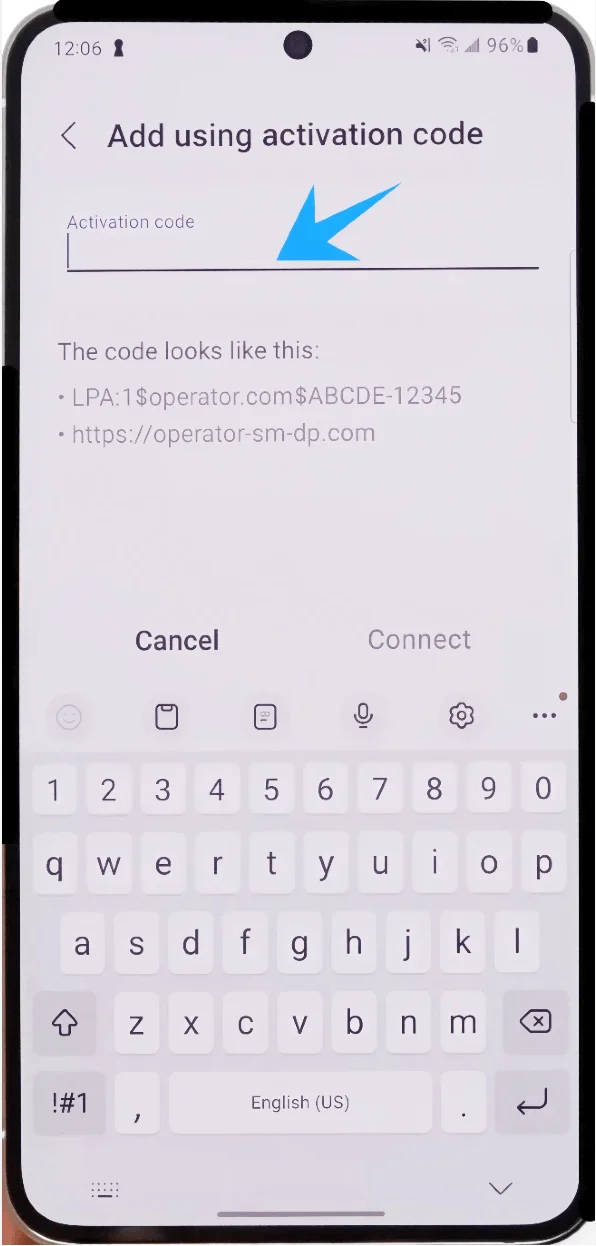
Be sure to enter all characters, symbols, and capitalization correctly.
Step 7: Connect to the Carrier Server
After entering the activation code, tap Connect.
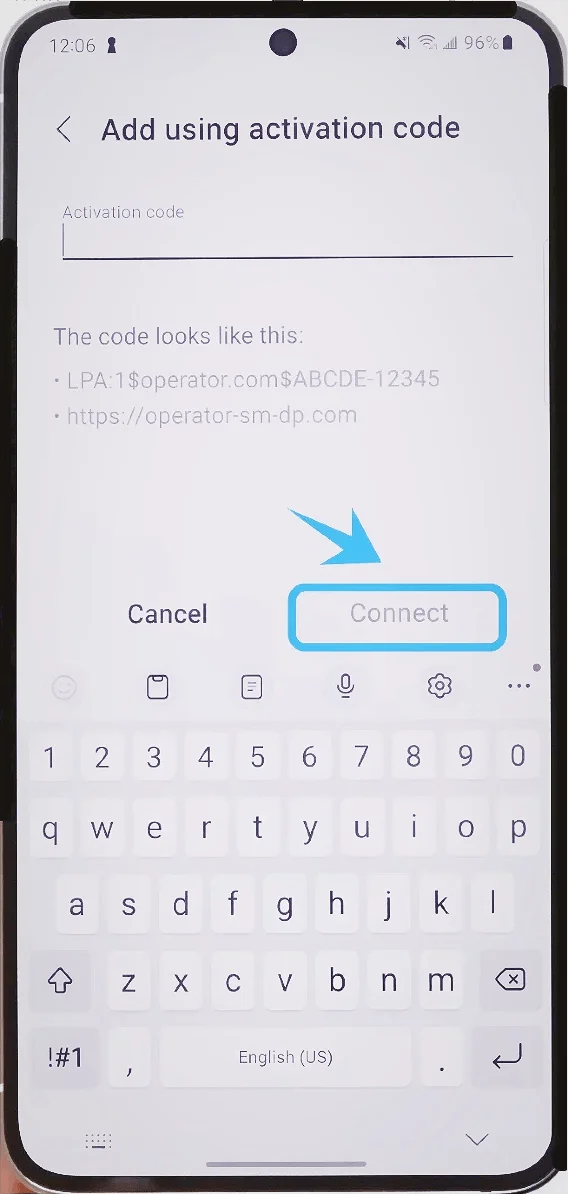
Wait while the Galaxy S23 downloads the eSIM profile from the carrier network.
This process may take several minutes.
Step 8: Enable the Installed eSIM
After installation completes:
Return to SIM manager.
Find the newly installed eSIM profile.
Turn on the switch next to the eSIM profile if necessary.
Step 9: Configure SIM Preferences
If multiple SIMs are active:
In SIM manager, configure:
Calls
Messages
Mobile data
Select the preferred SIM for each category.
How to Confirm the eSIM Was Successfully Installed
Check 1: Verify the eSIM Appears in SIM Manager
Open:
Settings → Connections → SIM manager
You should see:
The carrier name
The active eSIM profile
The enabled toggle switch
Check 2: Confirm Network Connectivity
Look at the top-right status bar of the phone.
A successful installation usually displays:
Signal bars
Carrier name
LTE, 4G, or 5G indicator
Check 3: Test Mobile Data
Turn off Wi-Fi.
Open a browser.
Visit a website.
If the page loads successfully, the eSIM is active and connected to the mobile network.
More Samsung Galaxy eSIM Setup Guides
Setting up another Samsung Galaxy phone? These eSIM activation guides may help.
Conclusion
Now your iRoamly eSIM is installed on the device, you can enjoy the convenience of digital mobile activation without needing a physical SIM card.
The setup process only takes a few minutes, and Samsung’s eSIM support makes managing mobile plans simple and flexible.
If needed, you can always return to the SIM card manager to adjust settings or manage additional eSIM profiles later.