
eSIM is a digital alternative to traditional SIM cards, enabling mobile network access without the need for physical hardware.
It is widely supported on modern devices, including the iPhone 14 Pro, where users can add and manage plans directly through system settings. This streamlined approach simplifies both setup and ongoing use.
For those installing an eSIM for the first time, following the correct steps is essential. This guide outlines how to install and activate an iRoamly eSIM on your iPhone 14 Pro clearly and efficiently.
Prepare Your Travel Data with iRoamly
iRoamly Travel eSIM provides travel mobile data plans that can be installed digitally on compatible phones. Depending on where you are going, travelers may find local, regional, global, or destination-focused options with different allowances, validity periods, and plan rules.
With the travel data line ready, everyday needs such as maps, messages, bookings, translation apps, and travel alerts can stay available abroad.
For iPhone 14 Pro users, this guide shows how to install an iRoamly eSIM and confirm the profile through the iOS cellular setup flow. The instructions cover both QR-code installation and manual input before moving into activation checks.
Preparations Before Setting Up iRoamly eSIM
Before starting, ensure you have the following:
For a single-country trip, you can install a travel eSIM such as an eSIM for France before departure, then select it for mobile data when needed. If you're traveling to Spain instead, you can follow the same iPhone 14 Pro setup steps once you have your activation details.
A stable internet connection (Wi-Fi or cellular)
A valid eSIM QR code or manual activation details (SM-DP+ address and activation code) provided by your carrier
Your iPhone 14 Pro powered on and unlocked
The device updated to the latest iOS version (recommended for compatibility)
Method 1: Install eSIM Using a QR Code
Step 1: Open Cellular Settings
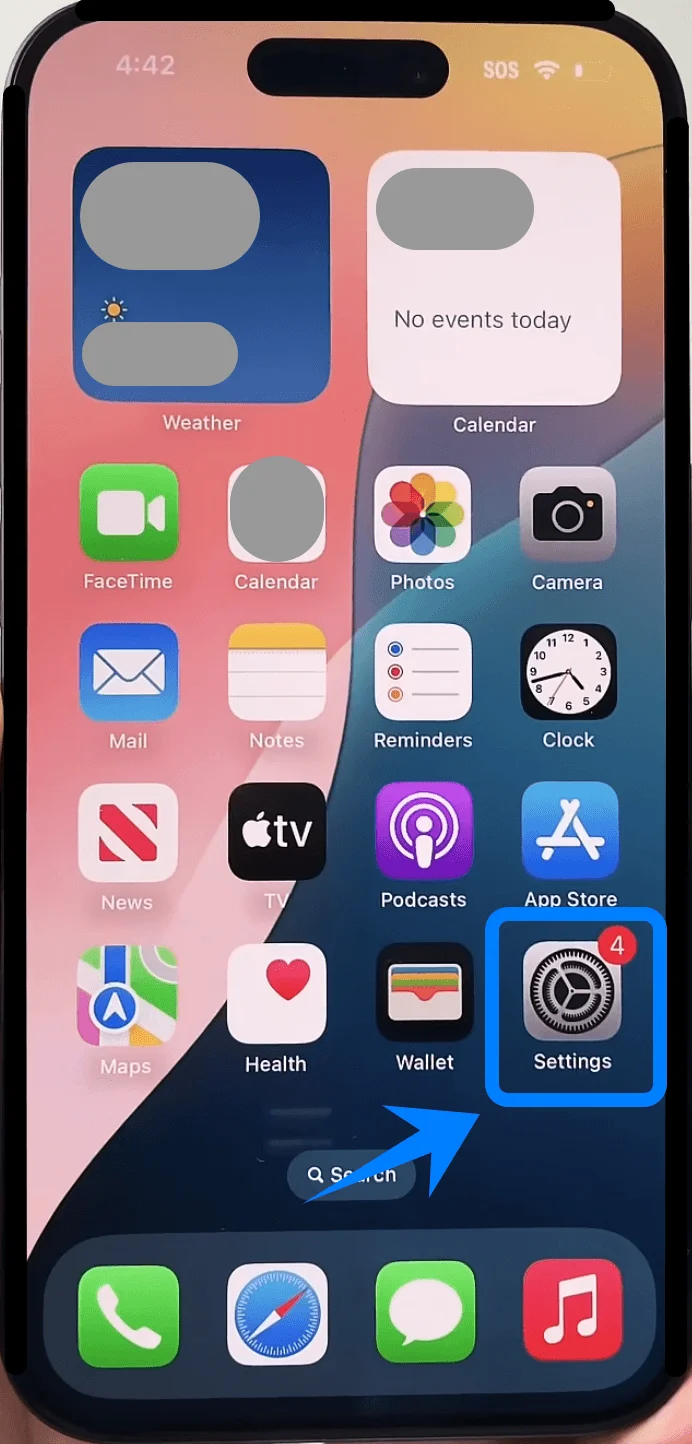
Tap Settings.
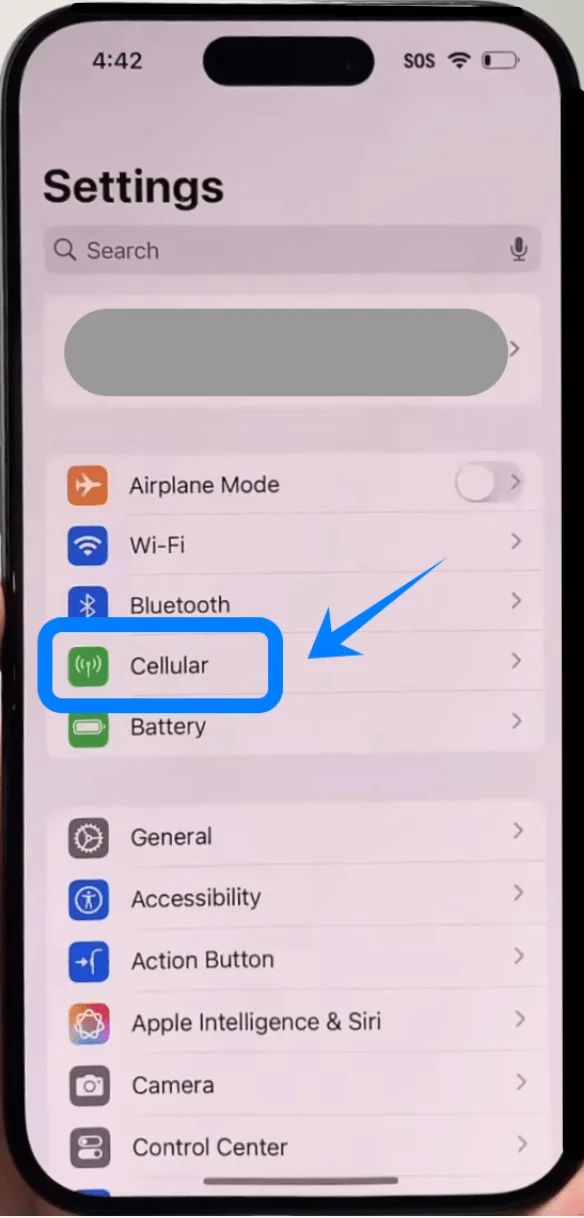
Scroll down and tap Cellular (On some devices, this may appear as “Mobile Service” or “Mobile Data”).
Step 2: Add eSIM
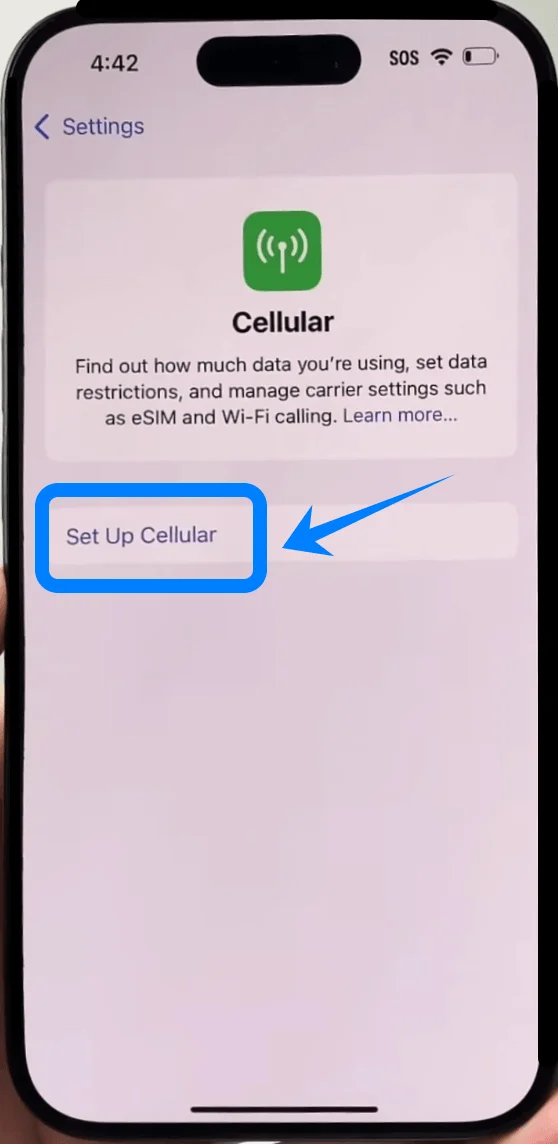
Tap Set Up Cellular if this is your first plan, or tap Add eSIM if you already have an existing cellular plan.
Tap Use QR Code.
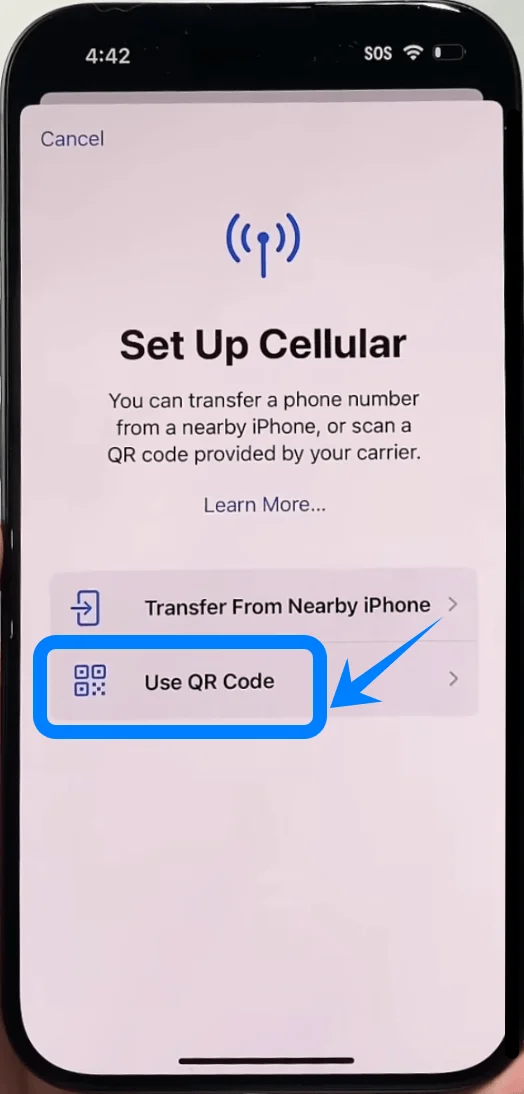
Step 3: Scan the QR Code
A camera viewfinder will open automatically.
Position your iPhone so the QR code is clearly visible within the frame.
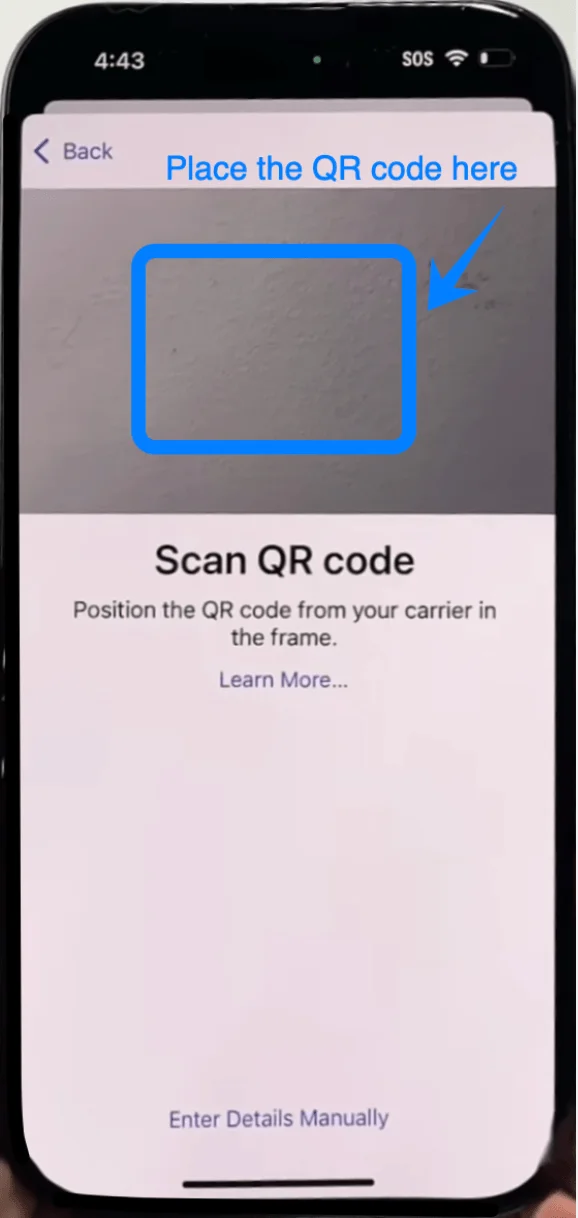
Wait for the phone to recognize the QR code.
Step 4: Confirm Activation
When prompted, tap Add eSIM.
Wait while the iPhone communicates with the carrier.
Tap Continue if additional prompts appear.
Step 5: Label the eSIM
Choose a label when prompted (e.g., Primary, Business, or Travel).
Tap Continue.
Step 6: Set Default Line Preferences
Choose your Default Line for calls and SMS, tap Continue.
Select your iMessage & FaceTime line, tap Continue.
Choose the Cellular Data line, tap Done.
Method 2: Install eSIM Using Manual Input
Step 1: Open Cellular Settings
Tap Settings.
Scroll down and tap Cellular (On some devices, this may appear as “Mobile Service” or “Mobile Data”).
Step 2: Add eSIM
Tap Set Up Cellular if this is your first plan, or tap Add eSIM if you already have an existing cellular plan.
Tap Use QR Code.
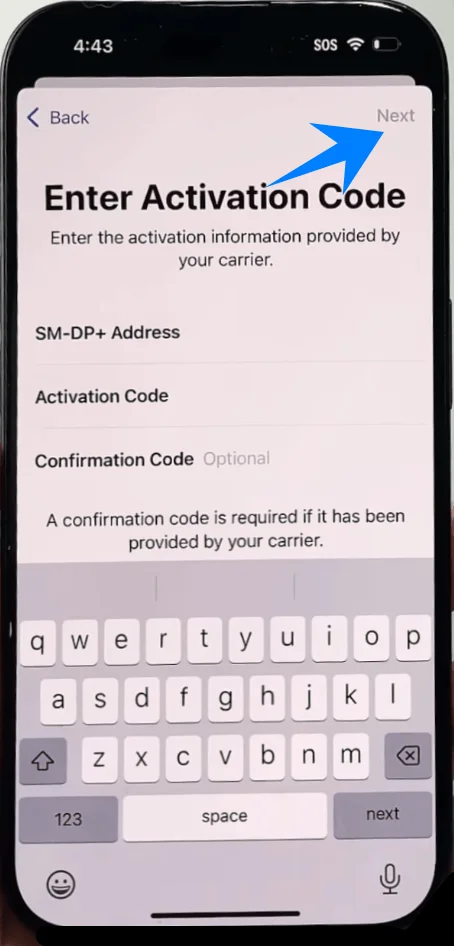
On the QR scanning screen, tap Enter Details Manually (located at the bottom).
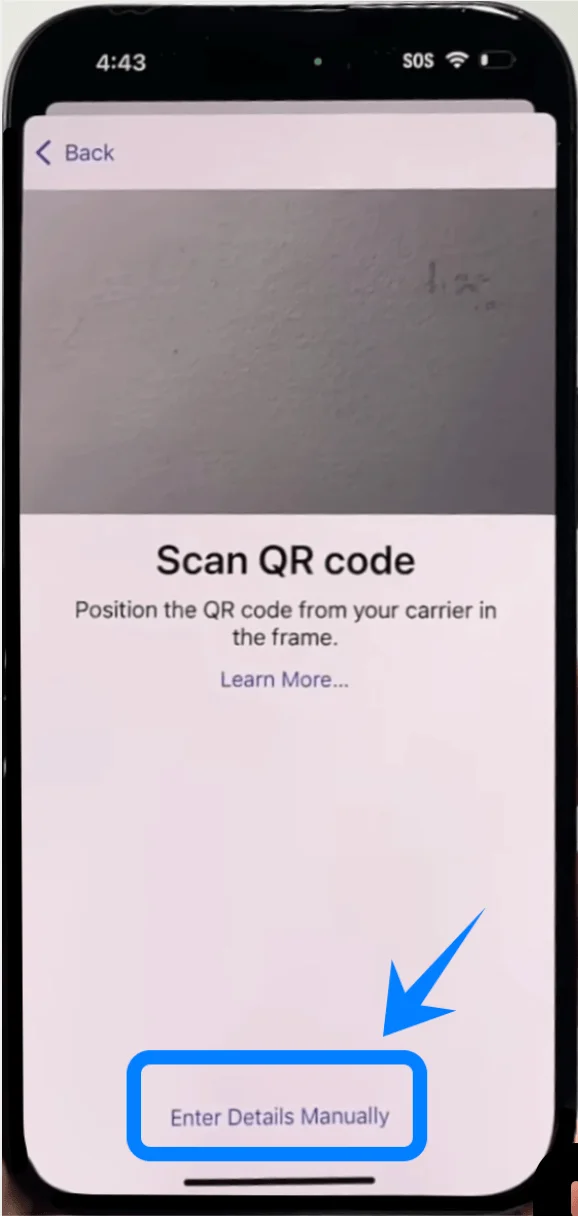
Step 3: Enter Carrier Information
In the SM-DP+ Address field, type the address provided by your carrier.
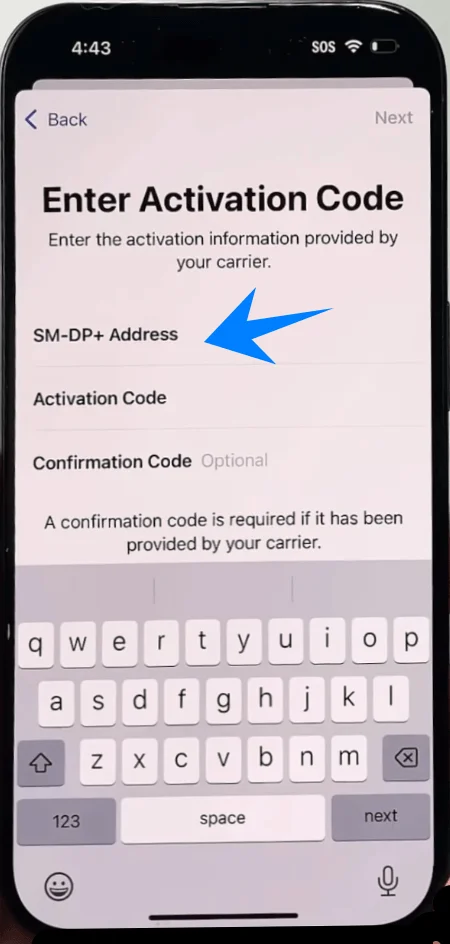
Tap the Activation Code field and enter the code exactly as provided.
If required, enter a Confirmation Code (optional; only if provided).
Tap Next.
Step 4: Confirm Activation
Tap Add eSIM when prompted.
Wait for the activation process to complete.
Tap Continue if prompted.
Step 5: Label the eSIM
Select a label (e.g., Personal, Work).
Tap Continue.
Step 6: Set Default Line Preferences
Choose your Default Line for calls and SMS, tap Continue.
Select your iMessage & FaceTime line, tap Continue.
Choose the Cellular Data line, tap Done.
How to Confirm Successful eSIM Installation
Check in Settings
Open Settings.
Tap Cellular (On some devices, this may appear as “Mobile Service” or “Mobile Data”).
Confirm that your new plan appears under SIMs or Cellular Plans.
Ensure the line status shows On.
Check Signal Indicator
Look at the top-right corner of the screen.
You should see signal bars associated with the newly added line.
Test Connectivity
Make a phone call.
Note: Some eSIM plans may not include voice calling support, so this feature might not be available depending on your plan.
Turn off Wi-Fi and confirm mobile data works.
More iPhone eSIM Setup Guides
Using another iPhone model? These eSIM activation guides may help.
Conclusion
By following the steps outlined above, you have successfully completed the eSIM installation and activation process.
Compared to physical SIM cards, eSIM offers greater flexibility and faster configuration, making it easier to adapt to different connectivity needs.
On the iPhone 14 Pro, this experience is smooth and reliable. Once your connection is active, you’re ready to use your eSIM without further setup.