
As devices become thinner and more portable, the way we stay connected is evolving as well.
eSIM, a built-in digital SIM technology, allows you to set up a cellular plan without inserting a physical card.
This makes it especially useful for iPad users who need reliable connectivity on the go. Compared to traditional SIM cards, it removes extra steps like handling or swapping cards.
If you’ve just received your iRoamly eSIM, you might be unsure where to begin. This guide will walk you through how to install and activate it on an iPad Pro 12.9-inch in a clear and structured way.
Travel with Mobile Data from iRoamly
iRoamly eSIM is a travel eSIM service that provides mobile data plans through digital profiles for trips abroad. Travelers can choose available destination, regional, or global options, with plan types, allowances, and validity periods varying by location.
Once installed on a compatible iPad, the data line can support maps, messaging, translations, bookings, and travel updates while you are away.
For iPad Pro 12.9-inch models that support eSIM, iRoamly can be added through the same iPadOS cellular setup flow used in this guide. The steps below show the QR-code and manual-entry paths before moving into installation confirmation.
Preparations Before Setting Up iRoamly eSIM
Before starting, ensure you have the following. If the United States is your next destination, preparing the travel eSIM before departure can help you arrive with the profile already installed.
A stable internet connection (Wi-Fi recommended)
A valid eSIM QR code or manual activation details (SM-DP+ address and activation code) provided by your carrier
Your iPad Pro powered on and unlocked
The device updated to the latest iPadOS version (recommended for compatibility)
Demo device used in this guide: iPad Pro 12.9-inch (6th generation, 2022)
Method 1: Install eSIM via QR Code
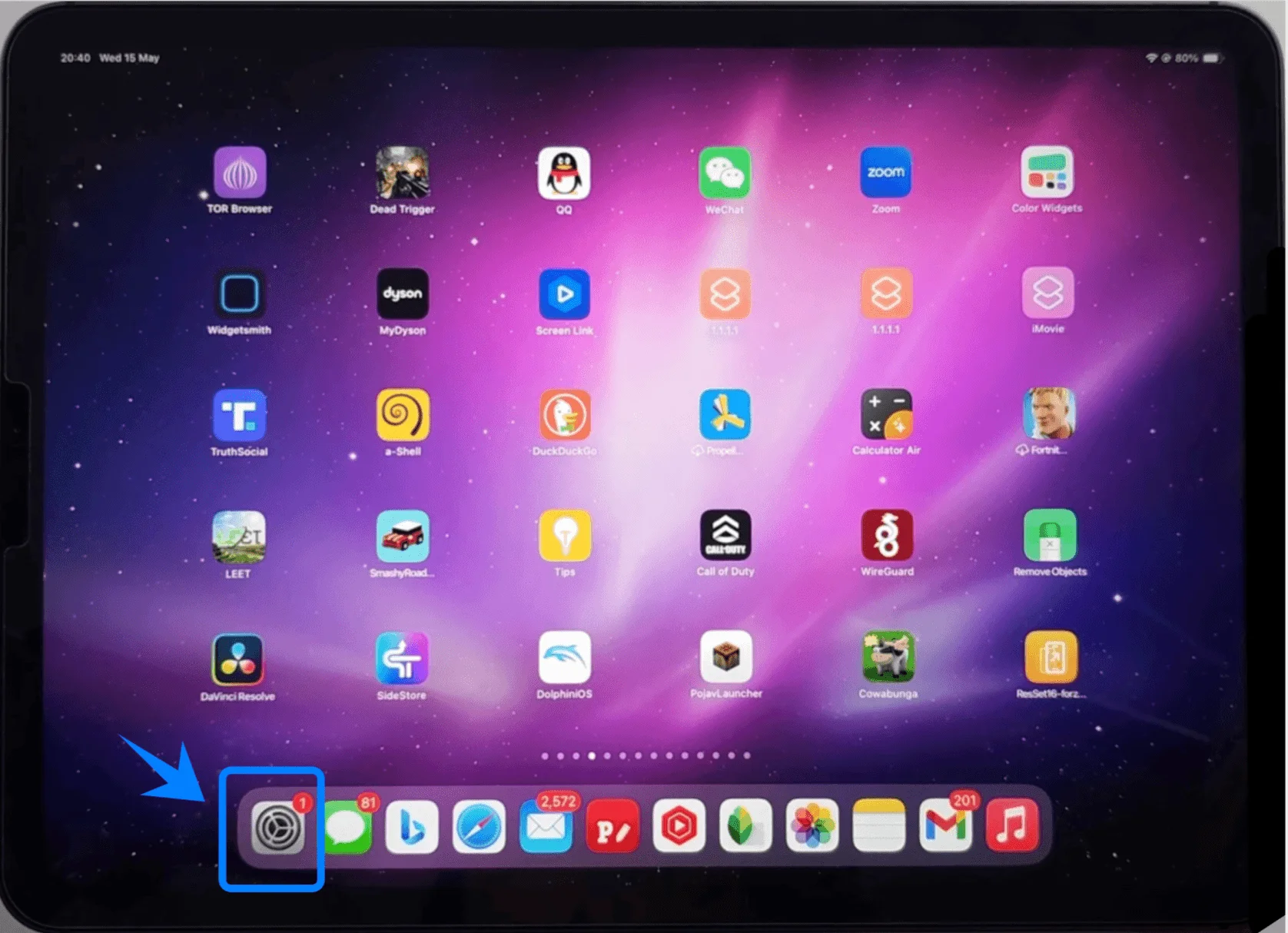
Step 1: Open Cellular Settings
Tap Settings
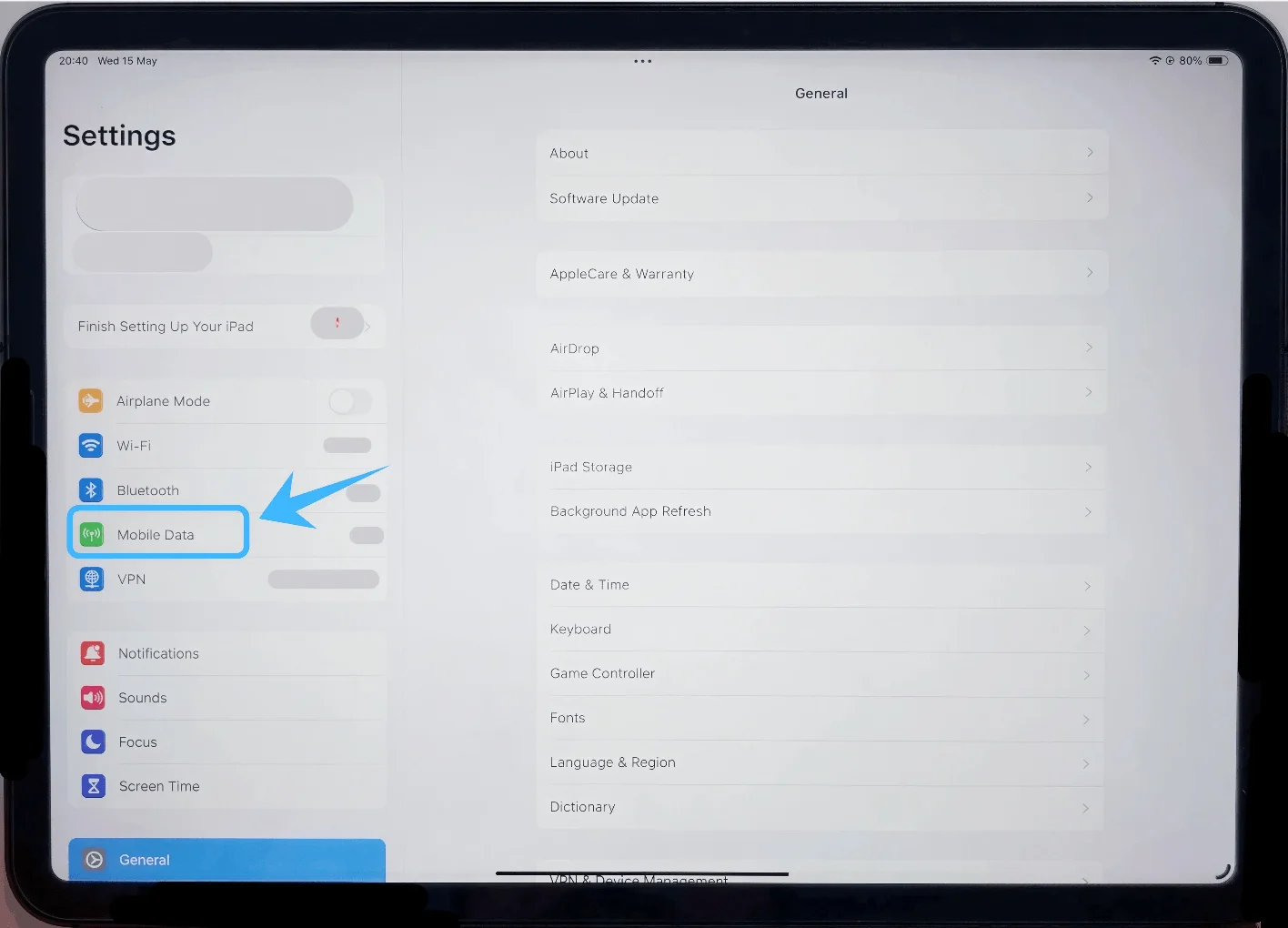
Tap Mobile Data (On some devices or iPadOS versions, this may appear as “Cellular Data.”)
Step 2: Start eSIM Setup
Tap Add a New Plan
(On some iPadOS versions, this may appear as Add Cellular Plan)
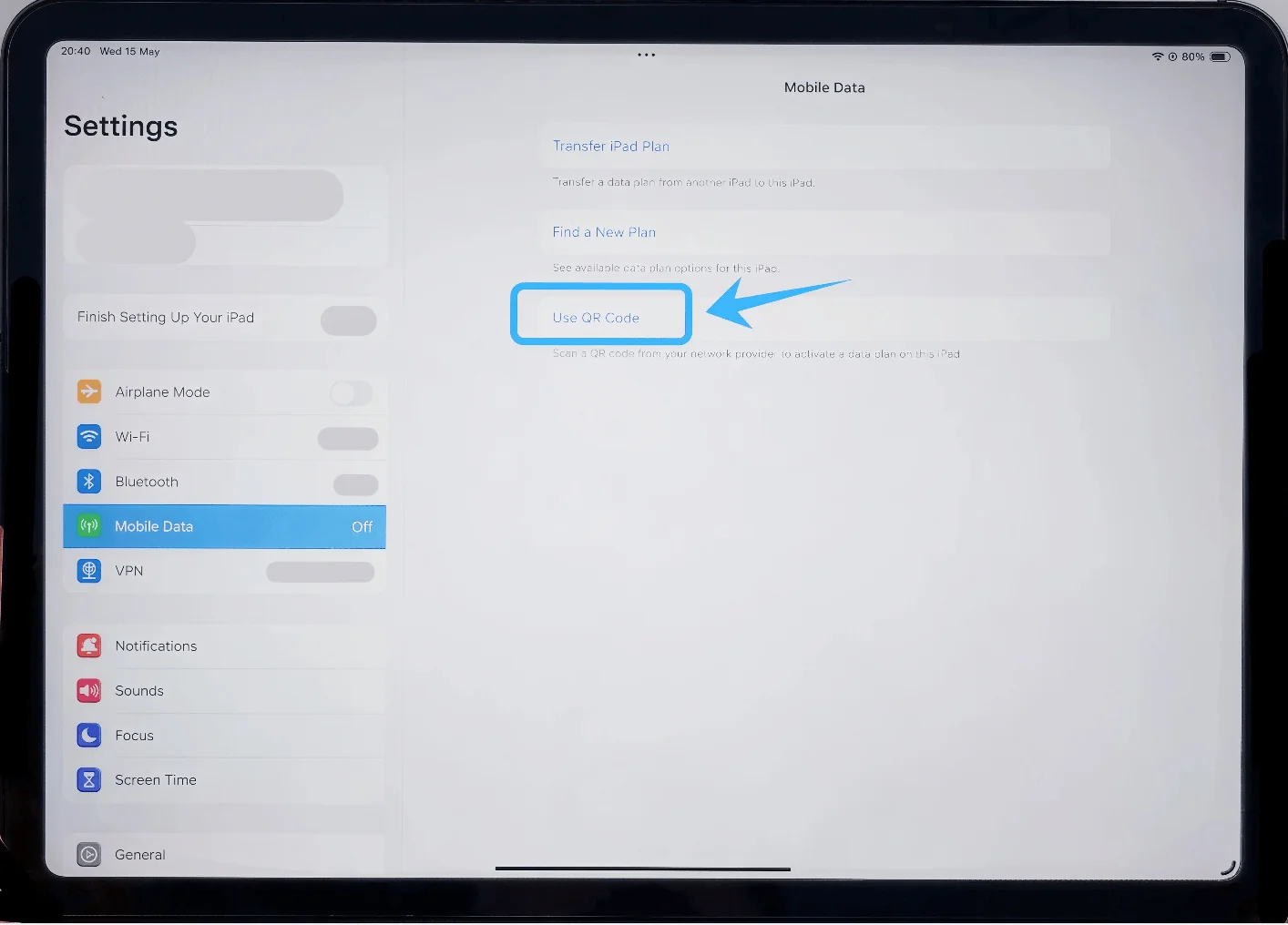
Step 3: Select QR Code Option
Tap Use QR Code
Step 4: Scan the QR Code
Position the iPad camera over the QR code provided by your carrier
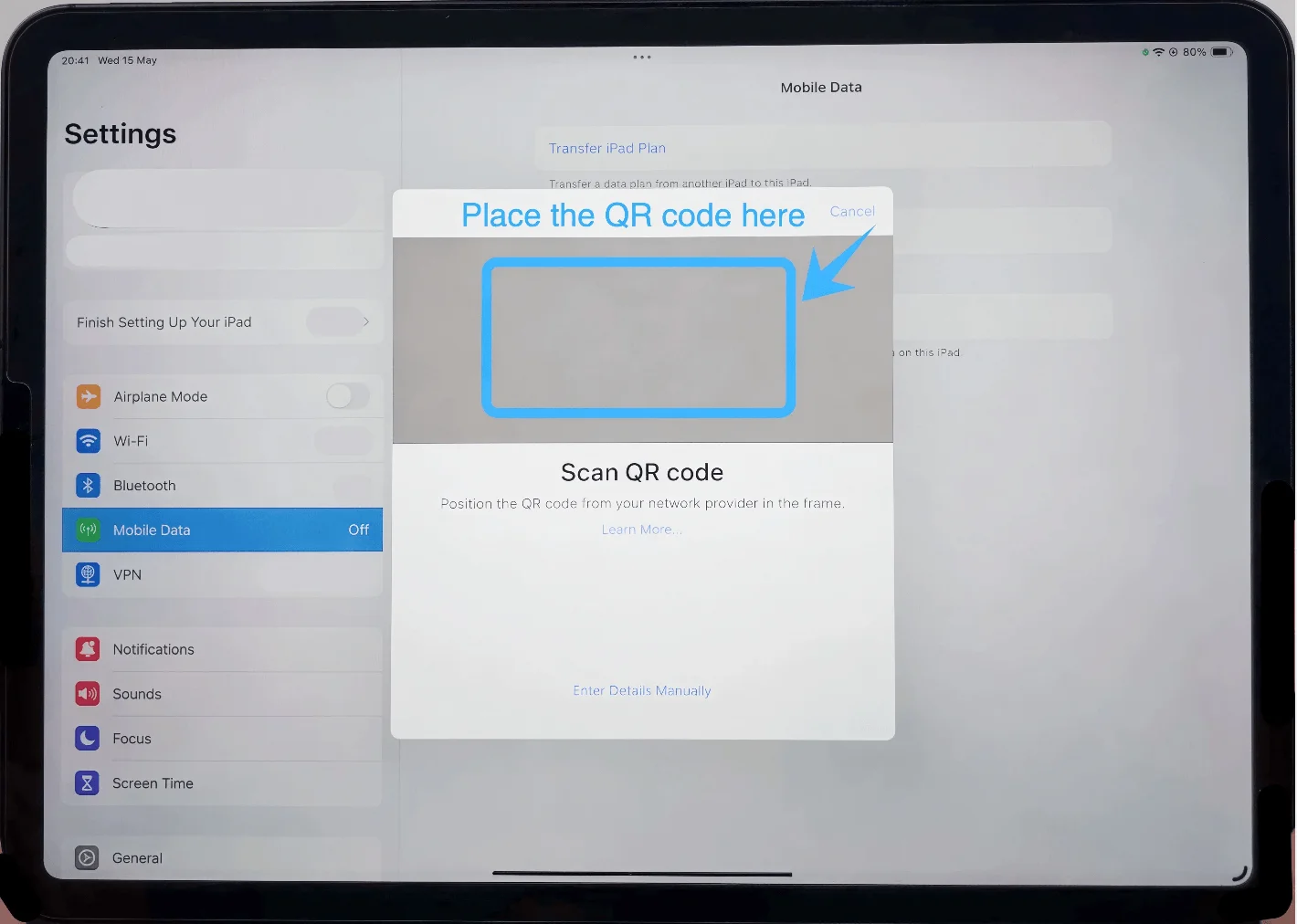
Wait until the code is recognized automatically
Step 5: Confirm Plan Addition
When the plan appears on screen, tap Add Cellular Plan
Step 6: Label the Plan (Optional but Recommended)
Tap the field under Cellular Plan Label
Choose a label (e.g., “Primary,” “Travel,” or custom name)
Tap Done
Step 7: Complete Activation
Wait while the iPad activates the eSIM
Do not exit the screen during this process
Method 2: Install eSIM via Manual Input
Step 1: Open Cellular Settings
Tap Settings
Tap Mobile Data (On some devices or iPadOS versions, this may appear as “Cellular Data.”)
Step 2: Start eSIM Setup
Tap Add a New Plan (or Add Cellular Plan)
Step 3: Choose Manual Entry
Tap Enter Details Manually
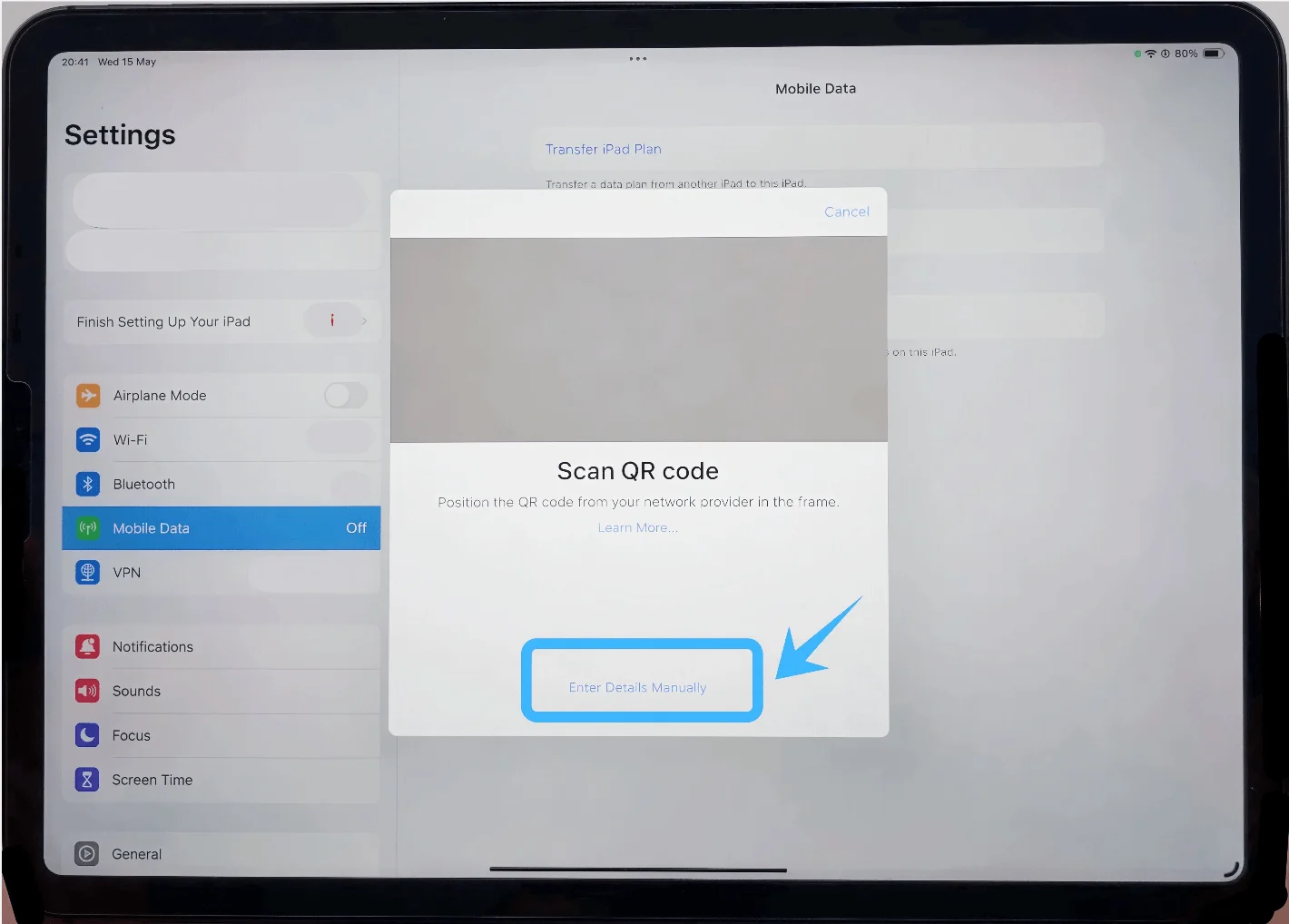
Step 4: Enter Activation Details
In the SM-DP+ Address field, type the address provided by your carrier
In the Activation Code field, enter the code exactly as provided
If prompted, enter the Confirmation Code
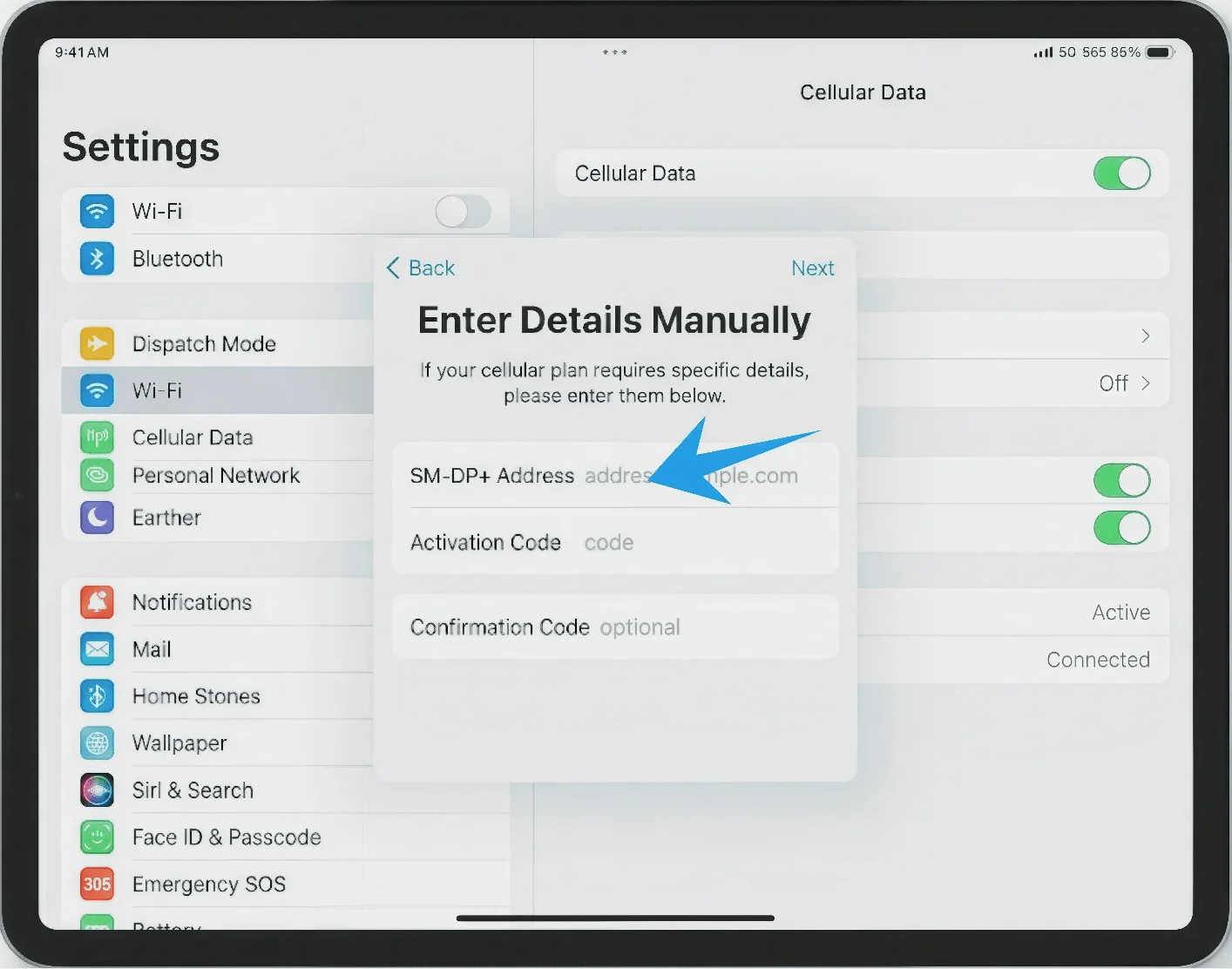
Step 5: Proceed with Installation
Tap Next (top-right corner)
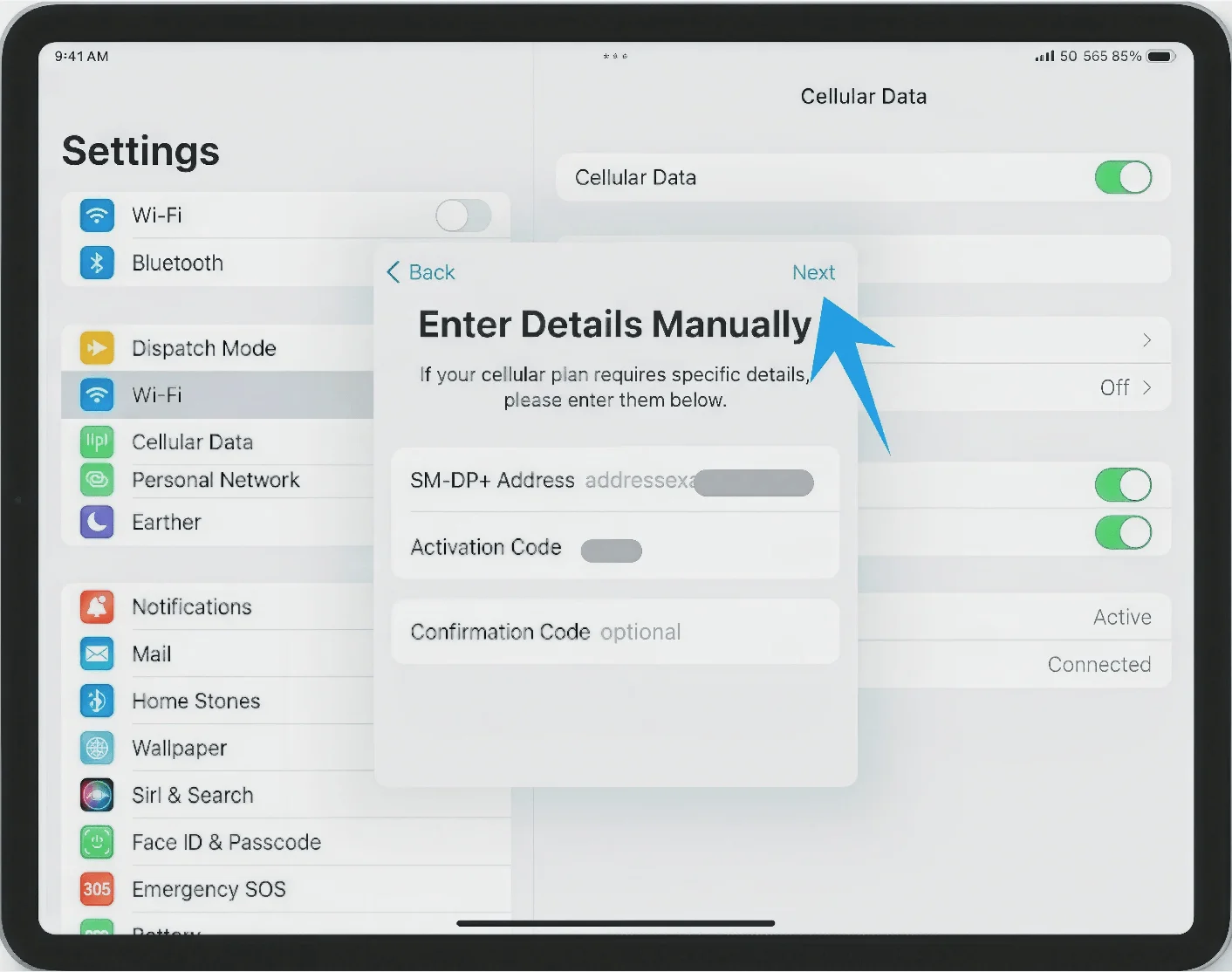
Step 6: Confirm Plan Addition
Tap Add Cellular Plan
Step 7: Label the Plan
Select or enter a label
Tap Done
Step 8: Wait for Activation
Remain on the screen while the iPad connects to the carrier network
How to Confirm Successful eSIM Installation
Check Cellular Plan Presence
Go to Settings → Mobile Data (On some devices or iPadOS versions, this may appear as “Cellular Data.”)
Confirm that your new plan appears under Cellular Plans
Verify Signal Status
Look at the top-right corner of the screen
Ensure signal bars or carrier name are visible
Confirm Network Connection
Go to Settings → Mobile Data (On some devices or iPadOS versions, this may appear as “Cellular Data.”)
Tap your new plan
Ensure Turn On This Line (or equivalent toggle) is enabled
Test Connectivity
Turn off Wi-Fi:
Go to Settings → Wi-Fi
Toggle Wi-Fi OFF
Open Safari and load a webpage
If the page loads, the eSIM is working correctly
More iPad eSIM Setup Guides
Using another iPad? These eSIM setup and activation guides may help.
Conclusion
After successfully connecting, your iPad is ready to use cellular data without any additional setup. The flexibility of eSIM makes staying connected easier and faster, especially when you need access on the go.
Once you’re familiar with the process, you’ll be able to install or switch plans in just a few minutes whenever needed. This makes it a practical solution for users who value convenience and minimal setup effort.