
Mobile connectivity is moving toward a more seamless and software-driven experience, and eSIM is a key part of that transition.
By enabling eSIM on your iPad Pro, you can connect to a cellular network without depending on physical components, making the setup process faster and more integrated.
Everything—from adding the plan to completing activation—happens within the device itself. This not only simplifies installation but also improves how you manage your network settings over time.
In this article, you’ll learn how to install an iRoamly eSIM and establish a reliable data connection step by step.

Meet iRoamly for Easier Travel Connectivity
iRoamly is a travel eSIM service for mobile data in destinations worldwide. Depending on where you are going, available options may include destination-specific, regional, and global plans with different validity periods, data allowances, and plan features.
With a travel data line installed, your iPad can support maps, messaging, translations, bookings, and travel updates without using a physical SIM card.
For compatible iPad Pro 13-inch models, an iRoamly eSIM can be added from iPadOS settings and used for cellular data when you are ready. The guide below continues with the original QR-code and manual-input setup methods so you can complete installation in order.
Preparations Before Setting Up iRoamly eSIM
Before starting, ensure you have the following. For a single-destination trip, you may use a country-specific option such as an eSIM for Spain, while a regional plan may be useful when your travel includes several countries.
A stable internet connection (Wi-Fi recommended)
A valid eSIM QR code or manual activation details (SM-DP+ address and activation code) provided by your carrier
Your iPad Pro powered on and unlocked
The device updated to the latest iPadOS version (recommended for compatibility)
Demo device used in this guide: iPad Pro 13-inch (7th generation, 2024)
Method 1: Install eSIM via QR Code Scanning
Step 1: Open Cellular Settings
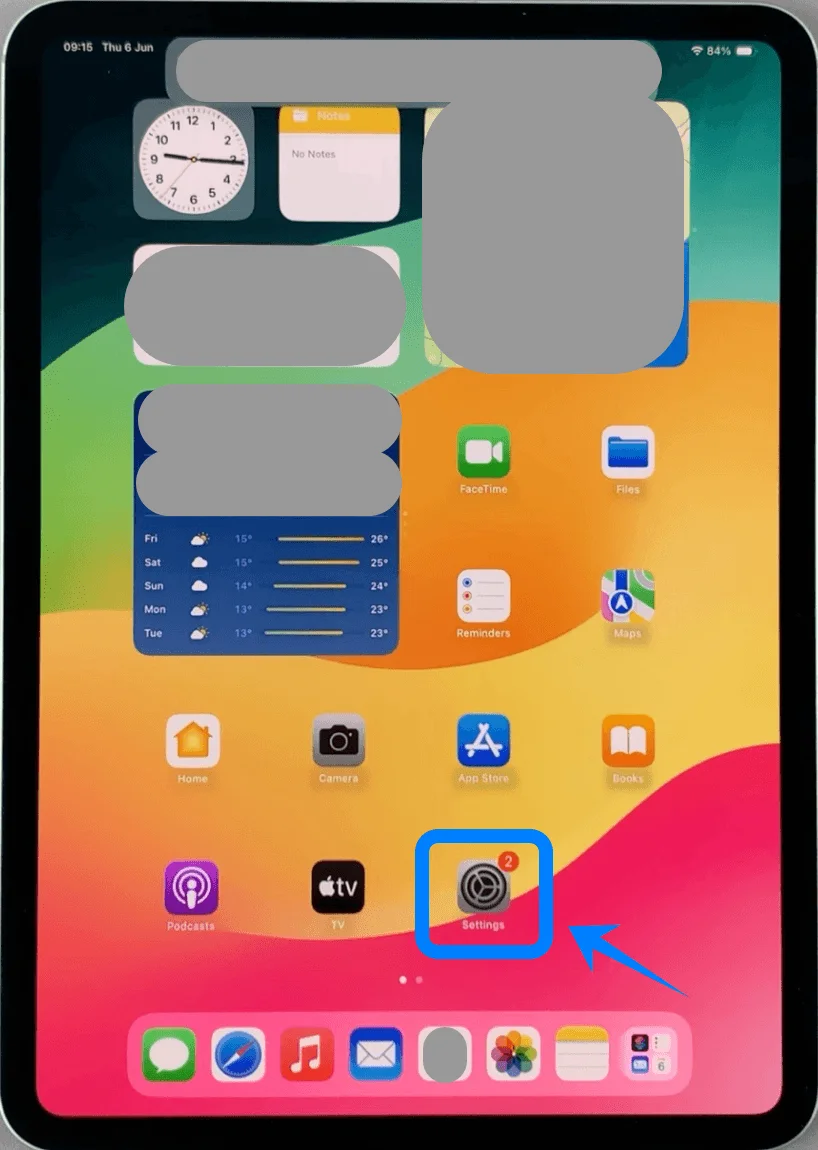
Tap Settings on the Home Screen
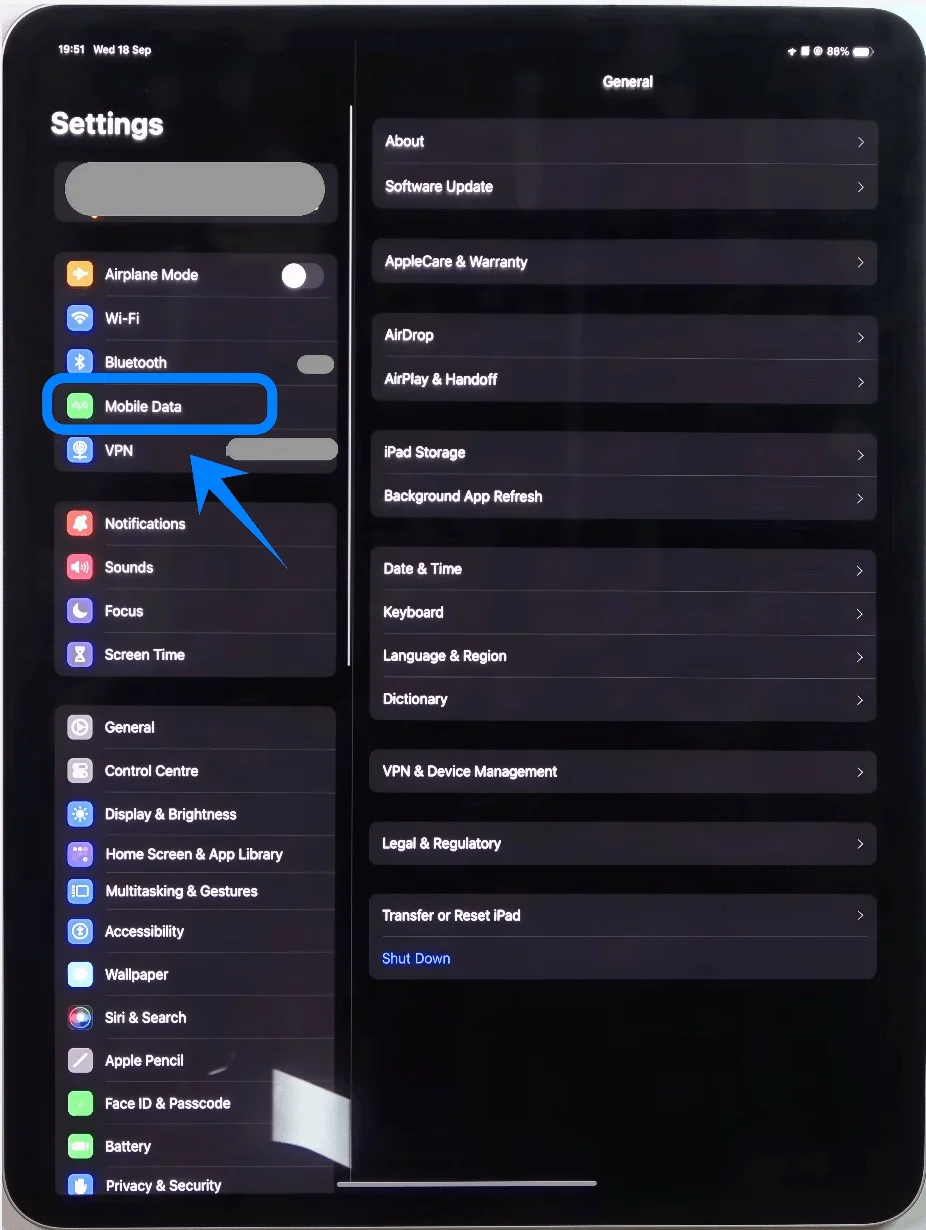
Tap Mobile Data (On some devices or iPadOS versions, this may appear as “Cellular Data.”)
Step 2: Choose QR Code Option
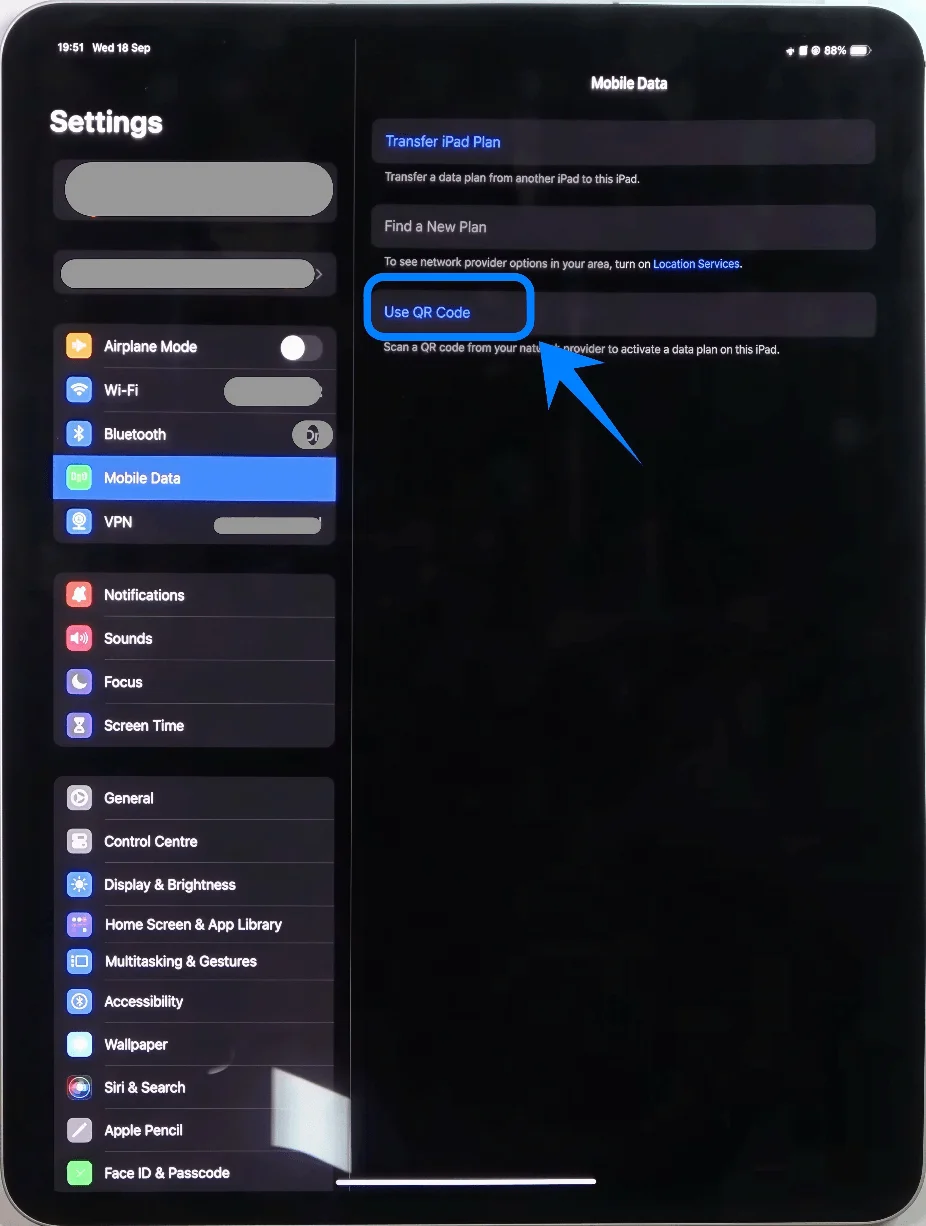
Tap Use QR Code
Step 3: Scan the QR Code
Position the iPad camera over the QR code
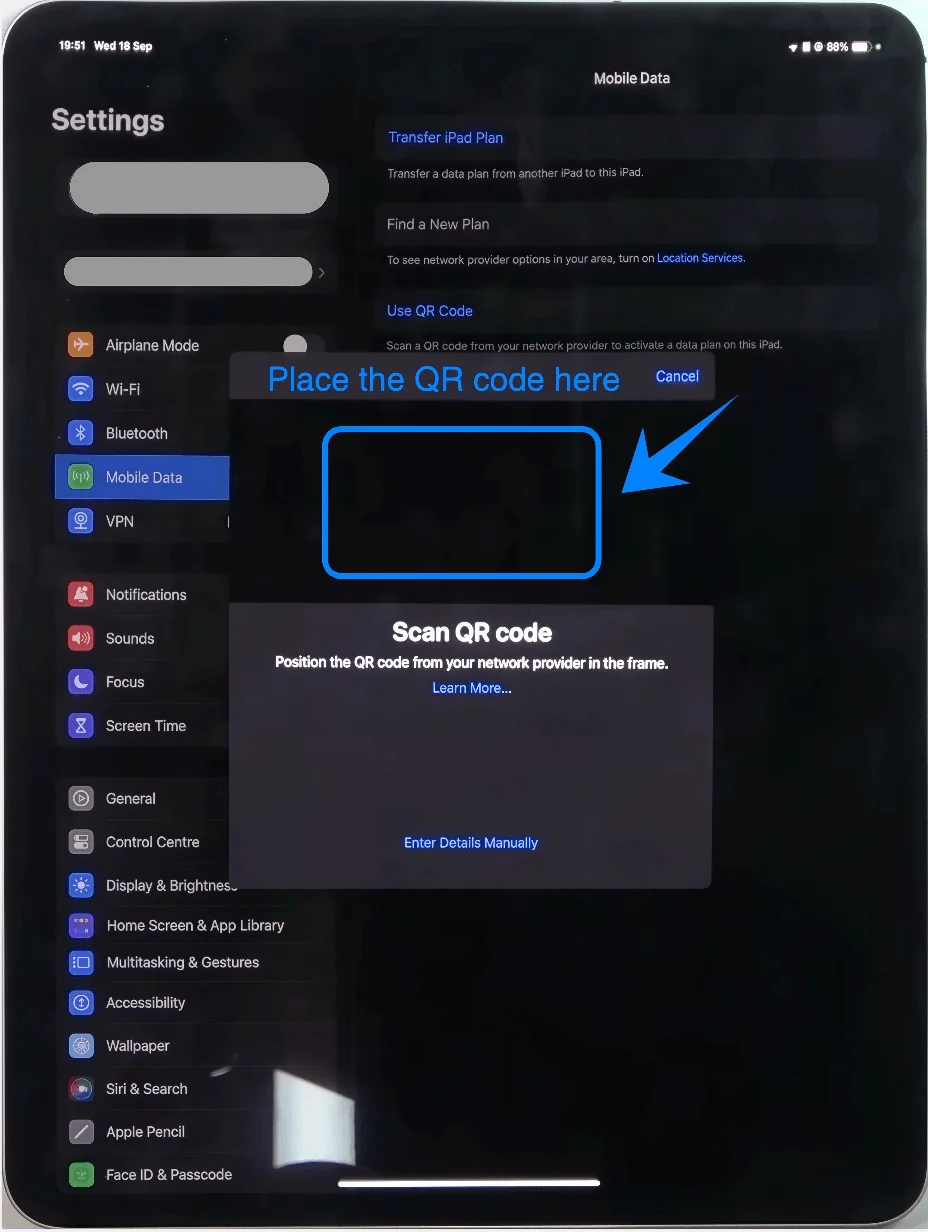
Wait until the QR code is automatically recognized
Step 4: Confirm Carrier Plan
When the carrier plan appears, tap Continue
Step 5: Add the eSIM Plan
Tap Add Cellular Plan
Step 6: Complete Activation
Wait for the activation process to complete
If prompted, tap Done
Method 2: Install eSIM via Manual Input
Step 1: Open Cellular Settings
Tap Settings
Tap Mobile Data (On some devices or iPadOS versions, this may appear as “Cellular Data.”)
Step 2: Choose Manual Entry
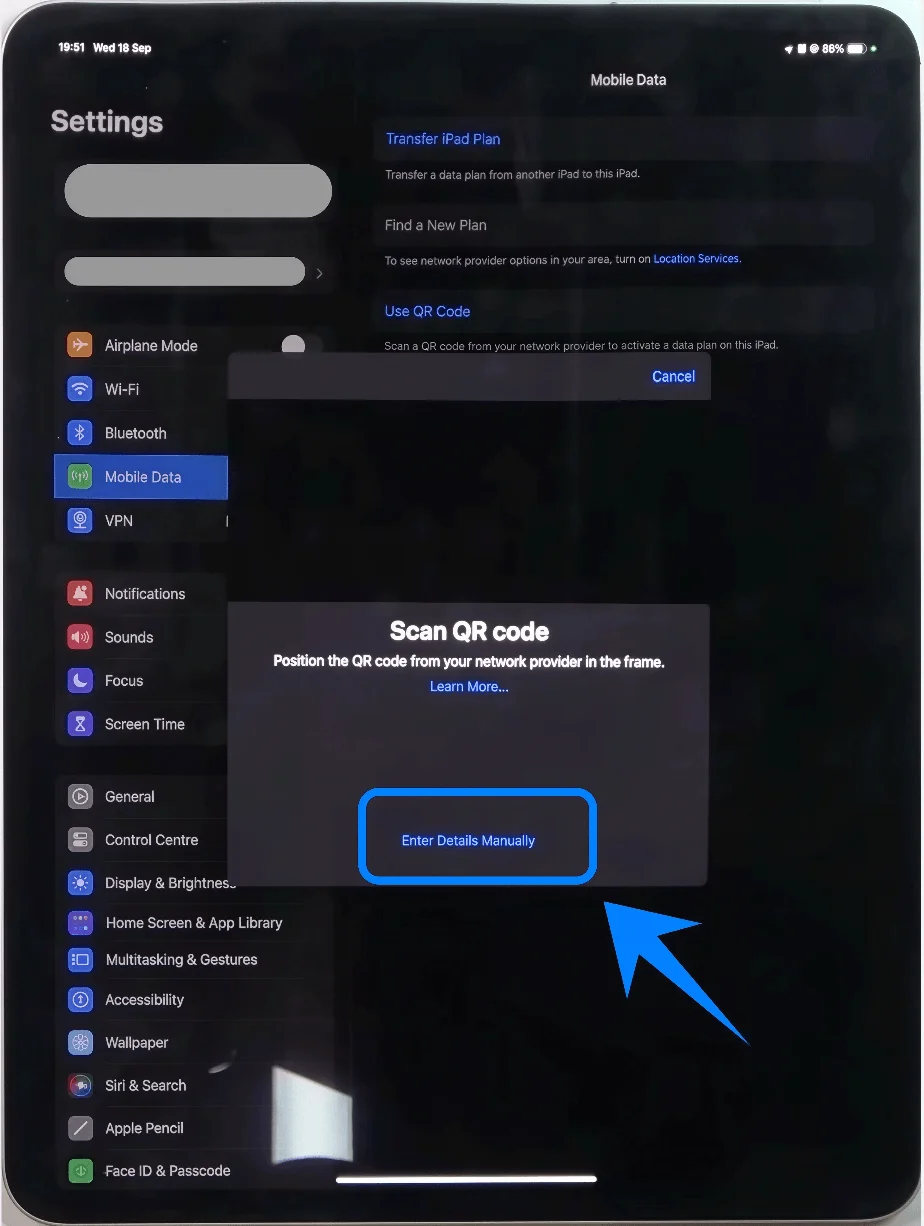
Tap Use QR Code
On the QR scanning screen, tap Enter Details Manually
Step 3: Enter Activation Details
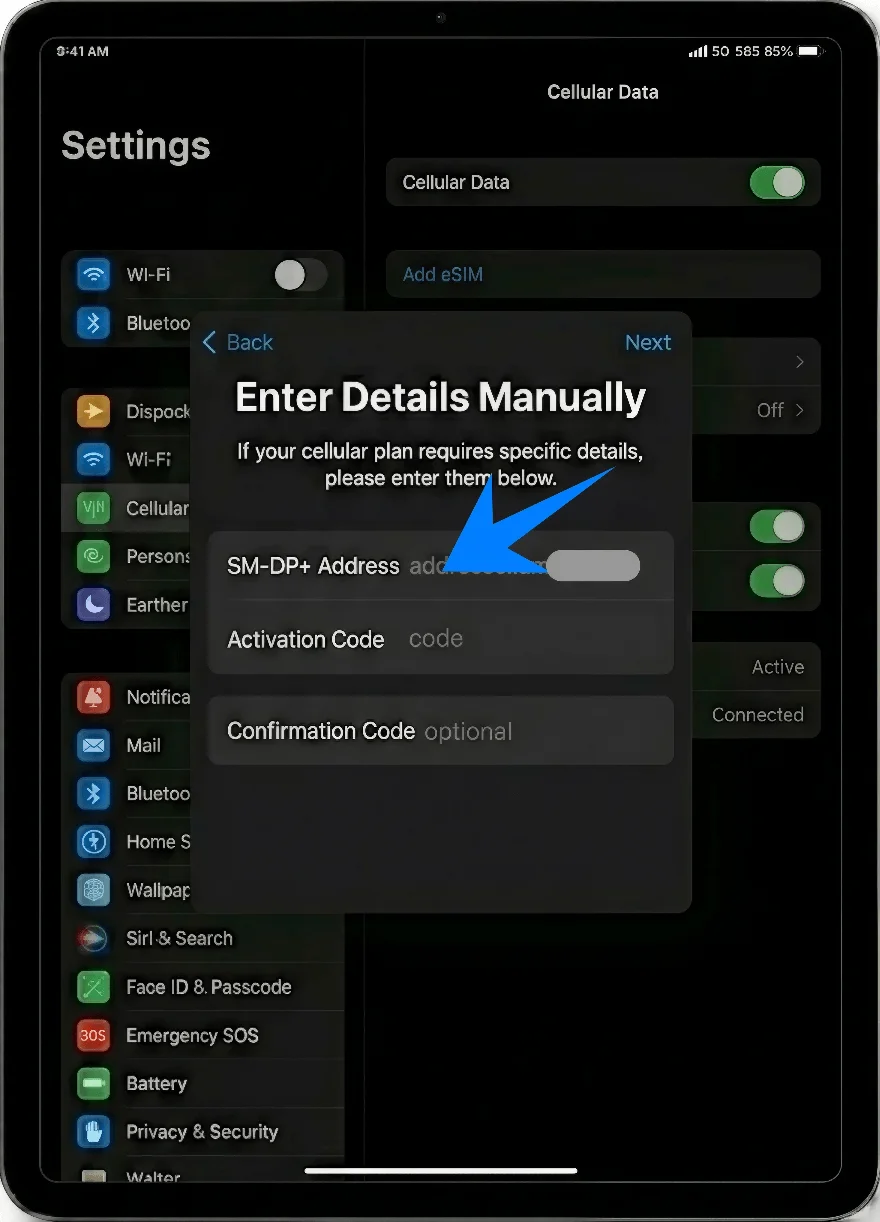
In the SM-DP+ Address field, type the address provided by your carrier
In the Activation Code field, enter the code exactly as provided
If prompted, enter the Confirmation Code
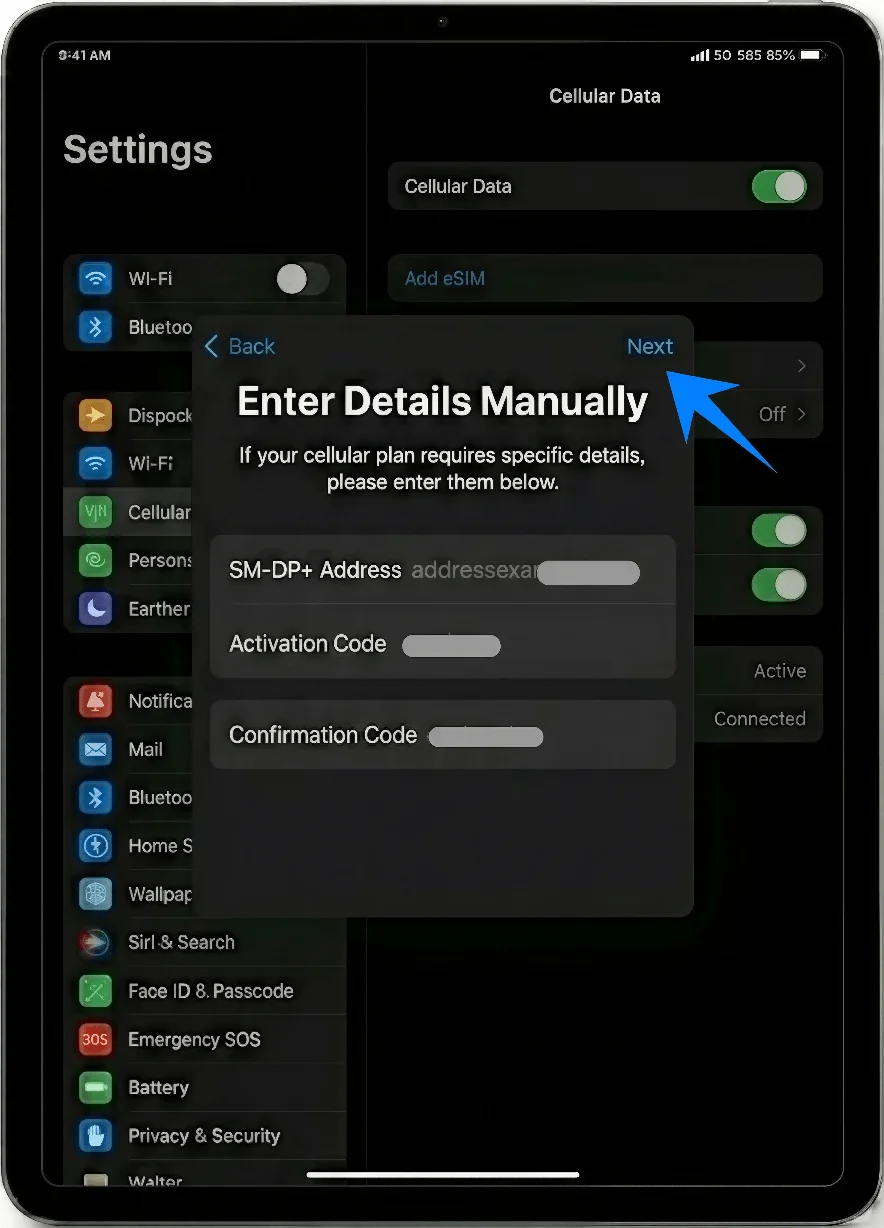
Tap Next
Step 4: Add the Plan
When the plan details appear, tap Add Cellular Plan
Step 5: Complete Activation
Wait for activation to finish
Tap Done when completed
How to Confirm Successful eSIM Installation
Step 1: Check Cellular Plans
Open Settings
Tap Mobile Data (On some devices or iPadOS versions, this may appear as “Cellular Data.”)
Step 2: Verify Plan Visibility
Confirm your carrier plan appears under Cellular Plans
Step 3: Check Signal Status
Look at the top-right corner of the screen
Confirm that signal bars or a carrier name is displayed
Step 4: Test Connectivity
Turn off Wi-Fi: Settings > Wi-Fi > Toggle Off
Open Safari or another app and confirm mobile data works
More iPad eSIM Setup Guides
Using another iPad? These eSIM setup and activation guides may help.
Conclusion
By following this guide, you’ve completed the full eSIM setup process on your iPad Pro. This digital approach helps streamline both installation and ongoing management of your connection.
As you continue using your device, you’ll be able to adjust settings, switch plans, or add new ones with ease, all within a single interface.