
The Huawei Pura 70 Pro supports eSIM on compatible regional variants, which makes it a practical phone for adding an iRoamly travel eSIM before a trip. This guide assumes a global Huawei Pura 70 Pro running EMUI 14.2, with menu labels such as Wireless & networks, Mobile network, and SIM management.
Travelers often install an iRoamly eSIM so they can use mobile data after landing without changing a physical SIM card. Menu names can vary slightly by software version, region, or carrier firmware, so check that your phone shows an eSIM option before purchase or installation.
This guide covers both setup paths: scanning the iRoamly QR code and entering the manual eSIM details. Manual entry is useful if the QR code is on the same phone, the camera cannot scan it, or the QR code email is easier to copy from another device.
Meet iRoamly for Easier Travel Connectivity
iRoamly is a travel eSIM service that provides mobile data abroad through digital plans for many destinations. Travelers can choose from available local, regional, or global options, with plan length, data allowance, and supported features depending on the destination.
After installation, the travel line can keep common apps connected for navigation, messaging, bookings, and trip updates.
On a compatible Huawei Pura 70 Pro, iRoamly can be installed as an eSIM profile without replacing the physical SIM card. The existing instructions below continue with the EMUI setup checks, QR-code installation, manual entry, and data-line selection for this phone.
If you install before departure, keep the QR code or manual activation details available until the phone confirms that the eSIM profile has been added.
Before You Set Up Your iRoamly eSIM
Connect the Huawei Pura 70 Pro to stable Wi-Fi before you start.
Confirm that your phone is unlocked and that your regional model supports eSIM.
Keep your iRoamly QR code, SM-DP+ Address, Activation Code, and optional Confirmation Code available.
iRoamly eSIM validity starts from activation. Check the current iRoamly plan details for the exact activation trigger, such as installation or first connection to a supported destination network.
Install the eSIM 1-2 days before travel when the plan allows it, but do not activate travel data too early if your plan starts on activation.
Before opening the Huawei eSIM settings, make sure you have selected the right plan for your trip. Options for destinations such as France and Spain can then be added using the setup steps below.
iRoamly eSIM plans may not include voice calls or SMS. Voice/SMS availability varies by plan, so check the plan details before relying on those services.
Do not delete the eSIM after installation unless iRoamly support tells you to. Many travel eSIM profiles cannot be reinstalled after removal.
Method 1: Install eSIM by Scanning a QR Code
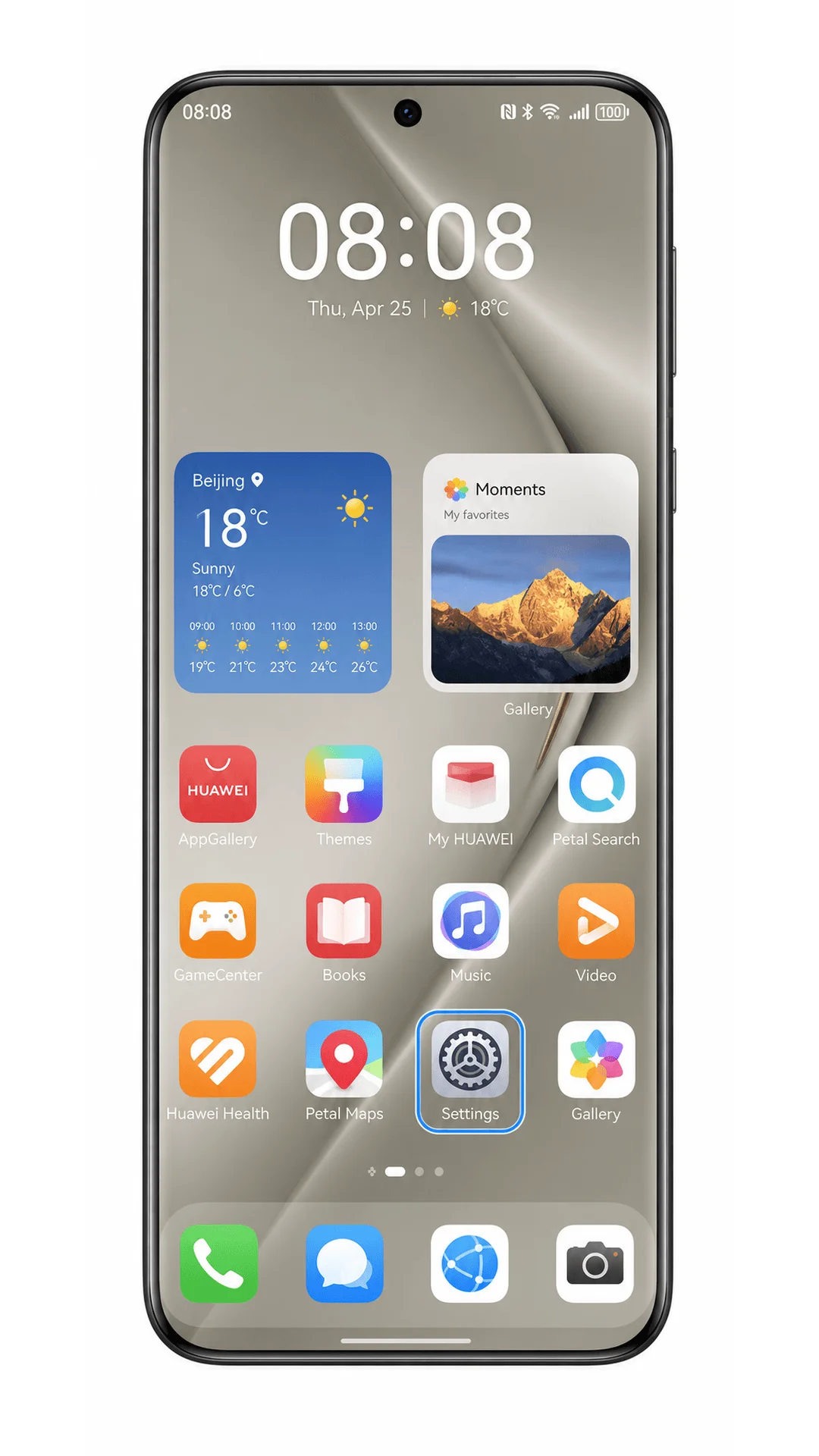
Open Settings on your Huawei Pura 70 Pro.
You should see the main EMUI Settings menu.
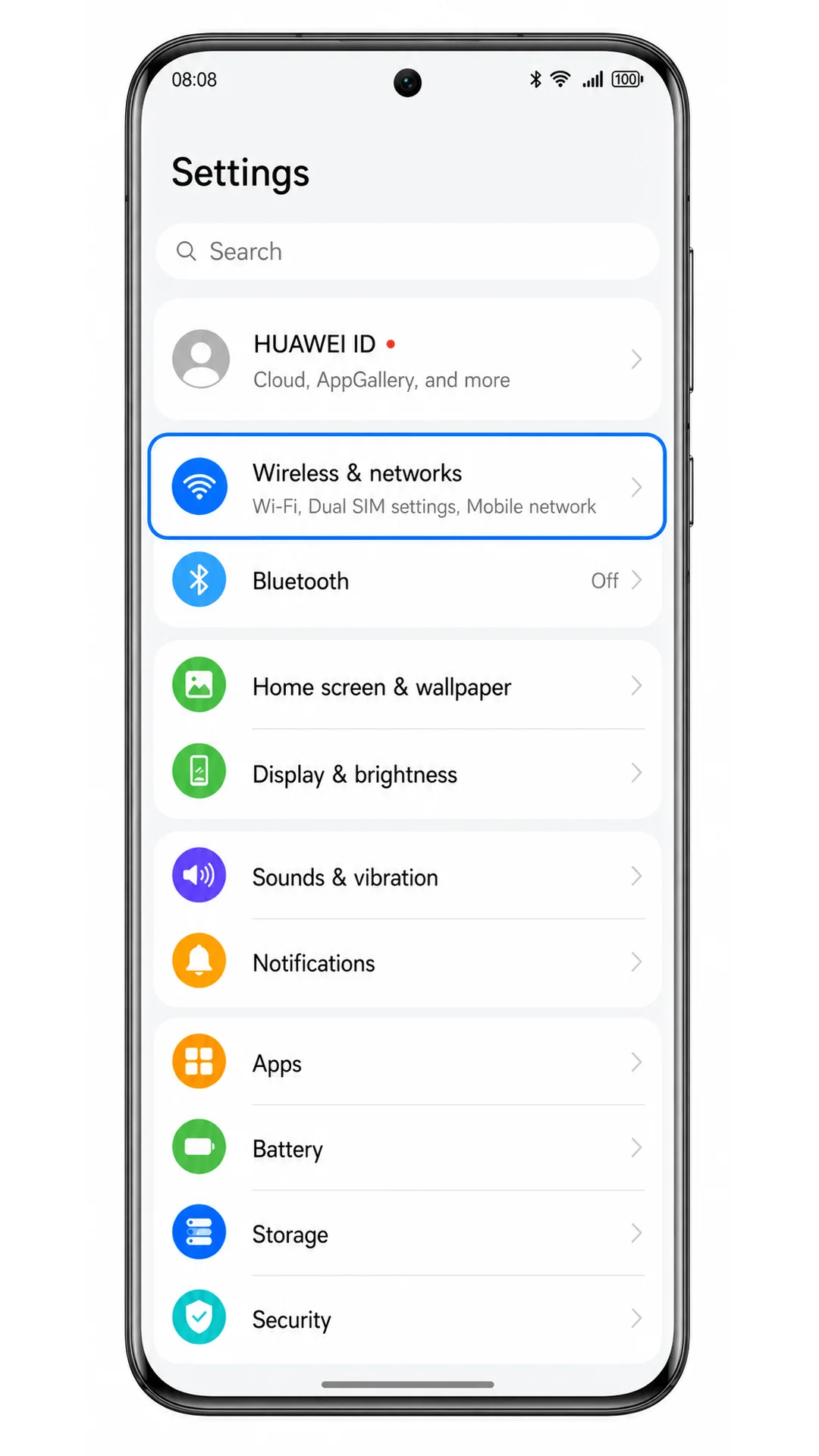
Tap Wireless & networks.
The phone opens the network settings area where mobile-network options are listed.
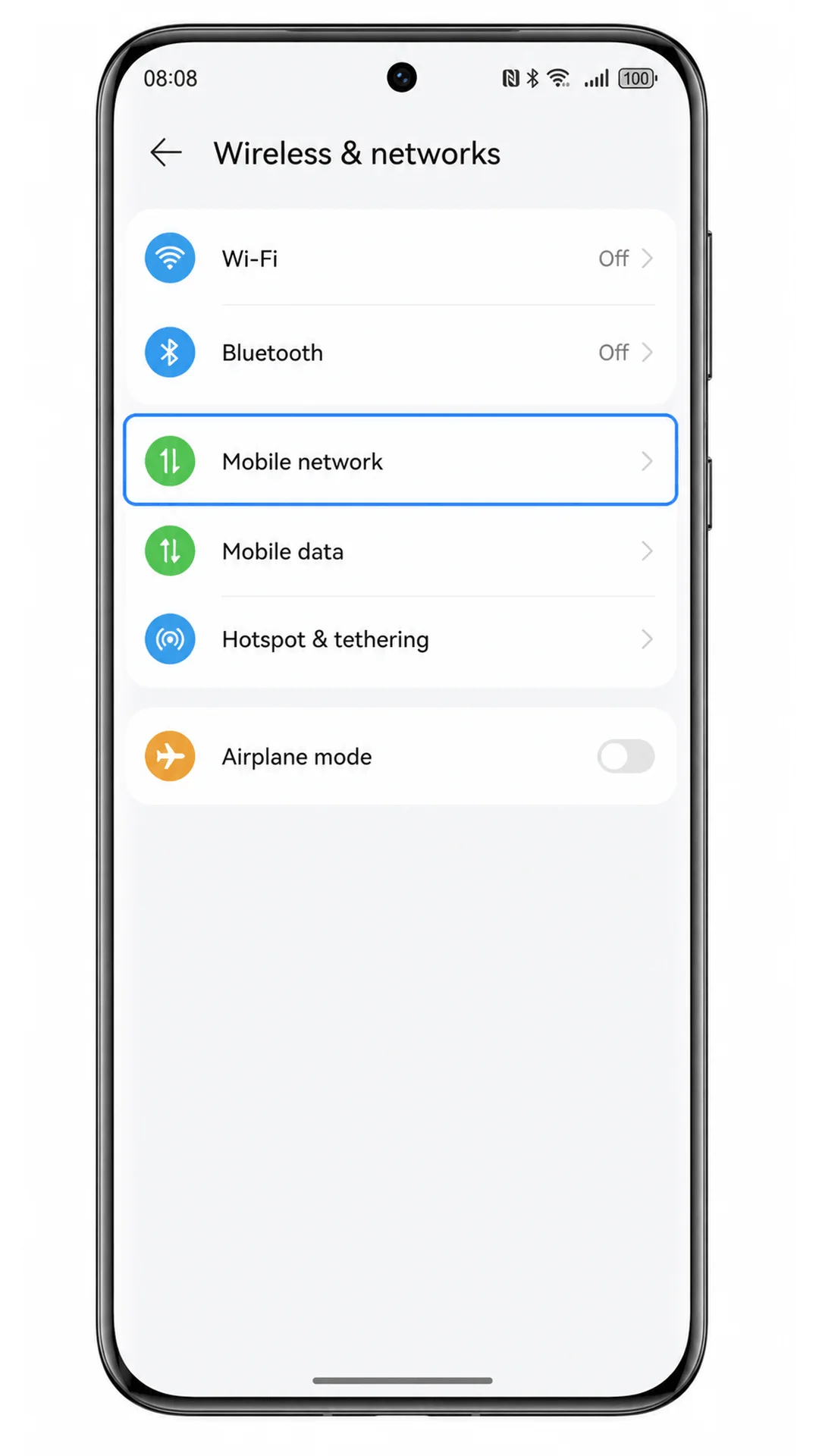
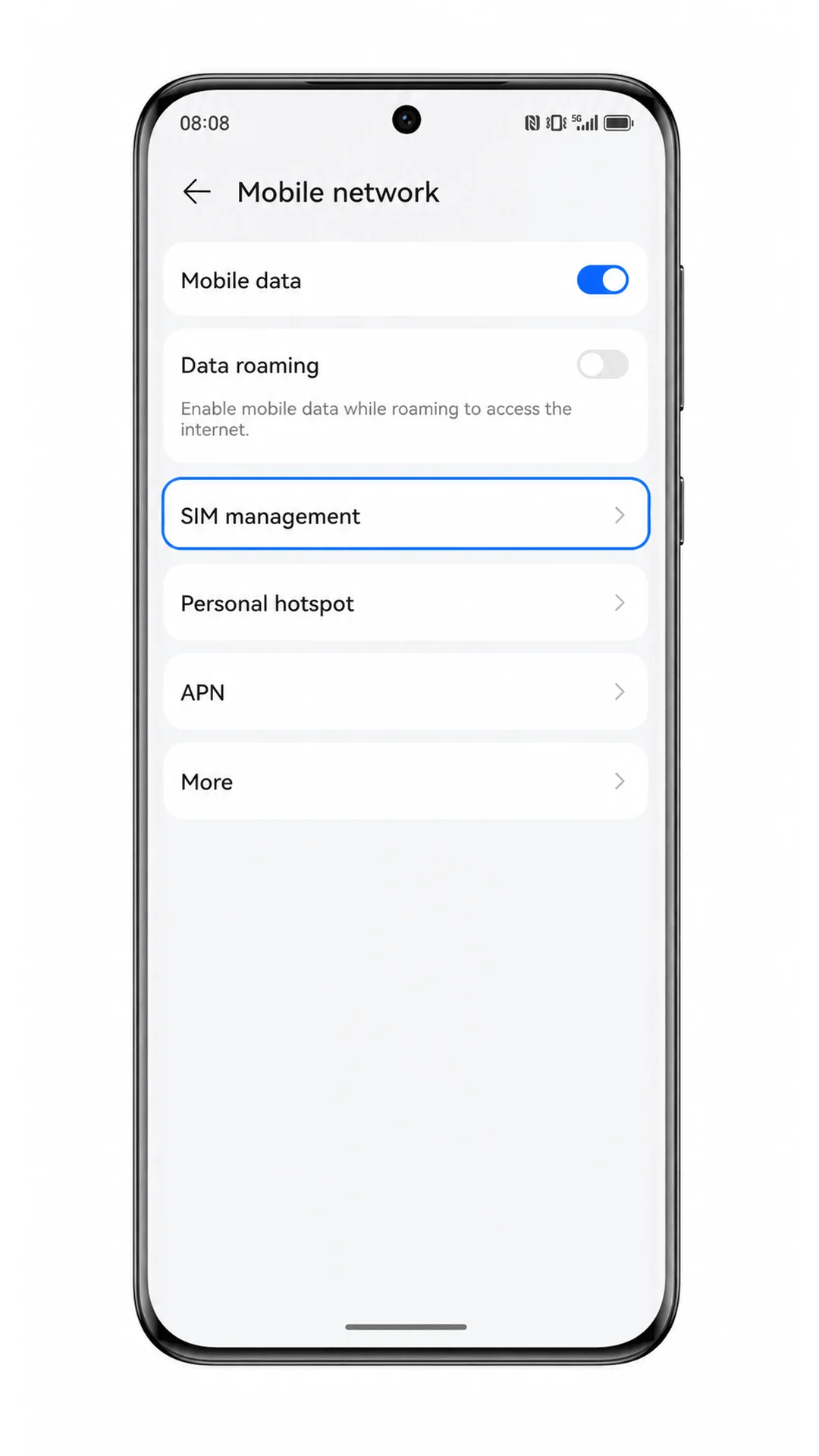
Tap Mobile network.
You should see mobile data, roaming, and SIM-related settings.
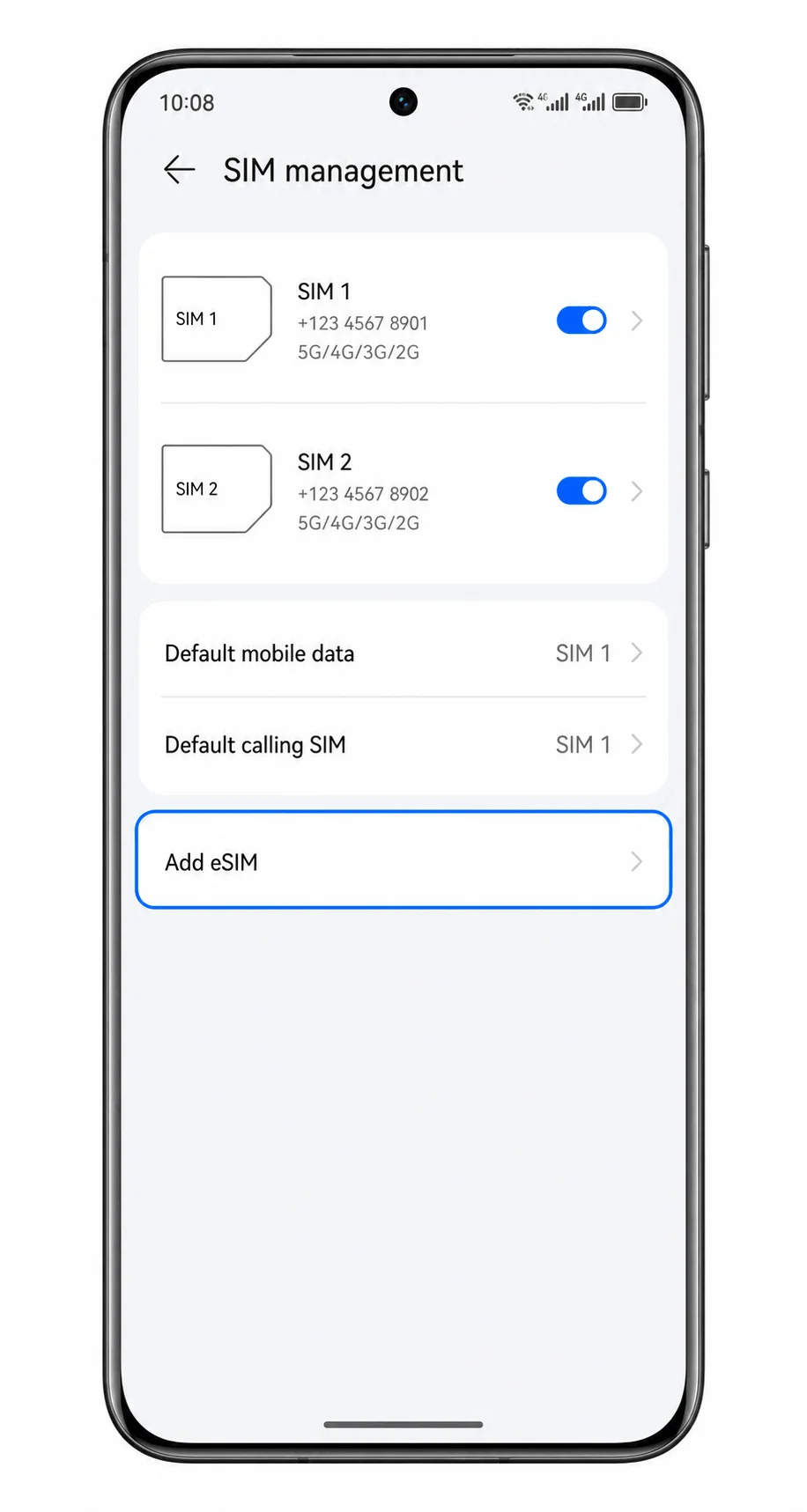
Tap SIM management.
The phone opens the page where physical SIMs and available eSIM options are managed.
Tap Add eSIM.
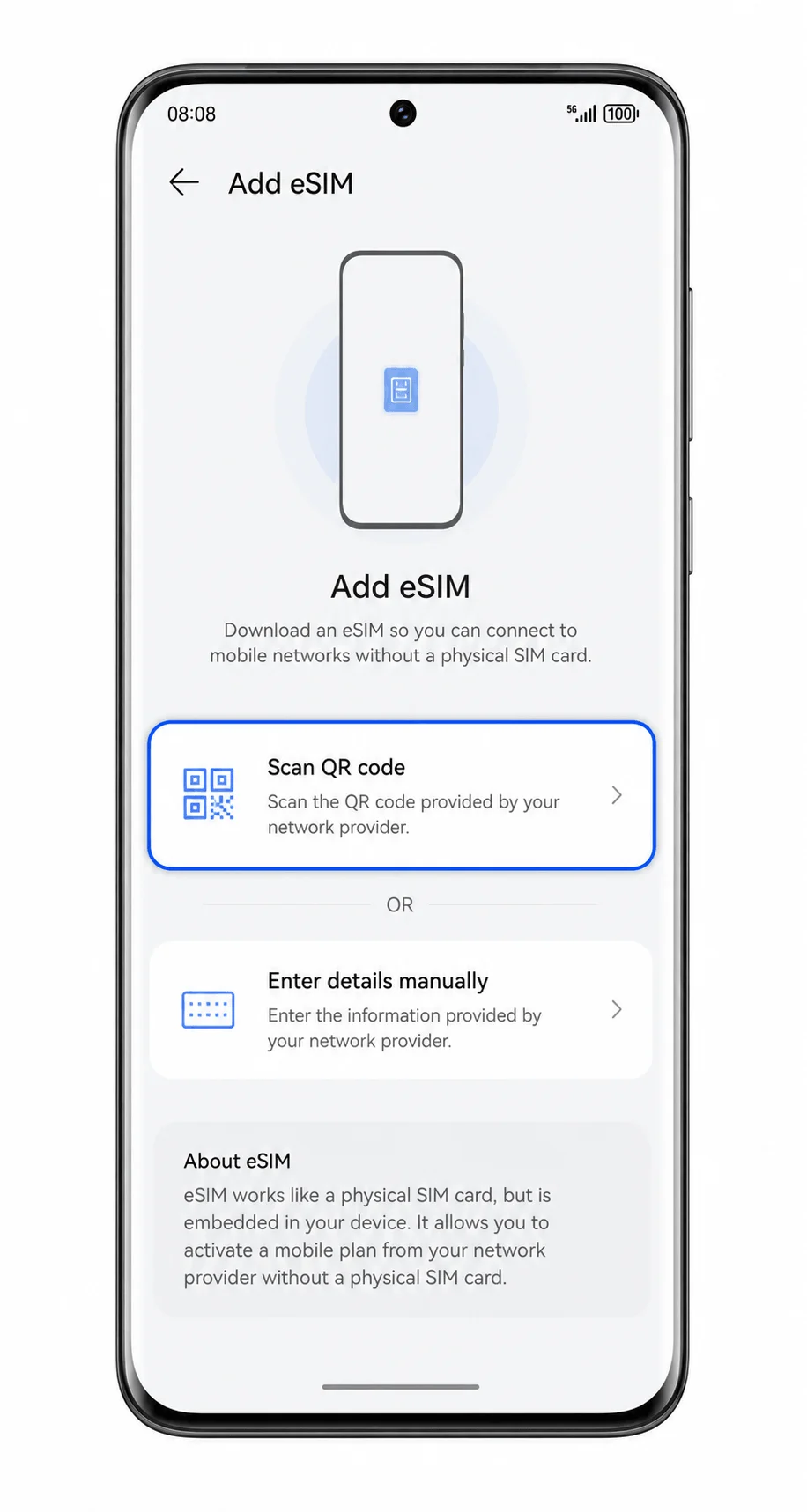
The phone should show the eSIM setup options.
Tap Scan QR code.
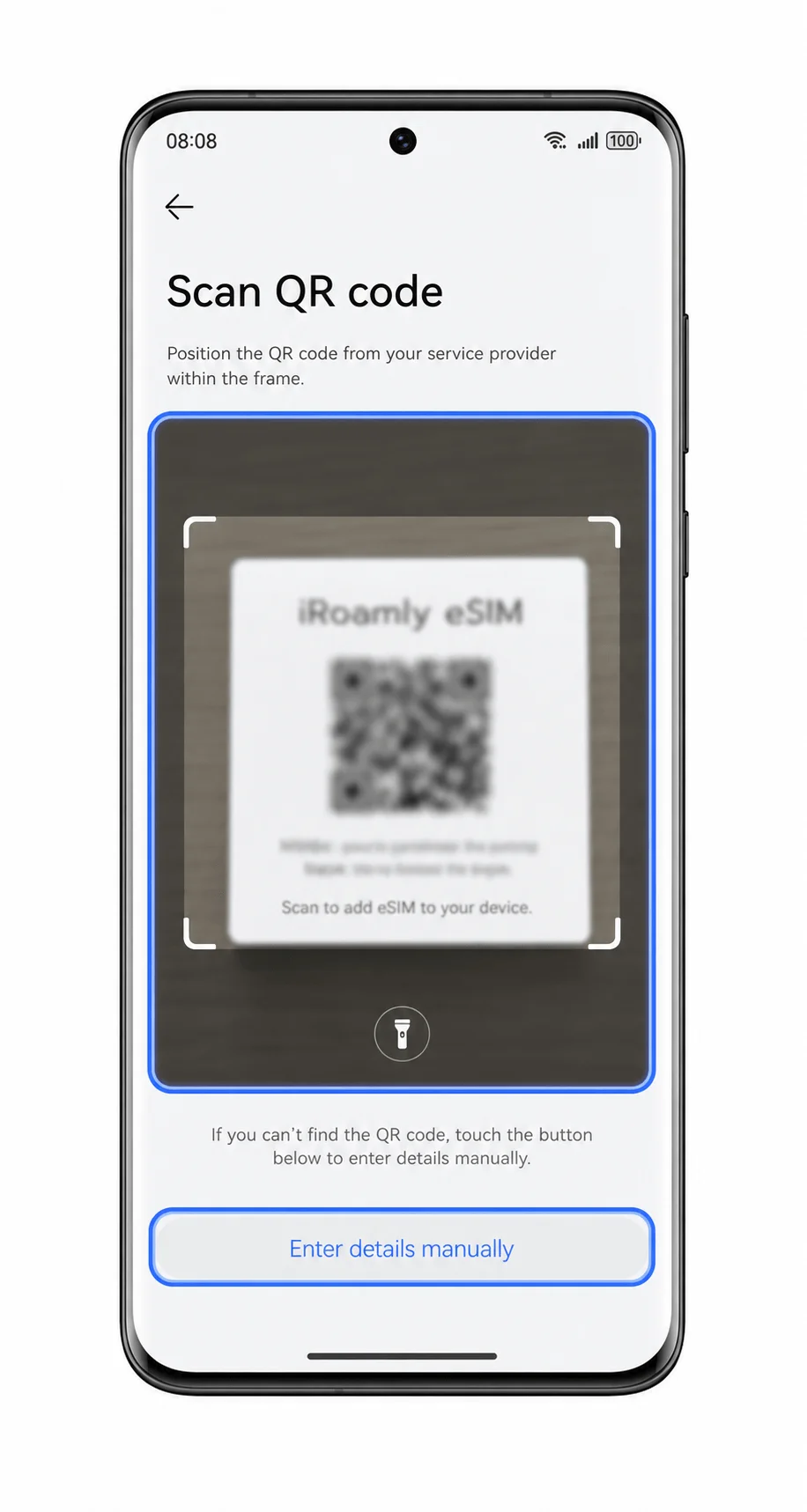
The eSIM scanner opens.
Scan the iRoamly eSIM QR code from your purchase email or iRoamly account.
Keep the code flat and fully inside the scanner frame. The QR code in this guide is a safe placeholder and is not scannable.
Review the iRoamly eSIM details, then tap Download or Add this eSIM.
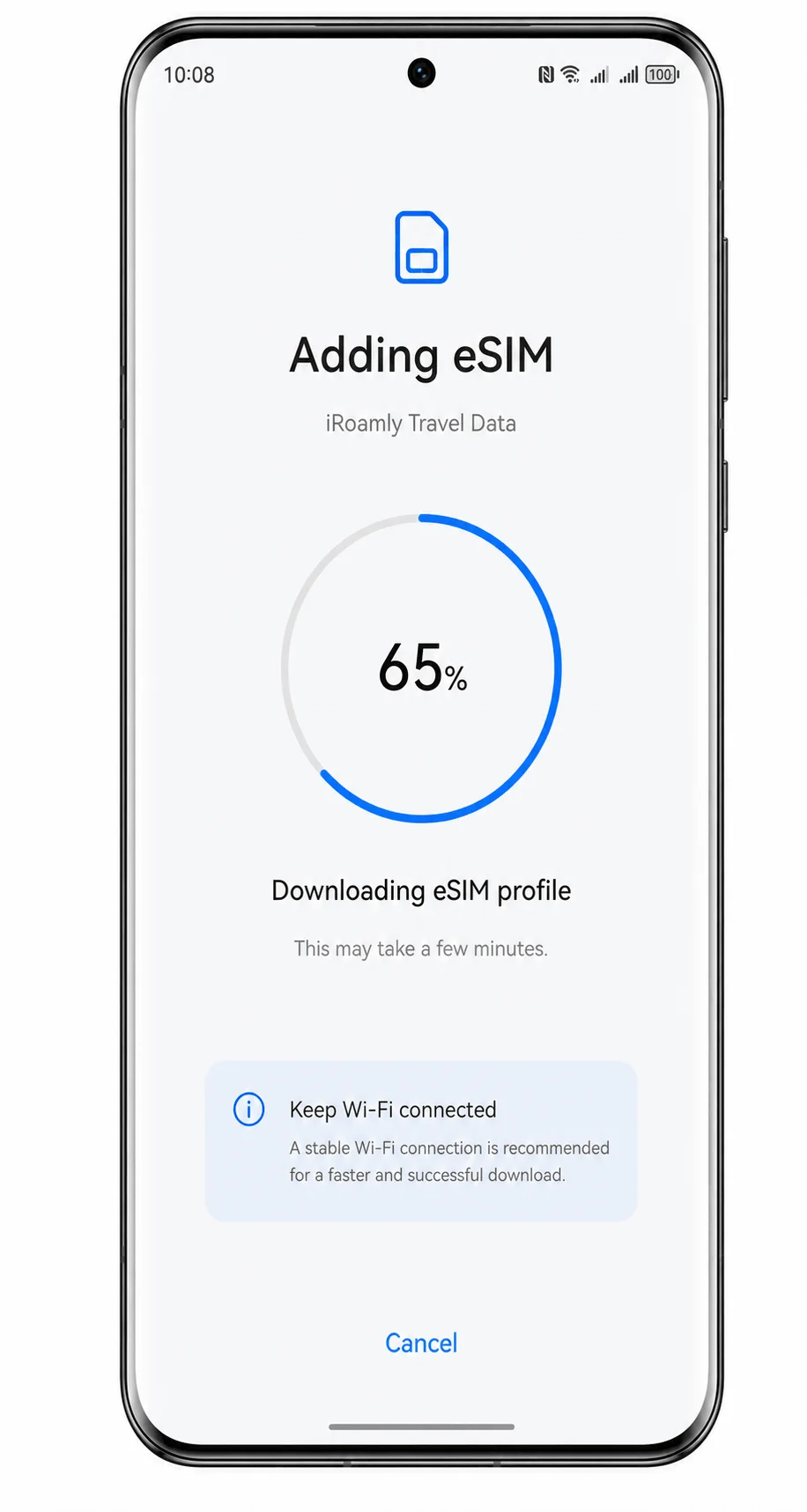
Keep Wi-Fi connected while the eSIM profile downloads.
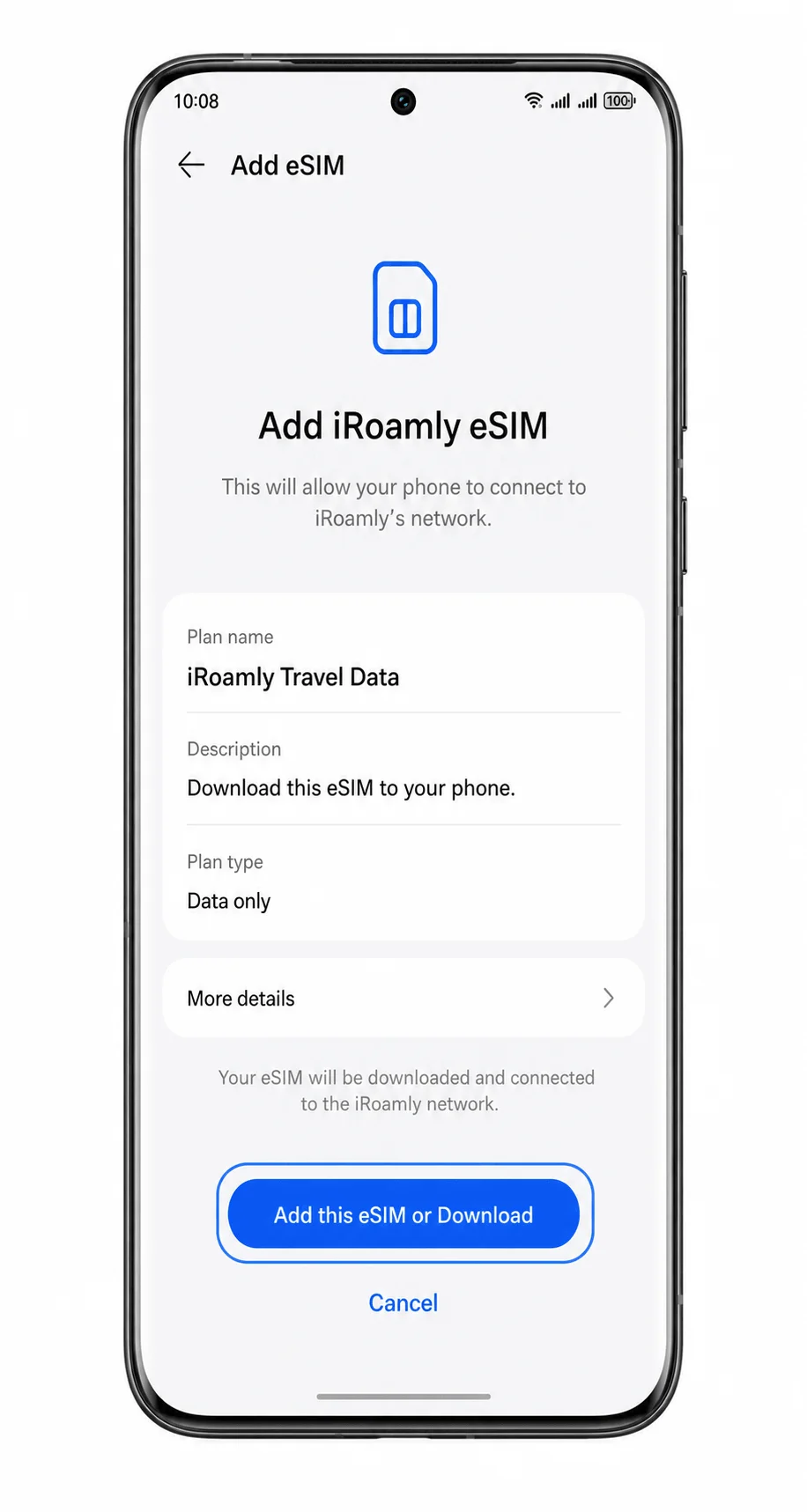
Wait for the download to finish.
When the phone reports that the eSIM has been added, stay in Settings so you can confirm and configure the line.
Method 2: Install eSIM Manually
Open Settings on your Huawei Pura 70 Pro.
Start from the same EMUI Settings menu used for QR-code setup.
Tap Wireless & networks.
The network settings list opens.
Tap Mobile network.
The phone opens the mobile-network settings page.
Tap SIM management.
You should see the SIM and eSIM management page.
Tap Add eSIM.
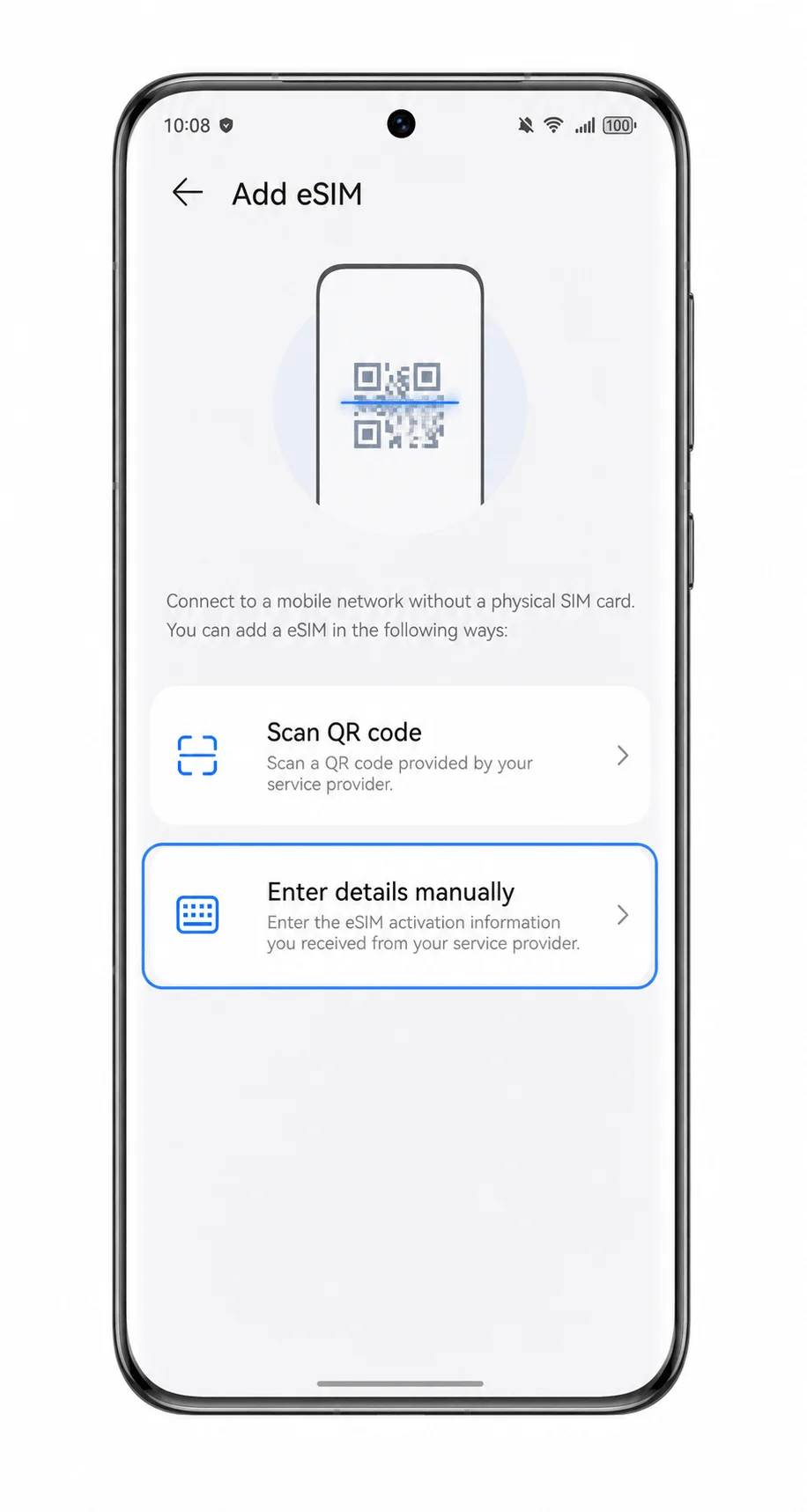
The phone shows QR-code and manual-entry setup choices.
Tap Enter details manually.
A manual eSIM form opens.
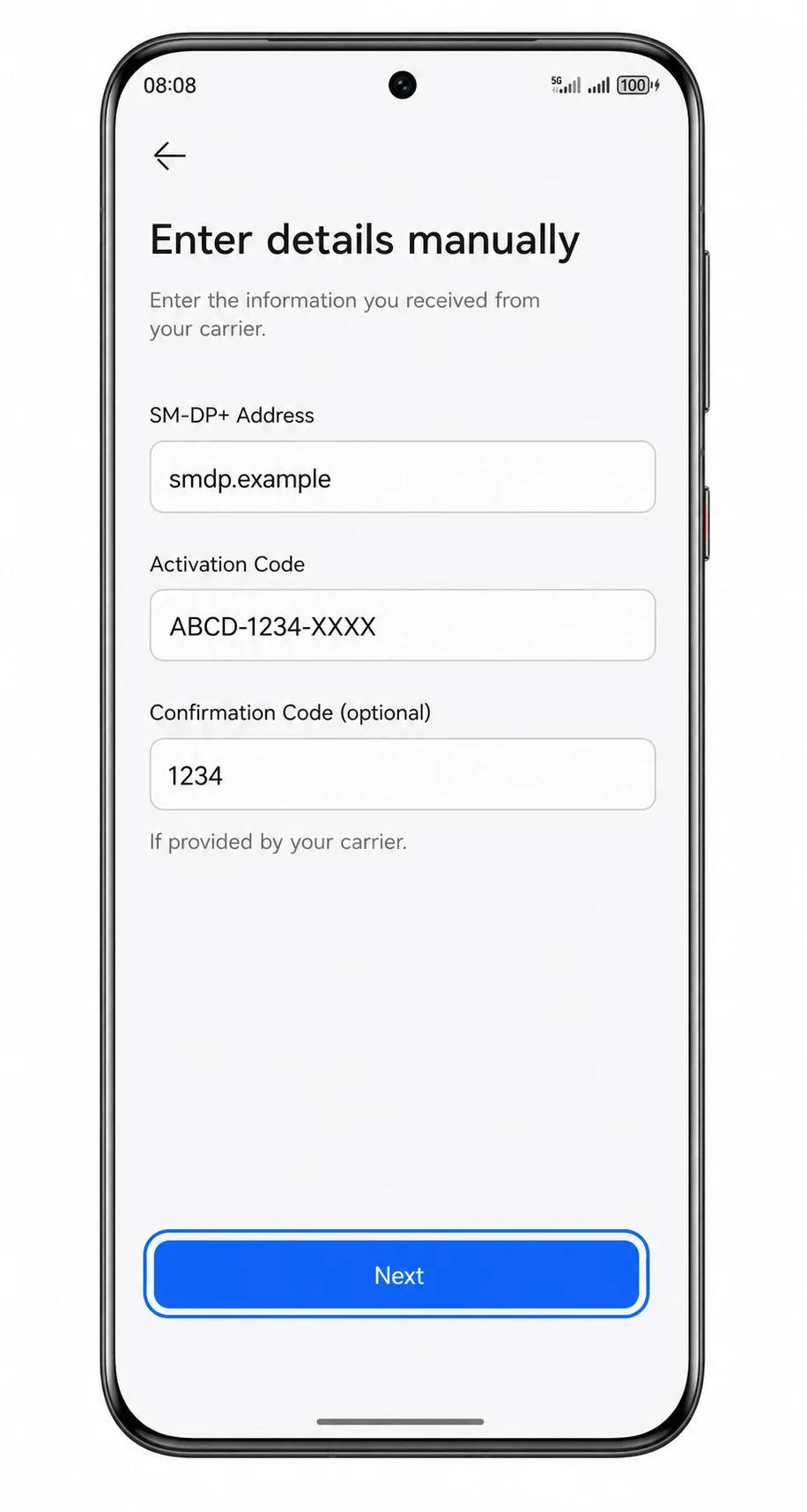
Enter the SM-DP+ Address, Activation Code, and Confirmation Code if iRoamly provides one, then tap Next.
Copy the values exactly as shown in your iRoamly email or account page. Leave the confirmation-code field blank if your iRoamly details do not include one.
Review the iRoamly eSIM details, then tap Download or Add this eSIM.
Keep the phone online until the download completes.
Wait while the Huawei Pura 70 Pro adds the eSIM profile.
When setup finishes, the iRoamly line should appear in SIM management.
How to Confirm Your iRoamly eSIM Is Installed
Go to Settings > Wireless & networks > Mobile network > SIM management.
Confirm that an eSIM profile such as iRoamly Travel Data appears and is switched on.
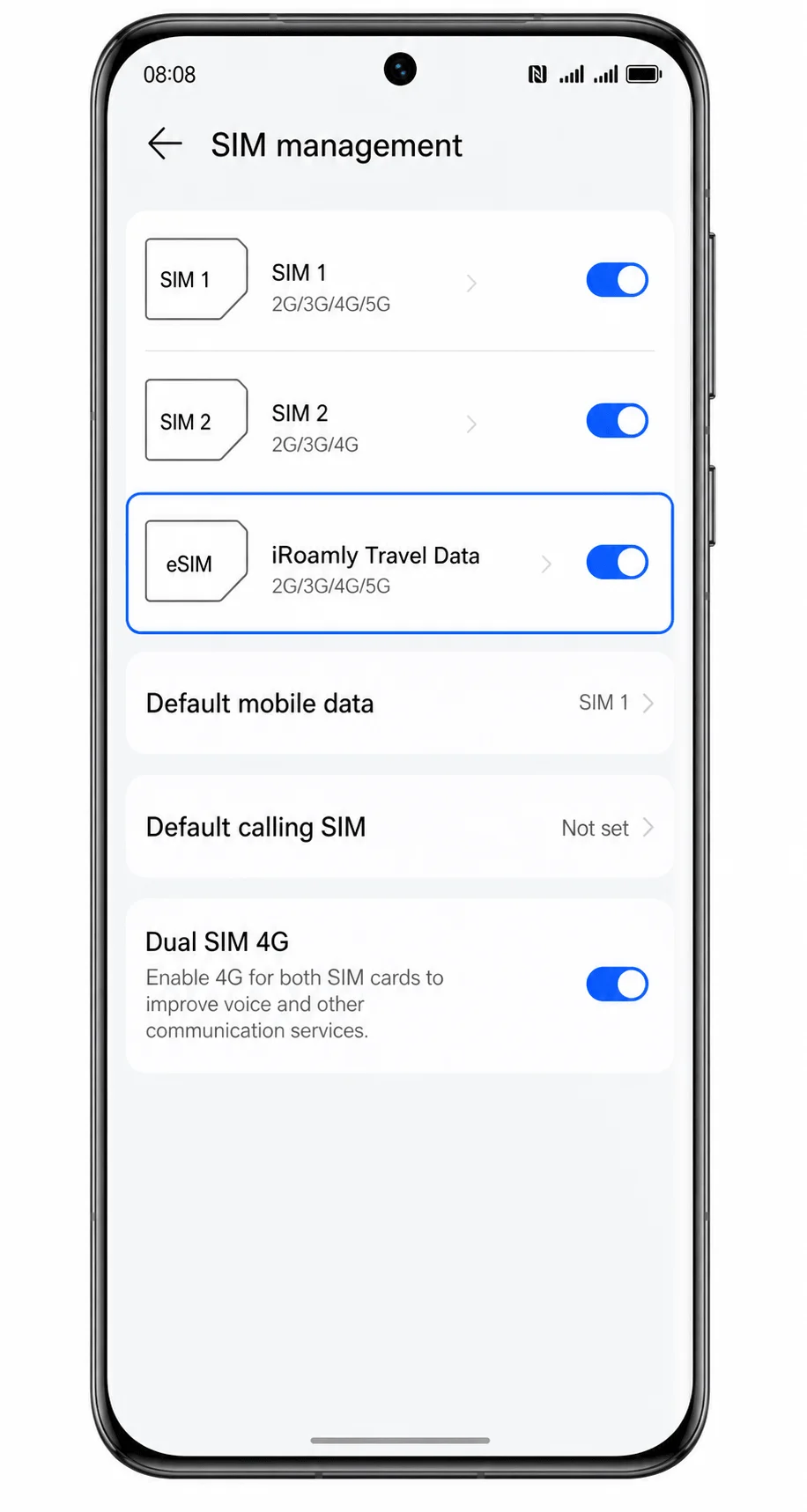
Check whether the phone shows signal or a mobile-data indicator after you arrive in the covered destination.
If your iRoamly plan is data-only, test with a browser or messaging app instead of SMS or calls.
Configure eSIM for Mobile Data
In SIM management, tap Default mobile data.
Select iRoamly Travel Data as the line used for mobile data.
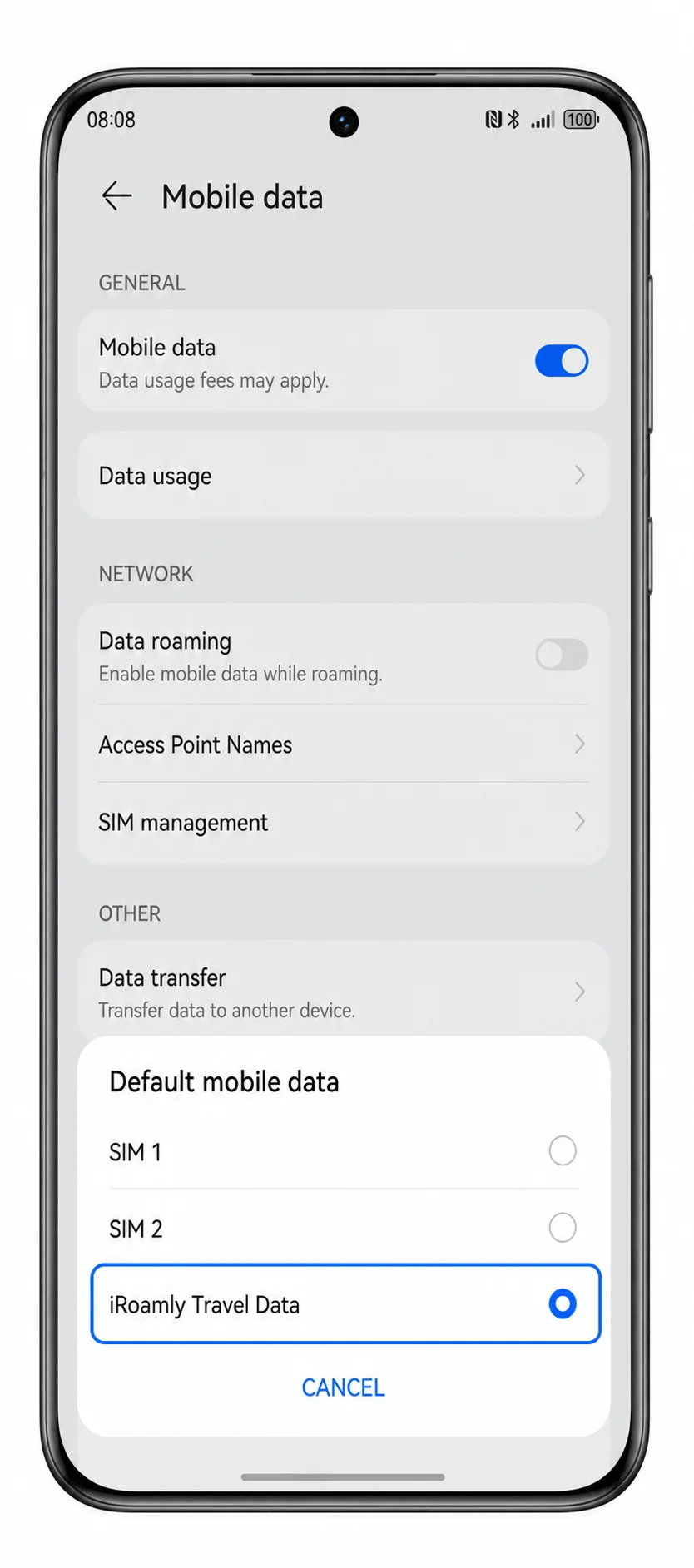
Return to Mobile network, then turn on Mobile data.
This allows the Huawei Pura 70 Pro to use the selected iRoamly eSIM for internet access.
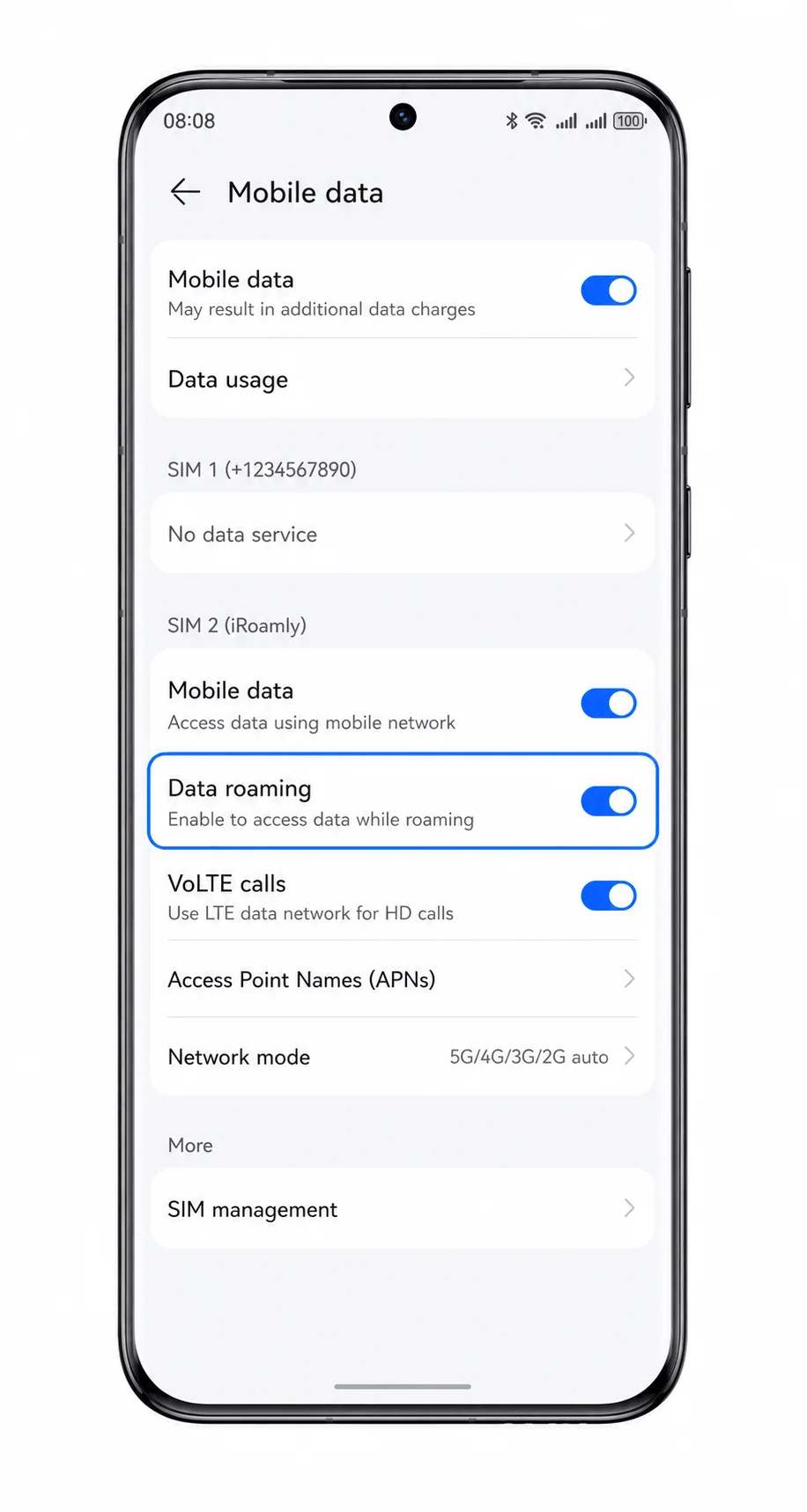
Turn on Data roaming if the iRoamly plan or destination instructions require it.
Most travel eSIMs need roaming enabled because the service connects through partner networks abroad.
Turn off automatic switching to another SIM if your software offers that option.
This helps prevent the phone from falling back to your primary SIM for travel data.
Troubleshooting
If Add eSIM is missing, confirm that your Huawei Pura 70 Pro regional model supports eSIM, update EMUI, restart the phone, and check whether your carrier or region hides eSIM features.
If the QR code does not scan, raise the screen brightness on the device showing the QR code, clean the camera lens, or use the manual-entry method.
If the QR code says it was already used, do not delete the eSIM. Contact iRoamly support because many eSIM QR codes can be installed only once.
If activation fails, check Wi-Fi, verify that the SM-DP+ Address and Activation Code match iRoamly exactly, and try again without extra spaces.
If the eSIM does not appear after setup, restart the phone and return to SIM management.
If mobile data does not work after arrival, select iRoamly Travel Data for Default mobile data, turn on Data roaming, and check that the destination is covered by your plan.
If calls or SMS do not work, review your iRoamly plan details. Many travel eSIM plans are data-only.
If the phone stays on your primary SIM, check the mobile-data selection again and disable any automatic data-switching option shown by your EMUI build.
More Huawei eSIM Setup Guides
Setting up another Huawei phone? These eSIM activation guides may help.
Conclusion
For the Huawei Pura 70 Pro, the QR-code method is usually the quickest path because SIM management leads straight to Add eSIM, then the scanner can read the iRoamly code without typing long activation details. Manual entry is the better fallback when the QR code is on the same phone or scanning fails, as long as the SM-DP+ Address and Activation Code are copied exactly.
After installation, the most useful checks are simple: confirm iRoamly Travel Data appears in SIM management, select it under Default mobile data, and turn on Data roaming when the plan or destination needs it. Once those settings are in place, the Huawei Pura 70 Pro is ready to use the iRoamly travel eSIM for mobile data abroad.
To pick up a draggable item, press the space bar. While dragging, use the arrow keys to move the item. Press space again to drop the item in its new position, or press escape to cancel.