
Motorola Edge 50 Pro supports eSIM on compatible regional variants, and iRoamly lists the model among supported Motorola devices. Availability can still depend on country, carrier firmware, and whether the phone is unlocked, so check that Add SIM or Set up an eSIM appears before your trip.
This guide assumes Motorola Edge 50 Pro running Android 14 with Motorola's near-stock Android / Hello UI labels. The usual path is Settings > Network & internet > SIMs, with setup continuing through Add SIM and Set up an eSIM.
Use the QR code method when you have your iRoamly QR code on another screen or printed copy. Use manual entry when the camera cannot scan the code or when iRoamly gives you separate activation details such as SM-DP+ Address and Activation Code.
Get Your Phone Ready for Travel with iRoamly
iRoamly eSIM is a travel eSIM service that provides mobile data plans for international trips. Available choices can include country-specific destination plans, regional options, and global plans, with data amounts, validity periods, and plan features depending on the destination.
After the eSIM is installed, the data line can help with navigation, messaging, translations, ride-hailing, bookings, and travel information.
For a compatible Motorola Edge 50 Pro, an iRoamly plan can be installed from the phone settings and used as the travel data line. The guide below keeps the QR-code and manual activation methods separate so you can follow the setup path that matches the details you have from iRoamly.
Before You Set Up Your iRoamly eSIM
Once you have chosen an eSIM for your destination, such as an eSIM for Turkey, you can move on to installing the profile and selecting it for travel data when needed.
Connect the Motorola Edge 50 Pro to stable Wi-Fi before starting. Downloading an eSIM profile needs an internet connection.
Confirm your phone is unlocked and that your regional Edge 50 Pro variant supports eSIM. Some Motorola eSIM support pages note regional differences.
Keep your iRoamly QR code ready on another device, or open the iRoamly purchase details that show the manual activation information.
Do not delete an installed iRoamly eSIM unless iRoamly support tells you to. Many travel eSIM profiles cannot be reinstalled after removal.
Install the eSIM 1-2 days before travel if your plan terms allow it, but check the plan page first. iRoamly eSIM validity starts from activation, and the exact trigger can vary by plan.
iRoamly travel eSIM plans may be data-only. Voice calls and SMS depend on the plan, so check the specific plan details before relying on them.
Menu names may vary slightly by software version, carrier build, or region. If you do not see SIMs, search Settings for eSIM or SIM.
Method 1: Install eSIM by Scanning a QR Code
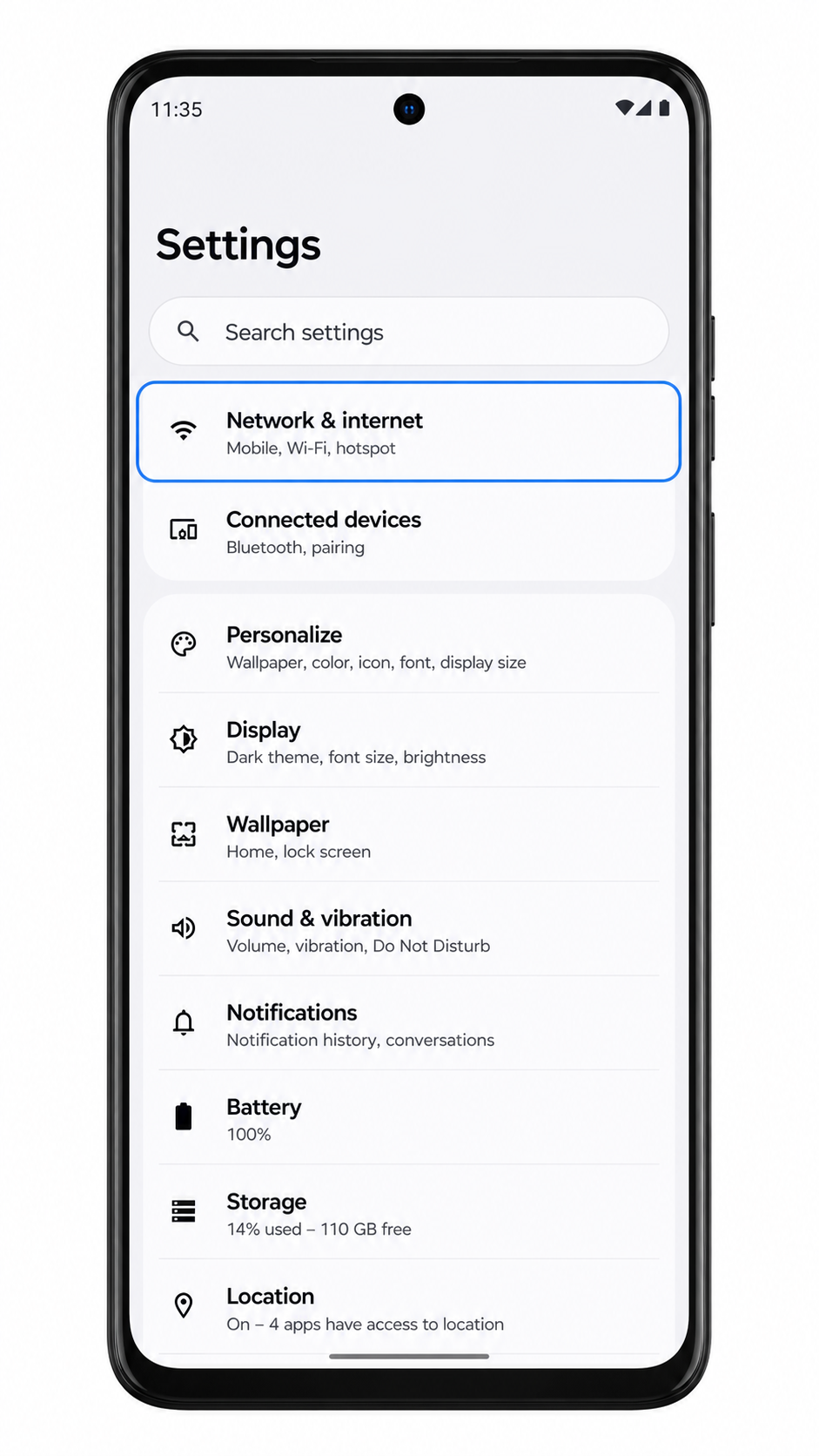
Step 1. Open Settings, then tap Network & internet.
You should see Android network options such as internet, calls, SMS, hotspot, and SIM settings.
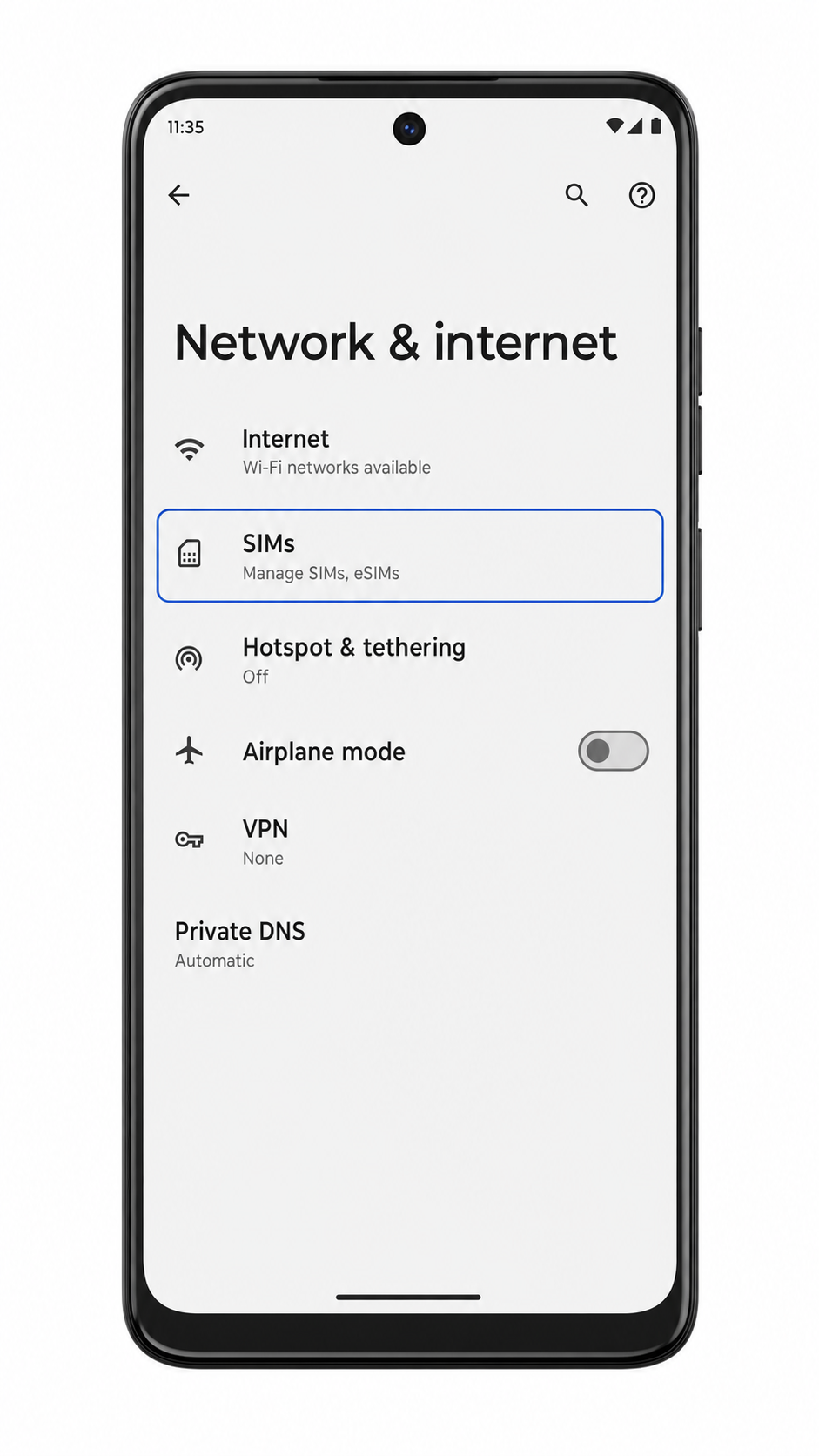
Step 2. Tap SIMs.
The phone should open the SIM management page where physical SIMs and downloaded eSIM profiles are managed.
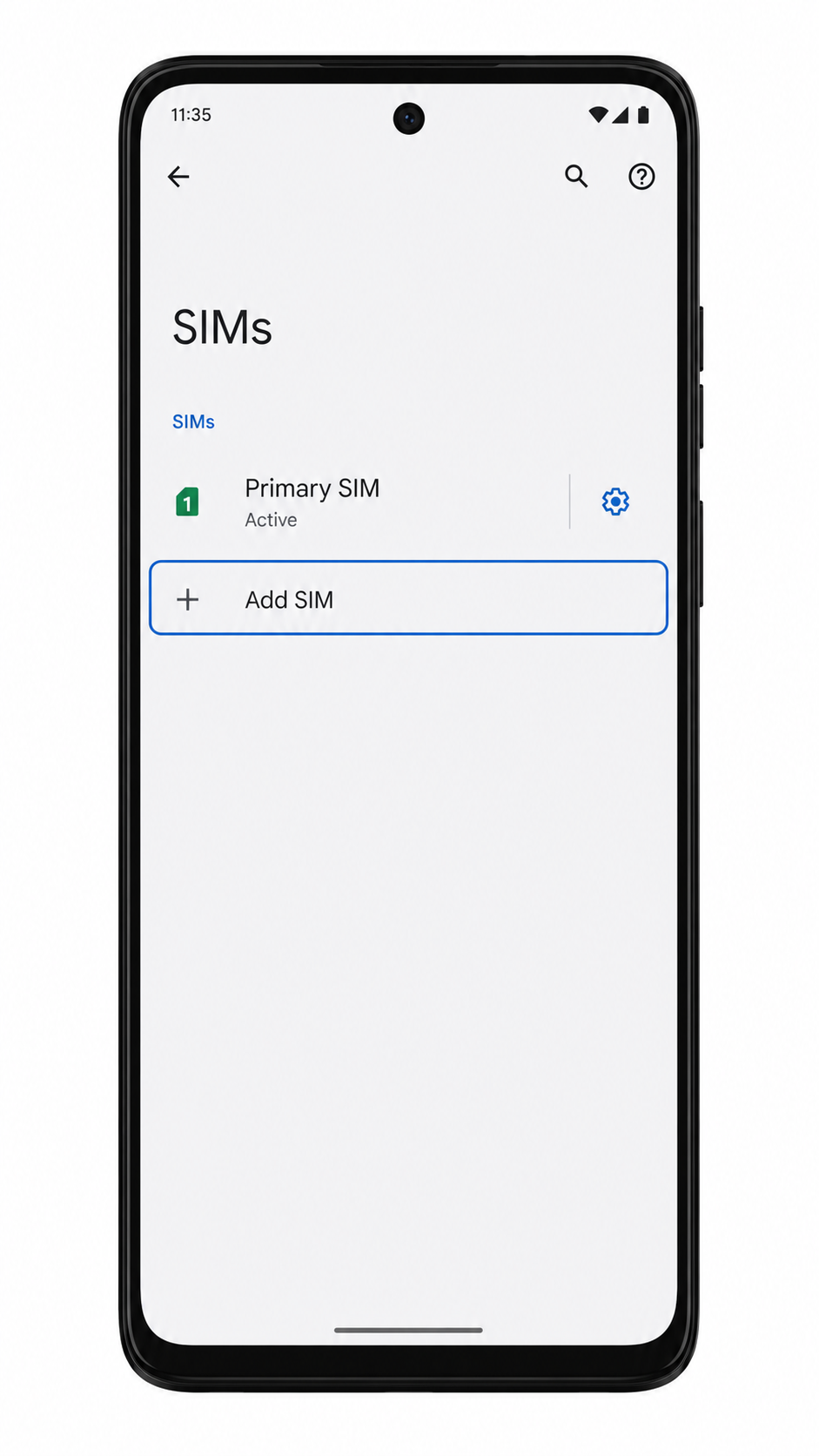
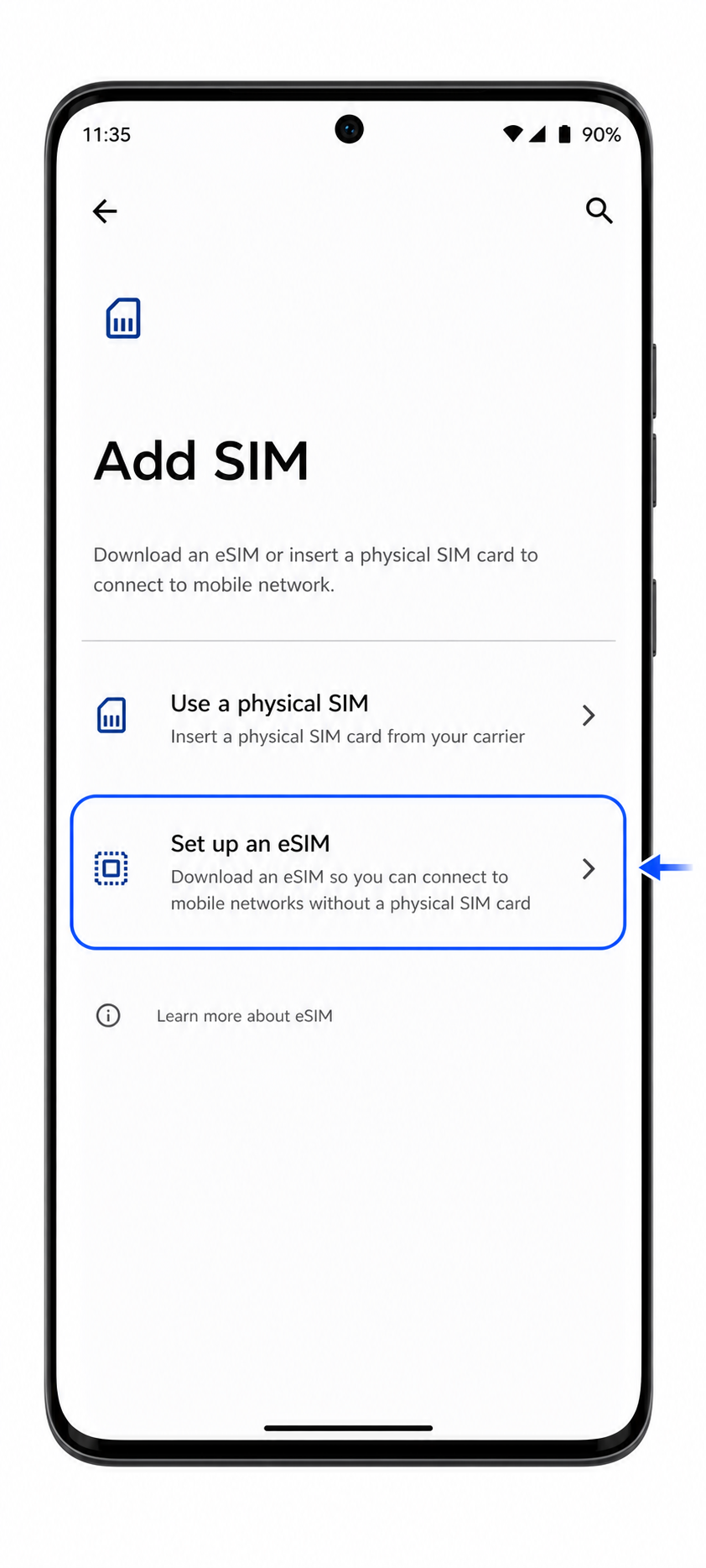
Step 3. Tap Add SIM.
The Edge 50 Pro should start the SIM setup flow and offer an option to add a downloaded SIM/eSIM.
Step 4. Tap Set up an eSIM.
The phone should prepare the eSIM download flow and then open the QR scanner.
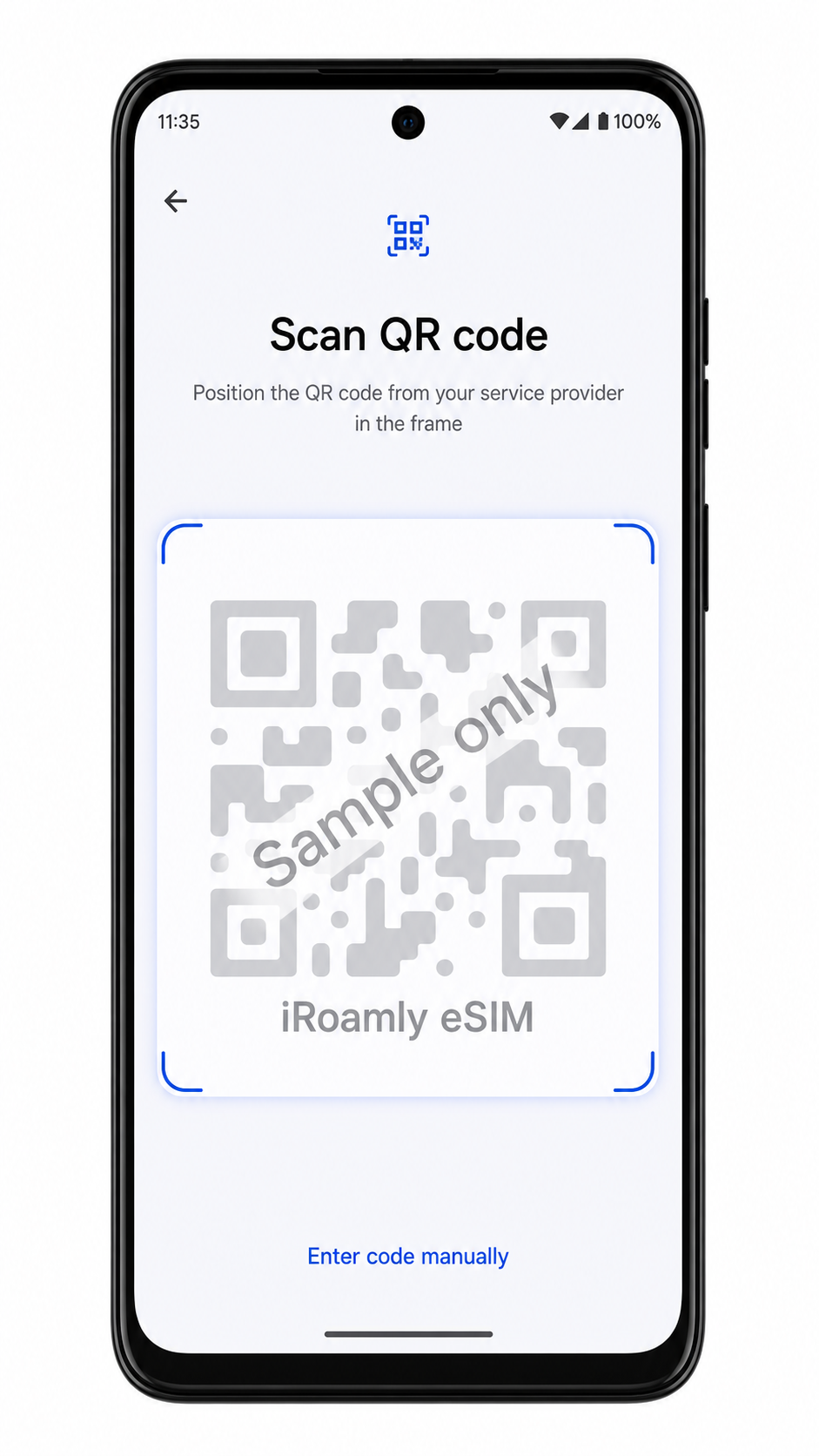
Step 5. Point the camera at the iRoamly QR code, then tap Download or Add when Android confirms the plan.
Keep the QR code visible until the phone recognizes it. After confirmation, wait for the eSIM profile to download and finish adding to the SIMs page.
Method 2: Install eSIM Manually
Step 1. Open Settings, then tap Network & internet.
Use the same starting point even if you already tried the QR method, because manual setup is reached from the same SIM setup flow.
Step 2. Tap SIMs.
You should return to the SIM management page where the phone lists active SIMs and lets you add another SIM profile.
Step 3. Tap Add SIM.
Android should open the setup choice for adding a physical SIM or downloading an eSIM profile.
Step 4. Tap Set up an eSIM.
The phone should open the same eSIM setup flow used for QR installation.
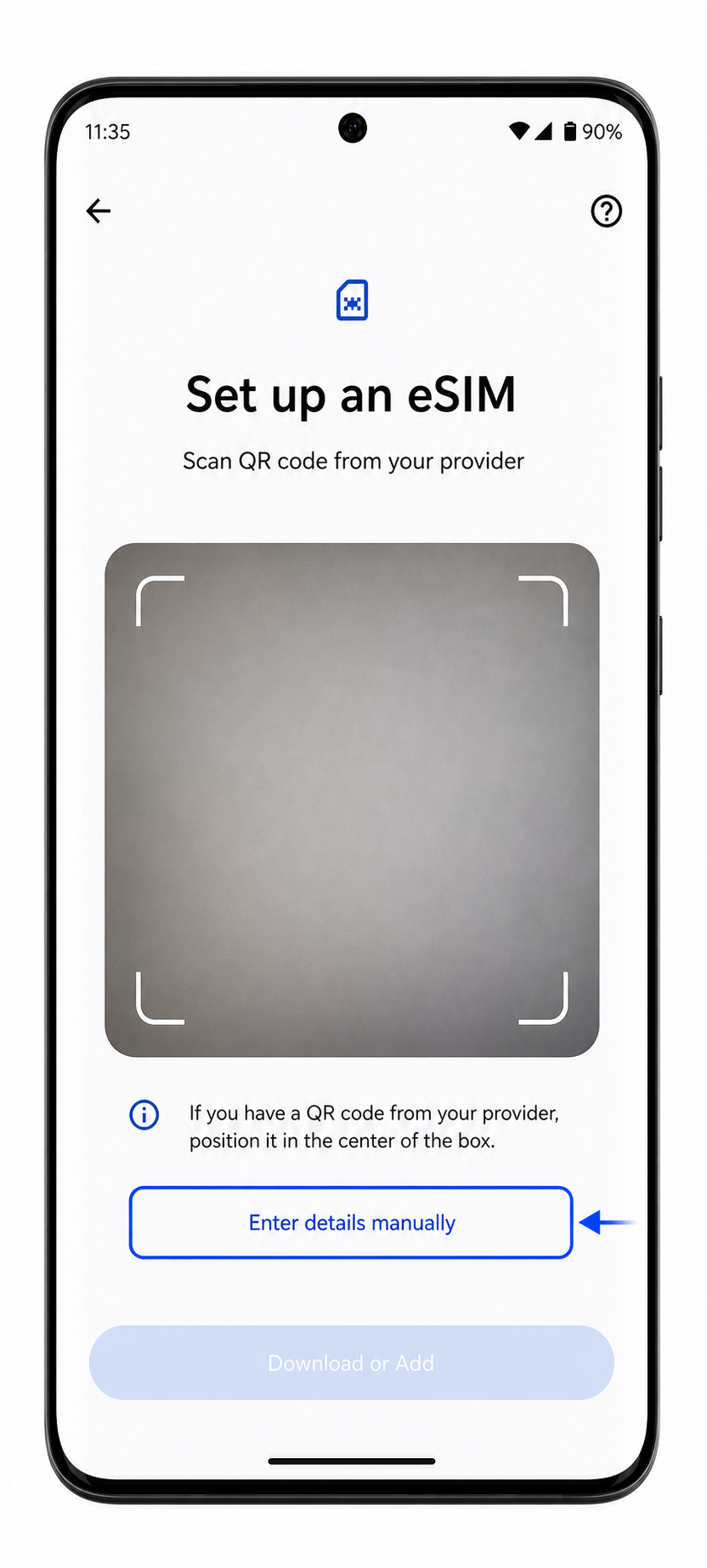
Step 5. On the QR scanner screen, tap Enter details manually or Enter code manually.
The manual entry page should appear. If your software shows Need help?, tap it first, then choose the manual entry option.
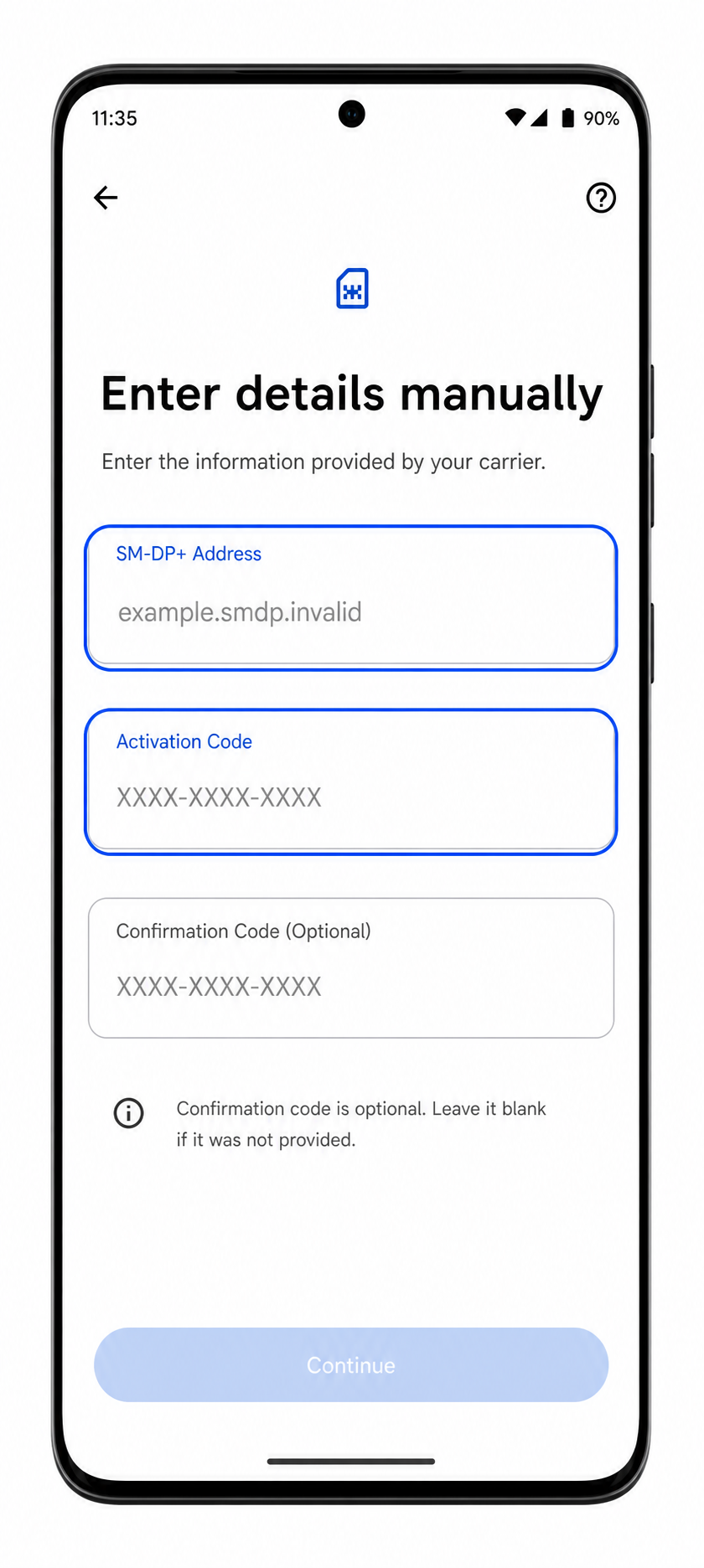
Step 6. Enter the iRoamly SM-DP+ Address and Activation Code, add a Confirmation Code only if iRoamly provides one, then tap Continue or Download.
Use the exact spelling, numbers, and symbols from your iRoamly order page or email. After Android checks the information, approve the download and wait until the profile is added.
How to Confirm Your iRoamly eSIM Is Installed
Step 1. Go to Settings > Network & internet > SIMs, then look for the newly added eSIM profile.
It may appear with a carrier/profile name or a label you can rename to iRoamly. The profile should be listed separately from your physical SIM.
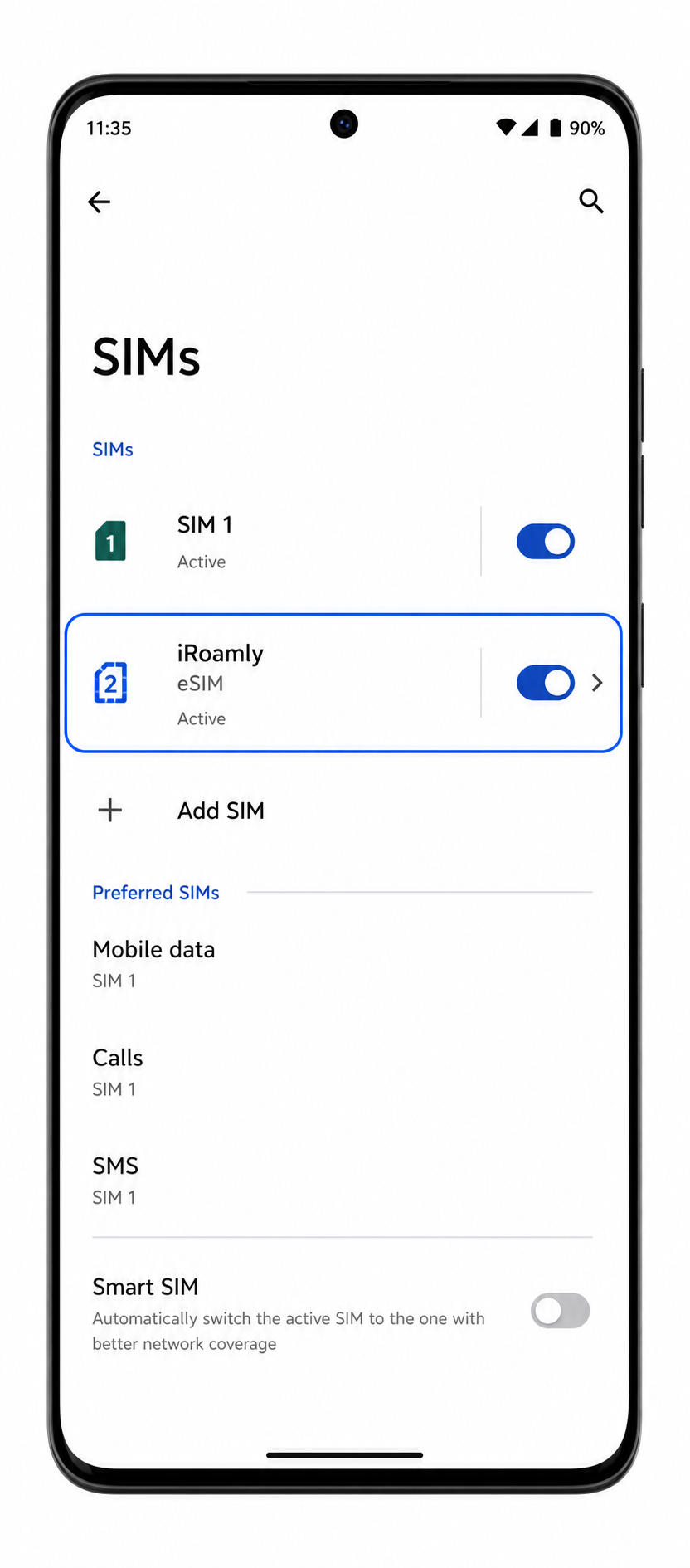
Step 2. Tap the new eSIM profile and check that Use SIM is available or switched on.
This confirms the profile is installed. If the iRoamly plan includes data only, do not expect calling or SMS tests to work unless the plan details say they are supported.
Configure eSIM for Mobile Data
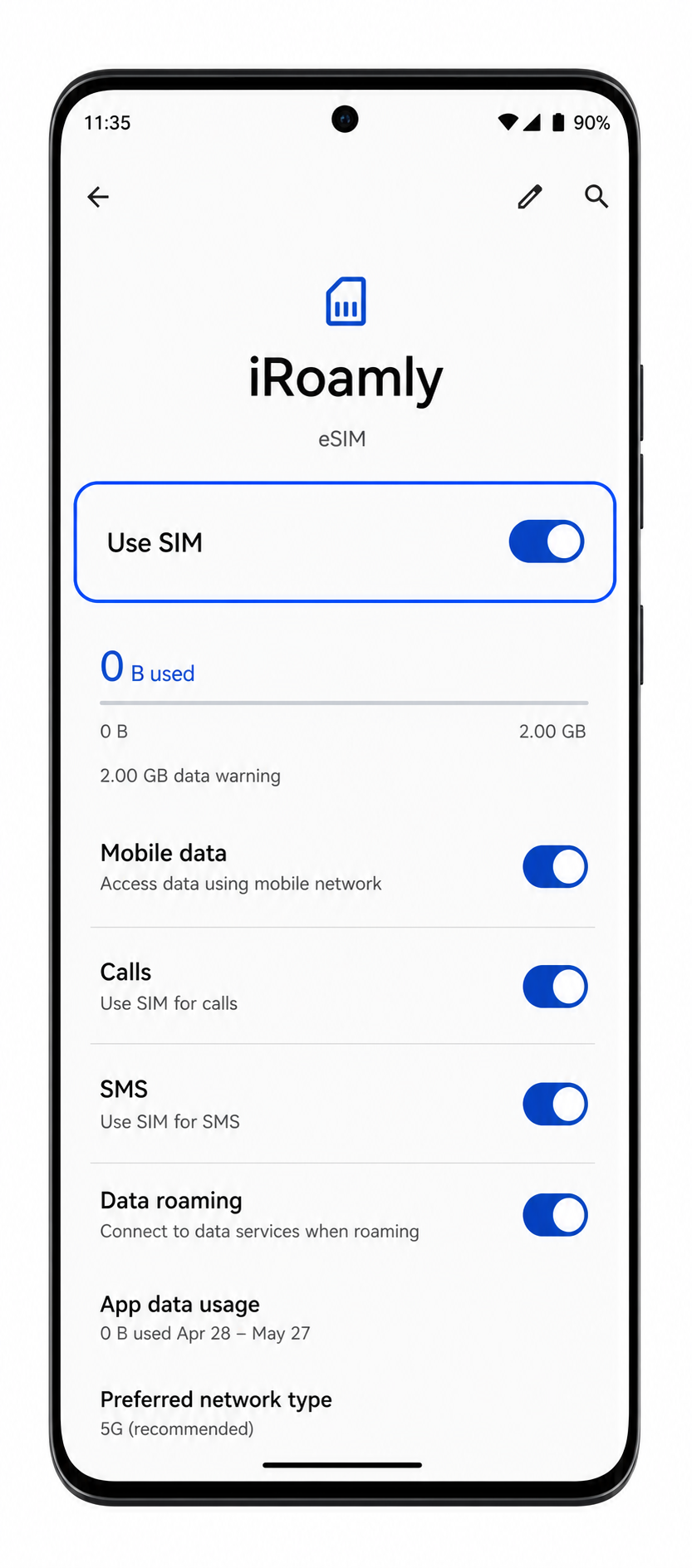
Step 1. Open Settings > Network & internet > SIMs, then tap the iRoamly eSIM profile.
The eSIM detail page should show options for mobile data, calls, SMS, and roaming, depending on the plan and Android build.
Step 2. Set Mobile data or Preferred SIM for mobile data to the iRoamly eSIM.
This makes the Edge 50 Pro use the iRoamly travel eSIM for internet access instead of your primary SIM.
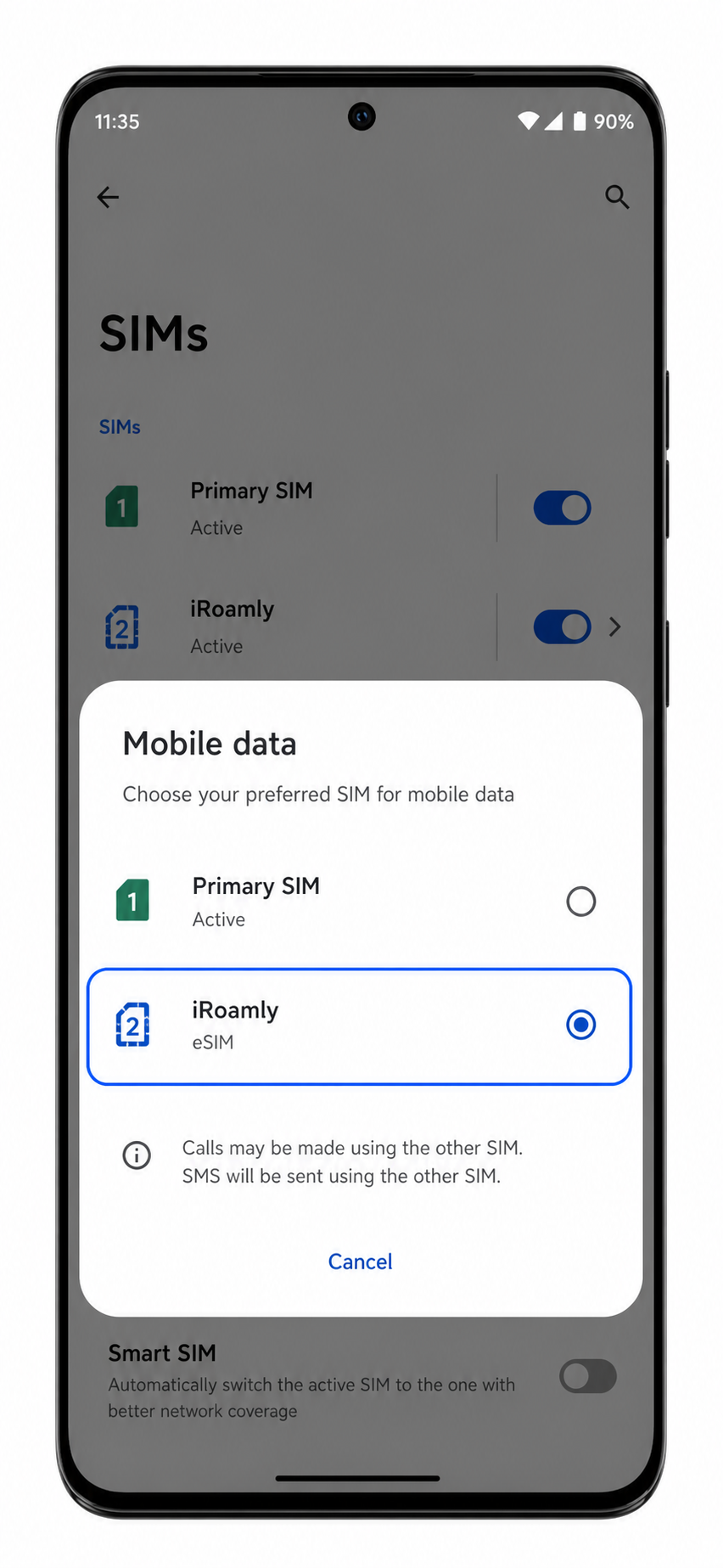
Step 3. Turn on Roaming or Data roaming for the iRoamly eSIM if your destination plan requires it.
Many travel eSIMs need data roaming enabled to connect to partner networks abroad. Keep roaming off for your primary SIM if you want to avoid unexpected charges.
Troubleshooting
If Add SIM or Set up an eSIM is missing, confirm the phone is unlocked, update Android, restart the phone, and check whether your regional Motorola Edge 50 Pro variant supports eSIM.
If the QR code will not scan, raise screen brightness on the device showing the QR code, clean the camera lens, keep the code flat, or switch to manual entry.
If Android says the QR code was already used, do not delete the eSIM. Contact iRoamly support, because most eSIM QR codes are single-use.
If manual entry fails, check every character in the SM-DP+ Address and Activation Code. Avoid extra spaces before or after the code.
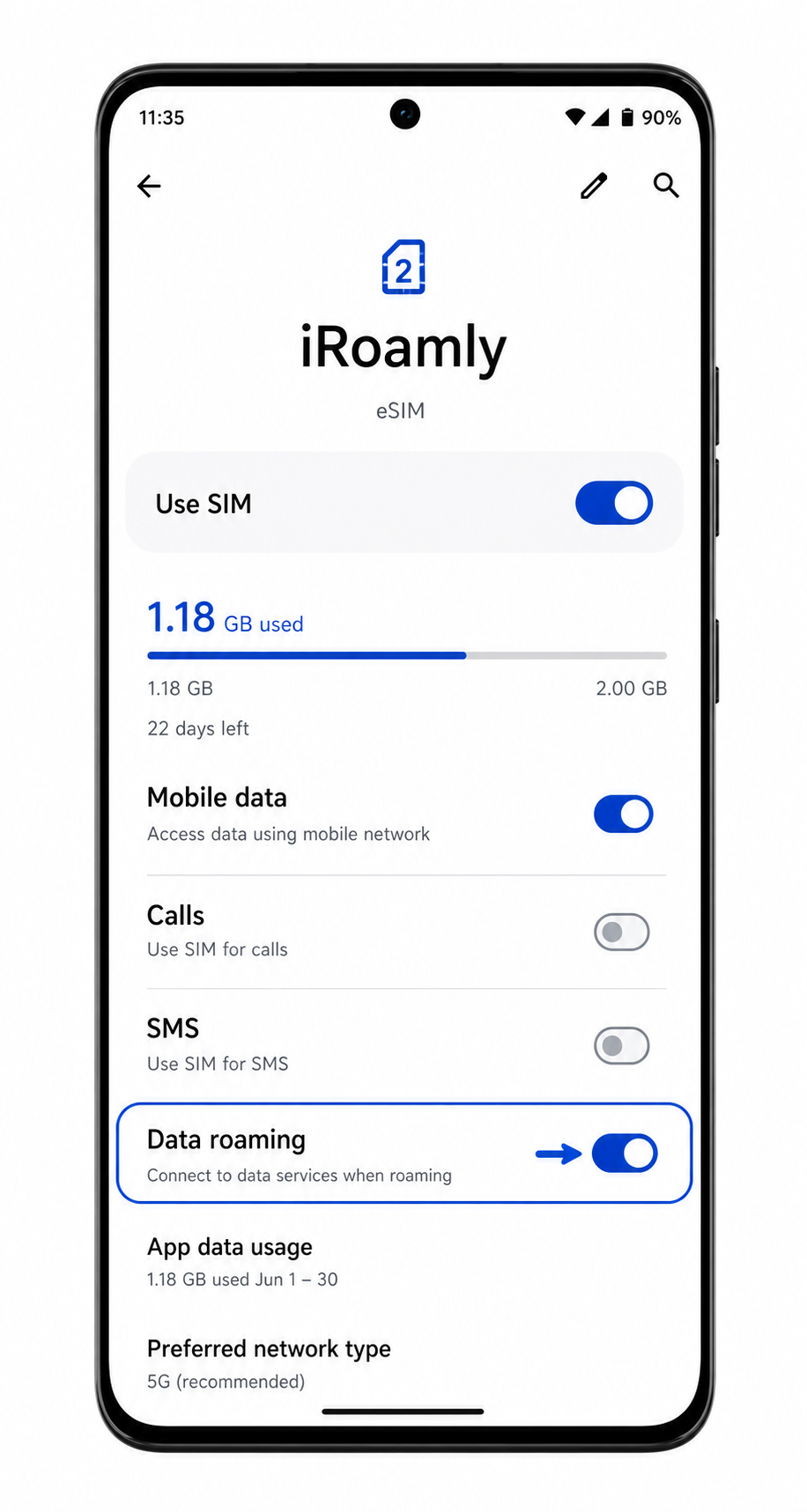
If the eSIM is installed but there is no data, select the iRoamly eSIM for mobile data, turn on data roaming for that eSIM, restart the phone, and test in an area with signal.
If activation stays pending, wait a few minutes on Wi-Fi, then restart the Edge 50 Pro. Some profiles finish only after the phone reaches a supported destination network.
If calls or SMS do not work, check the iRoamly plan details. Many travel eSIM plans provide mobile data only.
More Motorola eSIM Setup Guides
Setting up another Motorola phone? These eSIM activation guides may help.
Conclusion
With your Motorola Edge 50 Pro prepared for travel connectivity, you can take advantage of eSIM technology without changing the way you use your primary number. Keeping separate profiles for everyday use and travel data offers a practical balance between convenience and flexibility.
Whether you're traveling for business or leisure, having mobile data ready ahead of time can make navigation, communication, and online access much easier. The more prepared you are before departure, the smoother your connectivity experience is likely to be.