
The Oppo Reno 14 5G supports eSIM on the global CPH2737 model, using ColorOS 15.0 with a Mobile network menu and a dedicated eSIM section. This guide assumes that global model and an unlocked phone; menu names can vary slightly by region, carrier firmware, or later ColorOS updates.
An iRoamly travel eSIM is useful when you want mobile data abroad without swapping your physical SIM. Install it while connected to stable Wi-Fi, keep your primary SIM in place if you need it, and check the plan details before travel.
This guide covers two complete setup paths on the Oppo Reno 14: scanning the iRoamly QR code and entering the manual eSIM details. The QR method is usually faster, while manual entry helps if you cannot scan the QR code from another screen or printed document.
Travel with Mobile Data from iRoamly
iRoamly is a travel eSIM service that lets compatible phones use mobile data through digital plans instead of a removable travel SIM. Travelers may find local destination plans, regional plans, or global options depending on availability, with data allowance, validity, and plan behavior varying by destination.
After installation, the travel line can help keep maps, messages, translations, reservations, and ride-hailing apps connected during a trip.
For an eSIM-capable Oppo Reno 14 5G, iRoamly can be added as a separate profile and chosen as the mobile data line when you are ready to use it. The guide below keeps the Oppo setup flow focused on QR-code installation, manual entry, and data configuration.
Before leaving, confirm that your regional model supports eSIM and keep the installation details available until the phone finishes downloading the profile.
Before You Set Up Your iRoamly eSIM
Use a stable Wi-Fi connection before starting. eSIM download can fail if the connection drops.
Confirm your Oppo Reno 14 is unlocked and eSIM-capable. The global OPPO Reno14 5G CPH2737 lists Nano-SIM card + eSIM, but some regional or carrier variants may differ.
Have your iRoamly QR code ready on another device or printed page. If you cannot scan it, open your iRoamly order details and copy the SM-DP+ Address, Activation Code, and any optional confirmation code.
Install the iRoamly eSIM 1-2 days before travel when the plan allows it, but check your plan details first. iRoamly plan validity starts from activation, and the activation trigger can vary by destination or plan.
If your trip is to Japan or the France, preparing the destination eSIM before departure can leave fewer data settings to handle after arrival.
Do not delete the iRoamly eSIM after installation unless iRoamly support tells you to. Many travel eSIM profiles cannot simply be reinstalled after removal.
iRoamly eSIM plans may be data-only. Voice calls and SMS availability varies by plan, so check the plan page before relying on calls or texts.
Method 1: Install eSIM by Scanning a QR Code
Open Settings on your Oppo Reno 14, then tap Mobile network.
You should see the ColorOS mobile network settings where SIM and eSIM options are managed.
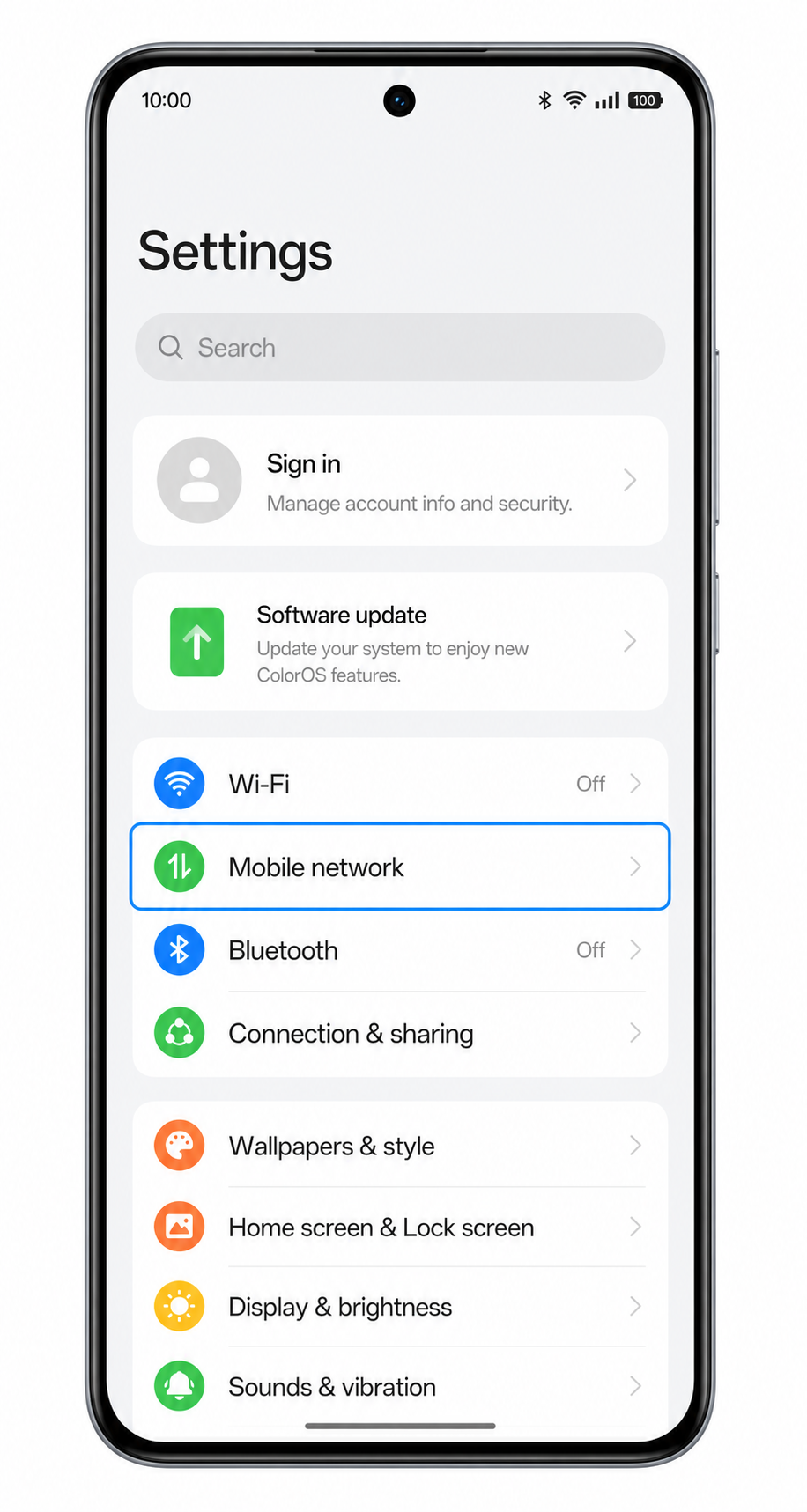
Tap eSIM under SIM card info.
The phone opens the eSIM management page for adding or viewing downloaded eSIM profiles.
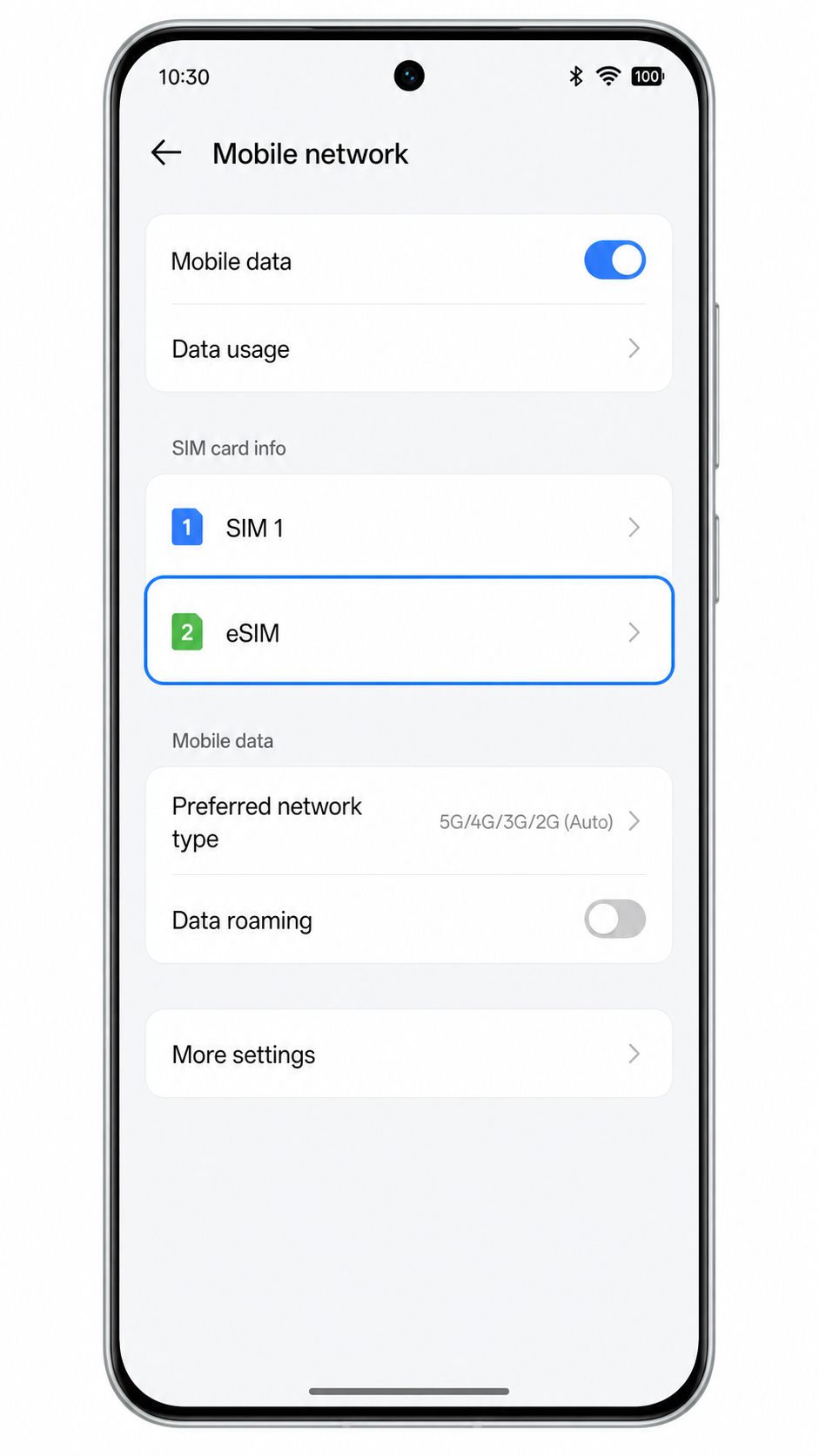
Tap Add eSIM.
The Oppo Reno 14 will start the eSIM setup flow and prepare the QR-code scanner.
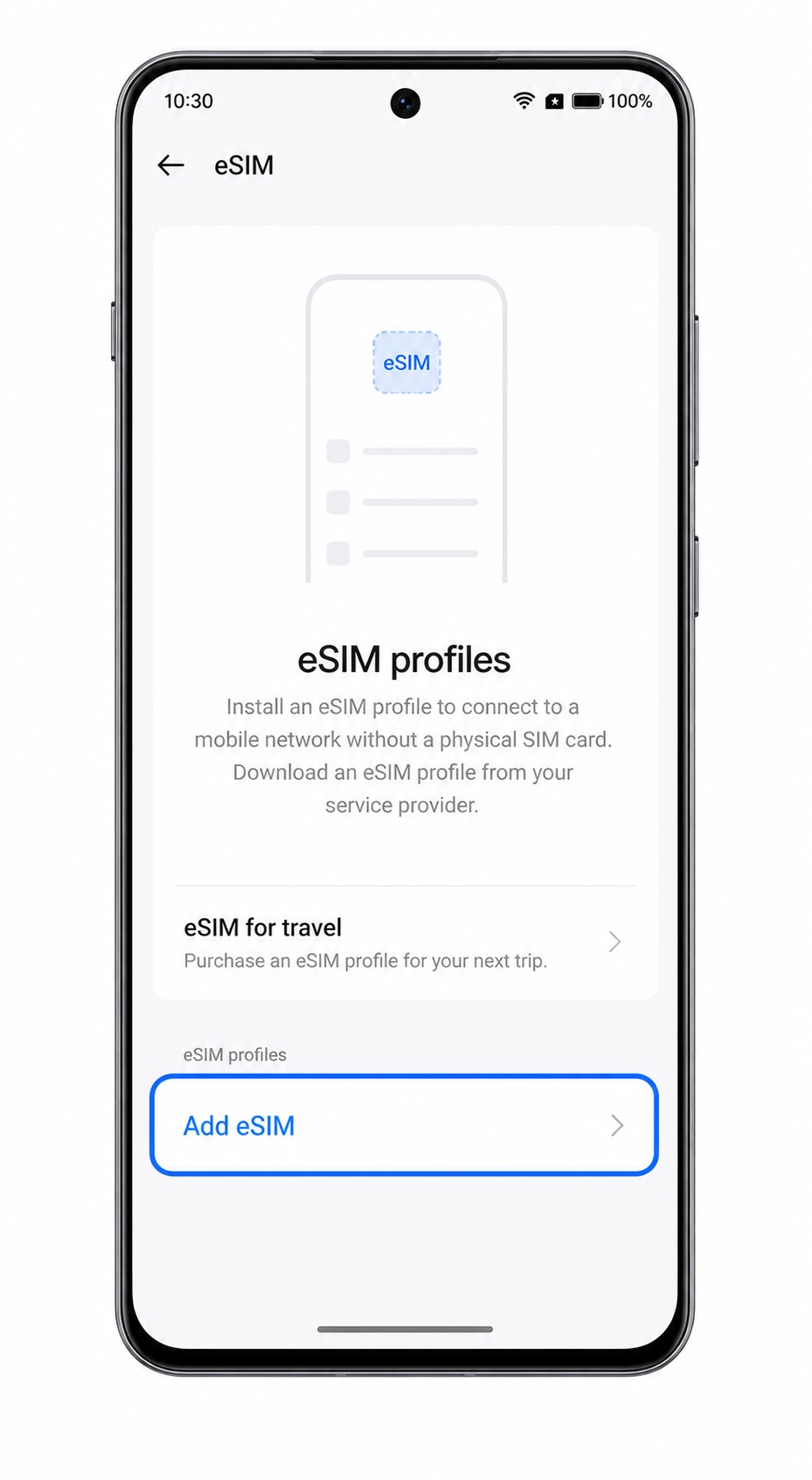
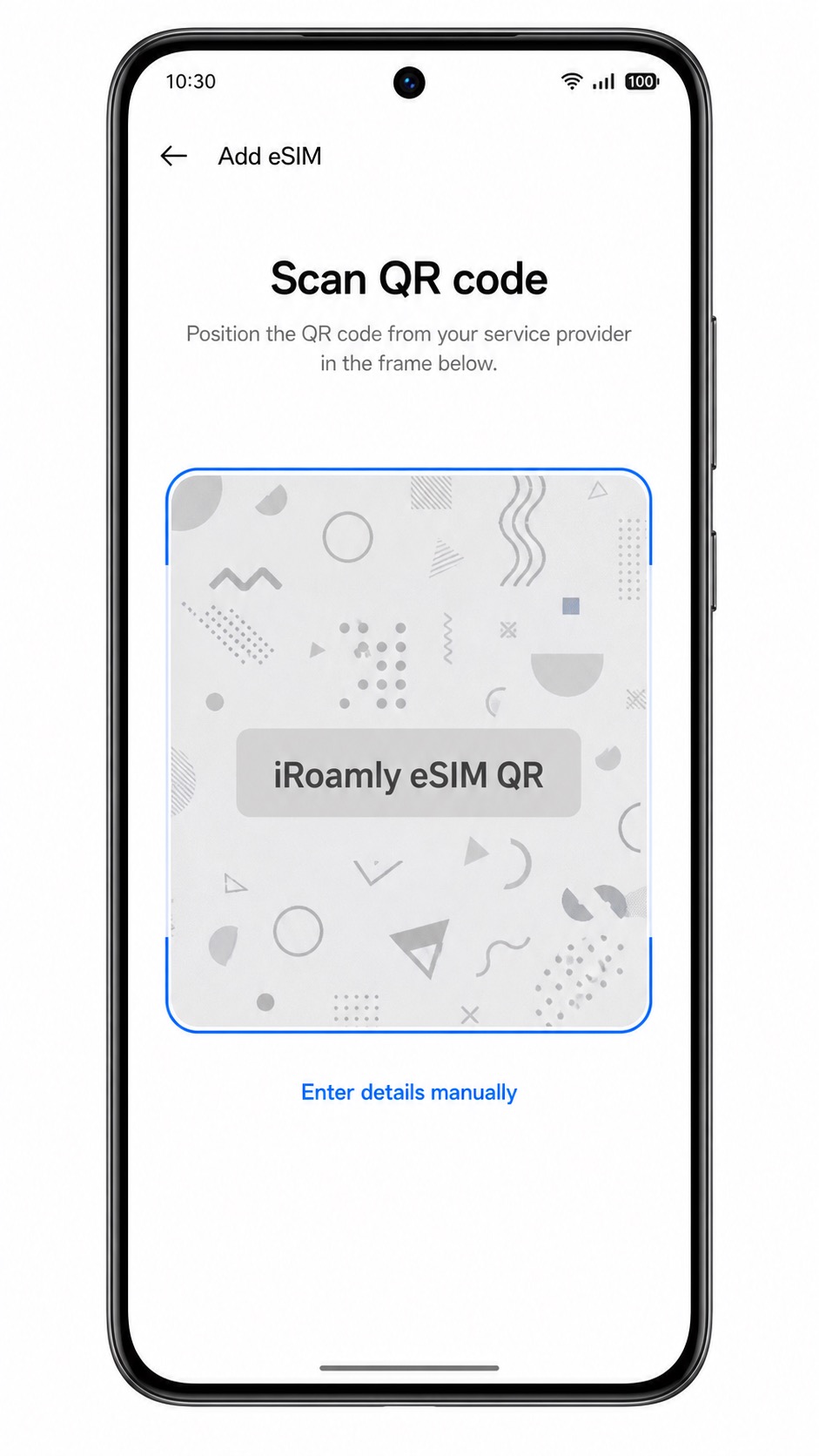
When the Scan QR code screen appears, scan the iRoamly QR code from your order email or iRoamly account.
Keep the QR code inside the frame until the phone recognizes it. Do not use a QR code that has already been used on another device.
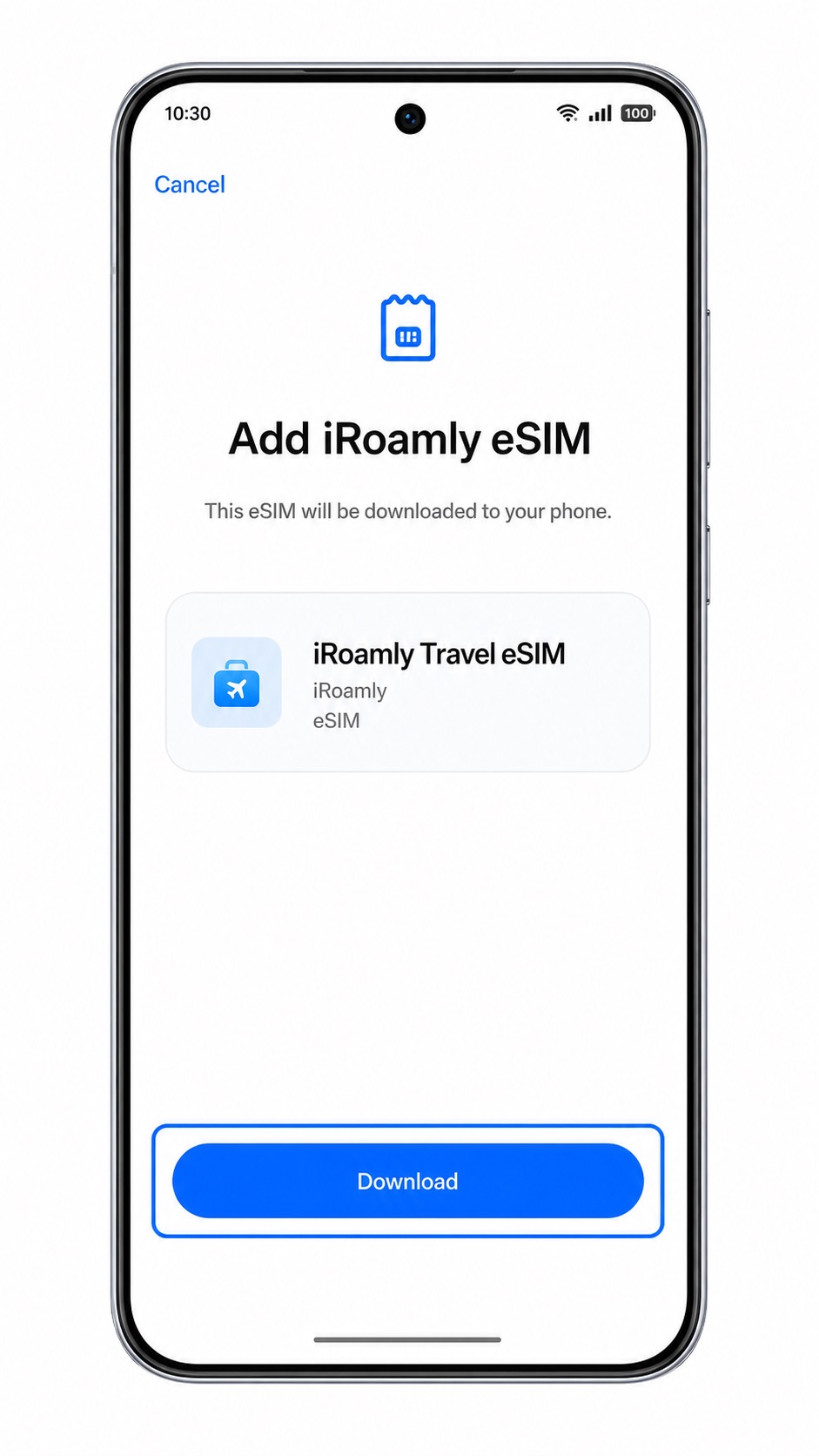
Review the eSIM profile name, then tap Download.
Wait on this screen while ColorOS downloads and adds the iRoamly travel eSIM. Keep Wi-Fi connected until the setup finishes.
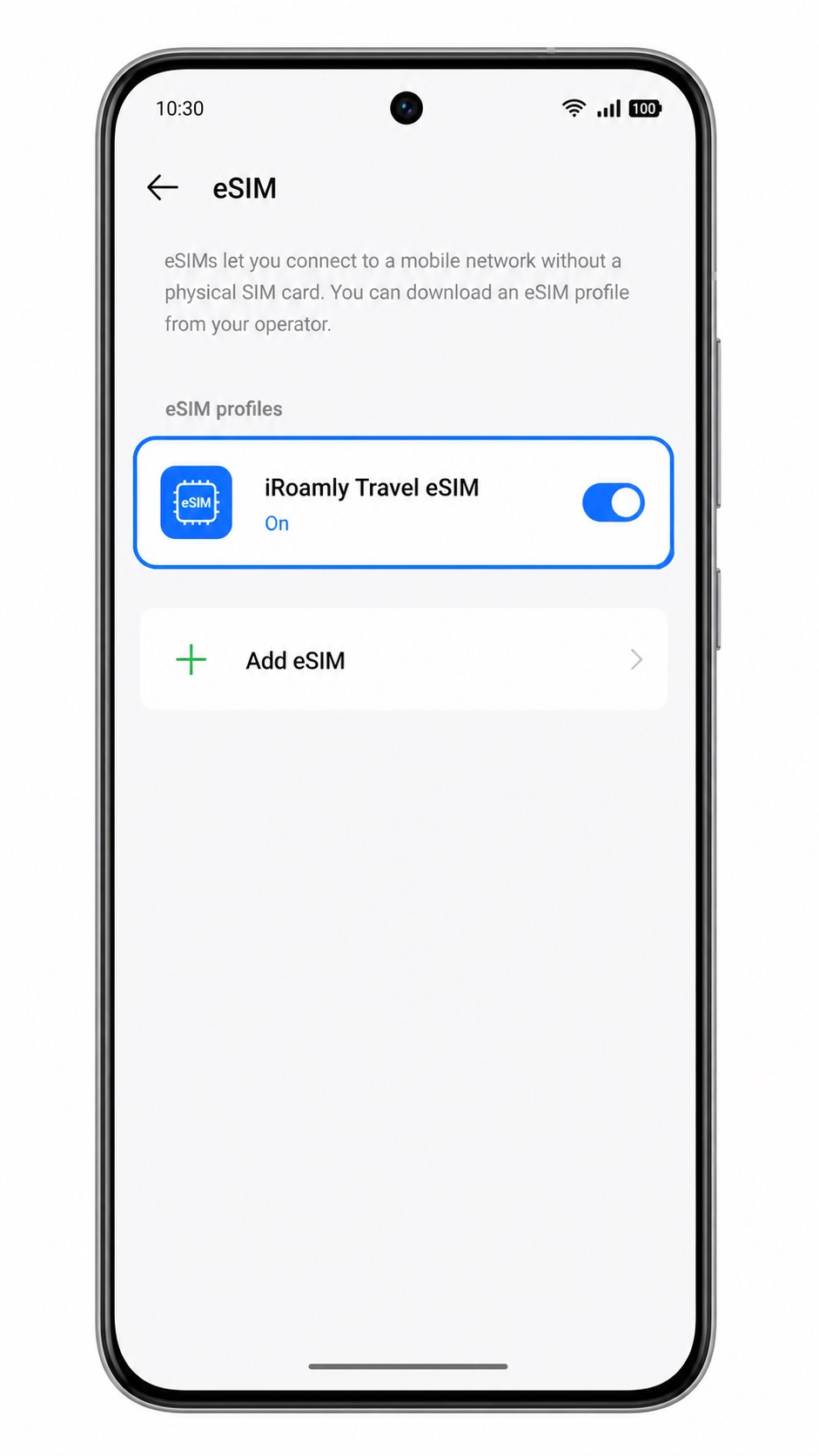
When the download finishes, return to Settings > Mobile network > eSIM and confirm that iRoamly Travel eSIM appears.
If ColorOS asks whether to turn on the eSIM now, choose to enable it unless your iRoamly plan should only be activated after arrival.
Method 2: Install eSIM Manually
Open Settings on your Oppo Reno 14, then tap Mobile network.
This is the same starting point used for QR-code setup.
Tap eSIM under SIM card info.
ColorOS opens the page where you can add an eSIM profile.
Tap Add eSIM.
The setup flow opens the QR-code scanner first.
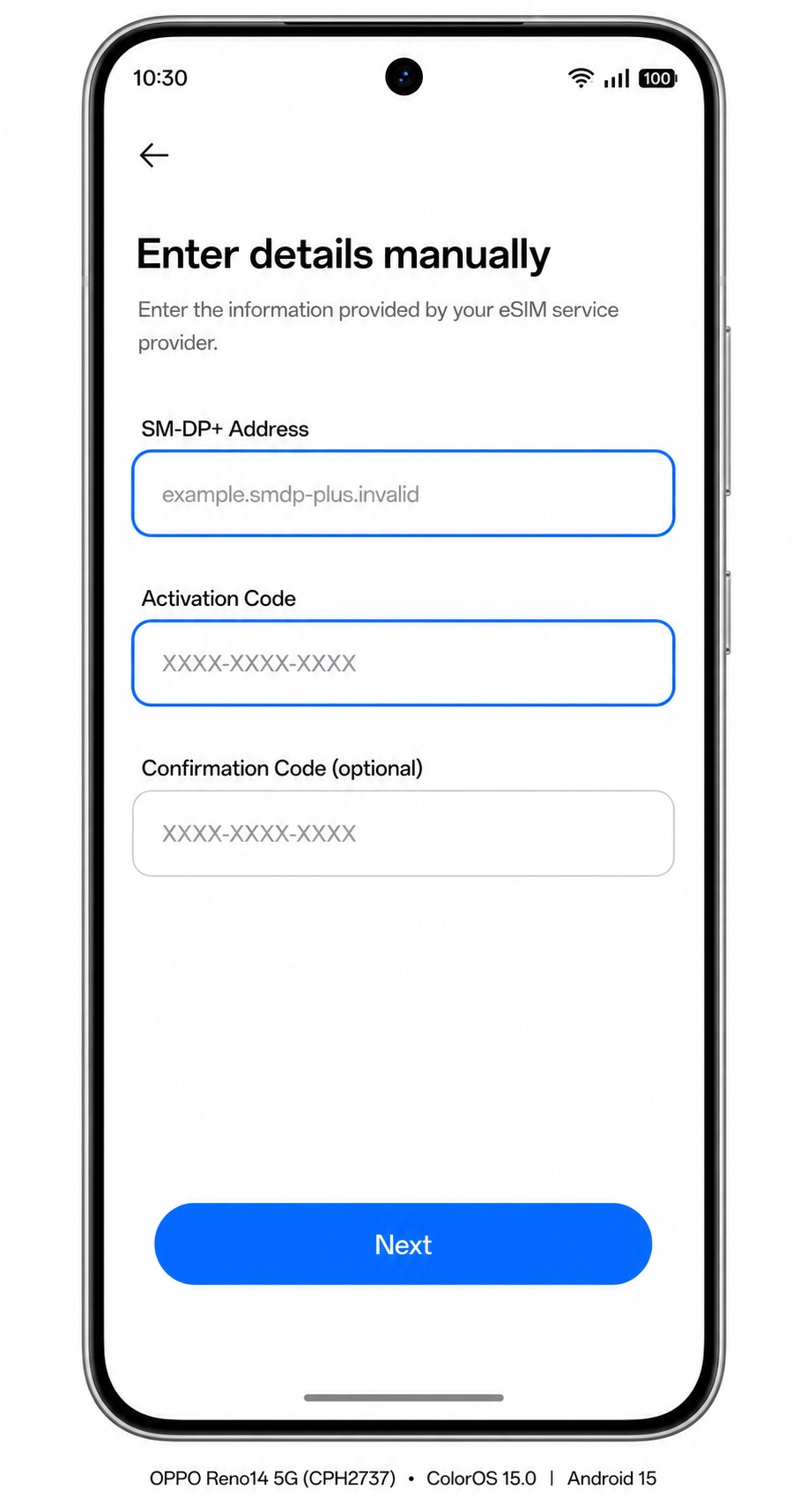
On the Scan QR code screen, tap Enter details manually.
Use this option when the QR code cannot be scanned or when iRoamly provides text activation details.
Enter the SM-DP+ Address, Activation Code, and Confirmation Code (optional) exactly as shown in your iRoamly order details, then tap Next.
Do not add extra spaces. If the confirmation code field is blank in your iRoamly details, leave it blank on the phone.
Review the iRoamly eSIM profile, then tap Download.
Stay connected to Wi-Fi until the phone finishes downloading the eSIM profile.
Return to Settings > Mobile network > eSIM and confirm that iRoamly Travel eSIM is listed.
If the profile is off, switch it on before using it for travel data.
How to Confirm Your iRoamly eSIM Is Installed
Go to Settings > Mobile network > eSIM and look for iRoamly Travel eSIM.
The profile should appear in the eSIM list. A switched-on toggle means the eSIM profile is enabled on the phone.
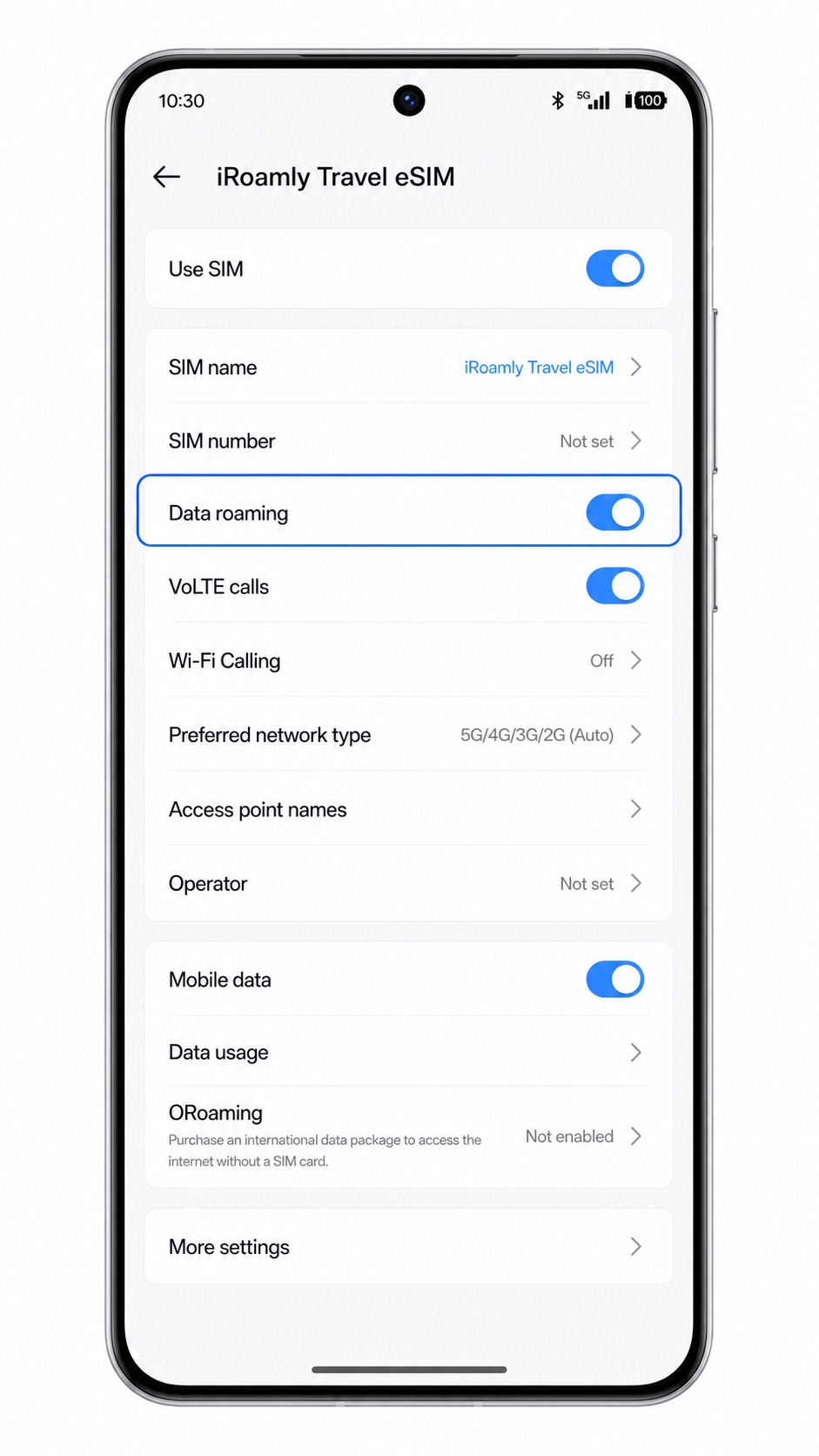
Tap the iRoamly profile and check that the line is on.
You may also see line settings such as SIM name, Mobile data, Data roaming, and Preferred network type.
After you arrive in the destination country, turn off Wi-Fi and open a webpage or map app to test mobile data.
Only test calls or SMS if your specific iRoamly plan says calls or SMS are included. Many travel eSIM plans are data-only.
Configure eSIM for Mobile Data
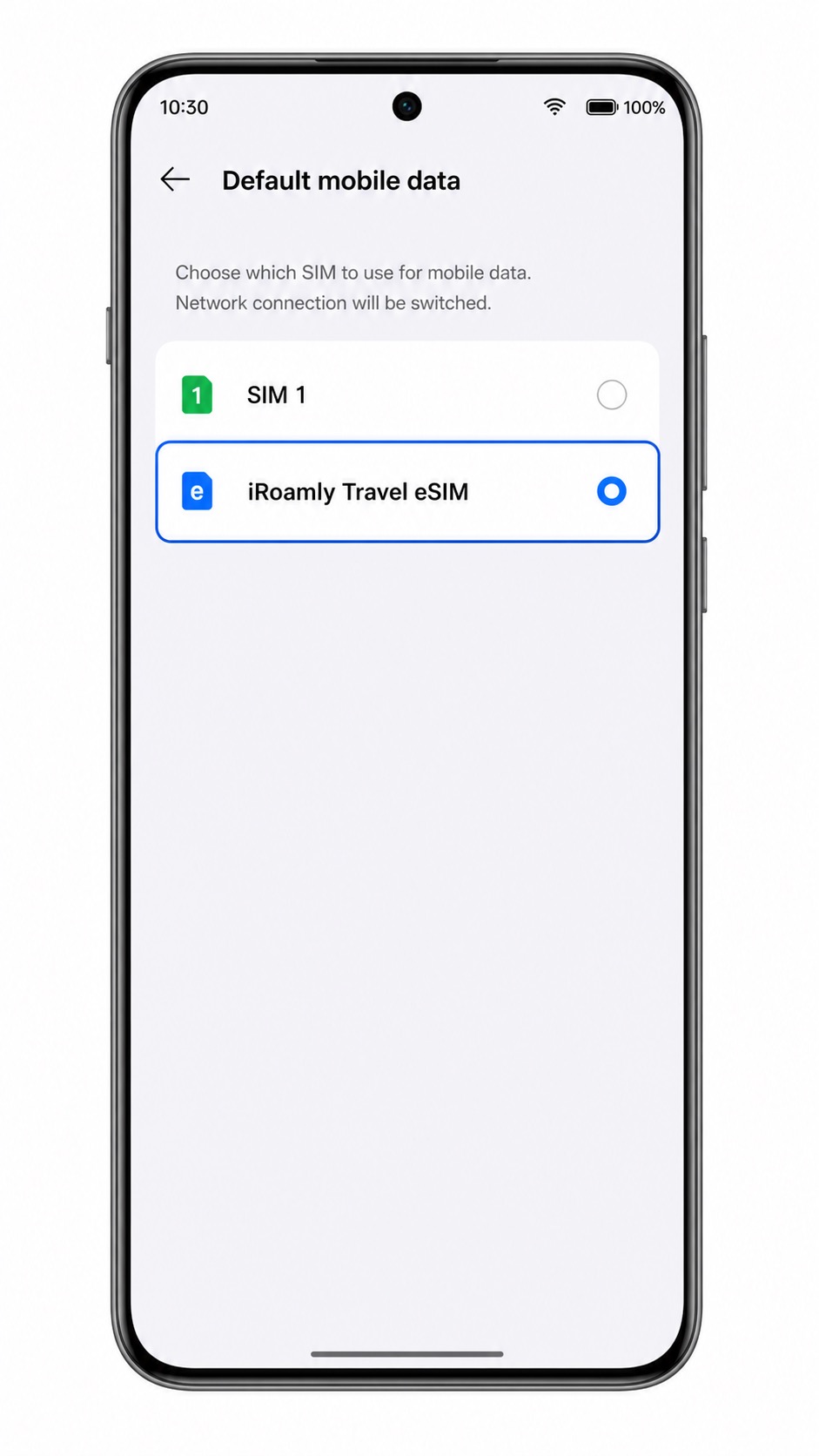
Open Settings > Mobile network, then tap the mobile data/default data option.
ColorOS should show the available SIM choices for mobile data.
Select iRoamly Travel eSIM as the default mobile data line.
This tells the Oppo Reno 14 to use the iRoamly travel eSIM for internet access instead of your primary SIM.
Open the iRoamly Travel eSIM line settings and turn on Use SIM and Mobile data.
These toggles must be on before the eSIM can connect to a supported network.
Turn on Data roaming for the iRoamly eSIM when your iRoamly destination plan requires roaming.
Travel eSIMs often use roaming partners, so data may not work abroad until this setting is enabled.
Troubleshooting
If eSIM or Add eSIM is missing, confirm that your Oppo Reno 14 variant supports eSIM, update ColorOS, restart the phone, and check whether your carrier or region hides eSIM setup.
If the QR code does not scan, brighten the other screen, clean the camera area, avoid reflections, or use Enter details manually.
If the QR code says it has already been used, do not delete the eSIM or keep retrying. Contact iRoamly support because many eSIM QR codes are single-use.
If manual entry fails, check the SM-DP+ Address and Activation Code character by character. Leave Confirmation Code (optional) blank unless iRoamly provided one.
If activation stays pending, keep Wi-Fi connected, restart the phone, and wait a few minutes. Some profiles only fully activate after reaching a supported destination network.
If mobile data does not work after installation, select iRoamly Travel eSIM for default mobile data, turn on Data roaming, disable Wi-Fi for testing, and check that your plan is active for the destination.
If calls or SMS do not work, review the iRoamly plan details. Do not assume calls or texts are included unless the plan clearly says so.
More Oppo eSIM Setup Guides
Setting up another Oppo phone? These eSIM activation guides may help.
Conclusion
With your iRoamly eSIM installed, your Oppo Reno 14 5G is ready to connect whenever your travel plan becomes active in a supported destination. Since your primary SIM can remain in the phone, you can continue using your regular number while using iRoamly for mobile data abroad if your setup requires it.
Preparing your eSIM before departure helps reduce setup after arrival, so you can get online more quickly for maps, messaging, transportation, travel bookings, and other everyday services. With everything already configured, you can focus on your trip instead of spending time looking for local mobile service.