
The Motorola Edge (2023) supports dual SIM with one physical SIM and one eSIM on the U.S. model, so it can keep your regular number available while you add an iRoamly travel eSIM for mobile data abroad.
This guide assumes a Motorola Edge (2023) running Motorola's near-stock Android 13 or Android 14 interface. The verified settings route uses Settings > Network & internet > SIMs, then Add eSIM; wording can vary slightly by software version, region, or carrier firmware.
You will install the iRoamly eSIM in two ways: first by scanning the QR code, then by entering the activation details manually. QR setup is usually fastest, while manual entry is useful when the QR code is on the same phone, difficult to scan, or unavailable.
Before You Set Up Your iRoamly eSIM
Connect the Motorola Edge (2023) to stable Wi-Fi before starting.
Confirm the phone is unlocked and that your regional or carrier variant supports eSIM.
Keep your iRoamly QR code, SM-DP+ address, activation code, or full manual activation code ready.
Sign in to the Google account on the phone if Android asks for account verification during setup.
Install the eSIM 1-2 days before travel when possible, but check your plan details first. iRoamly plan validity starts from activation, and the activation trigger can vary by plan or destination.
Do not delete the iRoamly eSIM after installation unless iRoamly support tells you to. Many travel eSIM profiles cannot be reinstalled after removal.
Check the specific iRoamly plan before relying on calls or SMS. Many travel eSIM plans are data-only, and voice/SMS availability varies by plan.
Method 1: Install eSIM by Scanning a QR Code
Step 1: Open Settings, then tap Network & internet.
You should see Android's network settings options for Wi-Fi, mobile network, SIMs, hotspot, and VPN.
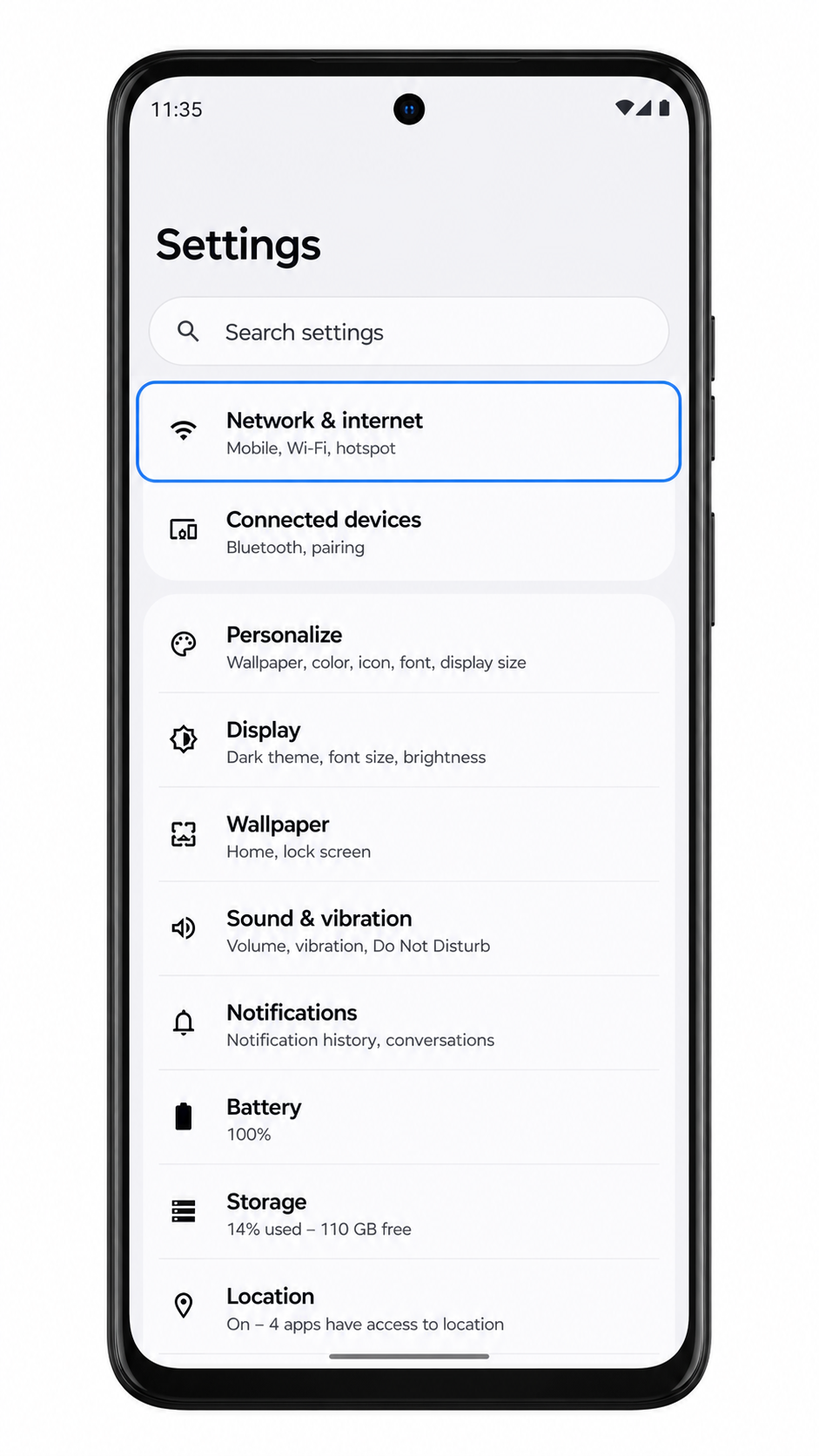
Step 2: Tap SIMs.
The phone should show installed SIM profiles and an option for adding another SIM or eSIM.
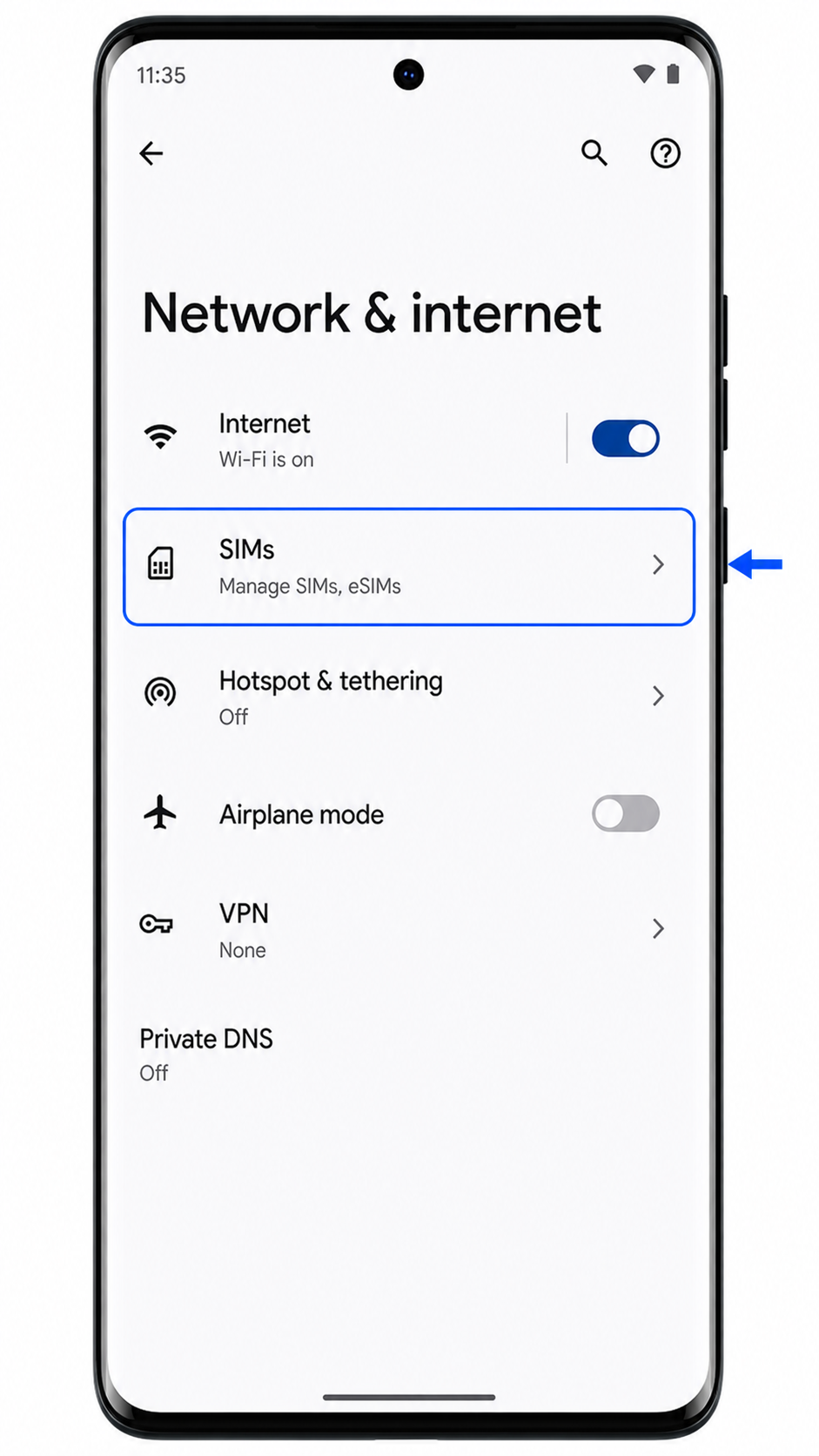
Step 3: Tap Add eSIM.
Android should open the eSIM setup flow and prepare the phone to scan a QR code.
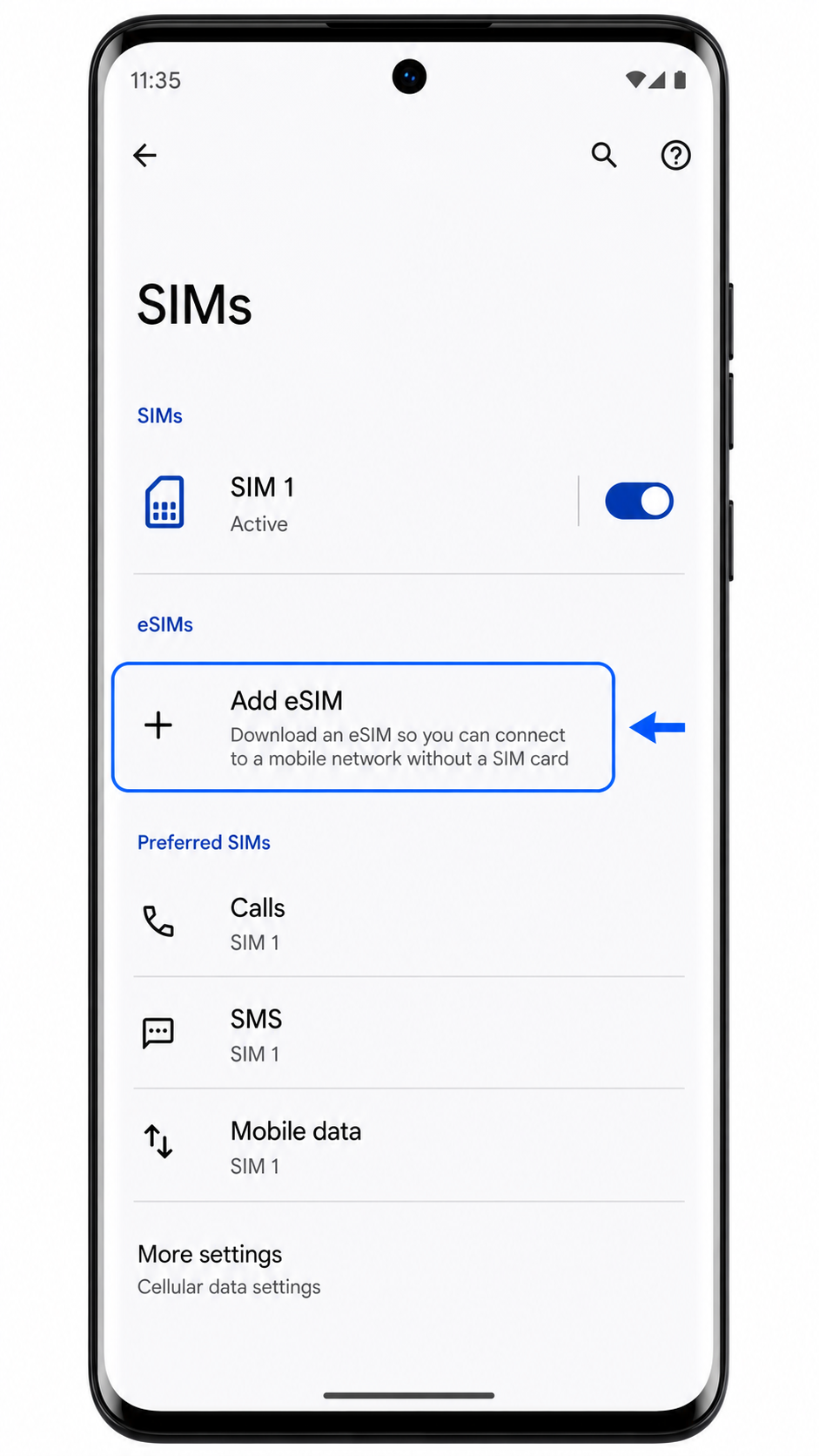
Step 4: Tap Set up an eSIM if Android asks how you want to add the SIM.
You should see the QR scanner or the next screen that leads to QR-code setup.
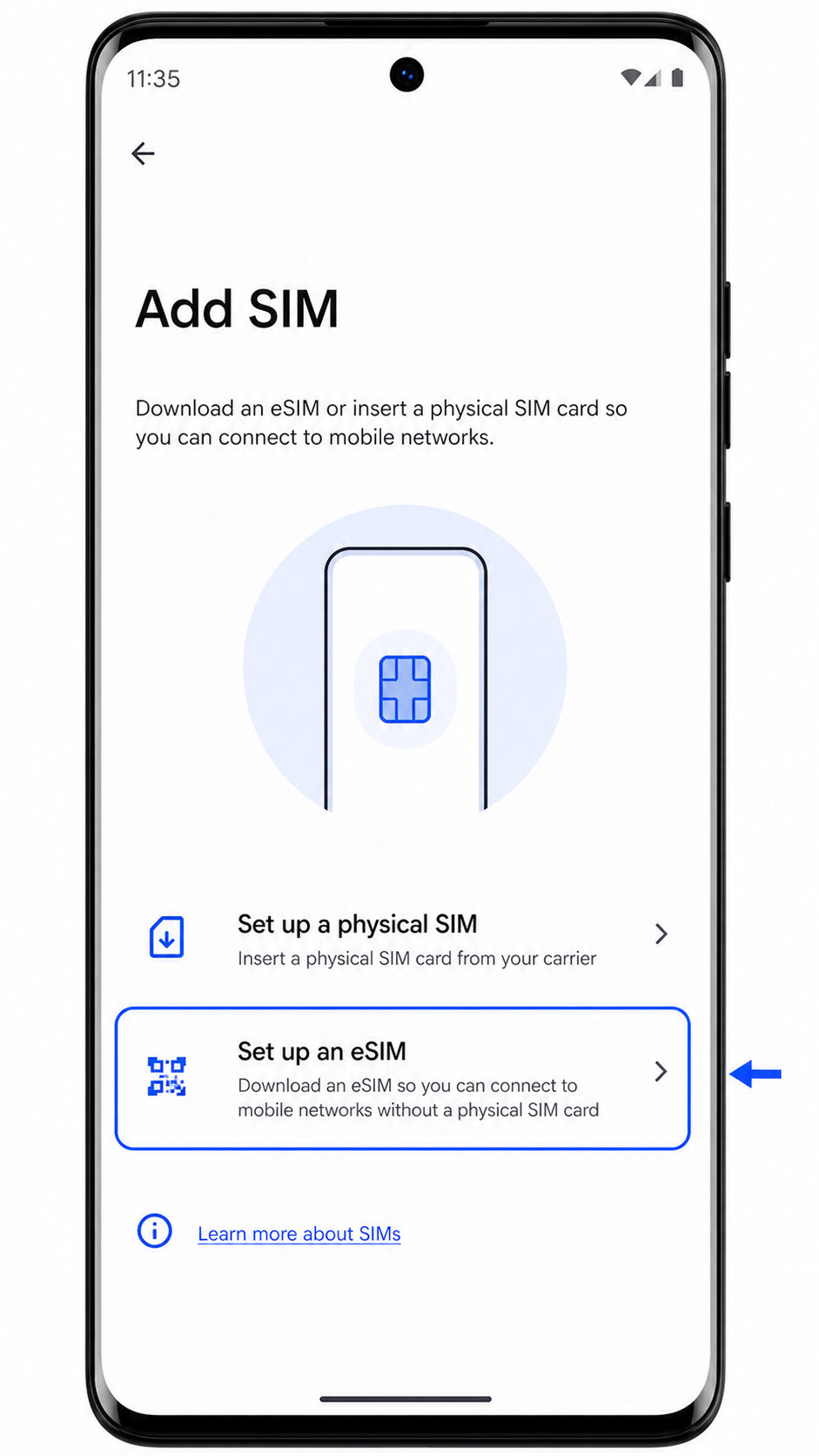
Step 5: Point the camera at the iRoamly QR code and keep the code inside the scanner frame.
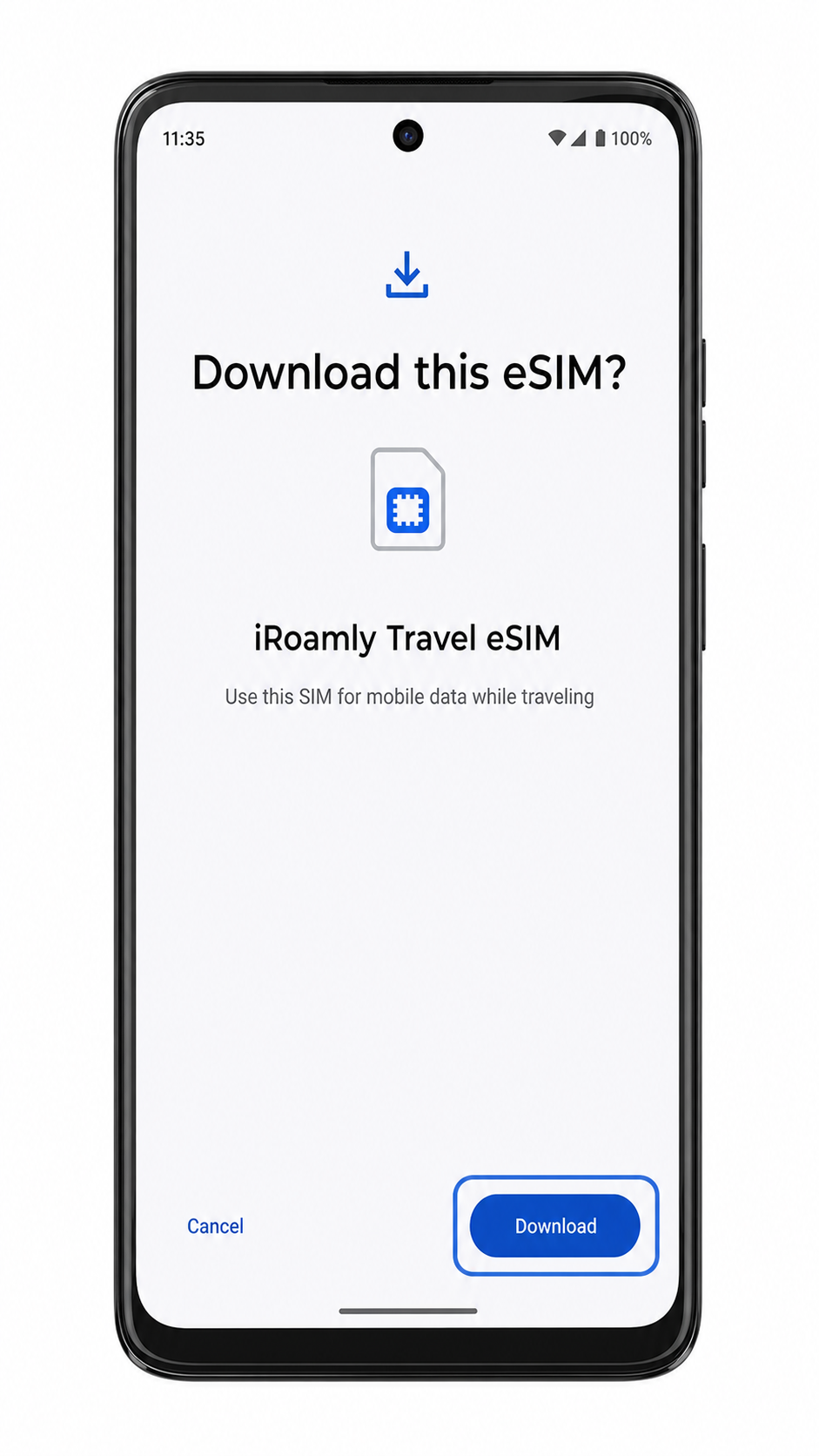
When the code is recognized, Android should show the iRoamly eSIM profile details and ask you to continue.
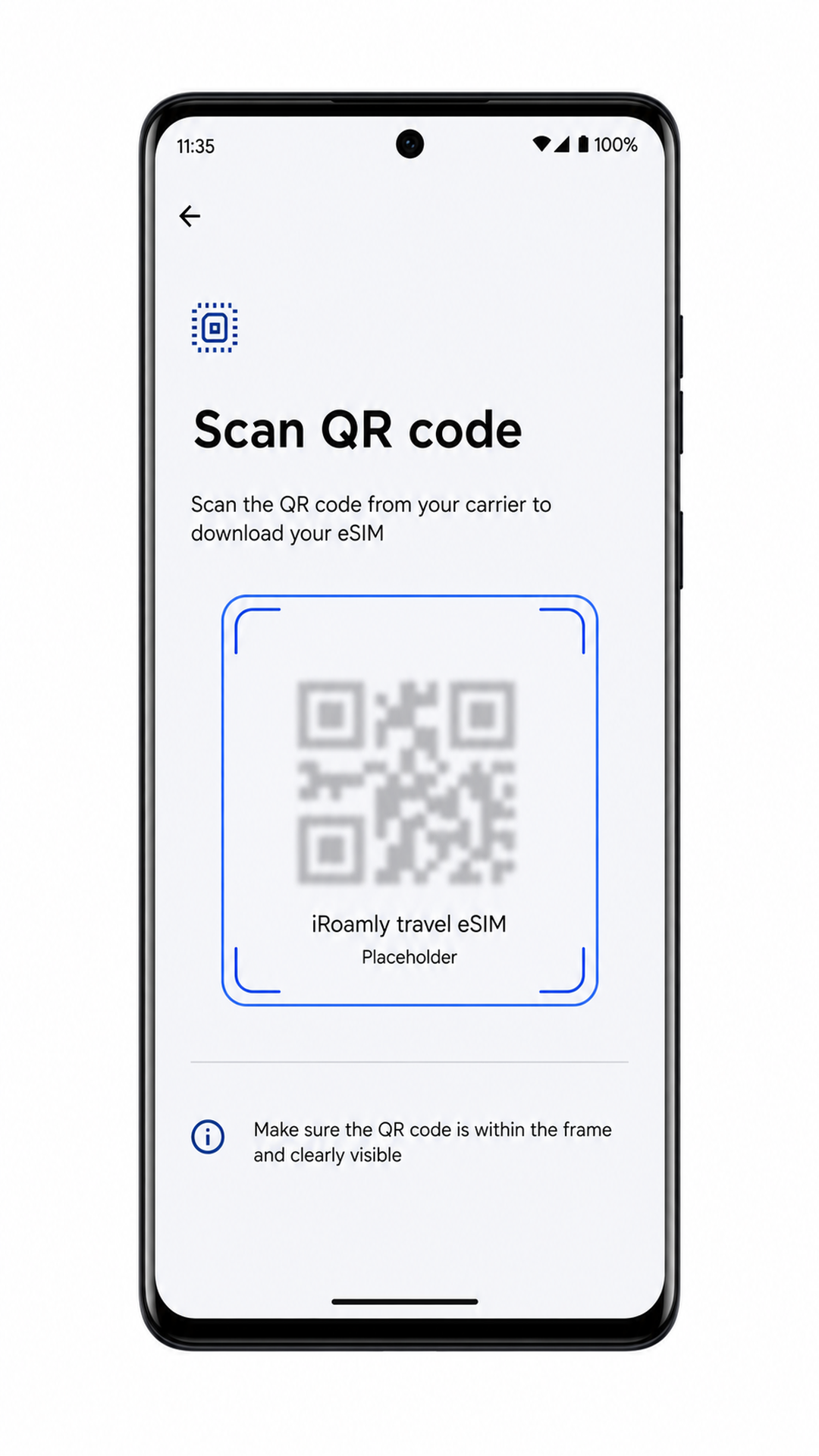
Step 6: Tap Download or Continue to download the iRoamly eSIM.
Keep the phone connected to Wi-Fi until Android finishes adding the eSIM profile.
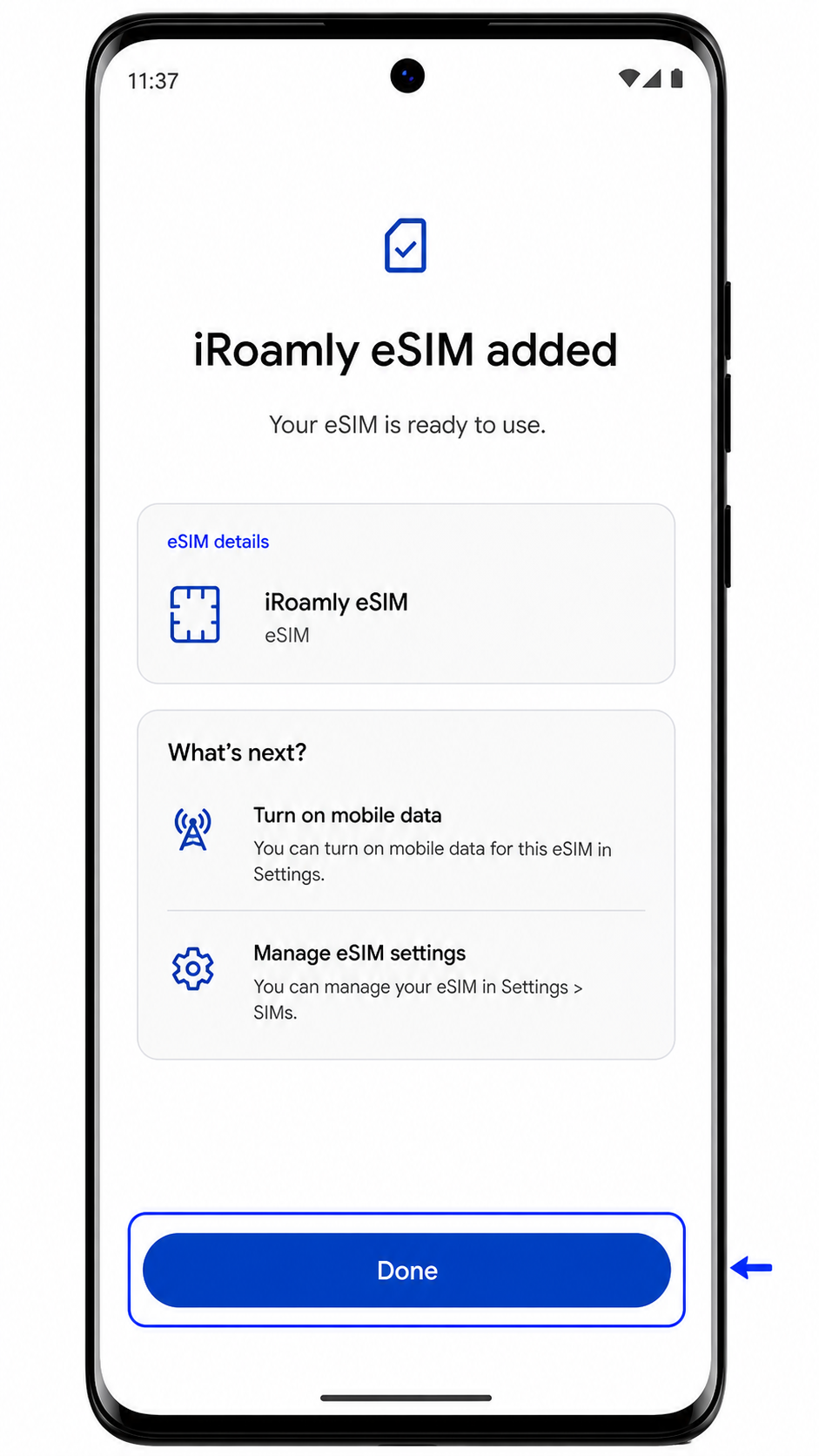
Step 7: Tap Done when the eSIM installation finishes.
The iRoamly eSIM should now appear in the SIMs page as a new downloaded SIM profile.
Method 2: Install eSIM Manually
Step 1: Open Settings, then tap Network & internet.
This is the same starting point used for QR setup, but you will choose manual entry after opening the eSIM scanner.
Step 2: Tap SIMs.
Android should show your current physical SIM and any downloaded SIM profiles.
Step 3: Tap Add eSIM.
The Motorola Edge (2023) should open Android's eSIM setup flow.
Step 4: Tap Set up an eSIM, then choose the manual option on the QR scanner screen, such as Enter code manually or Need help?.
Android should show a screen where you can type the activation information instead of scanning the QR code.
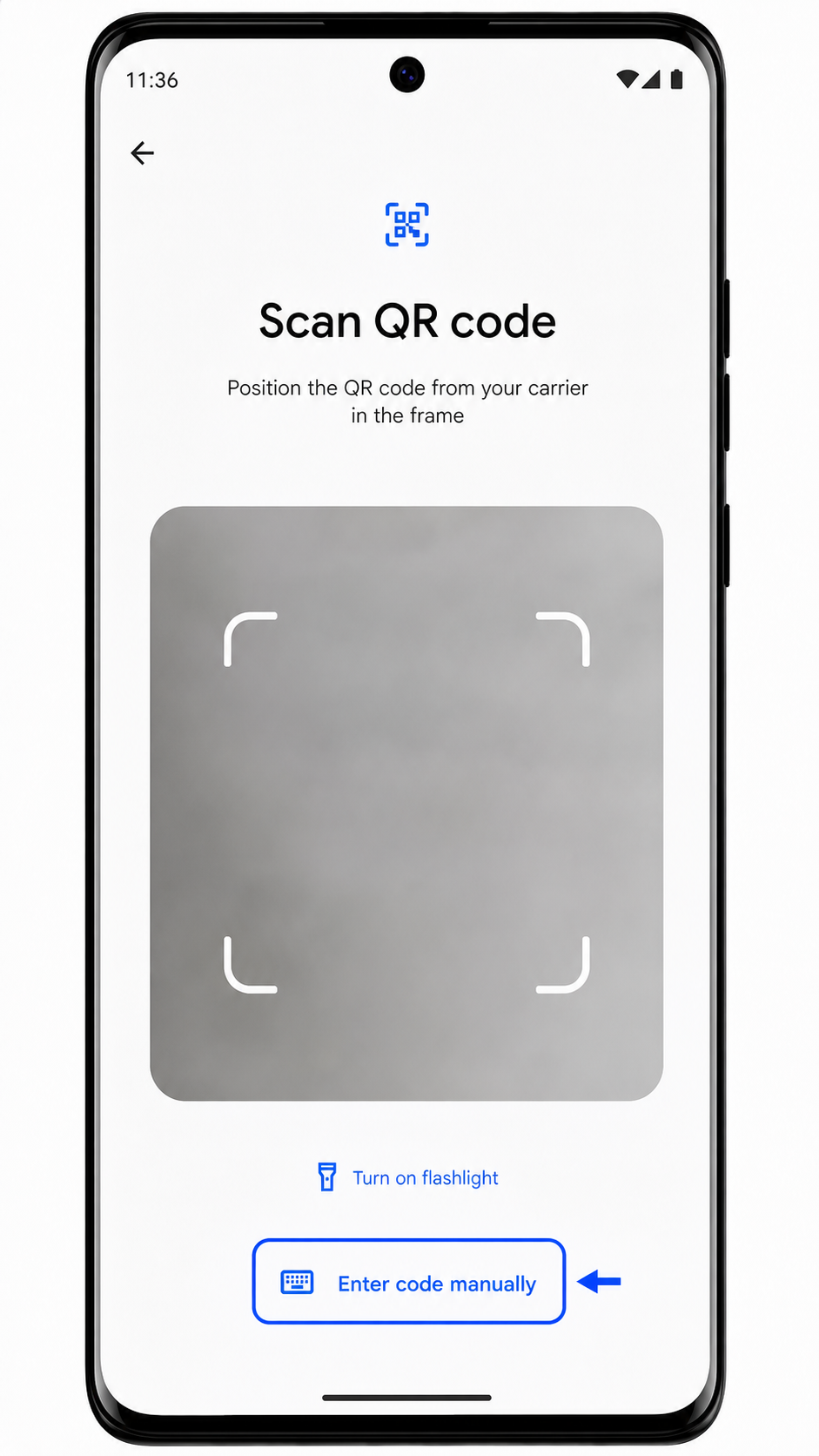
Step 5: Enter the iRoamly manual activation details exactly as provided.
On near-stock Android, this may be shown as one full activation code string. If your software version shows separate fields, enter the SM-DP+ Address, Activation Code, and optional Confirmation Code from iRoamly, then tap Continue.
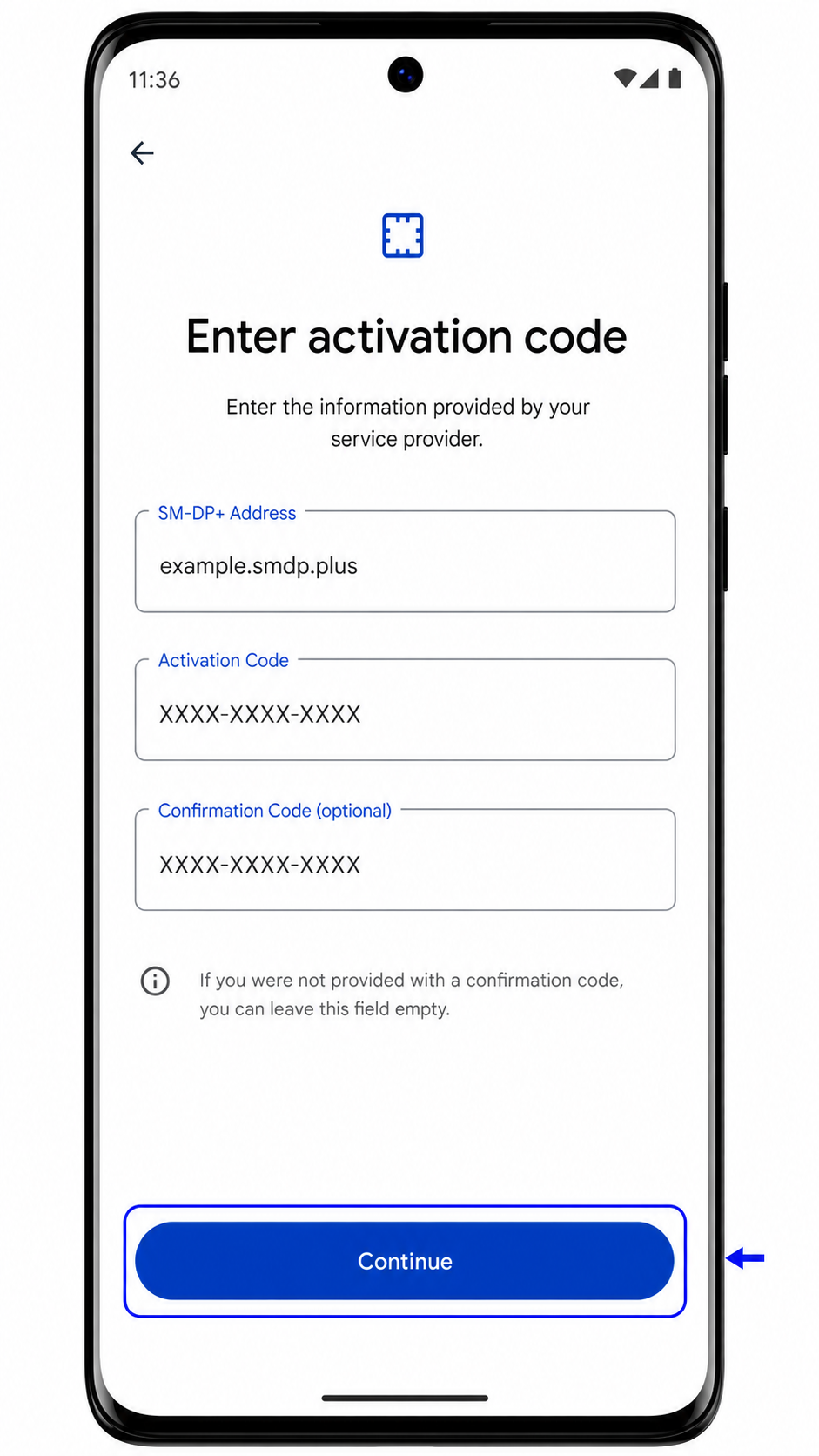
Step 6: Tap Download or Continue to add the iRoamly eSIM profile.
Stay on Wi-Fi until the download finishes.
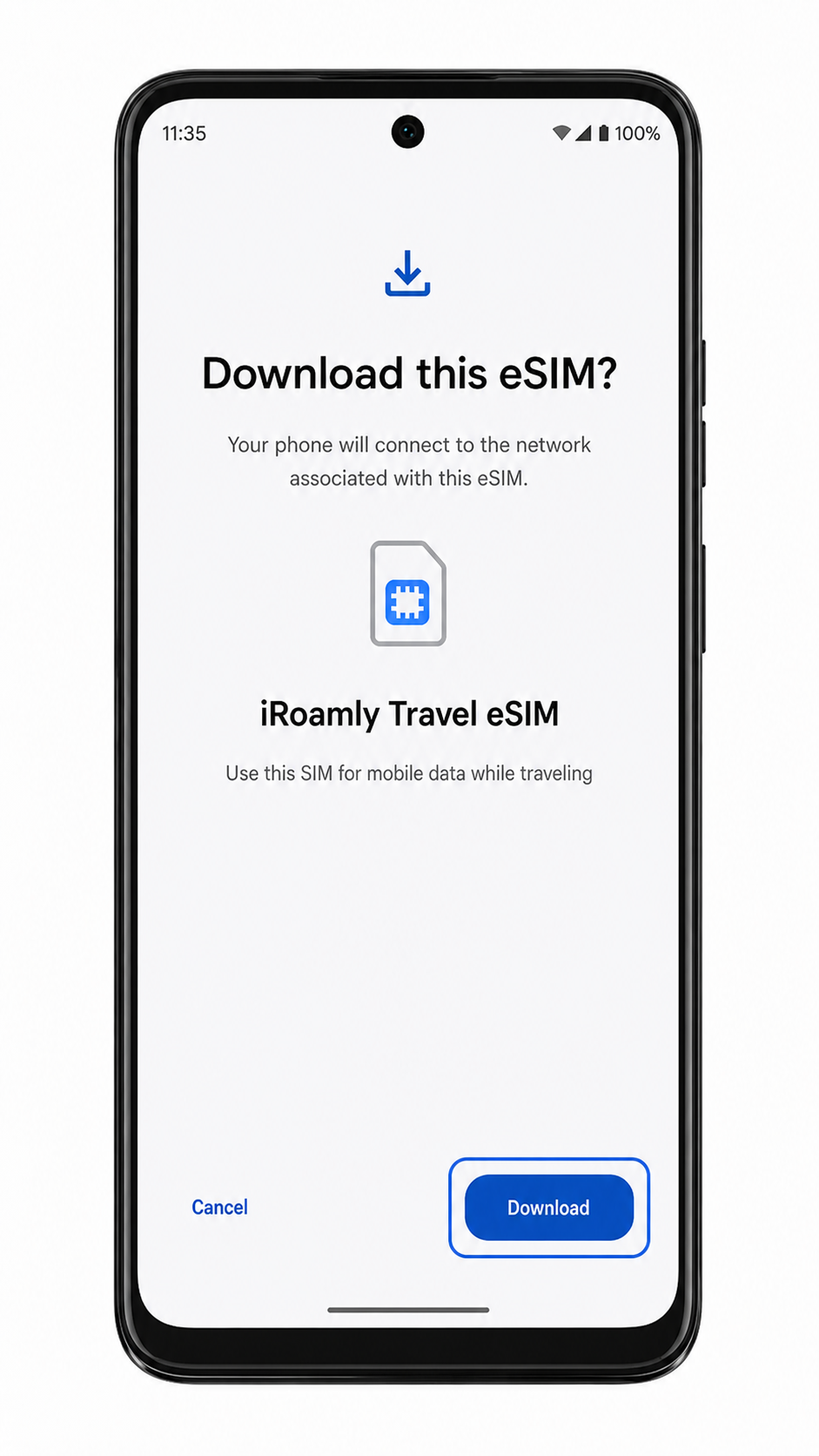
Step 7: Tap Done after Android confirms the eSIM was added.
The iRoamly profile should now be listed with your other SIMs.
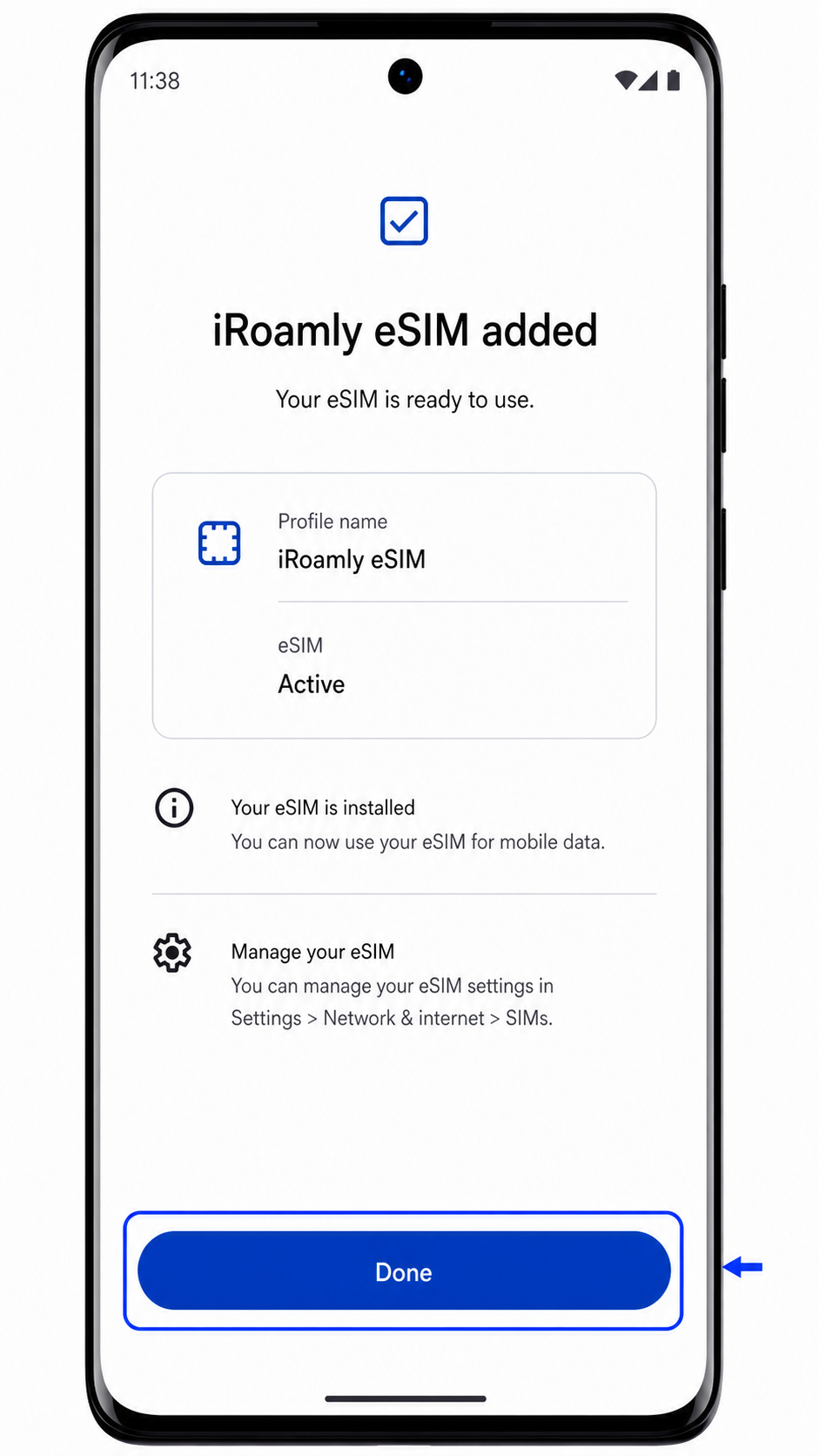
How to Confirm Your iRoamly eSIM Is Installed
Step 1: Go to Settings > Network & internet > SIMs.
You should see the downloaded iRoamly eSIM listed on the SIMs screen, usually below or beside the physical SIM.
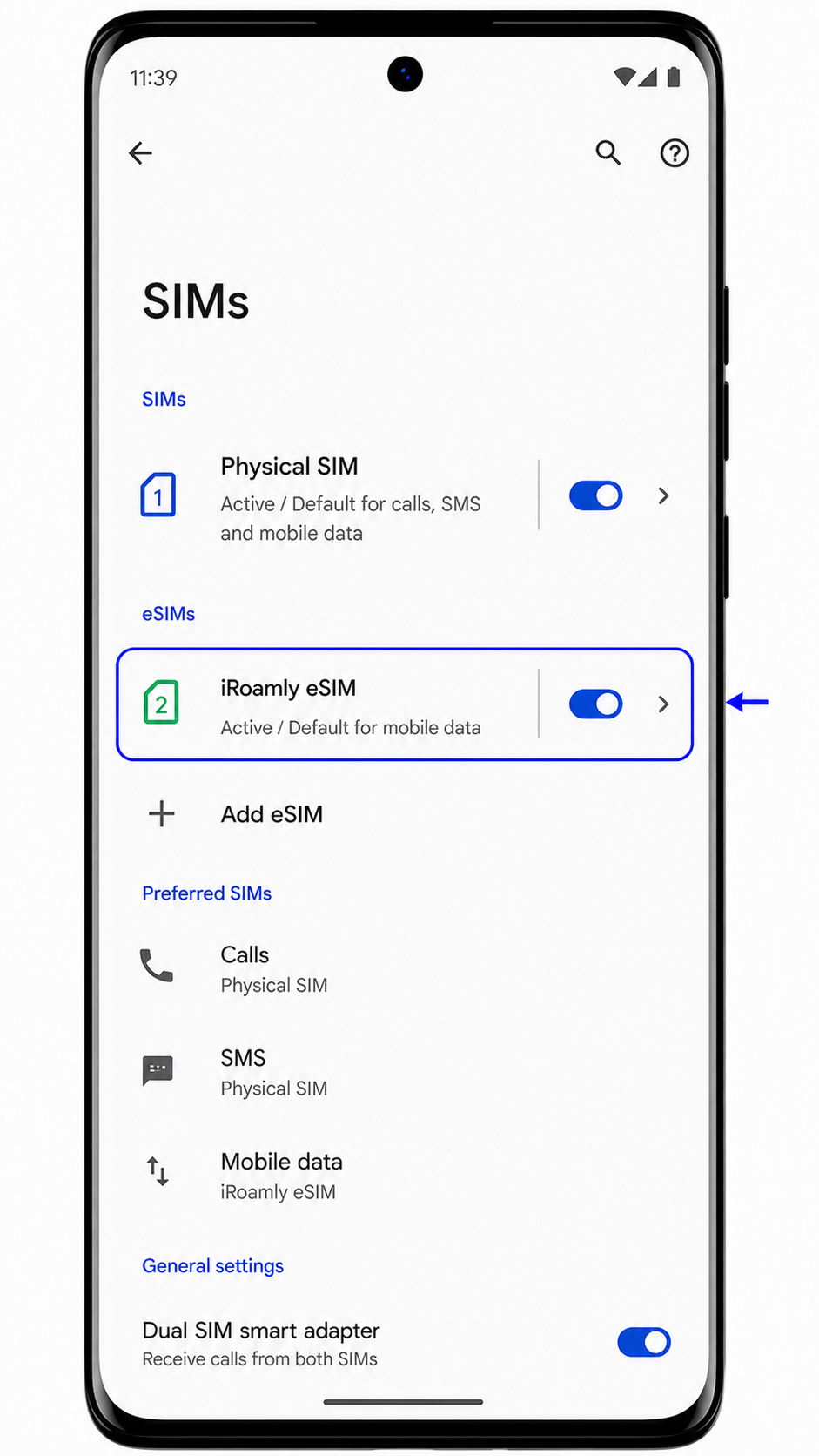
Step 2: Tap the iRoamly eSIM profile and confirm the Use SIM switch is available.
If the profile is installed correctly, Android will show SIM settings such as mobile data, roaming, and the option to turn the SIM on or off.
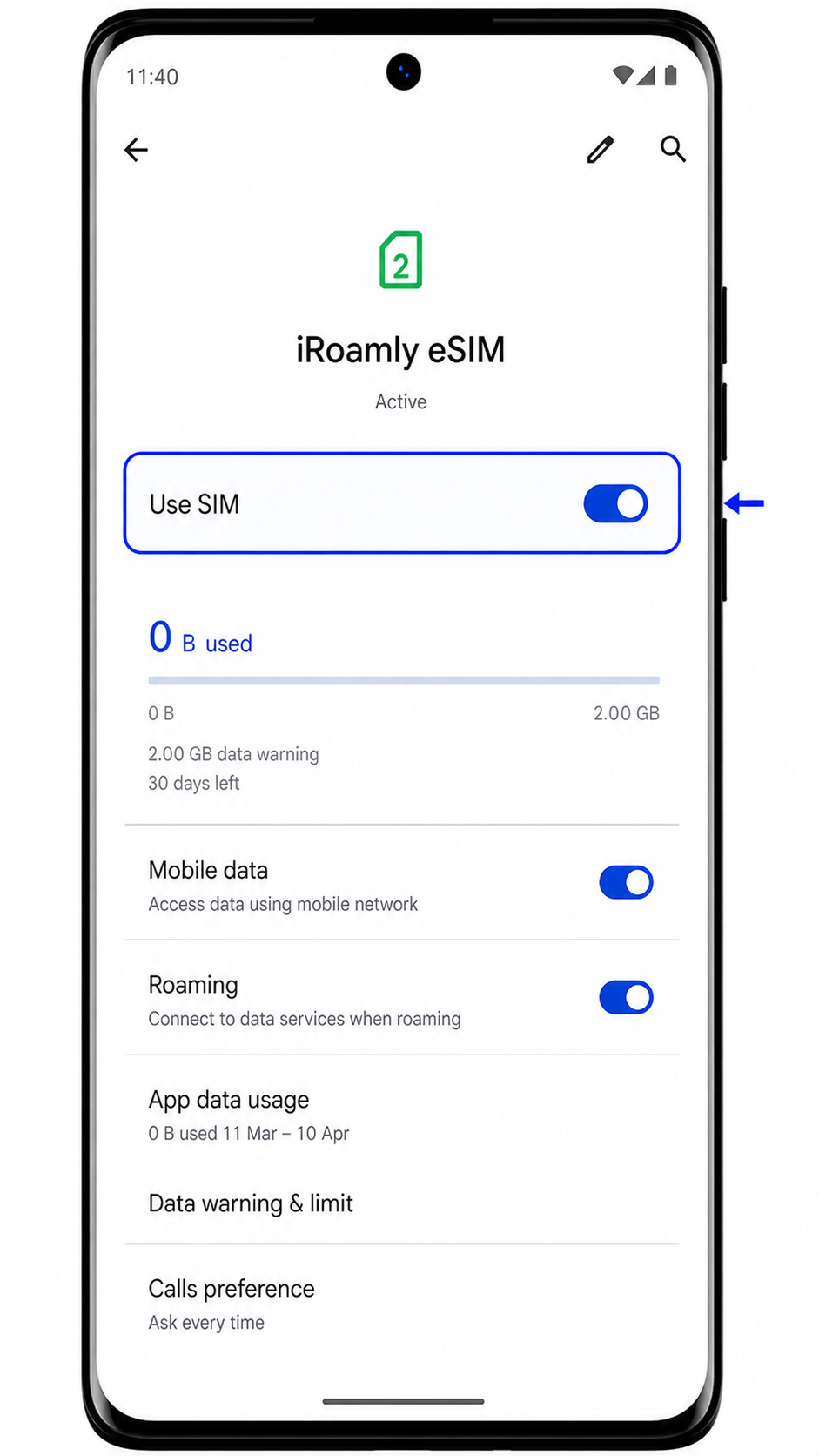
Step 3: Check for mobile data or signal after you reach the destination covered by your iRoamly plan.
If your plan is data-only, do not use SMS or calling as the main confirmation test; test web browsing or a messaging app over mobile data instead.
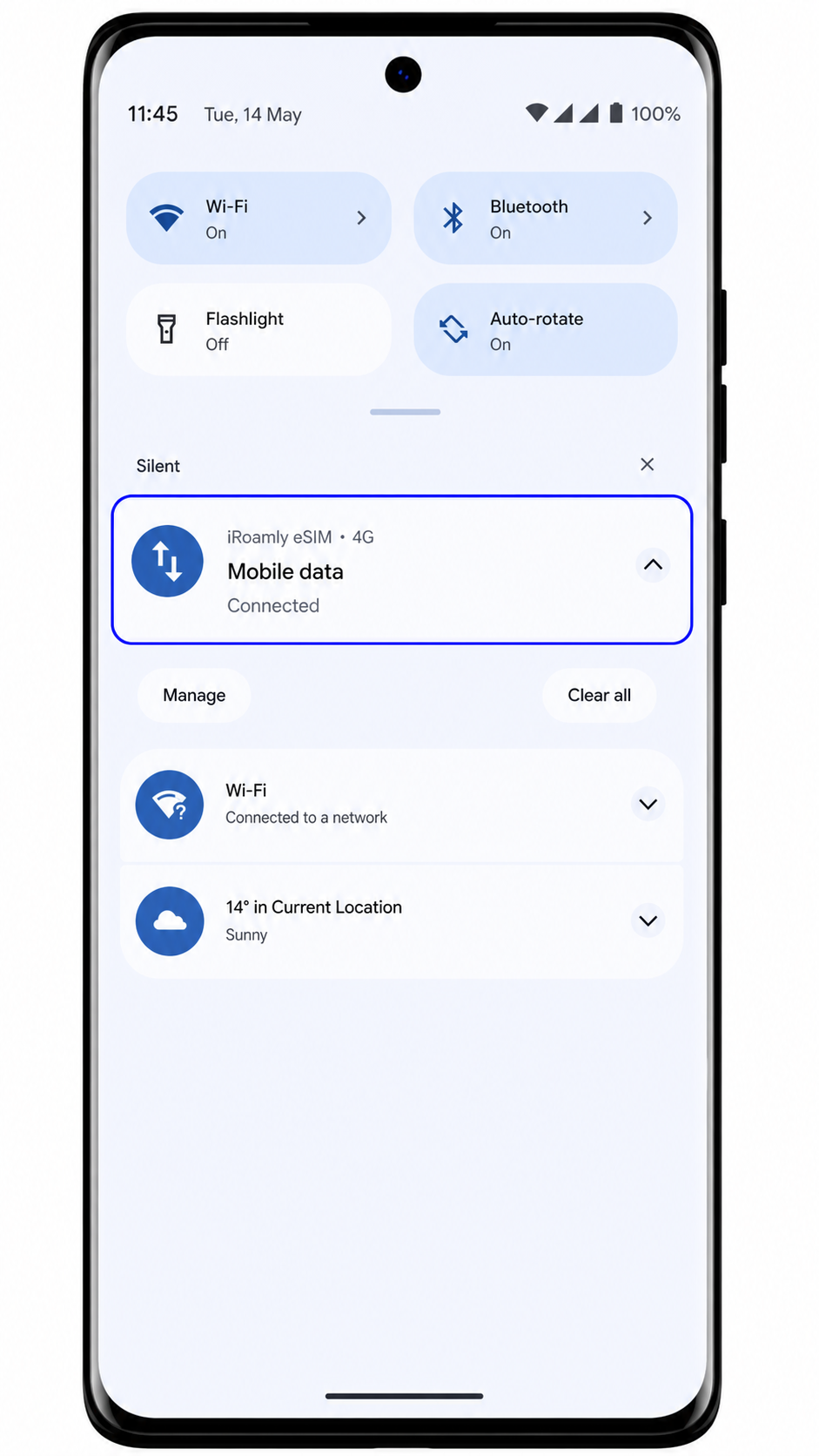
Configure eSIM for Mobile Data
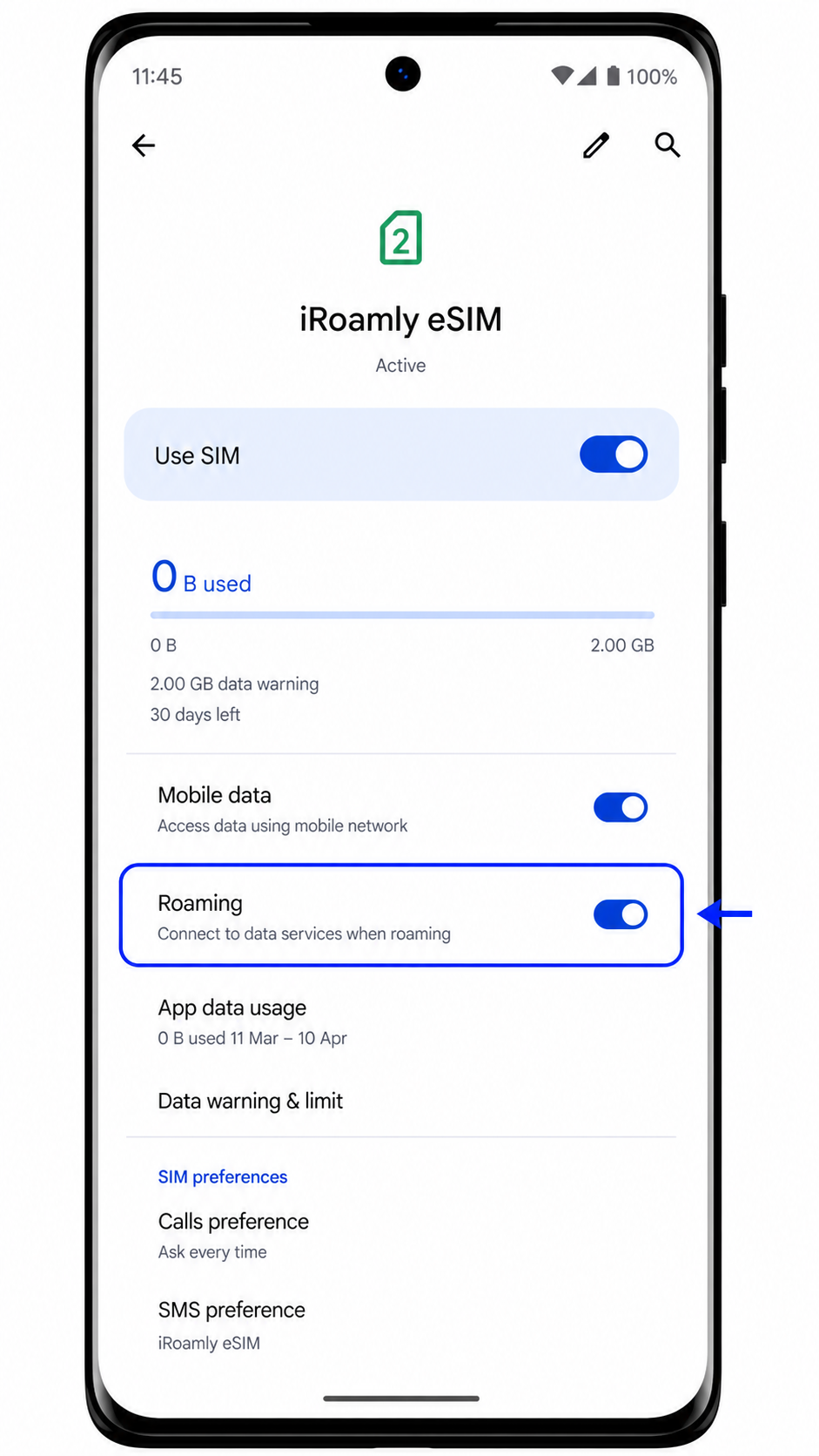
Step 1: Open Settings > Network & internet > SIMs, then tap the iRoamly eSIM.
The iRoamly SIM detail page should show options for data, roaming, and SIM usage.
Step 2: Turn on Use SIM for the iRoamly eSIM.
Android may ask you to confirm that you want to enable this downloaded SIM.
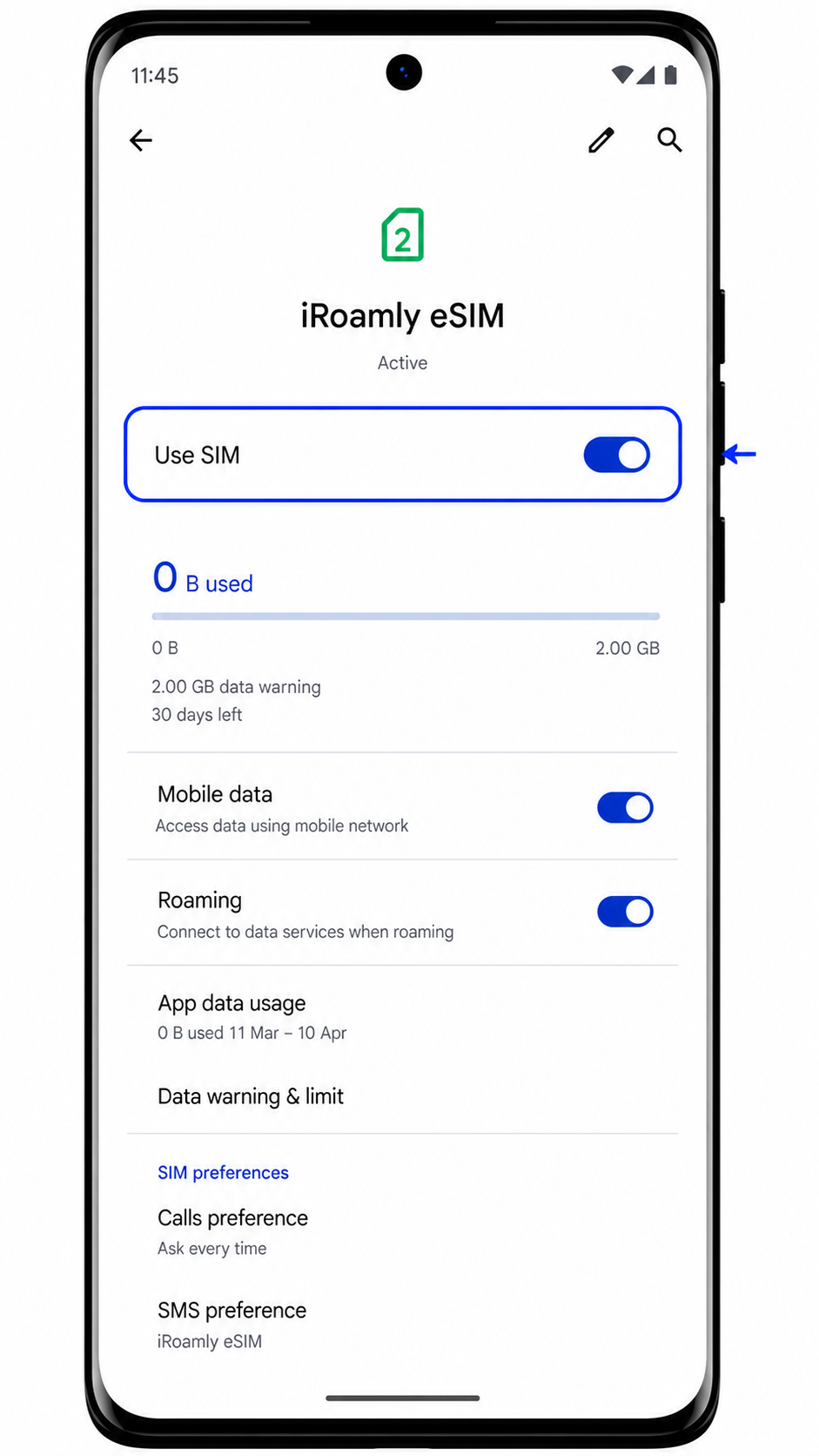
Step 3: Set Mobile data or Preferred SIM for mobile data to the iRoamly eSIM.
This directs travel data through iRoamly instead of your home SIM.
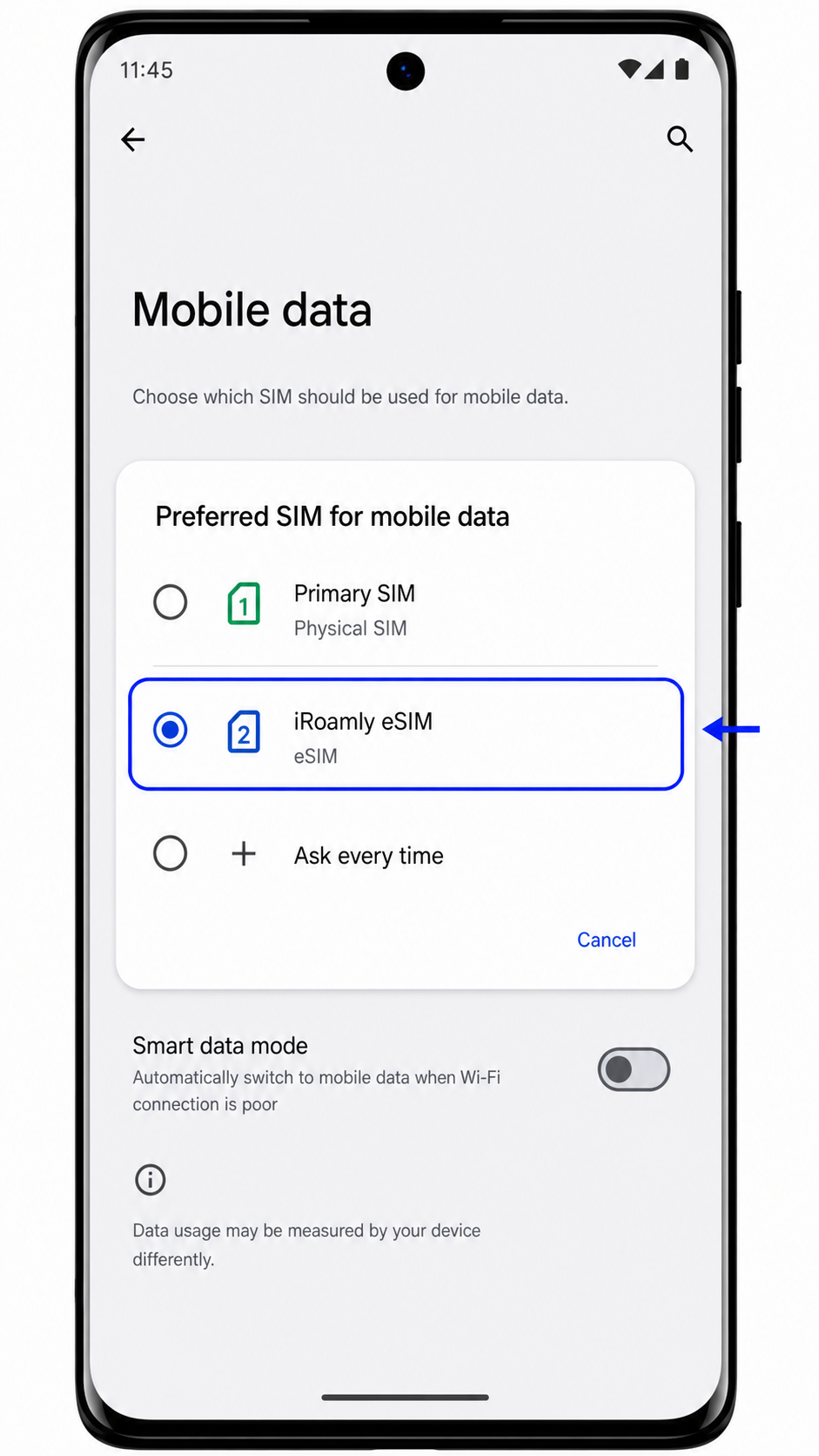
Step 4: Turn on Roaming for the iRoamly eSIM if your iRoamly plan or destination instructions require it.
Keep data roaming off for your primary SIM if you want to avoid home-carrier roaming charges.
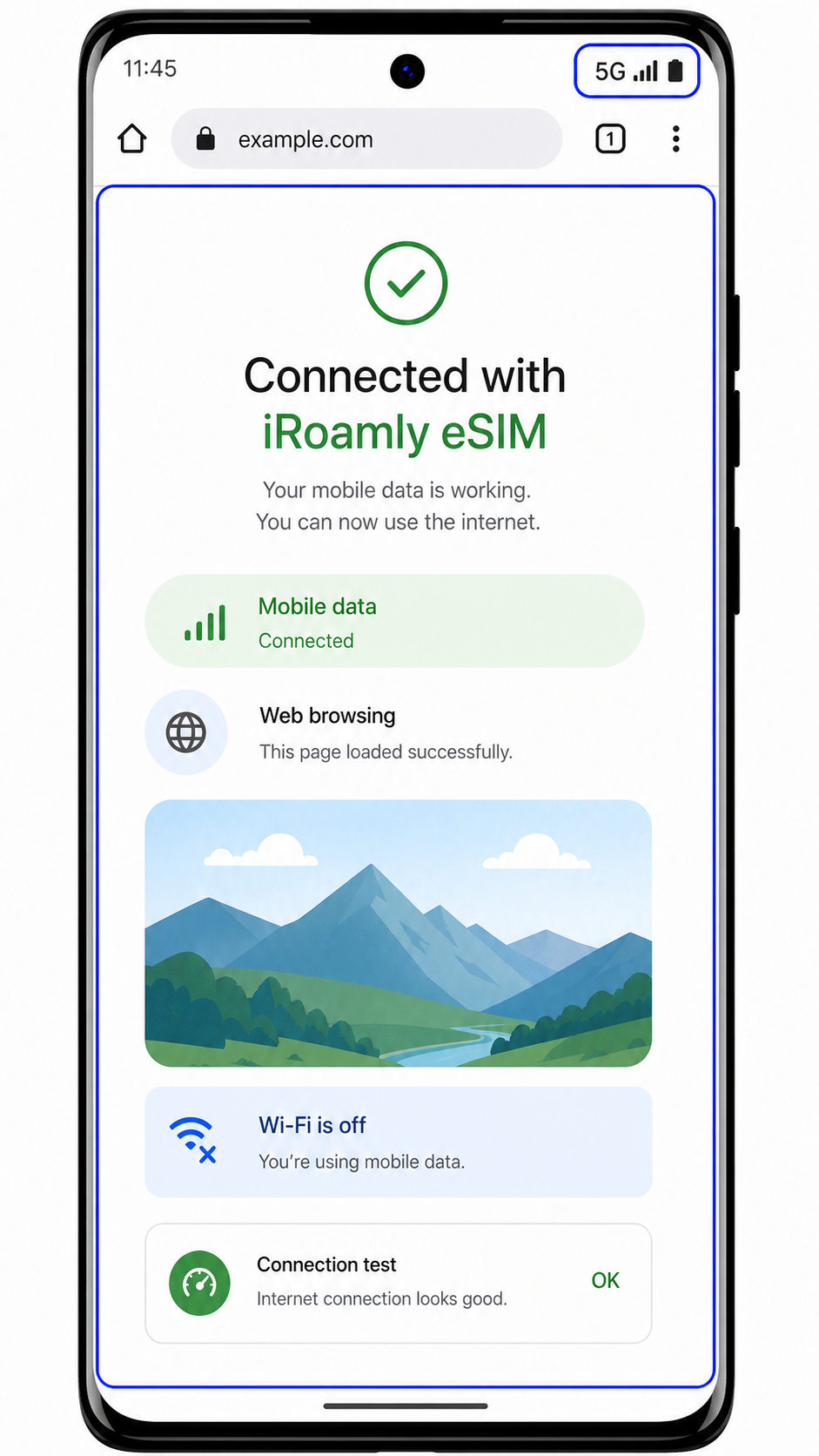
Step 5: Open a browser or map app and test mobile data after arrival.
If the app loads over mobile data, the iRoamly eSIM is ready for travel use.
Troubleshooting
If Add eSIM is missing, confirm the phone is the eSIM-capable Motorola Edge (2023) variant, update Android, restart the phone, and check whether the carrier firmware disables eSIM.
If the QR code will not scan, increase screen brightness on the device showing the code, clean the camera lens, avoid glare, or use manual entry.
If Android says the QR code was already used, do not delete the profile. Contact iRoamly support because many eSIM QR codes can only be installed once.
If manual setup fails, recheck every character in the activation details. A copied space, missing symbol, or wrong SM-DP+ address can stop installation.
If the iRoamly eSIM appears but has no data, make sure Use SIM is on, iRoamly is selected for mobile data, and roaming is enabled when your plan requires it.
If activation stays pending, keep the phone on Wi-Fi, restart it once, and wait until you are in a supported destination network if the plan activates on network connection.
If calls or SMS do not work, check the iRoamly plan details. Many travel eSIM products are intended for data and do not include traditional voice or SMS.
Conclusion
Once your iRoamly eSIM is installed on the Motorola Edge (2023), you'll have a flexible setup that allows you to manage travel data and your regular mobile service from the same device. This can be particularly helpful for travelers who want reliable internet access abroad without giving up access to their primary number.
While installation is important, successful travel connectivity also depends on factors such as device compatibility, plan coverage, and correct data settings. Taking the time to verify these details before you leave can help you avoid common issues and stay connected more confidently throughout your trip.