
Switching physical SIM cards can be inconvenient, especially when setting up a new device like the iPhone 17e. From handling small SIM trays to waiting for activation, the process can take more time than expected.
With iRoamly eSIM, you can avoid these hassles entirely. Everything is handled digitally on your iPhone 17e, making setup faster and more efficient.
In this guide, we’ll show you how to install and activate your eSIM step by step so you can get online without unnecessary delays.
Preparations Before Setting Up iRomly eSIM
Before starting, ensure you have the following:
A stable internet connection (Wi-Fi or cellular)
A valid eSIM QR code or manual activation details (SM-DP+ address and activation code) provided by your carrier
Your iPhone 17e powered on and unlocked
The device updated to the latest iOS version (recommended for compatibility)
Method 1: Install eSIM Using QR Code Scanning
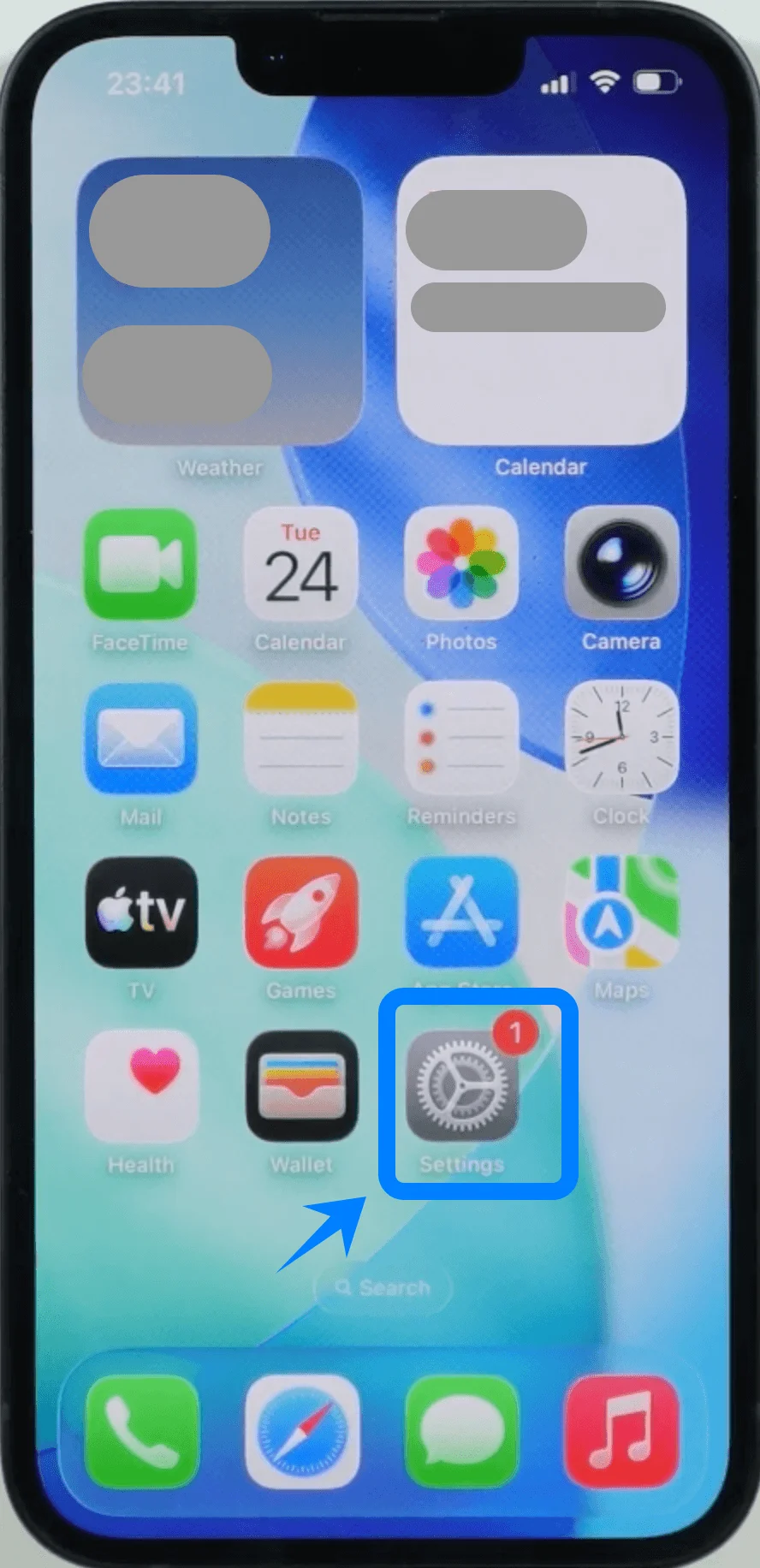
Step 1: Open Settings
Tap the Settings icon to open the Settings menu.
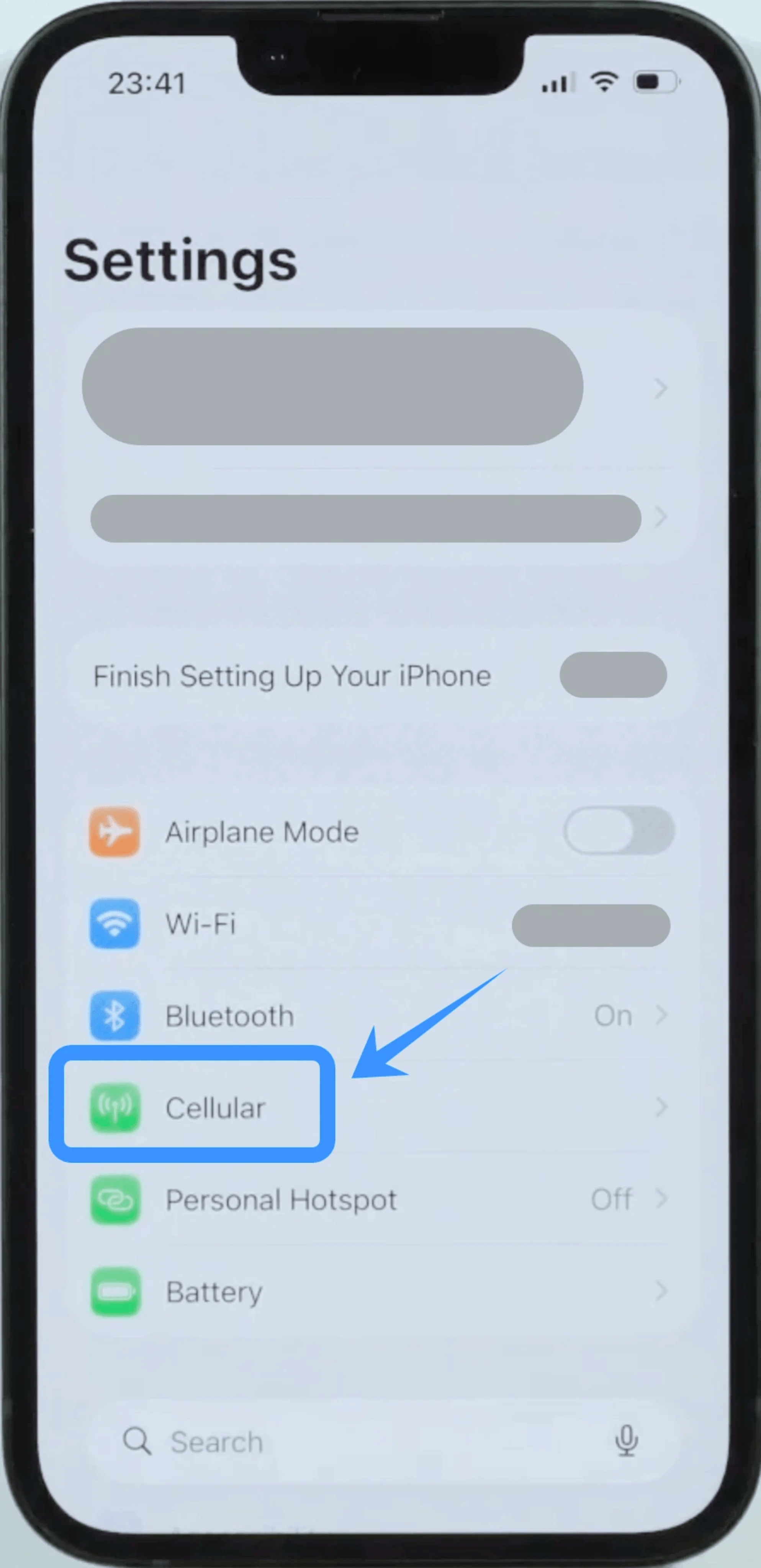
Step 2: Access Cellular Settings
Scroll down and tap Cellular (On some devices, this may appear as “Mobile Service” or “Mobile Data”).
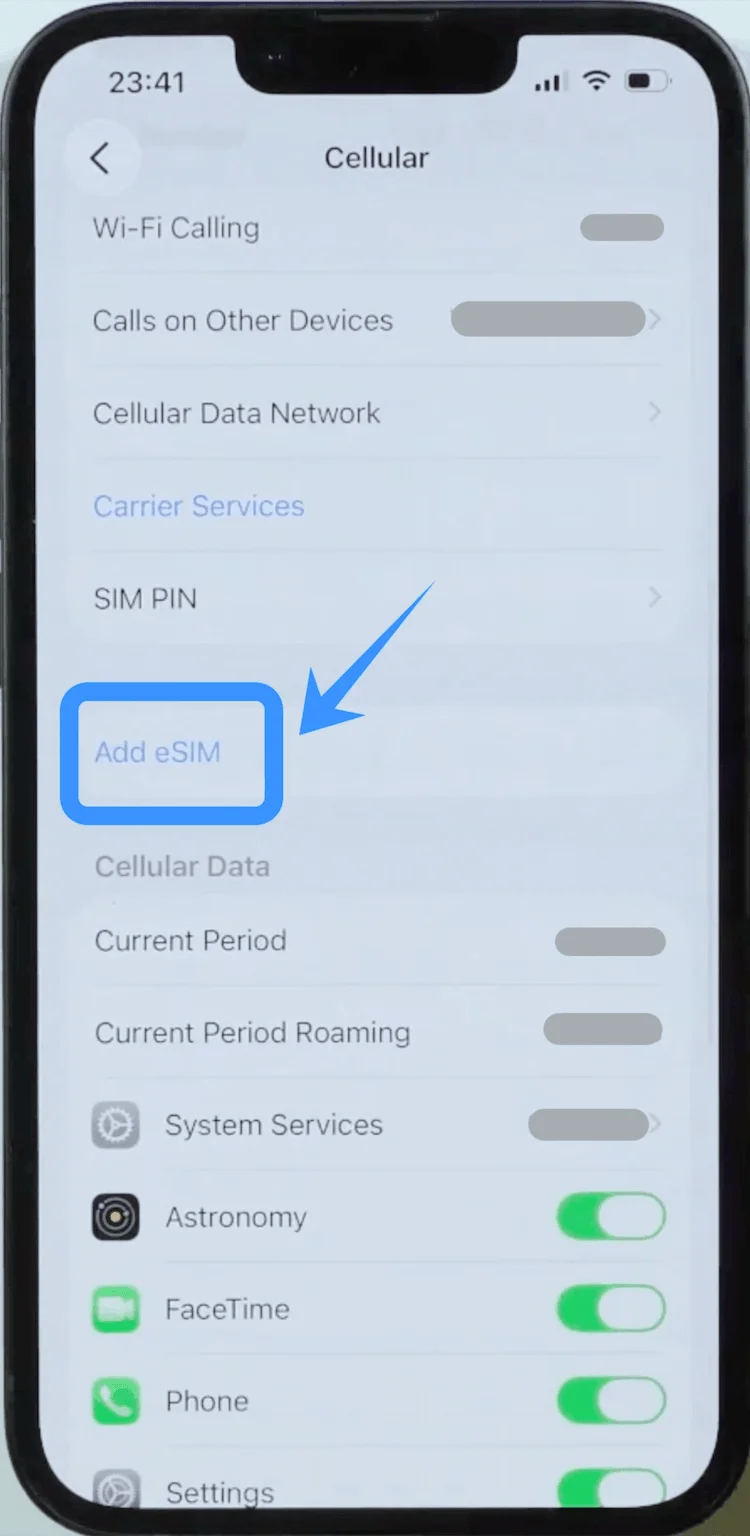
Step 3: Add Cellular Plan
Tap "Add eSIM" if you already have an existing cellular plan, or tap "Set Up Cellular" if this is your first plan.
If prompted, enter your Apple ID password to confirm your identity and continue.
Step 4: Scan the QR Code
Tap “Use QR Code” to proceed.
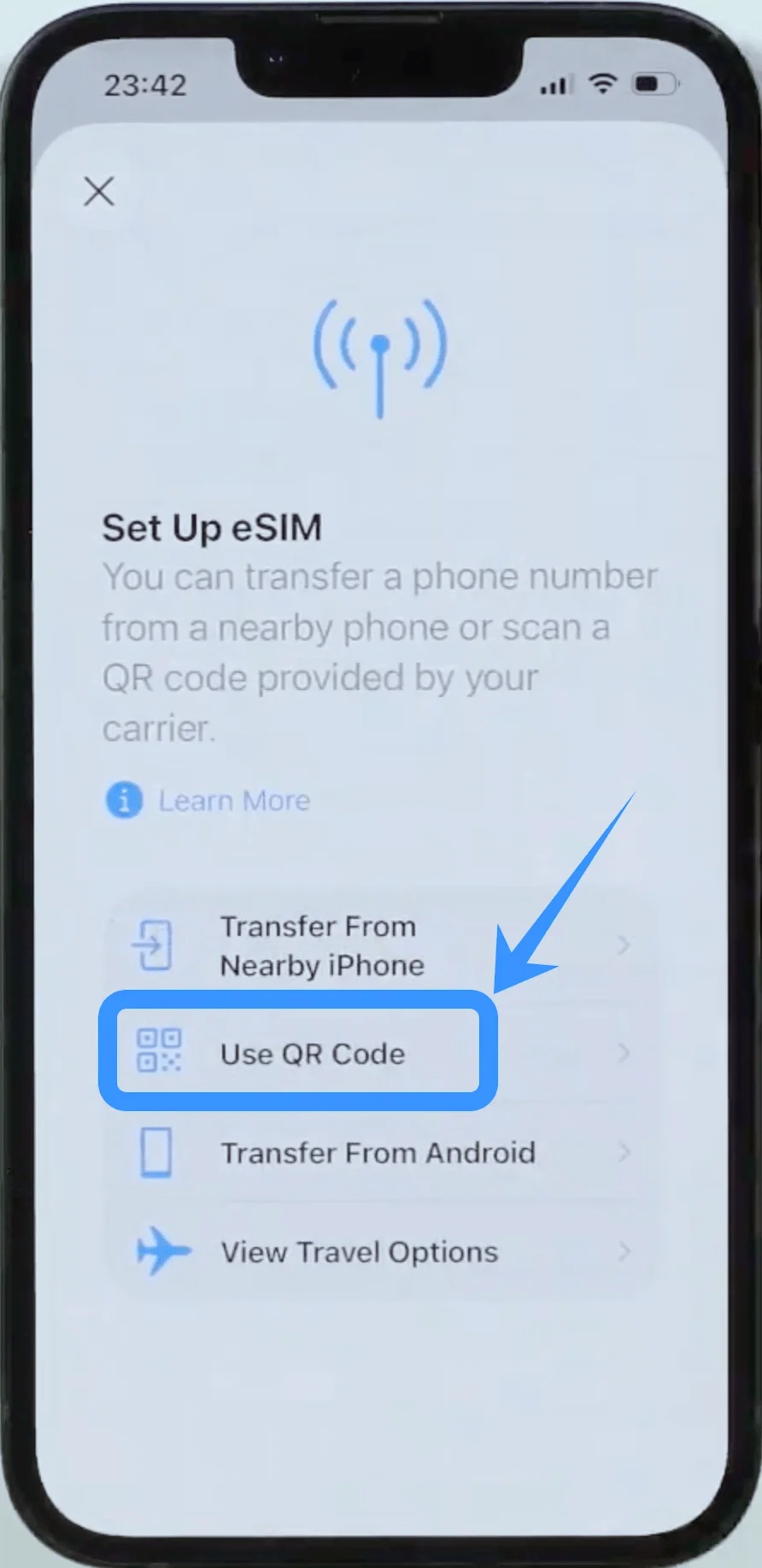
You will be asked to scan the QR code provided by your carrier.
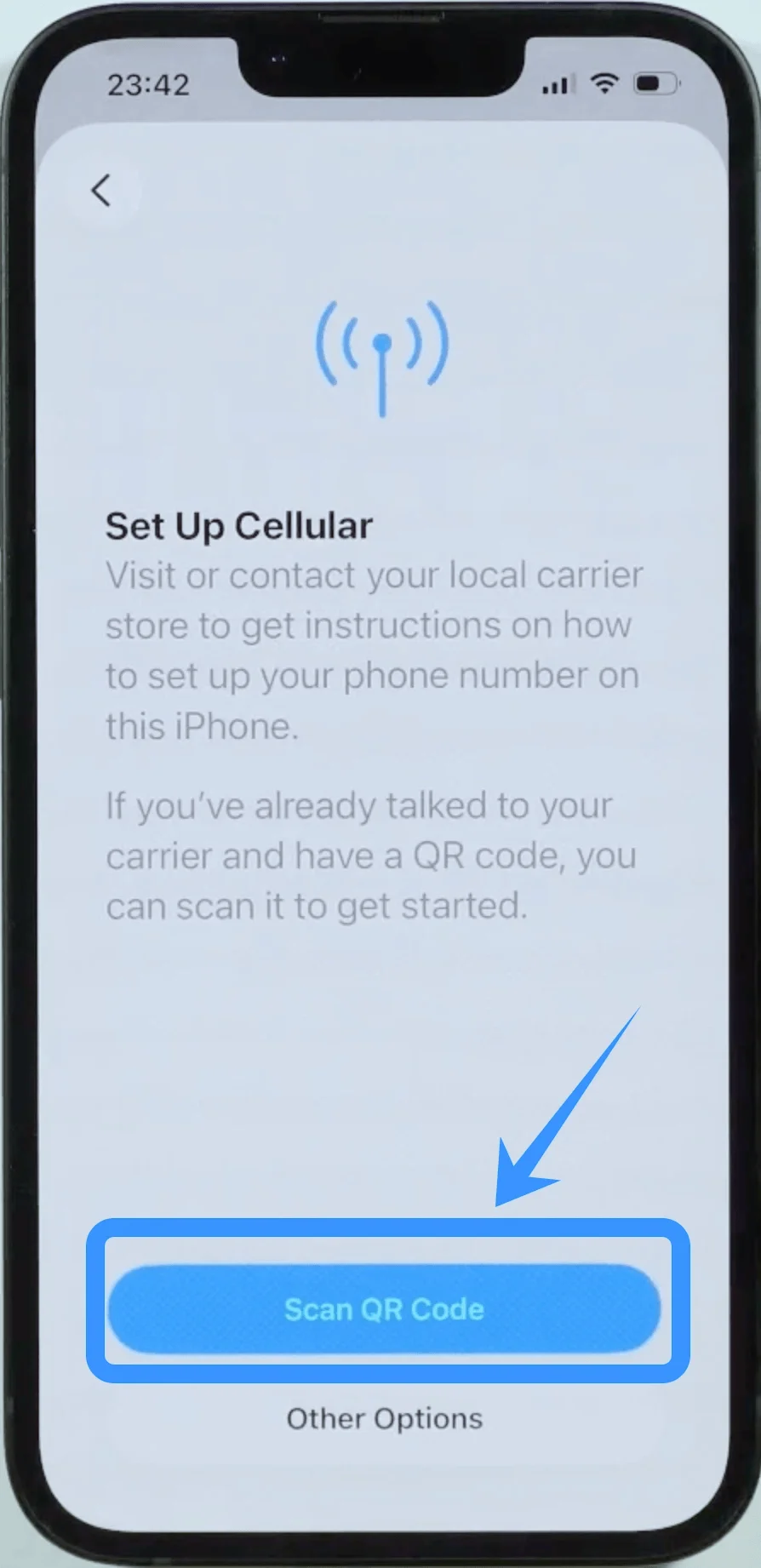
Position your iPhone’s camera over the QR code from the carrier. Once it detects the QR code, the phone will automatically configure the eSIM settings.
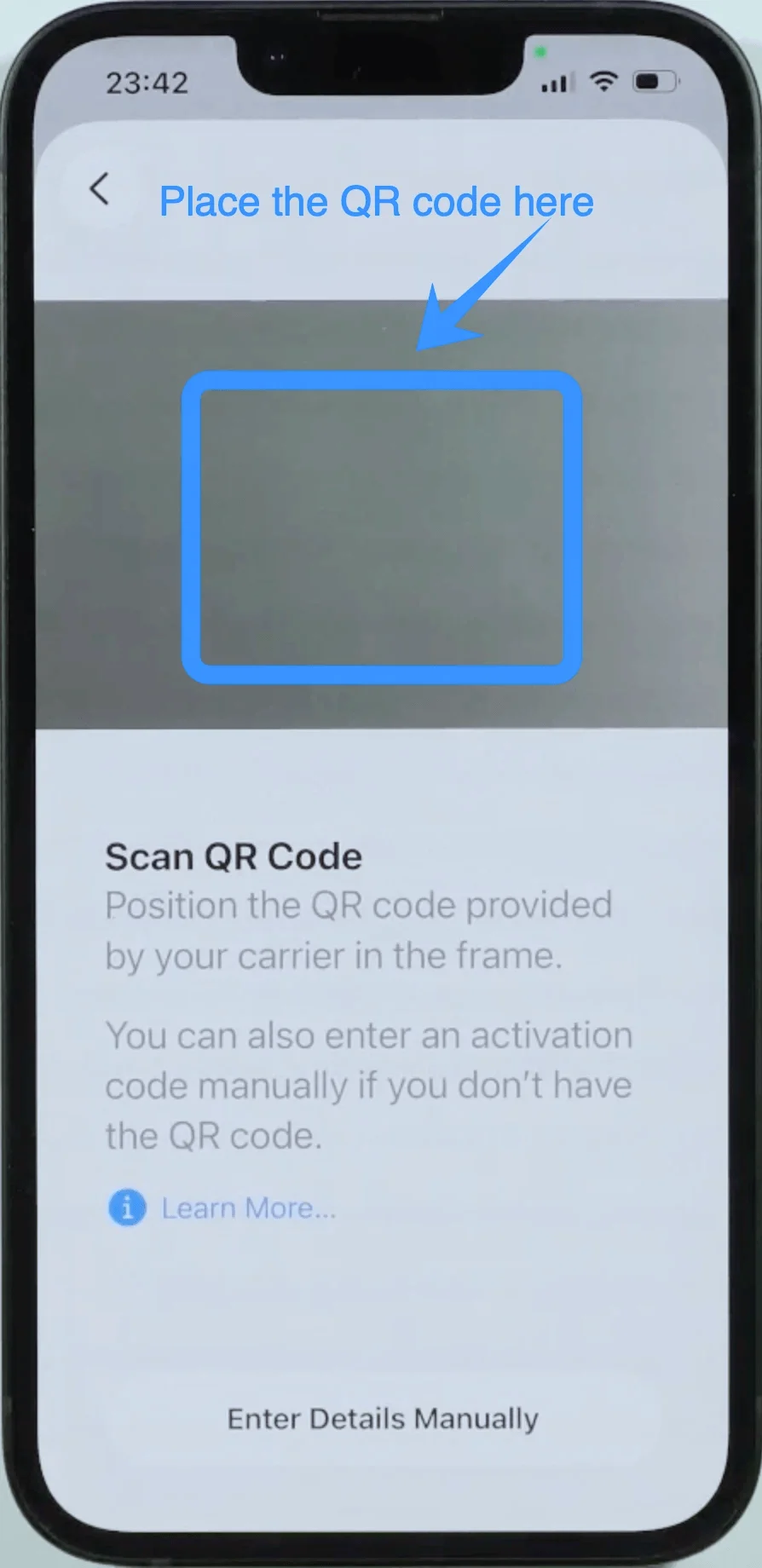
Step 5: Confirm eSIM Activation
After scanning the QR code, the phone will attempt to activate the eSIM.
If successful, you’ll see a message confirming that the plan has been added to your device. Tap “Add Cellular Plan” to finish the installation.
Step 6: Confirm eSIM Installation
Once the eSIM has been activated, you can verify it by navigating back to Settings > Cellular.
You should see your new eSIM plan listed under Cellular Plans.
Method 2: Install eSIM Using Manual Input
Step 1: Open Settings
Tap the Settings icon to open the Settings menu.
Step 2: Access Cellular Settings
Scroll down and tap Cellular (On some devices, this may appear as “Mobile Service” or “Mobile Data”).
Step 3: Add Cellular Plan
Tap "Add eSIM" if you already have an existing cellular plan, or tap "Set Up Cellular" if this is your first plan.
If prompted, enter your Apple ID password to continue.
Step 4: Enter Details Manually
When the “Add Cellular Plan” screen appears, tap “Enter Details Manually”.
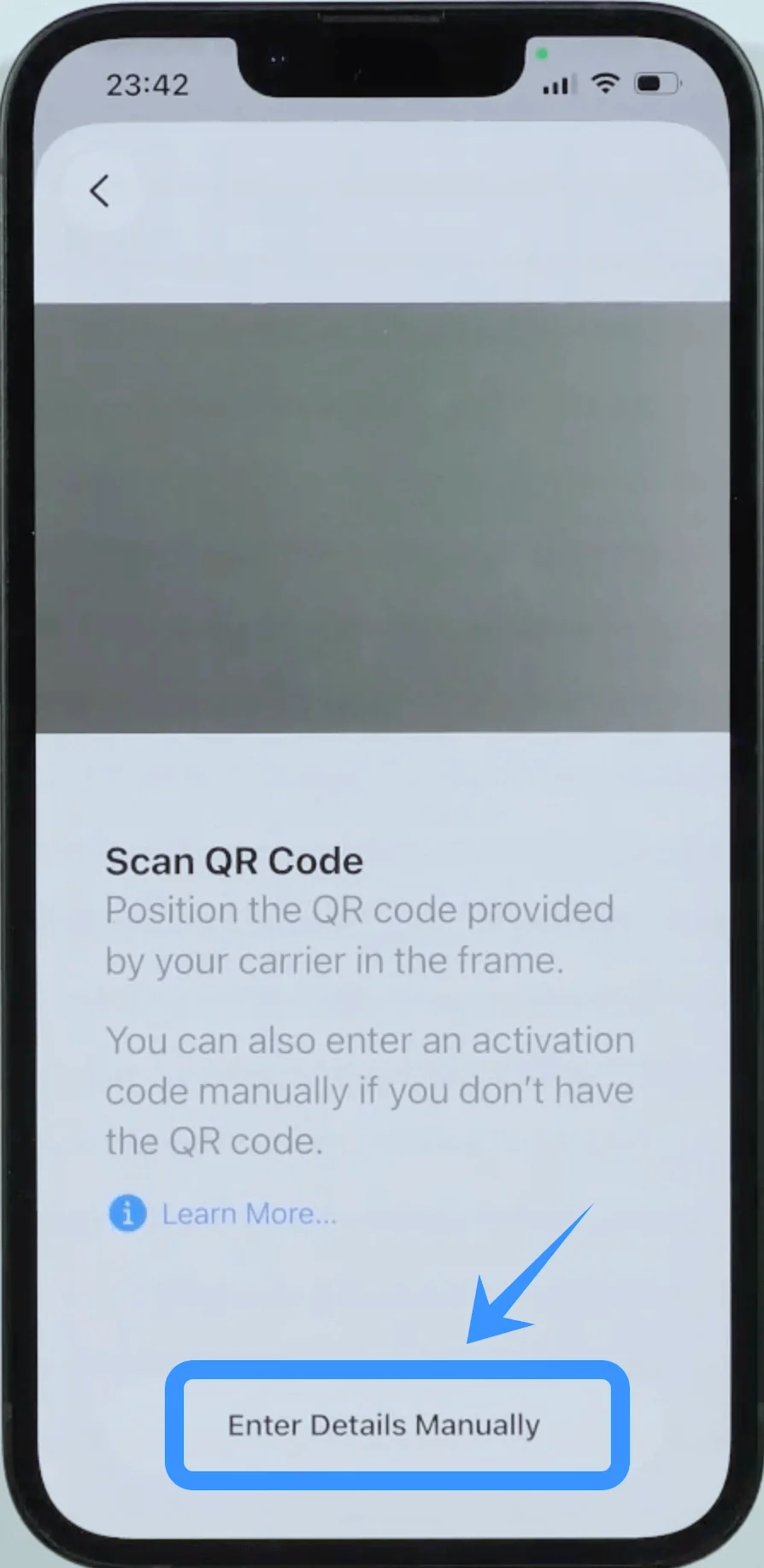
You will be prompted to input the SM-DP+ Address, Activation Code, and Confirmation Code, which can usually be obtained from your carrier’s customer support or the carrier’s website.
Step 5: Input the Activation Information
Enter the SM-DP+ Address in the first field.
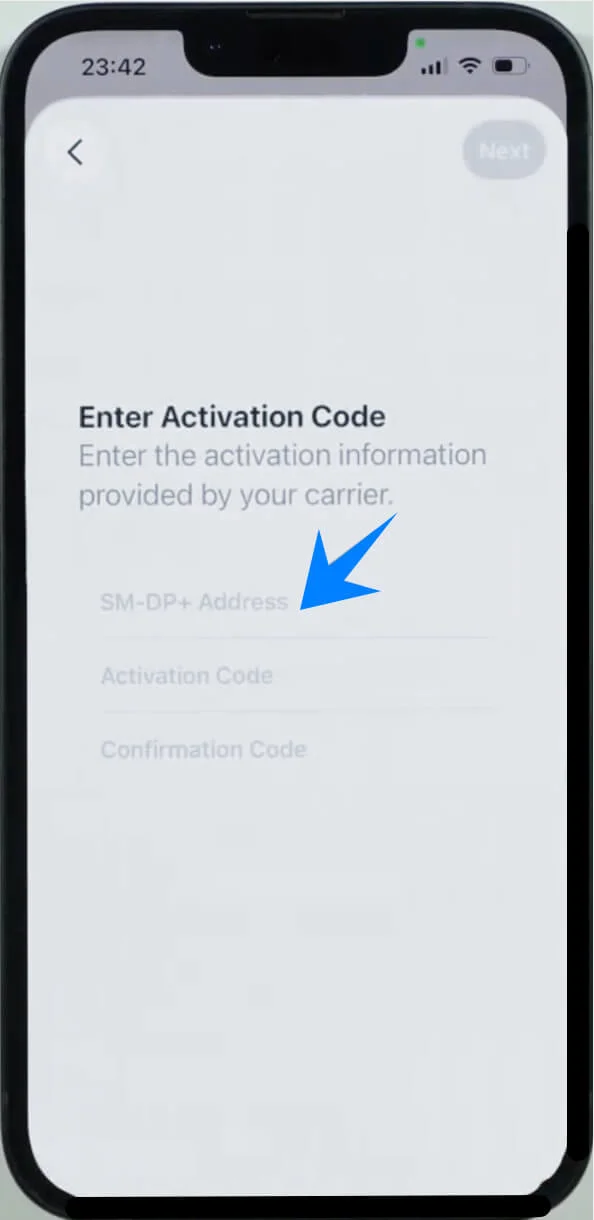
Enter the Activation Code in the second field.
Enter the Confirmation Code (if applicable).
After entering the required information, tap “Next” or “Confirm” to continue.

Step 6: Confirm eSIM Activation
After entering the details, the phone will begin the eSIM activation process.
Once successful, you will see a confirmation screen stating that the plan has been added. Tap “Add Cellular Plan” to complete the installation.
Step 7: Confirm eSIM Installation
After activation, go back to Settings > Cellular to ensure your eSIM plan is listed under Cellular Plans.
How to Confirm Successful eSIM Installation
After following one of the methods above, your eSIM should now be installed on your iPhone 17e. To confirm the installation:
Go to "Settings".
Scroll down and tap Cellular (On some devices, this may appear as “Mobile Service” or “Mobile Data”).
Check if your new eSIM plan appears under Cellular Plans.
Tap the eSIM plan to ensure all settings, such as the phone number and carrier details, are correct.
If your eSIM is not showing up or you encounter any errors, make sure your iPhone has a stable internet connection, as the eSIM activation requires online verification with your carrier. You can also restart your iPhone to ensure the settings are properly applied.
Conclusion
Once your iRoamly eSIM is successfully activated on your iPhone 17e, you’ll be able to stay connected without needing to handle or replace a physical SIM card.
This makes it especially useful for both daily use and travel scenarios where convenience and flexibility are important.
After confirming everything is working correctly, your iPhone 17e will be ready to keep you connected wherever you go, allowing you to rely on a simpler setup process and a more seamless mobile experience.