
The Galaxy A17 is a practical travel phone, but eSIM support can depend on the exact market, carrier firmware, and whether your model is the eSIM-capable Galaxy A17 5G variant. This guide uses the current Samsung One UI path: Settings > Connections > SIM manager > Add eSIM.
You can install an iRoamly travel eSIM in two ways: by scanning the QR code from your iRoamly order, or by entering the manual activation code if the QR code is on the same phone, will not scan, or must be copied from your account page.
Before continuing, open SIM manager and confirm that Add eSIM appears. If it does not, your Galaxy A17 model, region, carrier lock, or software build may not support eSIM installation.

Get Your Phone Ready for Travel with iRoamly
iRoamly eSIM is a travel eSIM service that provides mobile data plans for many destinations worldwide. Travelers can choose from available destination, regional, and global options, with allowances, validity periods, and plan features varying by destination.
After installation on a compatible phone, the data line can help with navigation, messaging, bookings, ride-hailing, and travel updates.
On compatible Samsung Galaxy A17 models, an iRoamly plan can be added digitally and configured as the mobile data line for travel. Continue with the existing QR-code or manual-entry setup below, then confirm the profile and data settings from Samsung menus.
Preparations Before Setting Up iRoamly eSIM
Connect the Galaxy A17 to stable Wi-Fi.
Confirm the phone is unlocked and eSIM-capable.
Keep your iRoamly QR code or manual activation details ready on another screen or printed page.
Once you have chosen an eSIM for your destination, such as an eSIM for France, install the eSIM 1-2 days before travel if your plan allows it, but avoid turning it on for data until you need it.
iRoamly eSIM validity starts from activation; for travel data plans, activation is typically triggered when the eSIM connects to a supported destination network.
iRoamly travel eSIM plans may not include voice calls or SMS. Check the exact plan details before relying on calls or texts.
Do not delete the eSIM casually after installation. Many travel eSIMs cannot simply be reinstalled from the same QR code.
Shared Setup Steps
Open Settings, then tap Connections. You should see Wi-Fi, Bluetooth, SIM, and network settings.
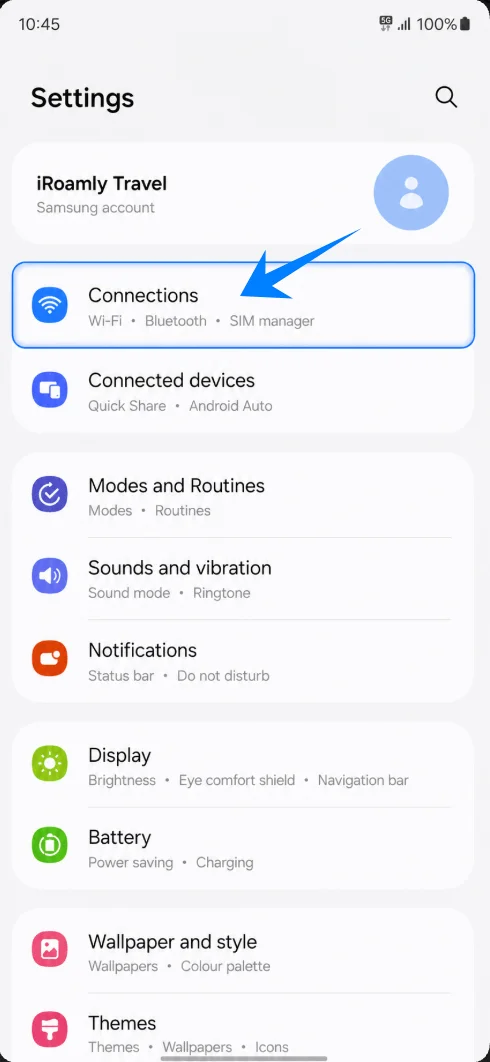
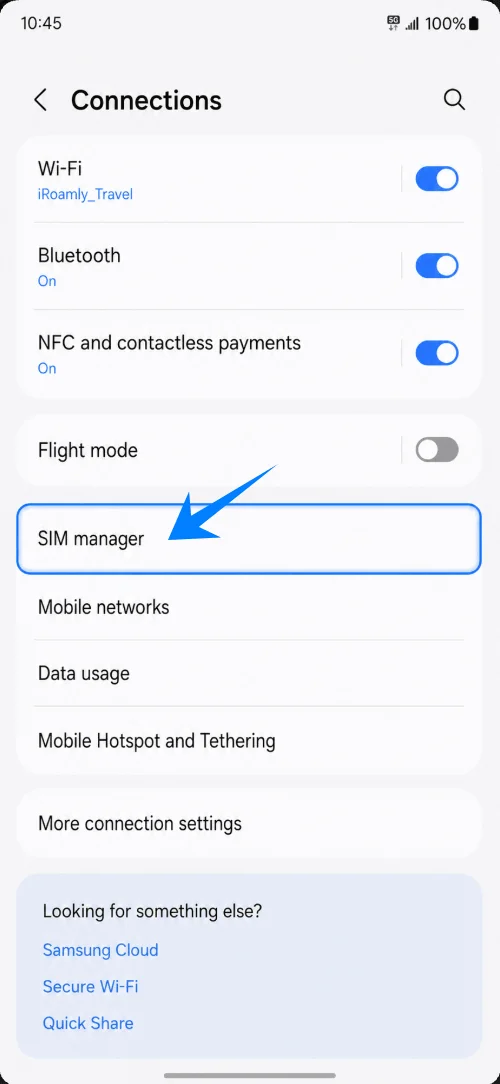
Tap SIM manager. This opens the page where Samsung lists physical SIMs, eSIMs, and preferred SIM choices.
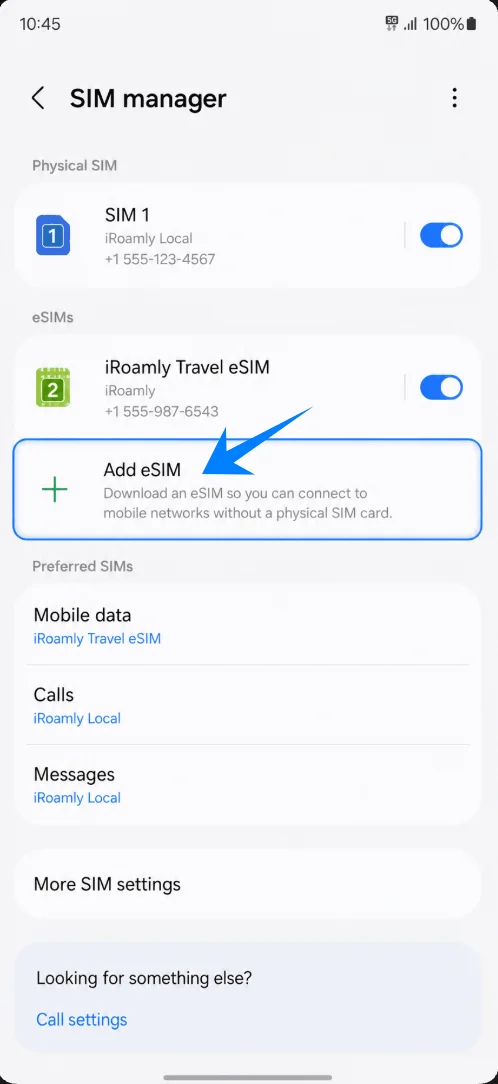
Tap Add eSIM. The phone should open Samsung’s eSIM setup screen.
Method 1: Install the iRoamly eSIM by Scanning a QR Code
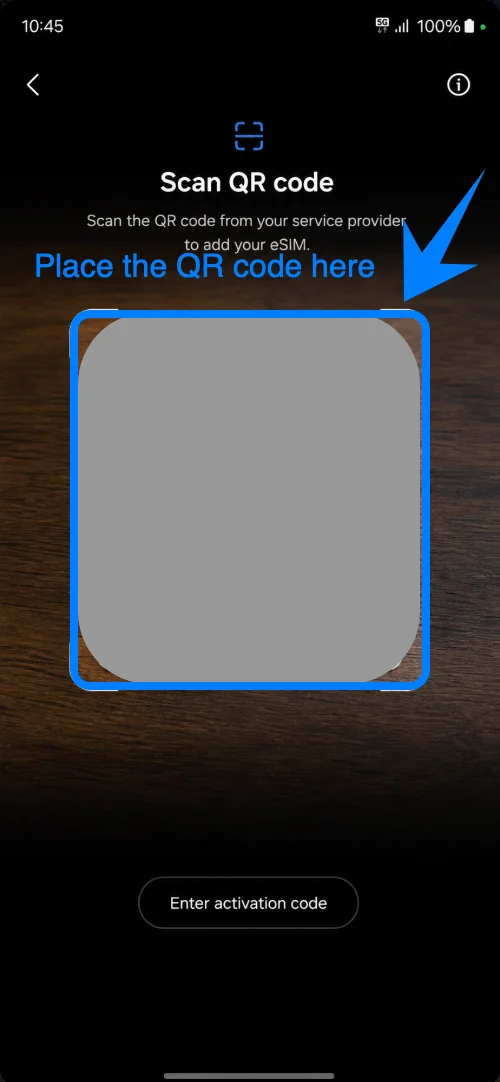
On the Add eSIM screen, tap Scan QR code. The Galaxy A17 should open the QR scanning screen.
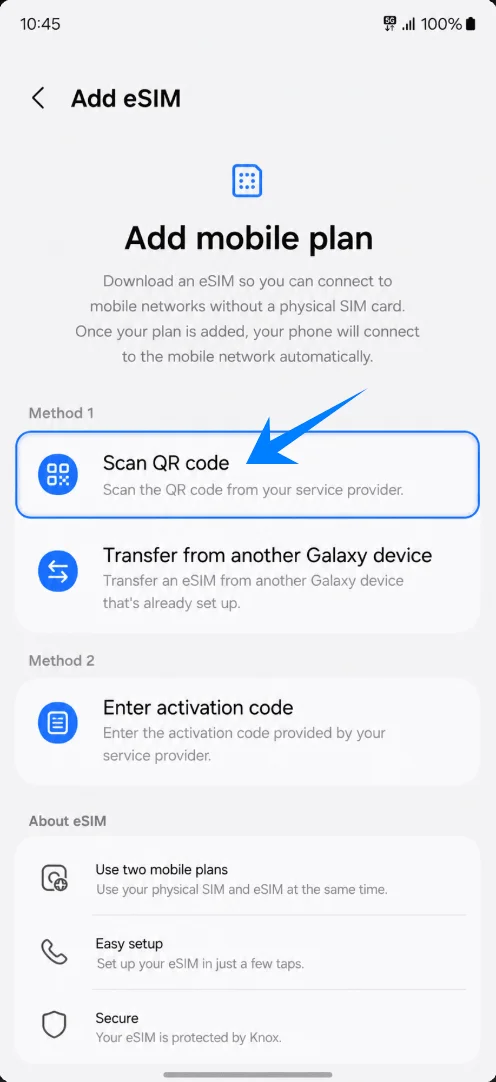
Point the camera at the iRoamly QR code. Keep the QR code flat, bright, and fully inside the scan frame until the phone recognizes it.
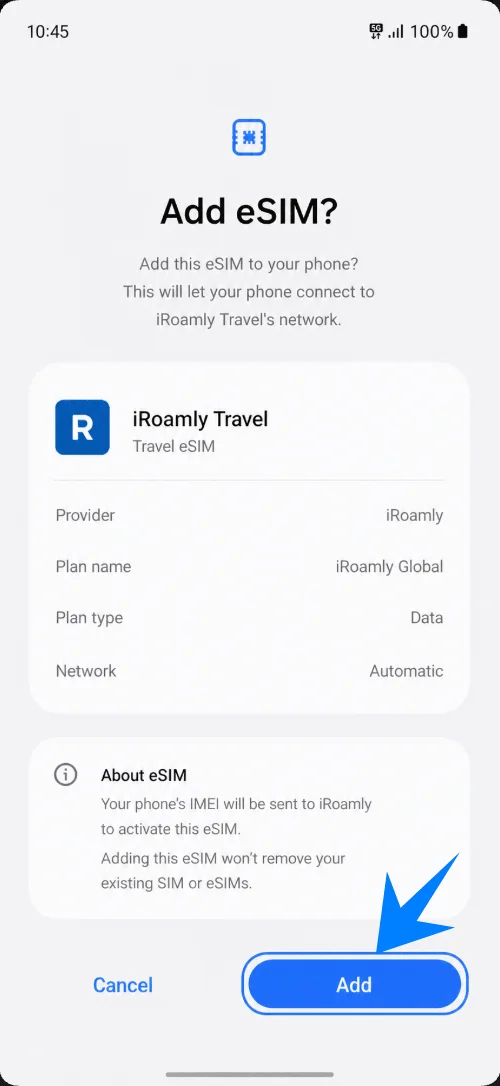
When Samsung shows the eSIM profile, tap Add. Keep Wi-Fi connected while the phone downloads the iRoamly eSIM.
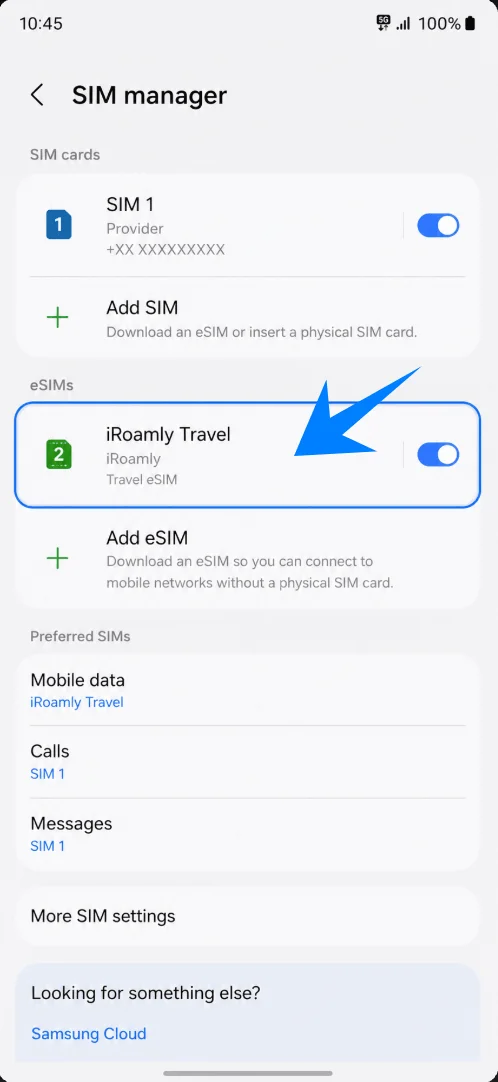
Wait until the eSIM appears in SIM manager as iRoamly Travel or a similar travel eSIM label.
Method 2: Install the iRoamly eSIM by Manual Entry
Open Settings, then tap Connections.
Tap SIM manager.
Tap Add eSIM.
Tap Scan QR code, because Samsung places the manual option on the QR scan screen.
On the QR scan screen, tap Enter activation code.
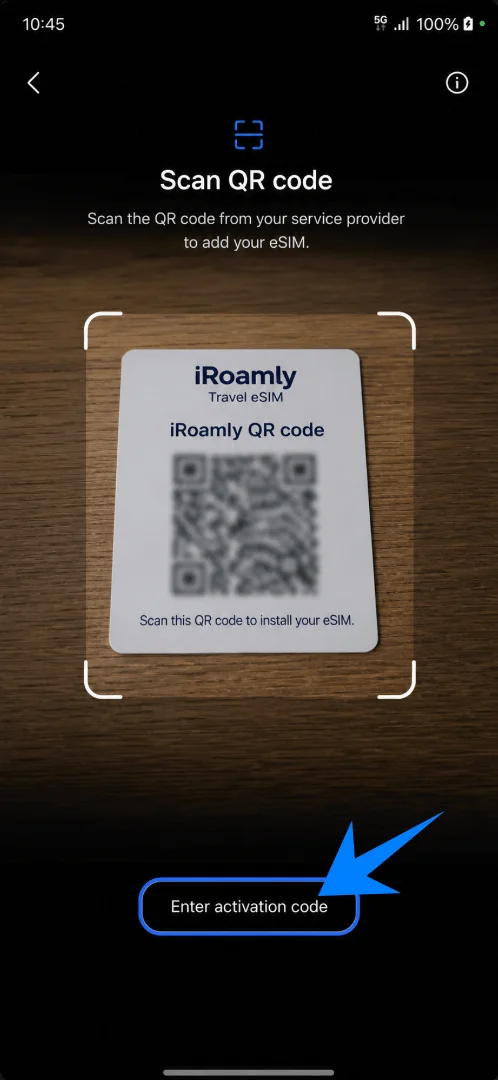
Tap the Activation code field, then enter the complete manual activation code exactly as provided by iRoamly. On this Samsung flow, the manual page uses one full activation-code field rather than separate SM-DP+ Address, Activation Code, and Confirmation Code fields.
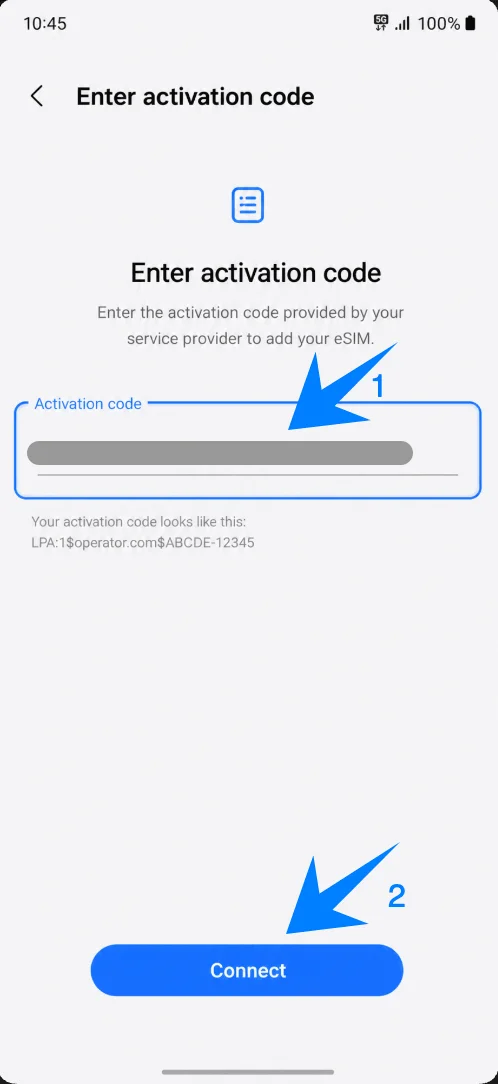
Tap Add when the iRoamly eSIM profile appears, then keep Wi-Fi connected while the eSIM downloads.
Wait for SIM manager to show the installed iRoamly eSIM.
How to Confirm the iRoamly eSIM Was Installed
Go to Settings > Connections > SIM manager, then check that iRoamly Travel or your iRoamly eSIM label appears under eSIMs.
Set Up the iRoamly eSIM for Travel Data
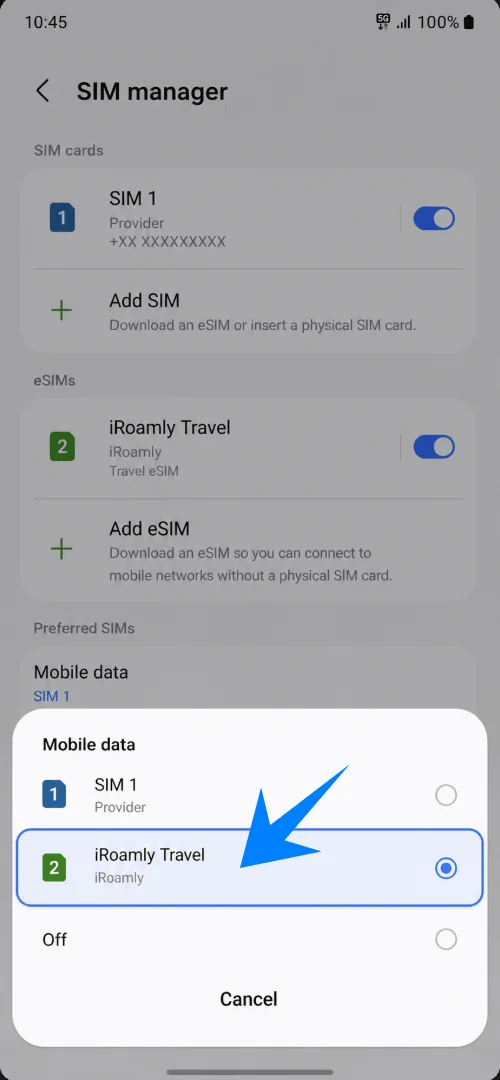
In SIM manager, tap Mobile data, then select iRoamly Travel when you are ready to use the travel eSIM.
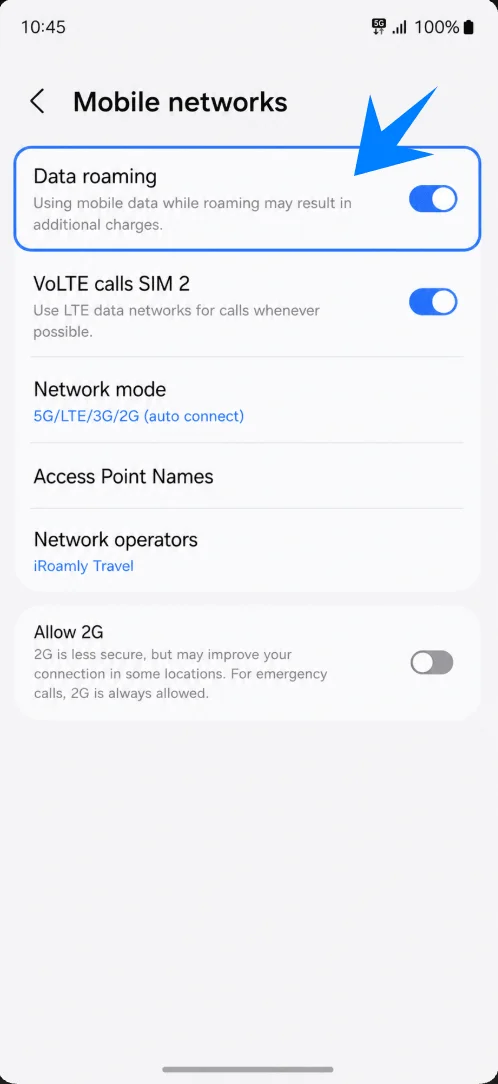
Open Settings > Connections > Mobile networks, then turn on Data roaming if your iRoamly plan or destination requires roaming for service.
Troubleshooting
No Add eSIM: confirm the phone is an eSIM-capable Galaxy A17 variant, update One UI, check that the phone is unlocked, and ask the carrier whether eSIM is enabled for your region.
QR code fails: increase brightness on the other device, avoid reflections, keep Wi-Fi connected, and use Enter activation code if scanning still fails.
QR code already used: do not delete and reinstall repeatedly. Contact iRoamly support if the code was already consumed.
Installed but no data: select the iRoamly eSIM for Mobile data, enable Data roaming, restart the phone, and confirm the destination is covered by your plan.
Activation pending: stay on Wi-Fi, wait a few minutes, and avoid removing the eSIM while Samsung is downloading or activating it.
Calls or SMS do not work: check the iRoamly plan details. Many travel eSIM plans are data-only.
Validity seems shorter than expected: check the plan’s activation rules. Validity starts from activation, not from reading this guide.
More Samsung Galaxy eSIM Setup Guides
Setting up another Samsung phone? These eSIM activation guides may help.
Conclusion
For the Galaxy A17, QR setup is the fastest route when you can display the iRoamly QR code on another screen. Manual setup is the better backup when scanning is inconvenient, and on this Samsung flow it uses a single Activation code field.
After installation, the important checks are simple: confirm the iRoamly eSIM appears in SIM manager, select it for Mobile data, and turn on Data roaming when the destination plan needs it.