
The Motorola Edge 50 Ultra supports eSIM on compatible regional and carrier variants, which makes it useful for travelers who want data service without changing the physical SIM. This guide assumes a Motorola Edge 50 Ultra running Motorola's near-stock Android 14 or Android 15 interface, where eSIM settings are usually found under Settings > Network & internet > SIMs.
An iRoamly travel eSIM can be installed by scanning the QR code from your iRoamly order or by typing the manual activation details. Scanning is usually faster, while manual entry is helpful when the QR code is on the same phone, the camera cannot read the code, or you prefer to copy the activation fields yourself.
Follow the steps below before travel, keep your iRoamly QR code and manual details available, and check the exact plan page for service rules. Menu names can vary slightly by software version, region, and carrier firmware, especially around Add SIM, Download a SIM instead?, and manual-code entry.
Before You Set Up Your iRoamly eSIM
Connect the Motorola Edge 50 Ultra to stable Wi-Fi before downloading the eSIM profile.
Confirm your Edge 50 Ultra variant supports eSIM and is unlocked for the destination network.
Keep your iRoamly QR code ready. For manual setup, keep the SM-DP+ Address, Activation Code, and optional Confirmation Code from your iRoamly order or account page.
Install the iRoamly eSIM 1-2 days before travel when possible, but do not delete it casually after installation. Many travel eSIM profiles cannot be reinstalled after removal.
iRoamly plan validity starts from activation. Check your specific plan details to confirm whether activation begins at installation, first connection to a supported destination network, or another plan-specific trigger.
iRoamly travel eSIM plans may be data-only. Voice calls and SMS vary by plan, so do not assume they are included.
Method 1: Install eSIM by Scanning a QR Code
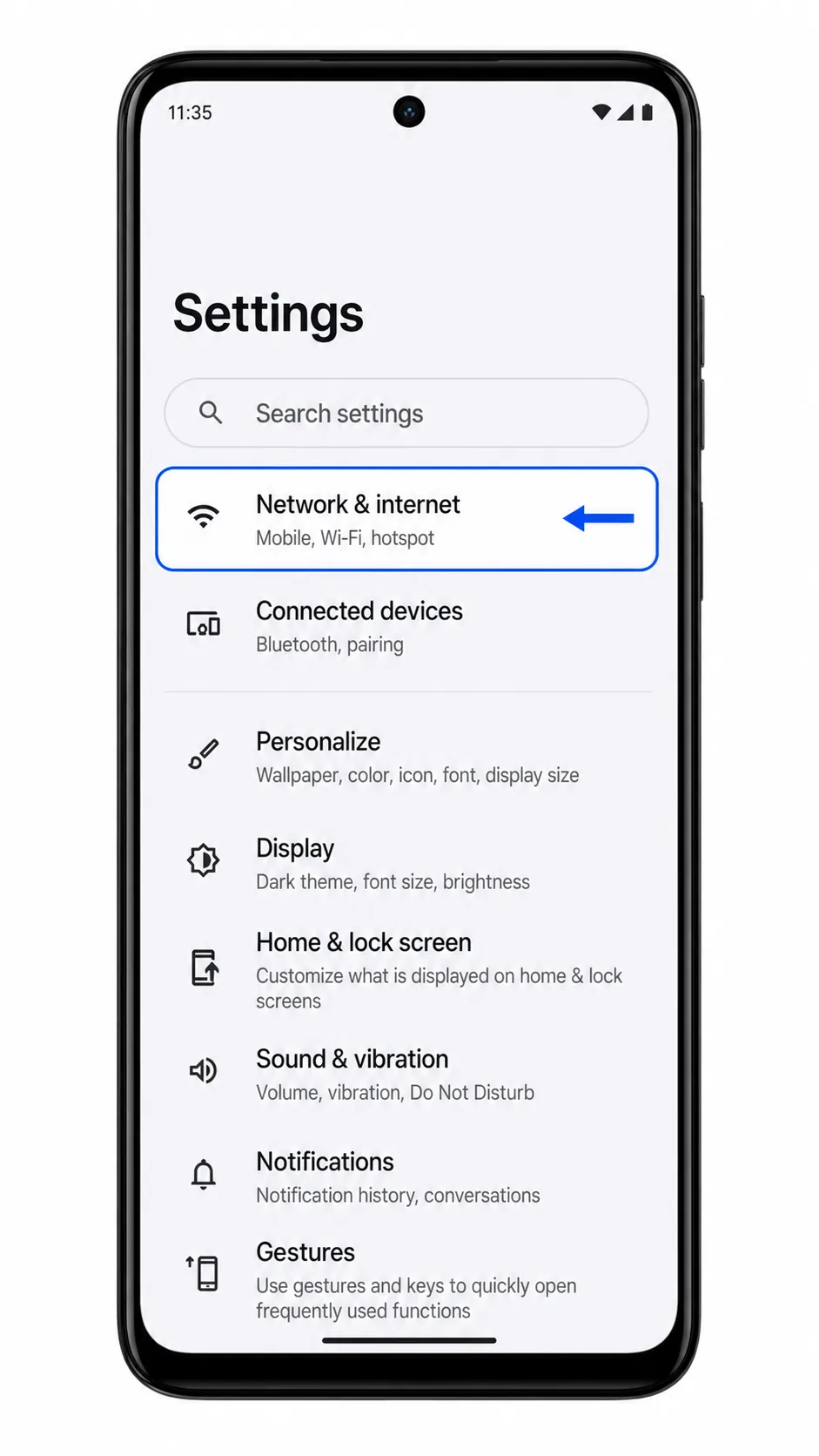
Open Settings on the Motorola Edge 50 Ultra and tap Network & internet.
You should see the Android network settings area where SIM and mobile network options are managed.
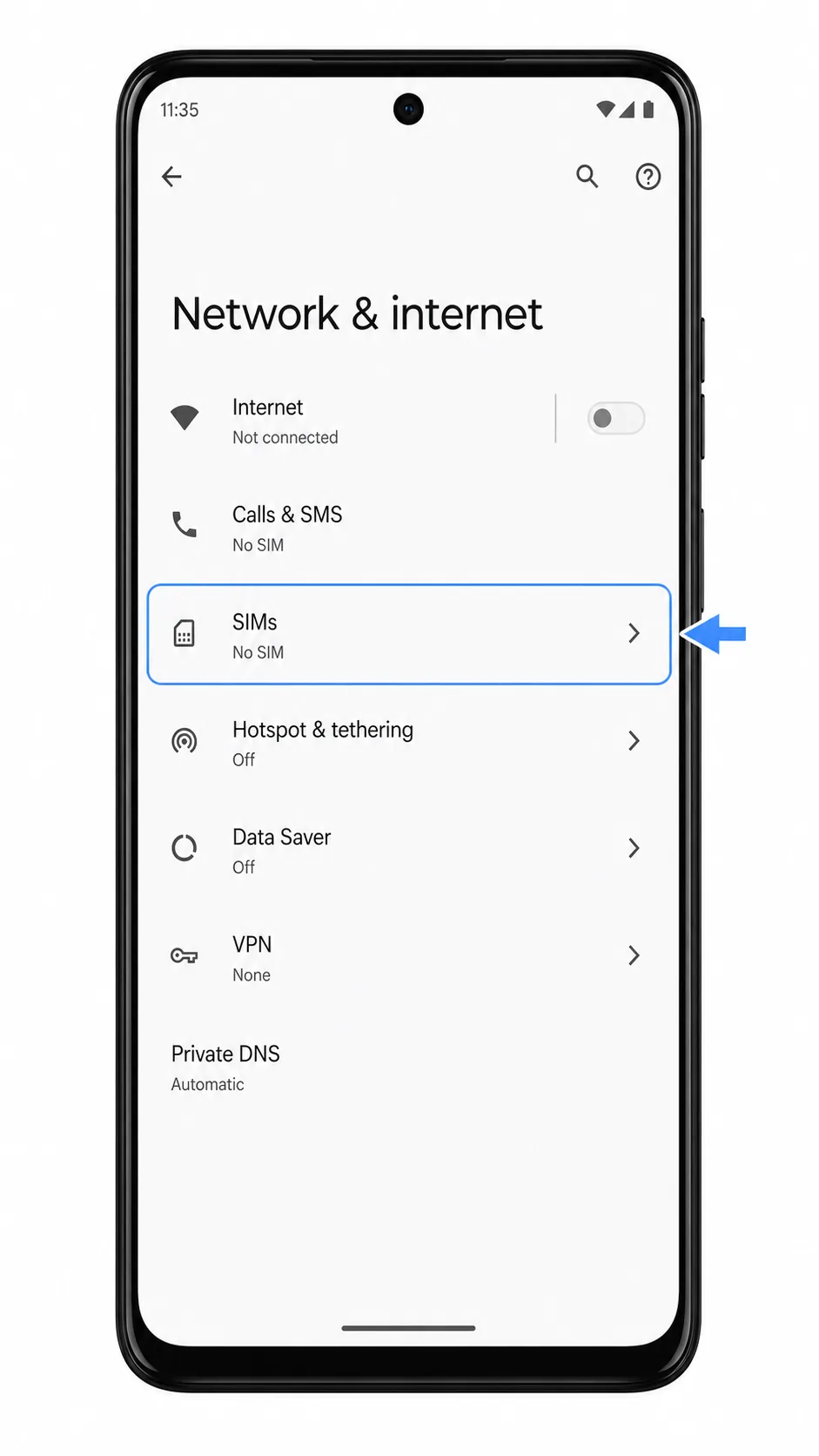
Tap SIMs.
The phone should open the SIM management screen for physical SIM and eSIM profiles.
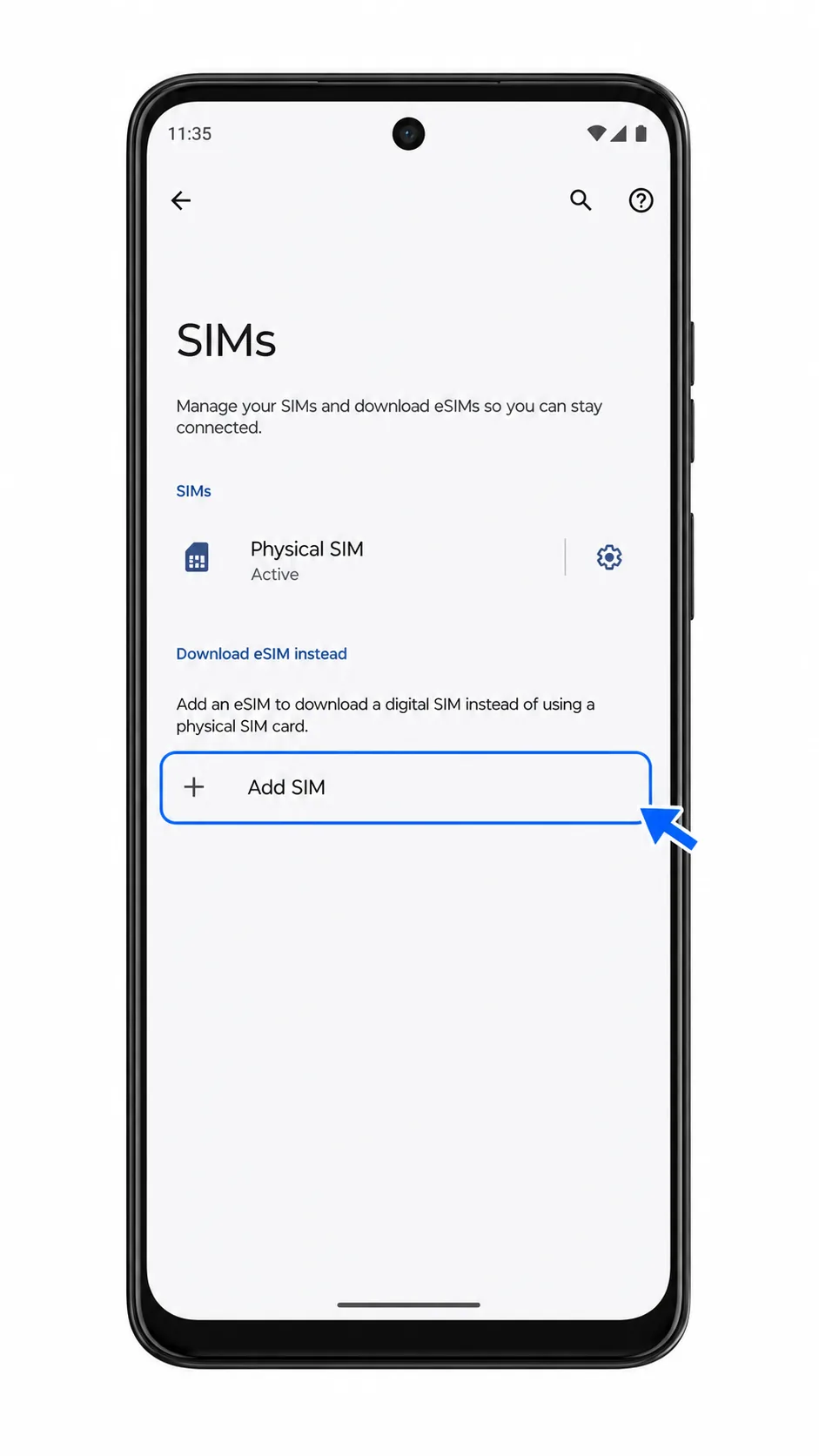
Tap Add SIM.
The Edge 50 Ultra should start the flow for adding another mobile plan.
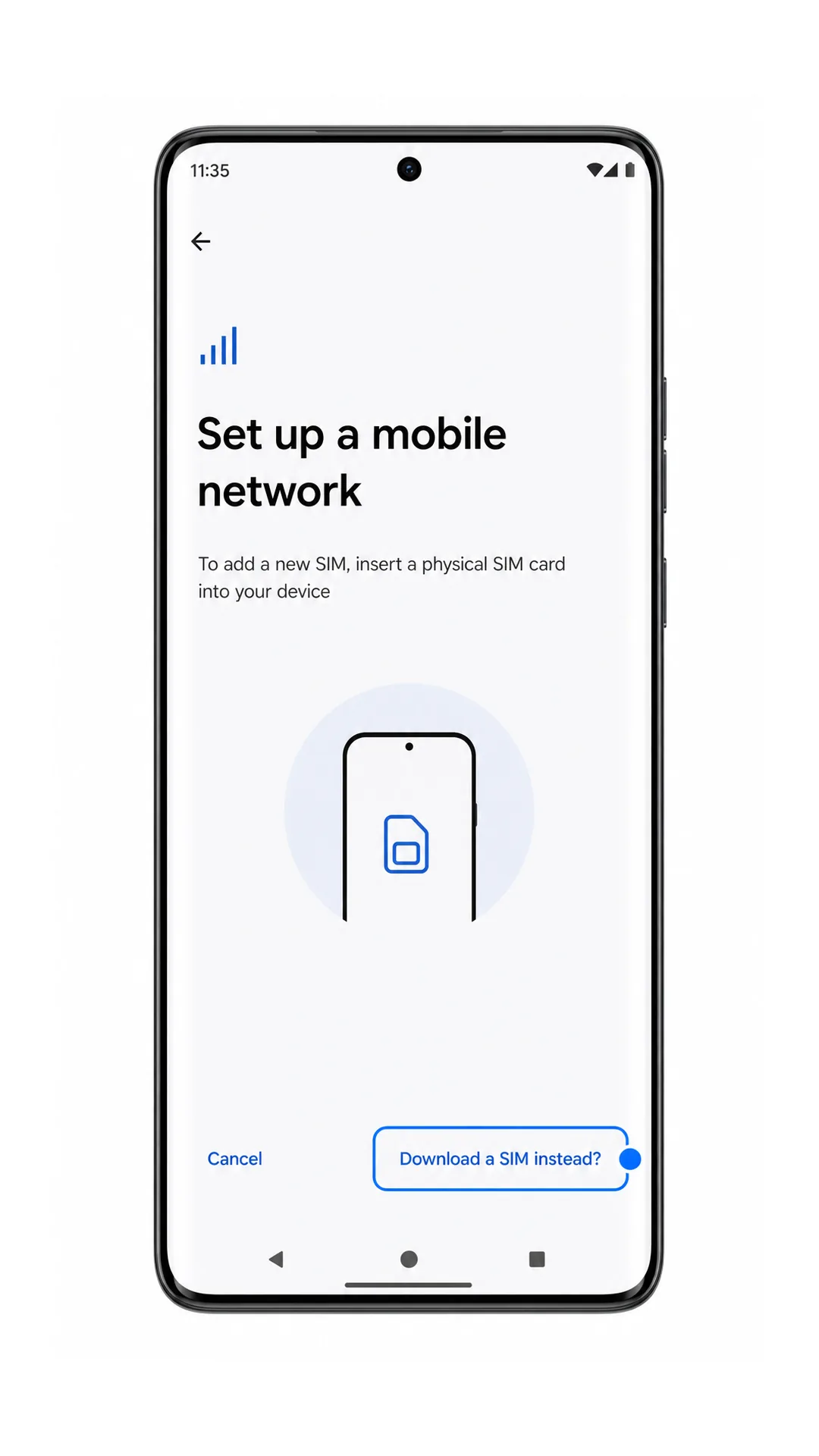
Tap Download a SIM instead?.
This tells Android you want to add an eSIM profile instead of inserting a physical SIM card.
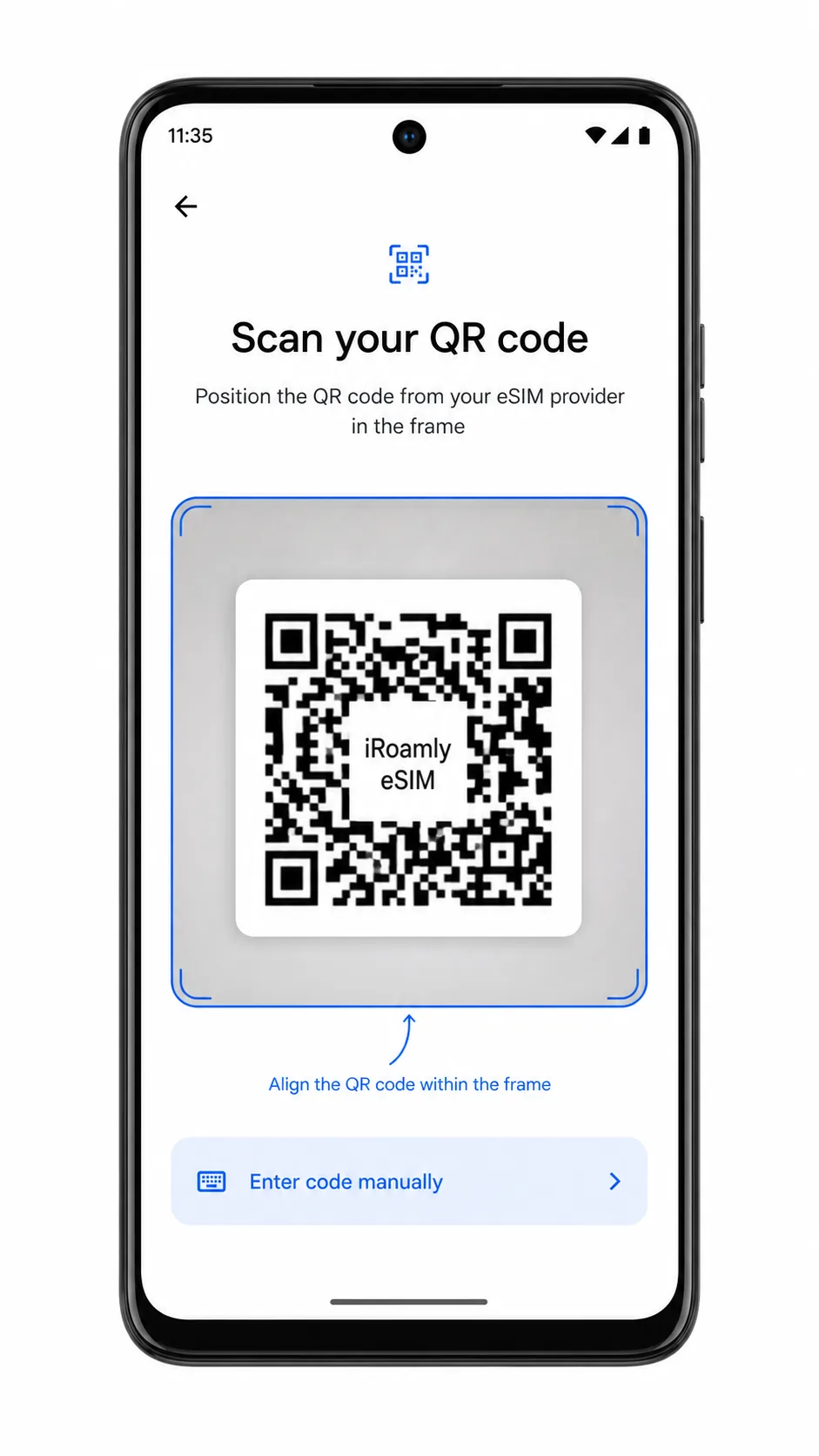
Point the scanner at the iRoamly QR code and keep the code inside the scan frame.
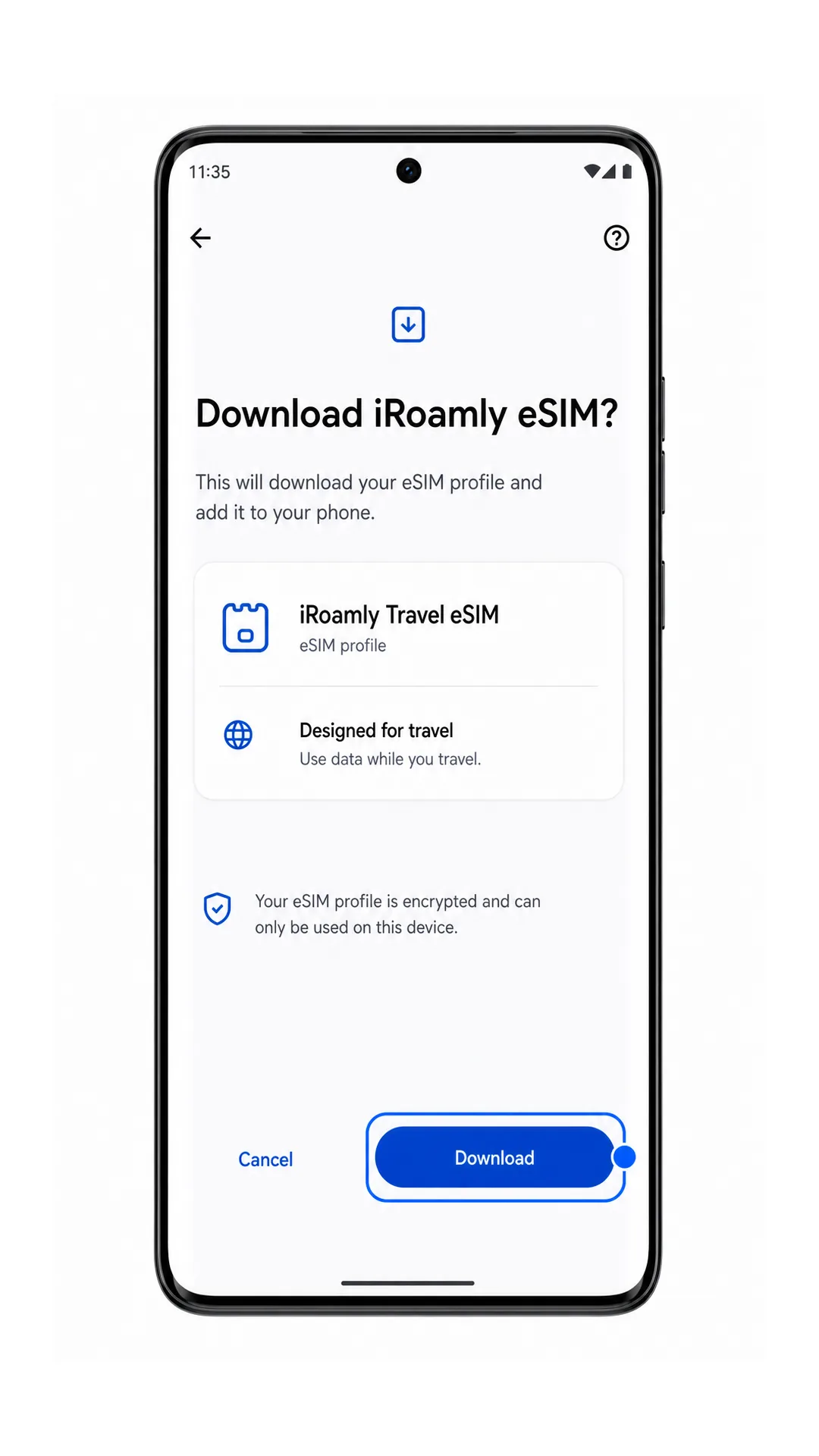
After the QR code is read, the phone should show an eSIM download or confirmation screen for the iRoamly profile.
Review the profile name, then tap Download.
Keep Wi-Fi connected while Android downloads the iRoamly eSIM profile. Do not close Settings during the download.
Method 2: Install eSIM Manually
Open Settings on the Motorola Edge 50 Ultra and tap Network & internet.
This is the same starting point used for QR installation.
Tap SIMs.
The SIM management page should open.
Tap Add SIM.
The phone should begin adding another mobile plan.
Tap Download a SIM instead?.
Android should open the eSIM setup flow.
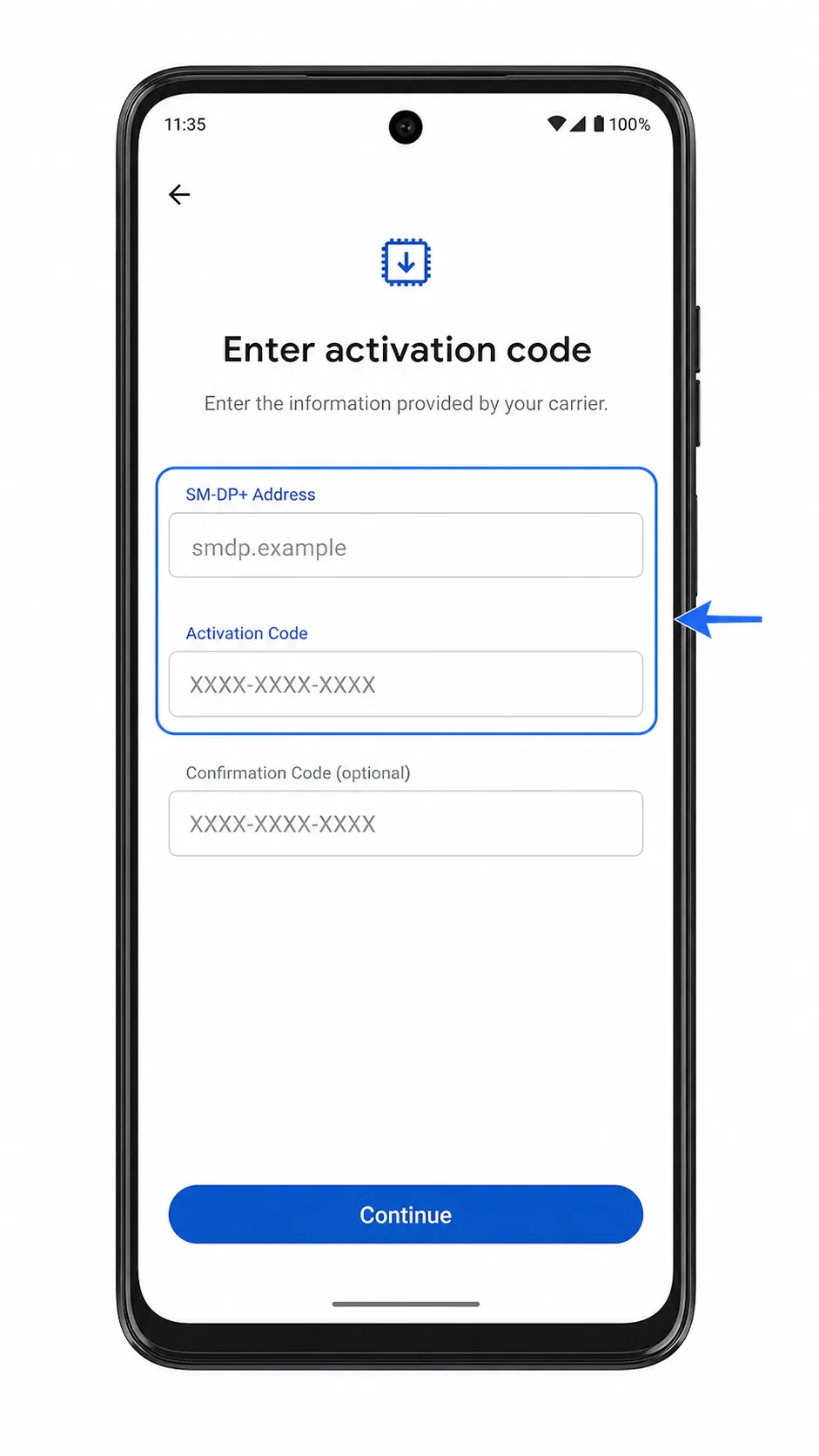
On the scan screen, tap Enter code manually.
The manual-entry page should open with fields for the eSIM activation details.
Enter the iRoamly SM-DP+ Address, Activation Code, and Confirmation Code if iRoamly provides one, then tap Next or Continue.
Copy the details exactly from your iRoamly order email or account page. Do not add spaces unless the field accepts them.
Review the iRoamly profile, then tap Download.
The phone should download and add the iRoamly eSIM profile using the manual activation details.
How to Confirm Your iRoamly eSIM Is Installed
Go to Settings > Network & internet > SIMs and look for iRoamly Travel eSIM or the profile name shown during setup.
The eSIM should appear as downloaded or available. If your plan includes SMS or calling, test those features only after the plan details confirm they are supported.
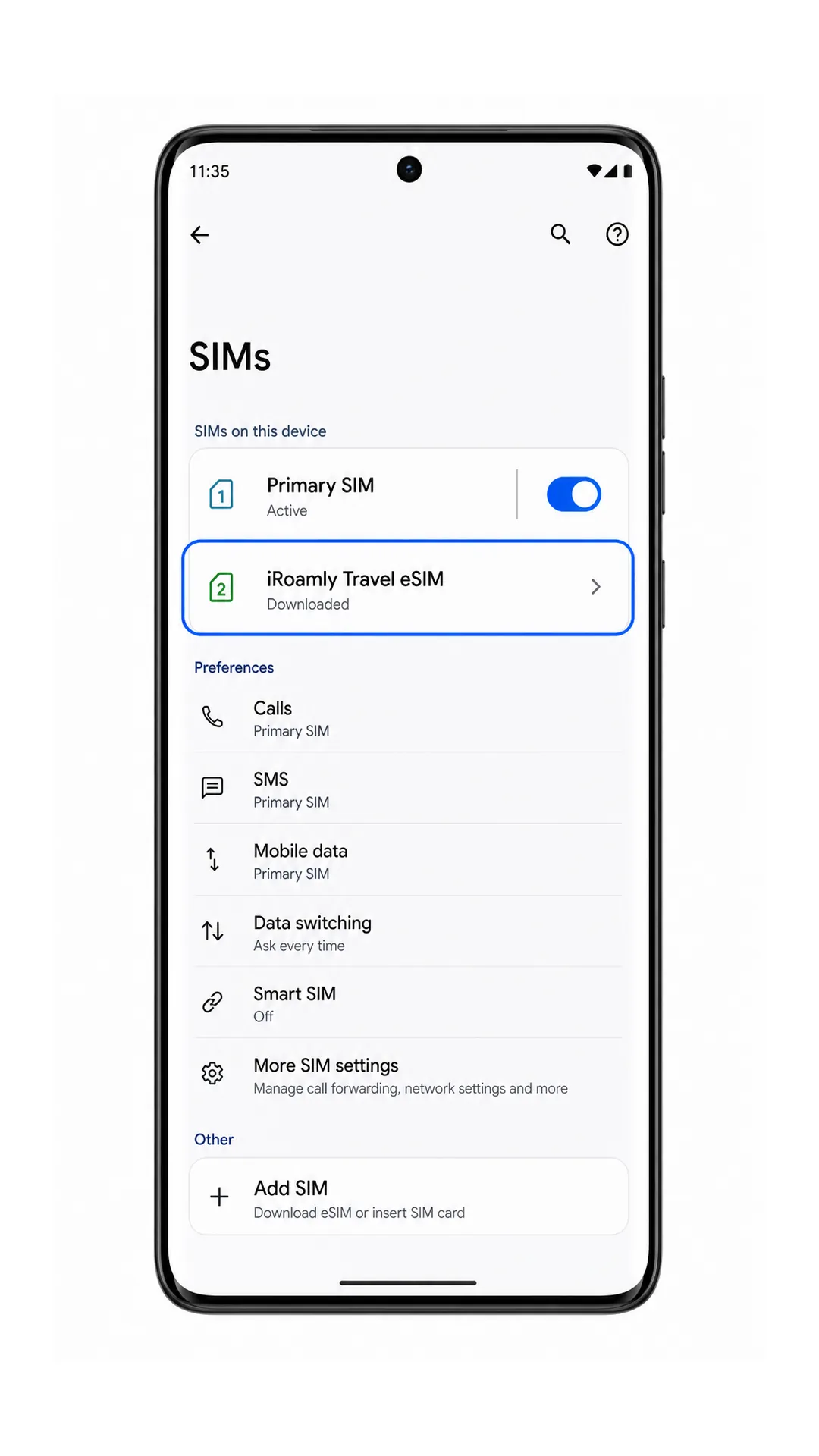
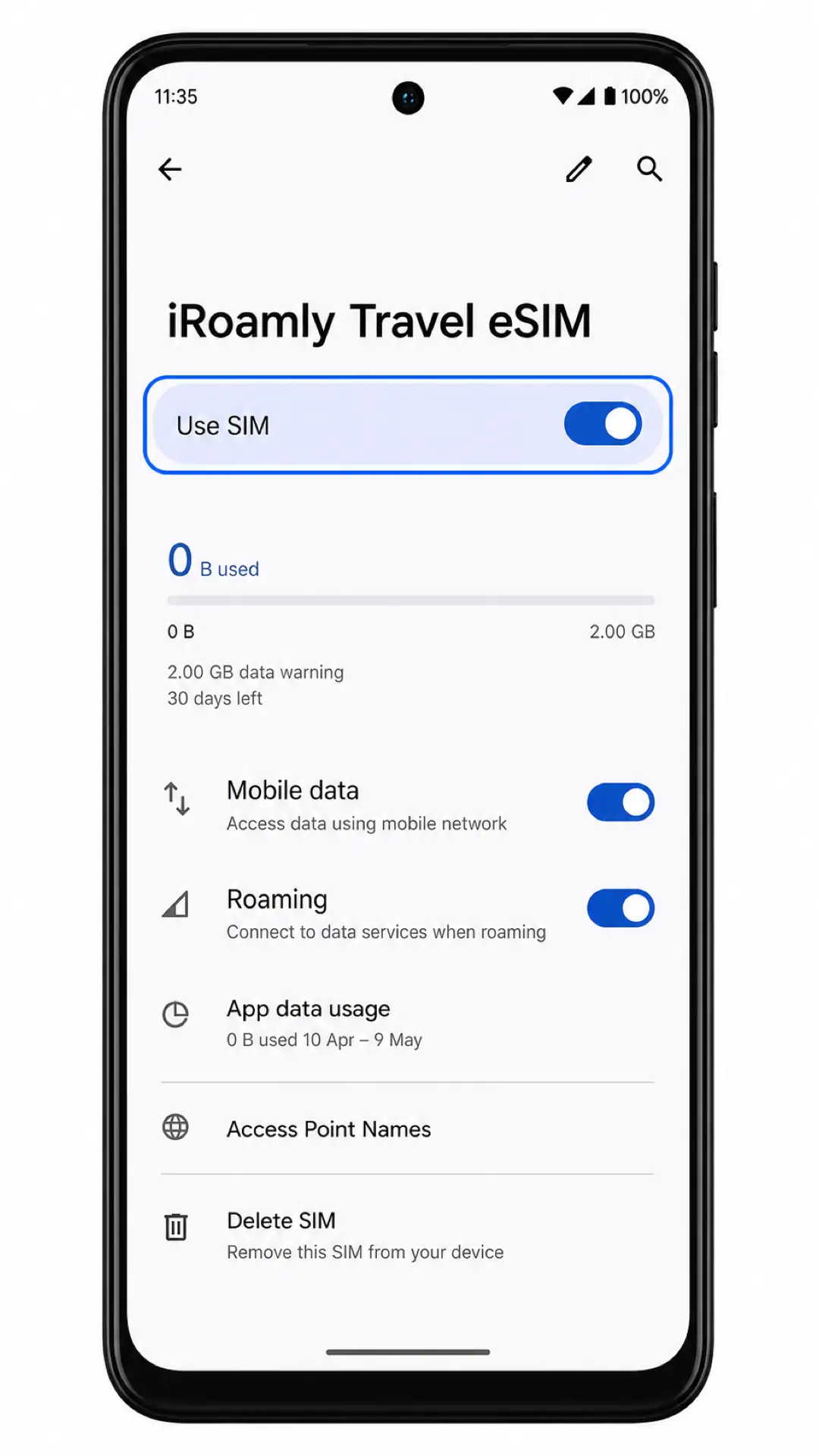
Tap the iRoamly profile and confirm Use SIM is turned on.
If the profile is off, turn it on before testing mobile data.
Configure eSIM for Mobile Data
Open the iRoamly profile under Settings > Network & internet > SIMs, then set Mobile data to the iRoamly eSIM when you are ready to use travel data.
This helps prevent the phone from using your primary SIM for mobile data while you are abroad.
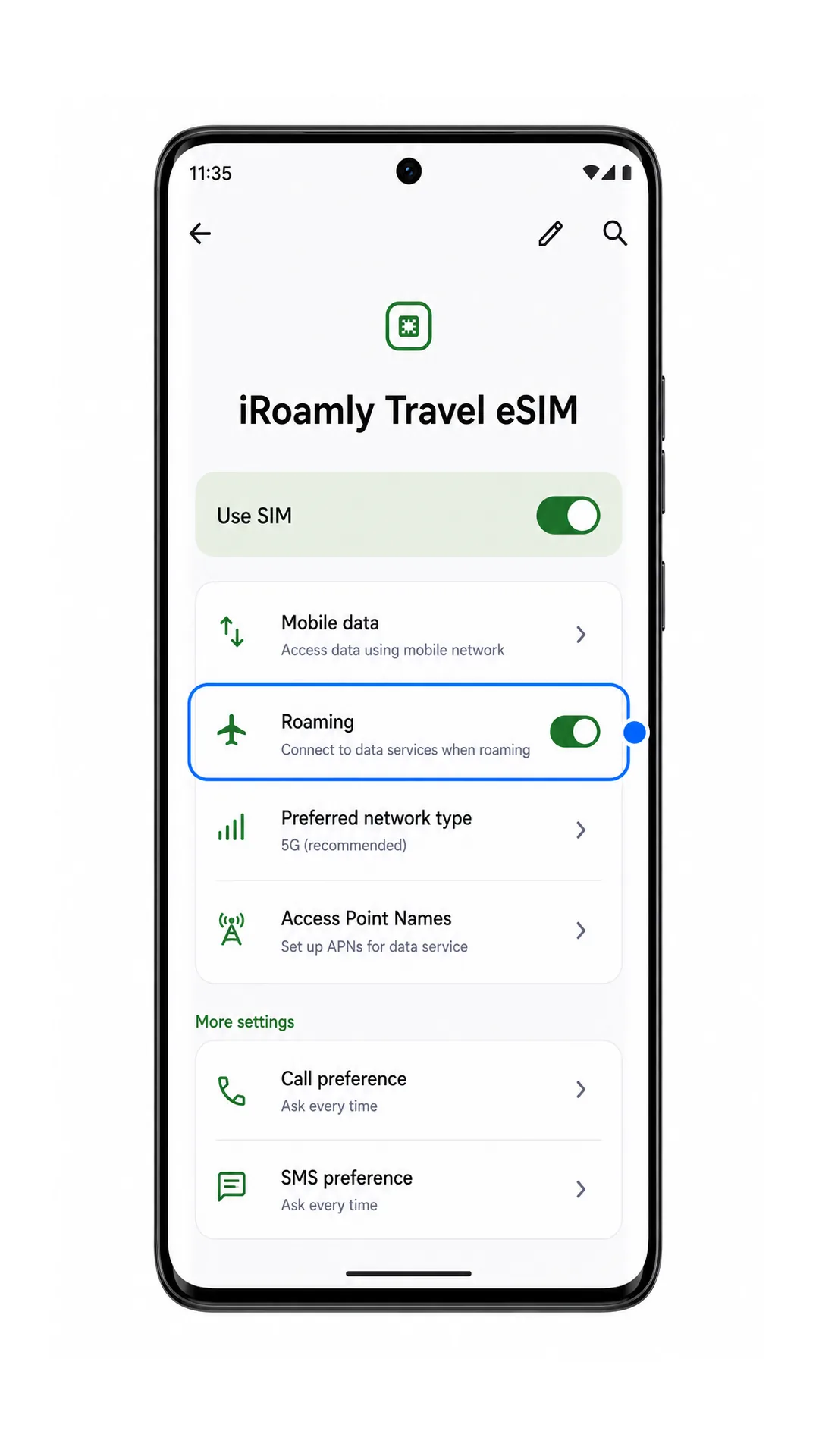
Turn on Roaming for the iRoamly eSIM if your destination plan requires it.
Most travel eSIM data plans need roaming enabled on the travel line. Leave roaming off for your primary SIM if you want to avoid charges from your home carrier.
Turn off Wi-Fi briefly after arrival and open a web page or map app to test mobile data.
If the page loads through mobile data, the iRoamly eSIM is ready for travel use.
Troubleshooting
If Add SIM or Download a SIM instead? is missing, confirm your Motorola Edge 50 Ultra variant supports eSIM, update Android, restart the phone, and check whether your carrier firmware restricts eSIM.
If the QR code will not scan, increase screen brightness on the device showing the QR code, clean the camera lens, or use the manual entry method.
If Android says the QR code was already used, do not delete the profile and retry repeatedly. Contact iRoamly support because many eSIM QR codes are single-use.
If activation stays pending, keep Wi-Fi connected, wait several minutes, restart the phone, and check whether the plan activates only after connecting to a supported network in the destination country.
If the iRoamly eSIM appears but mobile data does not work, select the iRoamly profile for Mobile data, turn on Roaming for that profile, disable data switching to the primary SIM if your software offers it, and confirm the plan covers your current country.
If manual entry fails, check the SM-DP+ Address, Activation Code, and optional Confirmation Code character by character.
If calls or SMS do not work, check the iRoamly plan details. Many travel eSIM plans are data-only.
Conclusion
With the setup complete, your iRoamly eSIM should be ready whenever your plan becomes active, allowing you to start using travel data without additional configuration. Preparing everything in advance means one less thing to worry about when you're navigating airports, arriving in a new country, or trying to get online quickly.
To keep the experience as smooth as possible, leave the eSIM installed, double-check your mobile data preferences, and review any destination-specific requirements before you travel. These simple precautions can help you get connected faster and avoid common setup-related issues later.