
The Motorola Edge 50 runs Android with Motorola's near-stock Settings layout, so the eSIM path is usually Settings > Network & internet > SIMs. On eSIM-capable regional variants, this is where the phone shows Add eSIM and lets you download a travel eSIM profile.
Before you start, check your exact Edge 50 region and SIM specification. Some Motorola Edge 50 variants are sold as physical dual-SIM models only, so if your phone does not show Add eSIM or Download an eSIM, it may not support eSIM installation in that market.
This guide covers both iRoamly setup methods: scanning the iRoamly QR code and entering the eSIM details manually. The QR method is faster, while manual entry is useful when another device is displaying the QR code, the camera cannot scan it, or you only have the SM-DP+ address and activation code.
Stay Connected Abroad with iRoamly
iRoamly eSIM is a travel eSIM service that provides mobile data plans for destinations around the world. Depending on where you are going, you can choose from local, regional, or global options, with data allowances, validity periods, and plan features varying by destination.
Once the travel line is installed on a compatible phone, it can support everyday trip needs such as maps, messaging, translation, ride-hailing, bookings, and travel updates.
On an eSIM-capable Motorola Edge 50, iRoamly can be added as a separate travel data profile while your regular SIM stays in place. The existing guide below then walks through the QR-code and manual-entry setup paths without changing the phone-specific checks you need to make first.
Before You Set Up Your iRoamly eSIM
Connect the Motorola Edge 50 to stable Wi-Fi before downloading the eSIM profile.
Confirm the phone is unlocked and that your exact regional model supports eSIM.
Keep your iRoamly QR code, SM-DP+ Address, Activation Code, and optional Confirmation Code ready.
Do not delete the iRoamly eSIM after installation unless iRoamly support tells you to do so. Many eSIM profiles cannot simply be reinstalled after removal.
Install the eSIM 1-2 days before travel if your plan allows it, but check your iRoamly order details first. iRoamly plan validity starts from activation, and the exact activation trigger can vary by plan.
If your trip is to Japan or United States, preparing the destination eSIM before departure can leave fewer data settings to handle after arrival.
Check the specific iRoamly plan details for voice calls and SMS. Many travel eSIM plans are data-focused, and voice/SMS availability is not guaranteed.
Method 1: Install eSIM by Scanning a QR Code
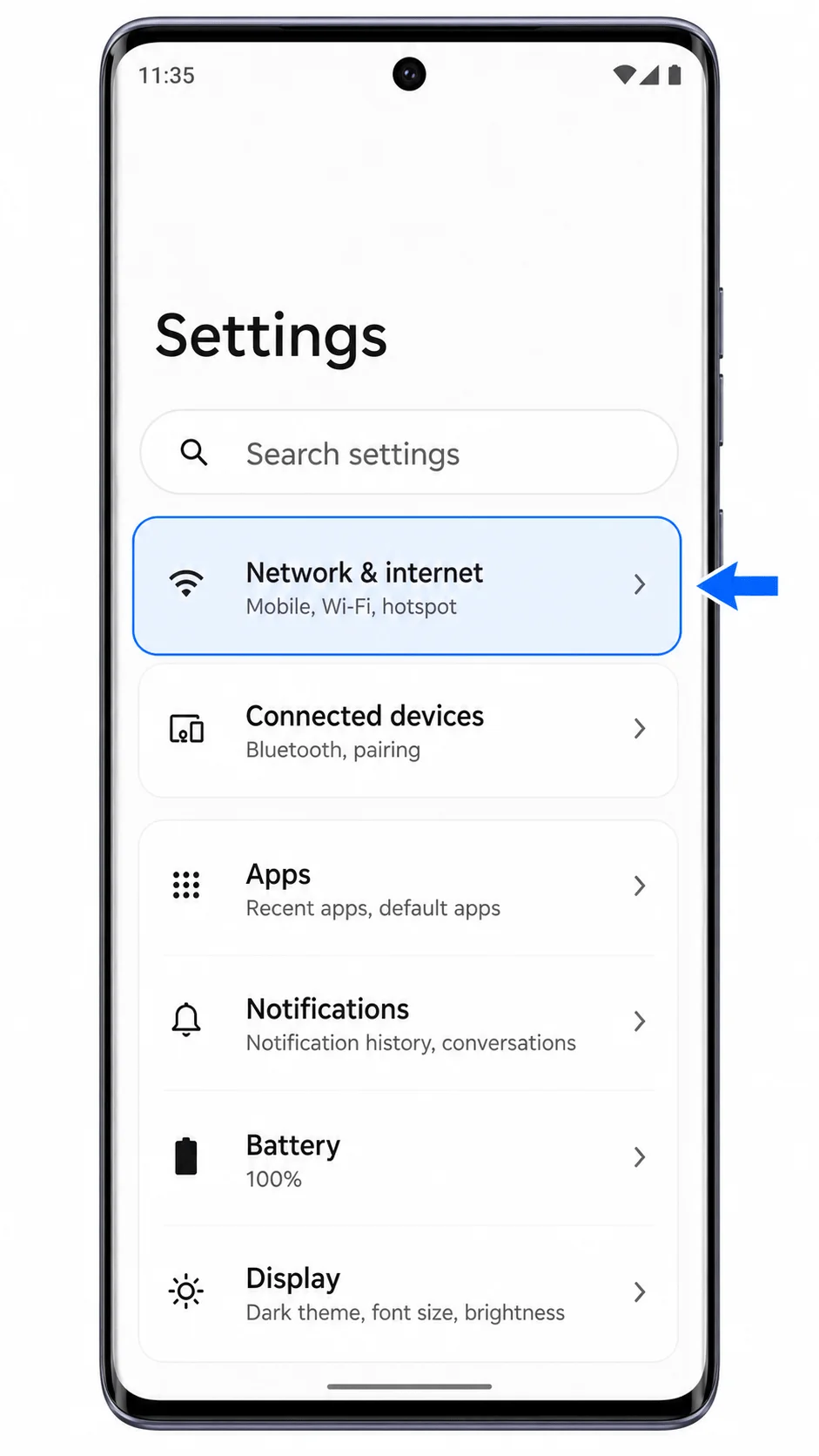
Open Settings on the Motorola Edge 50, then tap Network & internet.
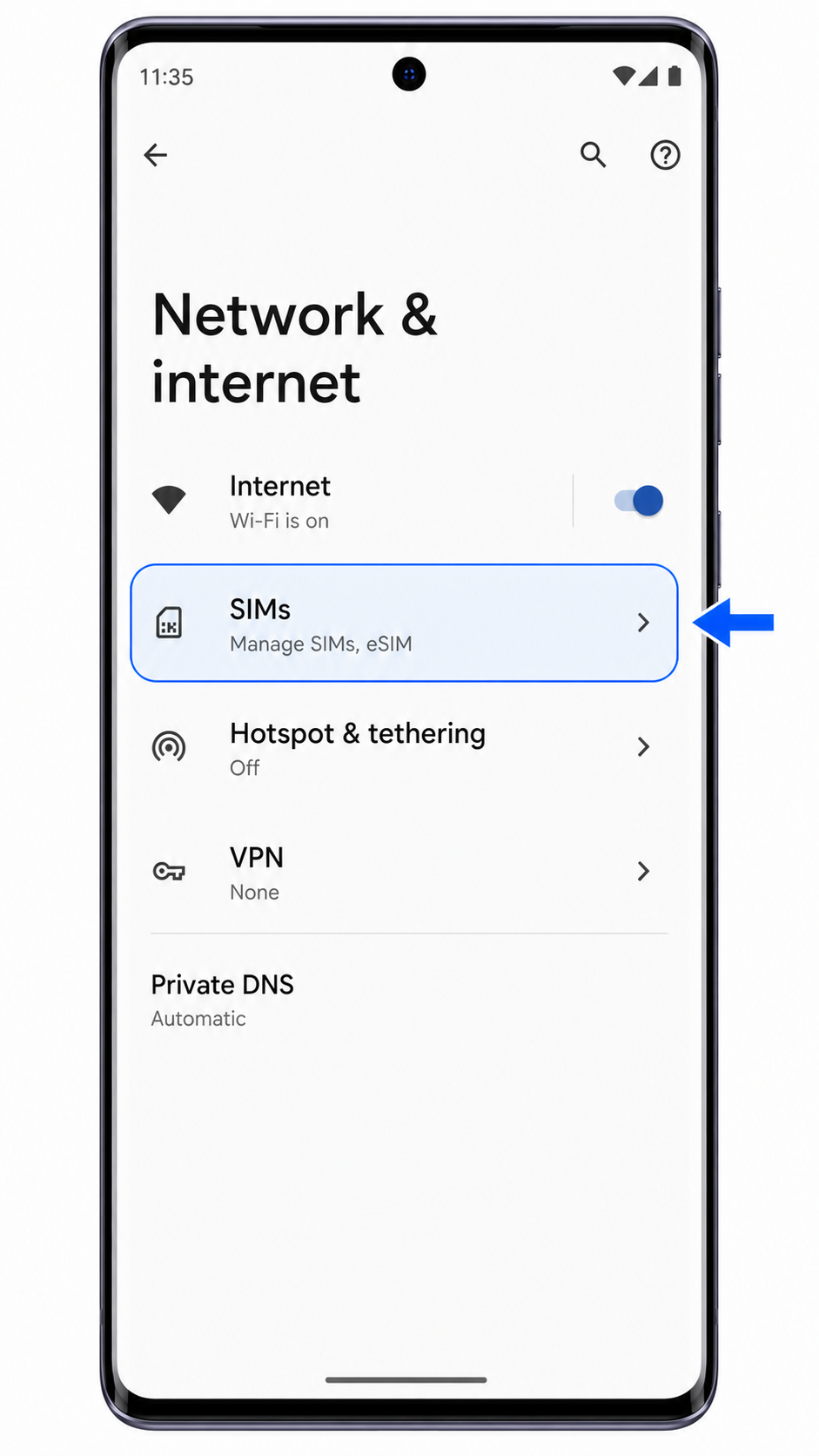
Tap SIMs on the Network & internet screen. You should see your SIM management page next.
Tap Add eSIM. If this option is missing, stop here and confirm that your Edge 50 regional variant supports eSIM.
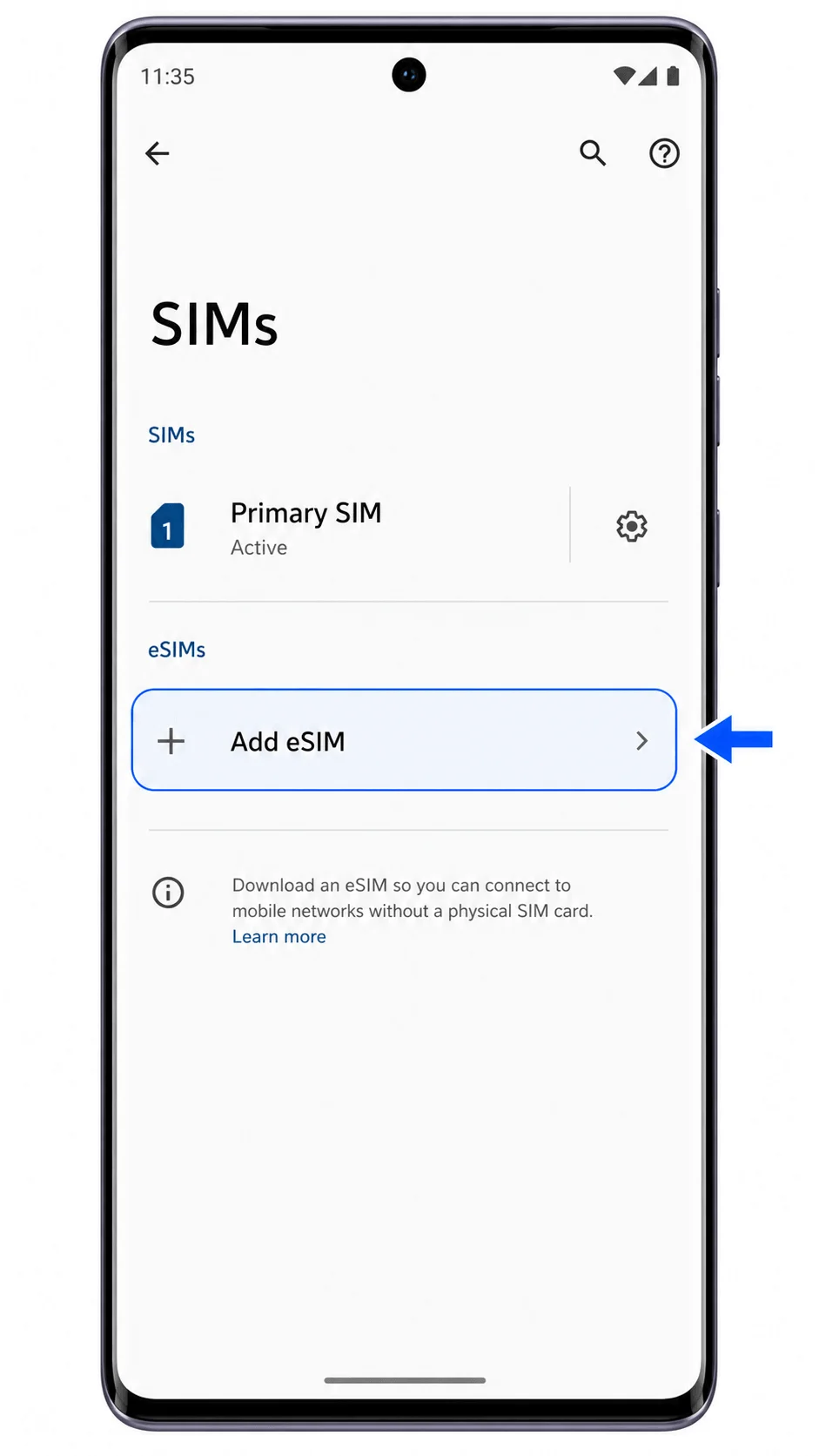
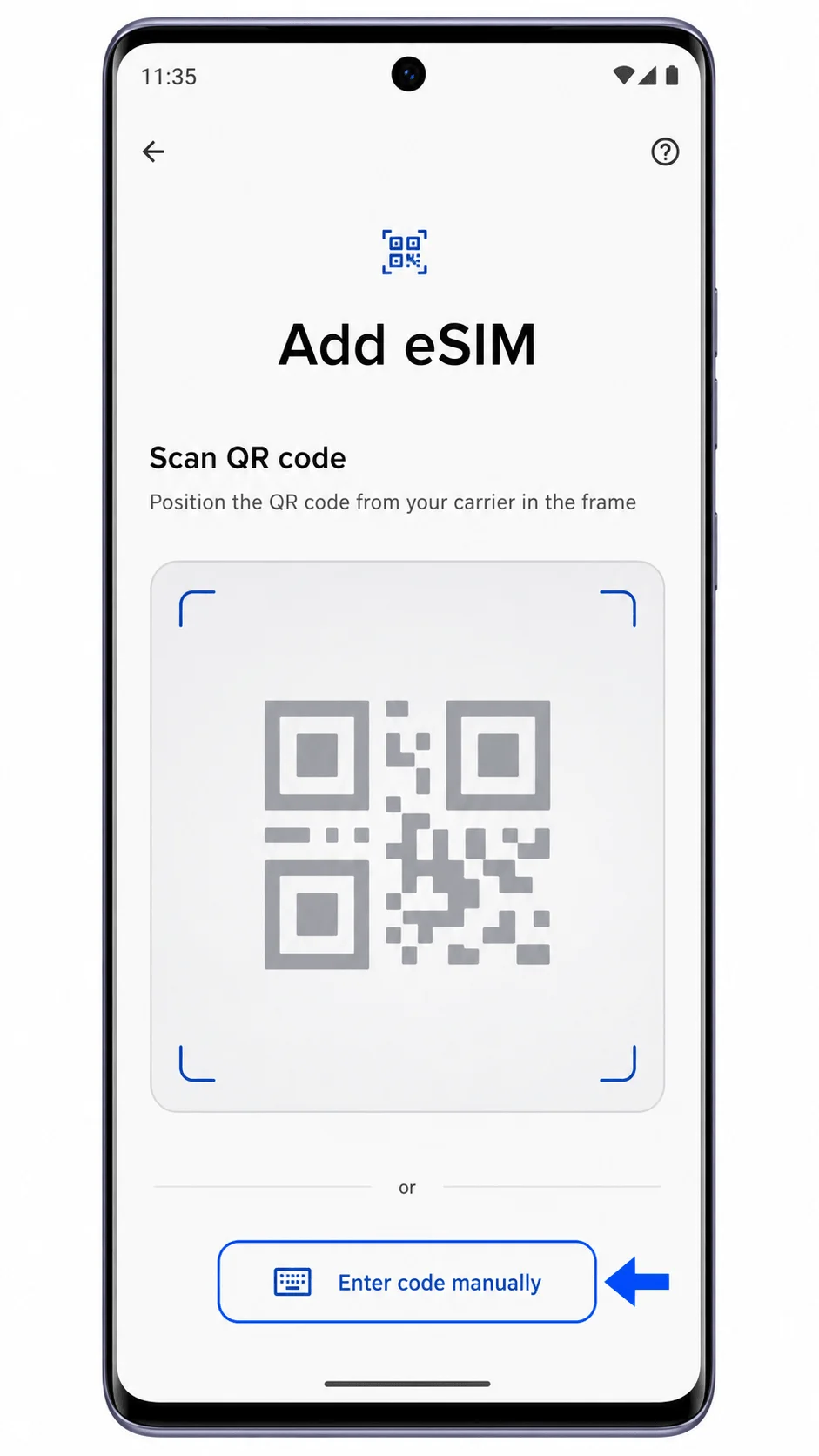
On the Add eSIM screen, scan the iRoamly QR code from your purchase email or iRoamly account page.
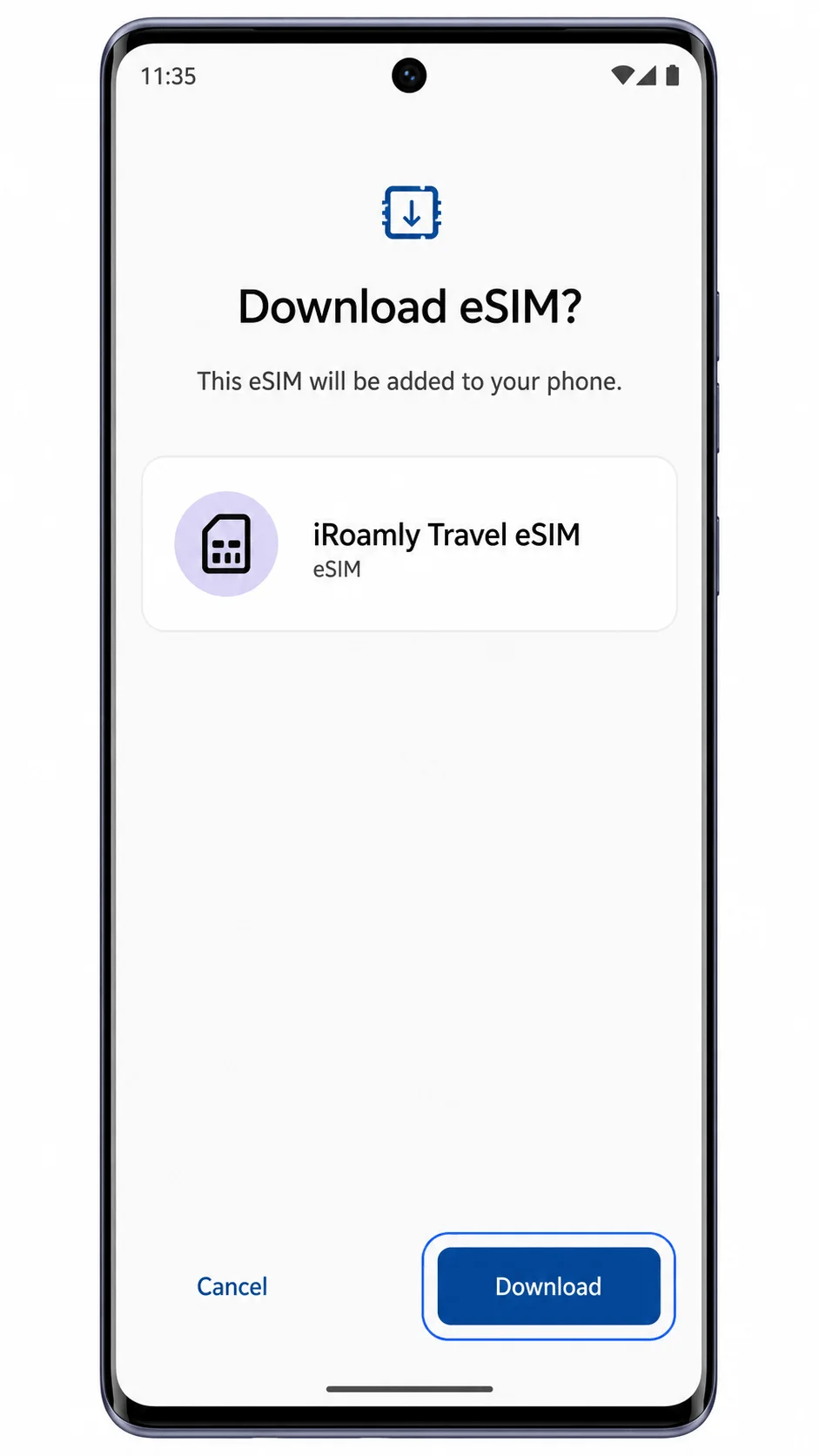
When the phone shows the iRoamly eSIM download screen, review the profile name, then tap Download. Keep the phone connected to Wi-Fi until the download finishes.
Method 2: Install eSIM Manually
Open Settings on the Motorola Edge 50, then tap Network & internet.
Tap SIMs to open the SIM management screen.
Tap Add eSIM. The phone should open the eSIM setup screen.
Tap Enter code manually below the QR scanner.
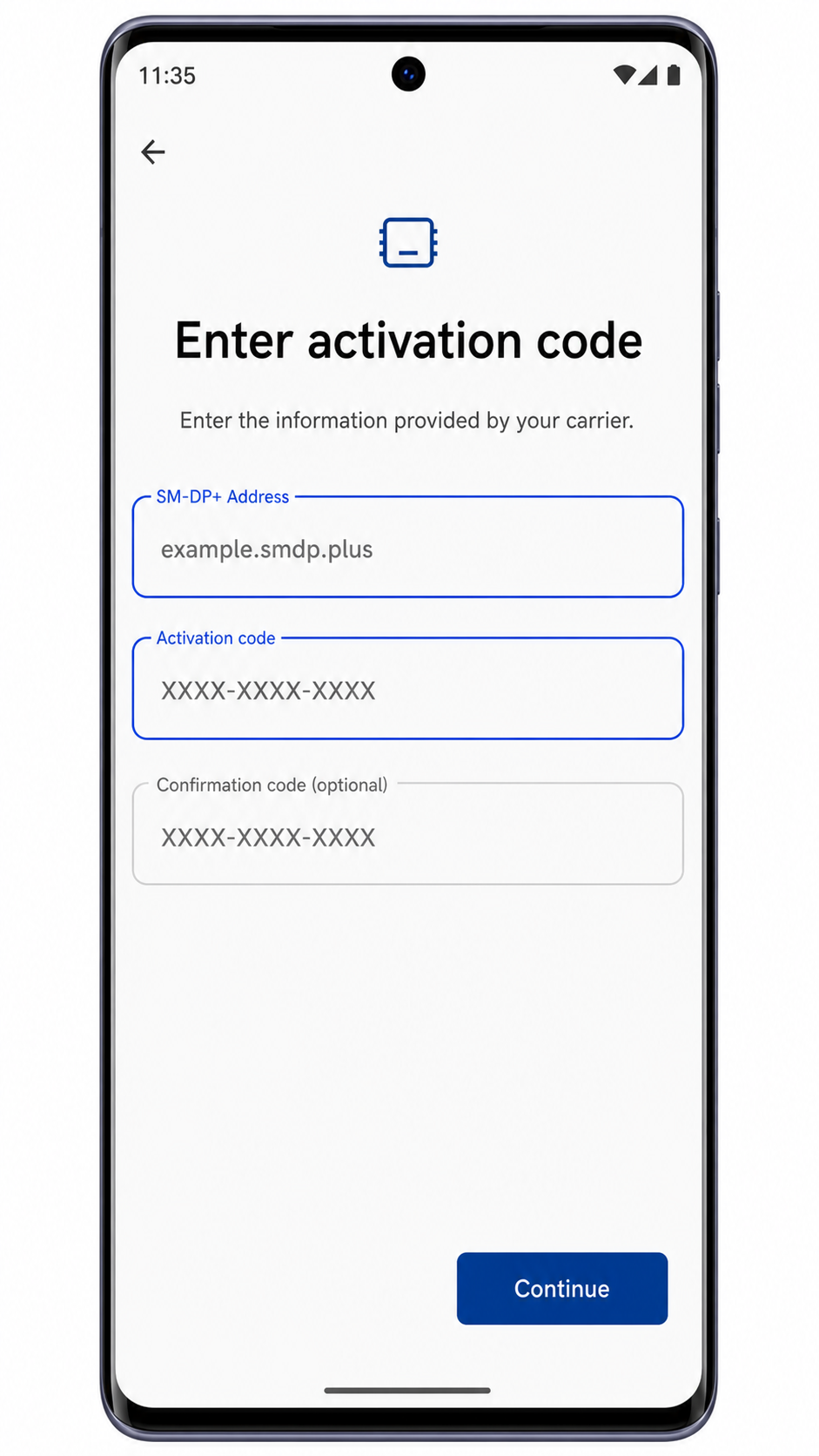
Enter the iRoamly SM-DP+ Address and Activation code exactly as shown in your iRoamly details. If iRoamly provides a Confirmation code, enter it in the optional field, then tap Continue.
Review the iRoamly eSIM profile, then tap Download. Wait for Android to finish adding the eSIM before leaving the setup screen.
How to Confirm Your iRoamly eSIM Is Installed
Go to Settings > Network & internet > SIMs. Confirm that iRoamly Travel eSIM appears in the SIM list and shows as downloaded or active.
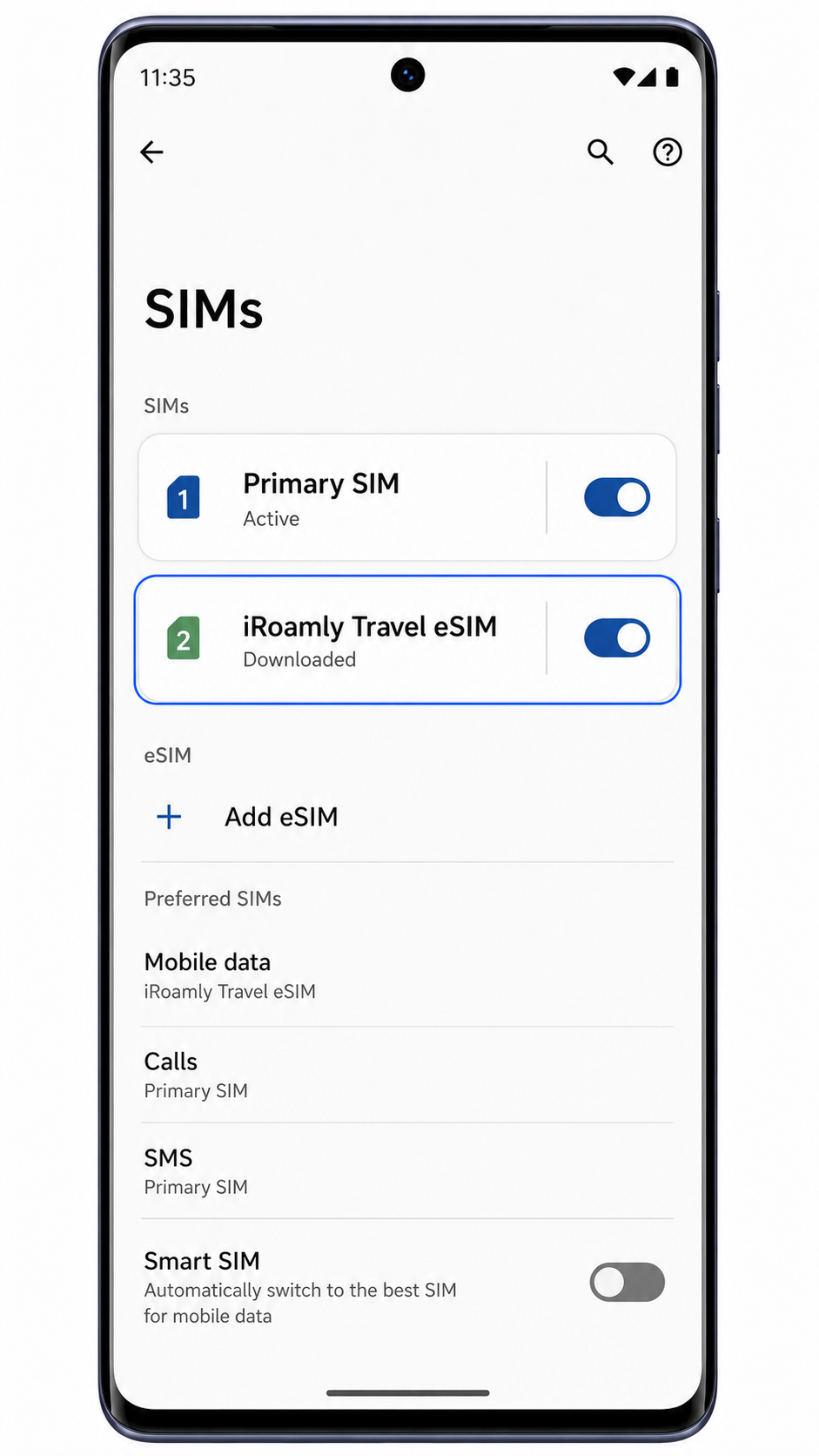
Check that the iRoamly line can be switched on. If your iRoamly plan includes only mobile data, do not expect calling or SMS controls to work through that eSIM.
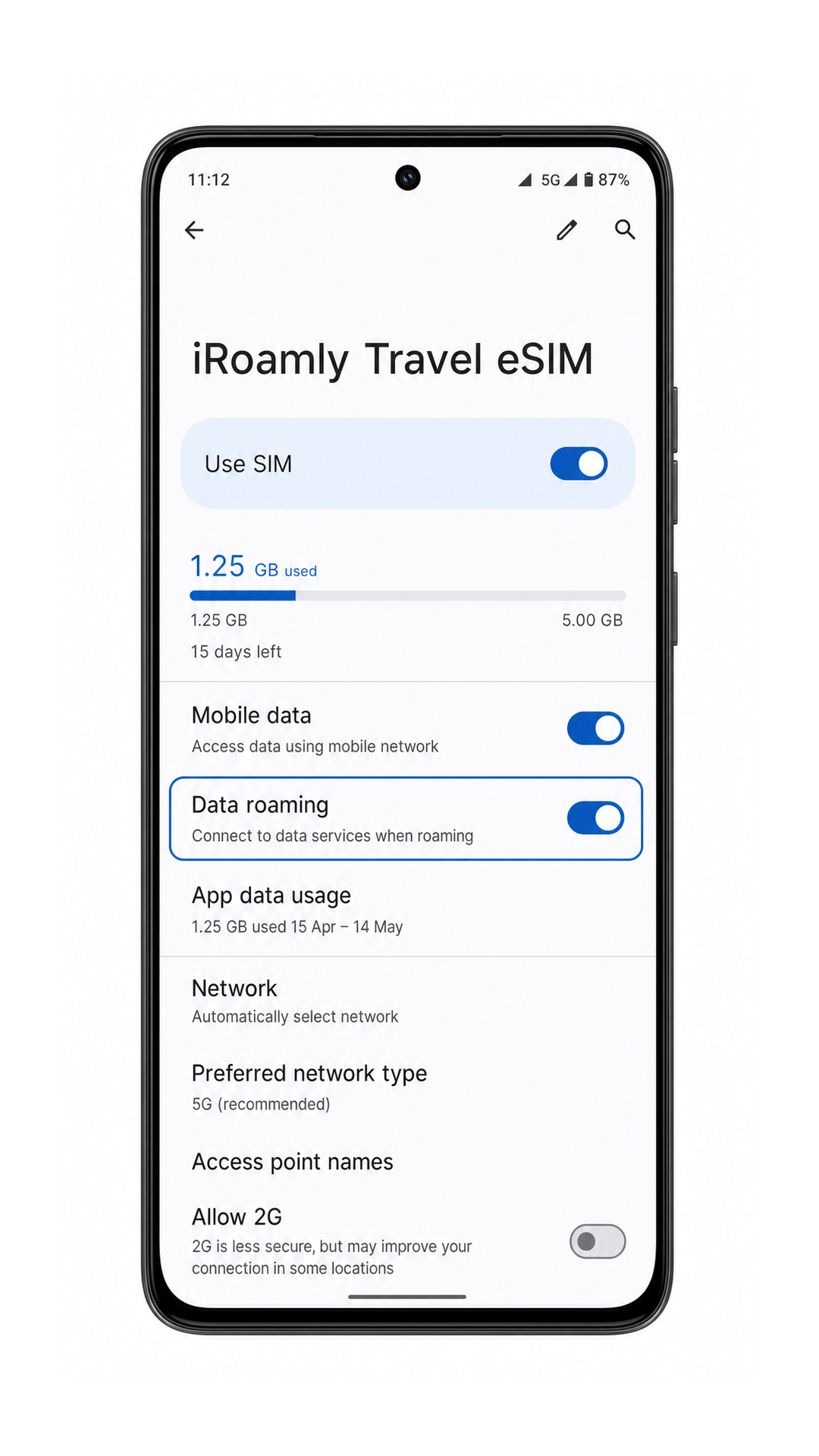
Configure eSIM for Mobile Data
In Settings > Network & internet > SIMs, set Mobile data to iRoamly Travel eSIM when you are ready to use travel data.
Open the iRoamly Travel eSIM details, turn on Use SIM, then enable Data roaming if your iRoamly destination plan requires roaming for data access.
Turn off automatic data switching, such as Smart SIM, if you want to prevent the phone from falling back to your primary SIM for mobile data while traveling.
Troubleshooting
If Add eSIM is missing, confirm your exact Edge 50 variant supports eSIM. A physical dual-SIM regional model may not be able to install an iRoamly eSIM.
If the QR code will not scan, increase screen brightness on the device showing the code, clean the Edge 50 camera lens, or use Enter code manually.
If Android says the QR code was already used, do not delete the eSIM or retry repeatedly. Contact iRoamly support with your order details.
If activation stays pending, keep Wi-Fi on, restart the phone once, then return to Settings > Network & internet > SIMs.
If there is no data after installation, select iRoamly Travel eSIM for Mobile data, turn on Data roaming when required, and check that your destination is covered by the plan.
If the manual details fail, compare every character in the SM-DP+ Address and Activation code. Avoid adding spaces before or after either value.
More Motorola Edge eSIM Setup Guides
Setting up another Motorola Edge phone? These eSIM activation guides may help.
Conclusion
For an eSIM-capable Motorola Edge 50, the QR code route is the quickest way to add an iRoamly travel eSIM because Android takes you from Network & internet to SIMs, Add eSIM, and the download screen with only a few taps. Manual entry is the better backup when scanning is not practical, as long as the SM-DP+ Address and Activation code are copied exactly.
After installation, the job is not finished until the Edge 50 shows iRoamly Travel eSIM in SIMs, the line is switched on, and mobile data is assigned to the iRoamly eSIM for your trip.
Turn on Data roaming when your destination plan needs it, keep Smart SIM off if you want full control, and check the iRoamly plan page for activation timing and voice/SMS support before you travel.